













If the on-screen keyboard does not appear when a guest taps the box for their email address or phone number on a Windows 11 touchscreen, or appears only some of the time, the cause is a Windows setting, not the app. By default Windows opens the touch keyboard only when no keyboard is attached to the computer. Set it to Always and the keyboard opens on every tap.
- Windows Settings → Time & language → Typing → Touch keyboard.
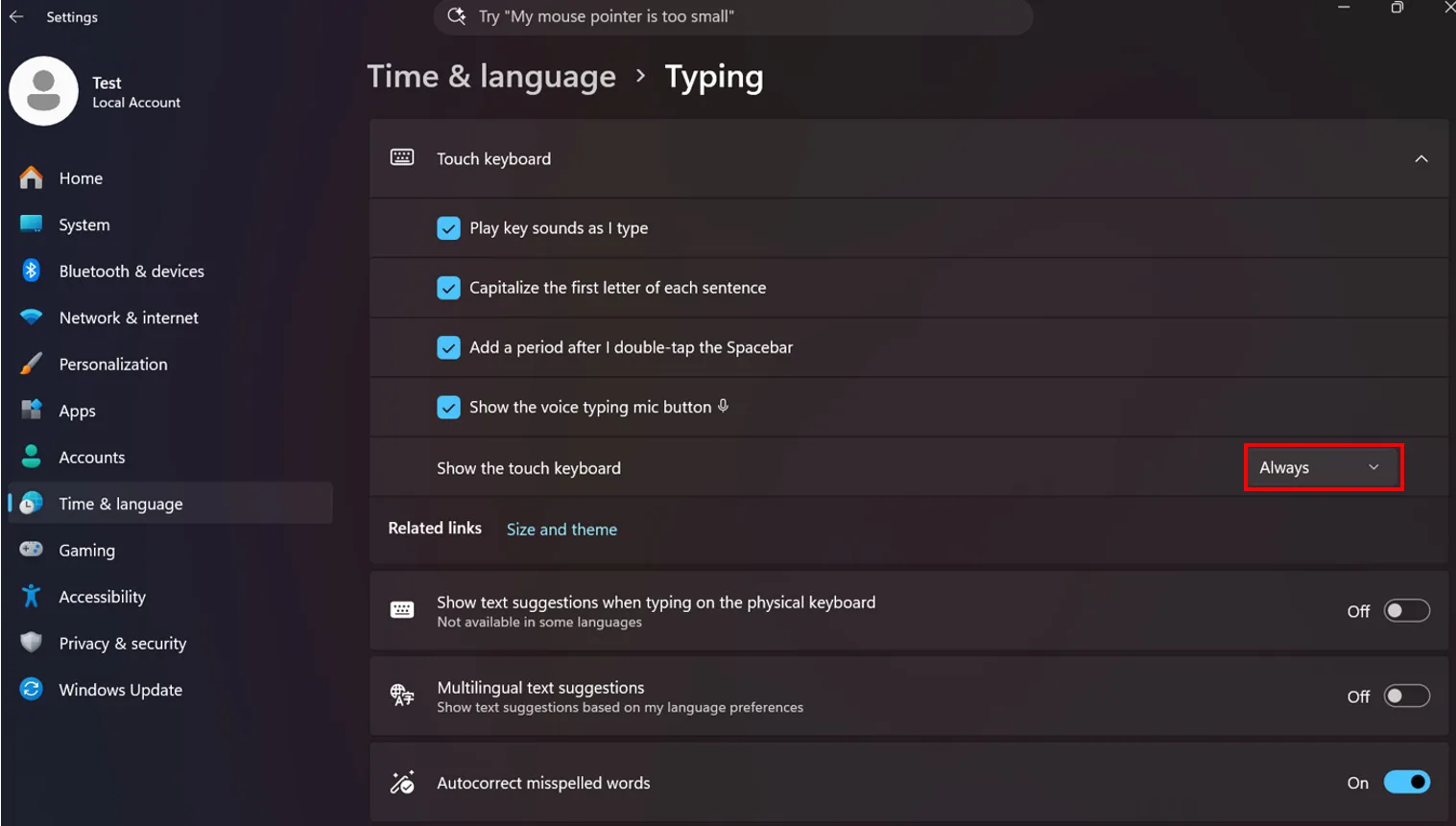
- In the Show the touch keyboard list, choose Always.
- Open the booth, tap a text box and check that the keyboard appears.
Why doesn't the keyboard appear?
In Windows, the Show the touch keyboard setting starts at When no keyboard attached. If a keyboard is connected to the computer, Windows does not open the touch keyboard by itself. Even when no keyboard is visible at the booth, these can look like a keyboard to Windows:
- A USB or wireless keyboard (even if only its receiver is still plugged in)
- A barcode or card scanner
- A Bluetooth remote or presentation clicker used to take photos
Windows 11 also sometimes fails to open the keyboard on the first tap even when no keyboard is attached. The fix is the same in both cases: set the option to Always.
Step by step
Step 1 · Open the Typing page in Windows Settings
Windows Settings → Time & language → Typing
Open Settings from the Start menu. In the list on the left, tap Time & language, then Typing. Tap the Touch keyboard row at the top to expand the section.
Step 2 · Set Show the touch keyboard to Always
Windows Settings → Time & language → Typing → Touch keyboard
Tap the list to the right of the Show the touch keyboard row at the bottom of the section and choose Always. The setting takes effect immediately; there is no save button.
| Option | What it does |
|---|---|
| Never | The keyboard never opens by itself. |
| When no keyboard attached | Default. The keyboard opens only when no keyboard is connected to the computer. |
| Always | The keyboard opens every time a text box is tapped. Choose this for the booth. |
Step 3 · Test it at the booth
Open AI Photo Booth Pro, run the event and tap the email or phone box on the sharing screen. The on-screen keyboard should appear. It closes when you tap outside the box or press the close button at the top right of the keyboard.
If you don't see this setting
The Show the touch keyboard list is available in current versions of Windows 11. If it is not on the page, Windows is out of date: update Windows from Settings → Windows Update, then repeat the steps.
This is a Windows setting; it is not tied to an event or an account. Do it once on each booth computer, and it stays after Windows restarts.
Change the setting during setup, not on event day, and test it once at the booth.
