













Before this: Event Settings — How to Use the Kiosk Tab?
When a phone or tablet runs the booth unattended, guests should not be able to leave the app or change your settings. You need two locks for this: (1) the device's own single-app lock keeps guests inside AI Photo Booth Pro: Guided Access on iPhone and iPad, App pinning on Android (Samsung calls it Pin windows or Pin app); (2) the app's Dashboard PIN keeps guests on the booth screen, so they can't open your event settings. The device lock alone still lets a guest reach the app's settings; the Dashboard PIN alone still lets a guest swipe to the home screen. Both use features already built into the device; no extra app or subscription is needed.
- An event must be created and selected. The Dashboard PIN is saved per event; if no event is selected, it is not saved.
- Sign in, open your event and run one test session: take a photo (and a video, if your event uses video), and try printing and sharing if you use them. When the device asks for access to the camera, microphone or photos, tap Allow.
- Connect the charger. The app keeps the screen on while it is open, which uses more battery than usual.
- Turn on Do Not Disturb so that calls and message banners don't appear over the booth.
Step by step
All devices Step 1 · Set a 4-digit “Dashboard PIN” in the app
AI Photo Booth Pro → Event Settings → Kiosk
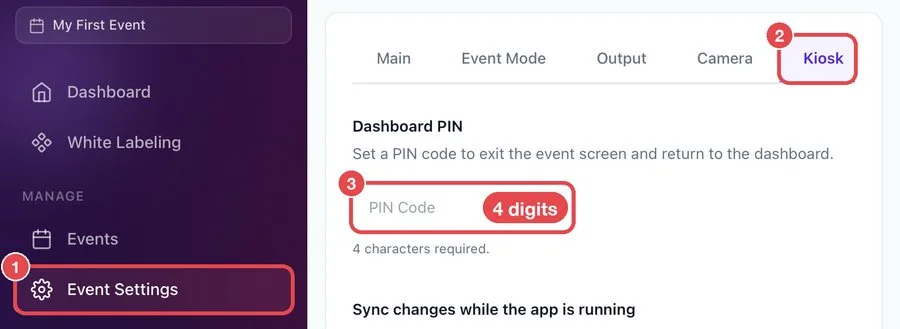
In the app menu, tap Event Settings 1, open the Kiosk tab 2 and enter a 4-digit PIN in the Dashboard PIN field 3. The PIN is saved automatically when you enter the 4th digit. The app asks for this PIN when someone tries to leave the booth screen and return to the dashboard.
🔎 Items on the screen: section title Dashboard PIN; narrow input box, placeholder PIN Code; helper text 4 characters required.
iPhone / iPad Step 2 · Turn on “Guided Access”
iPhone/iPad Settings → Accessibility → Guided Access
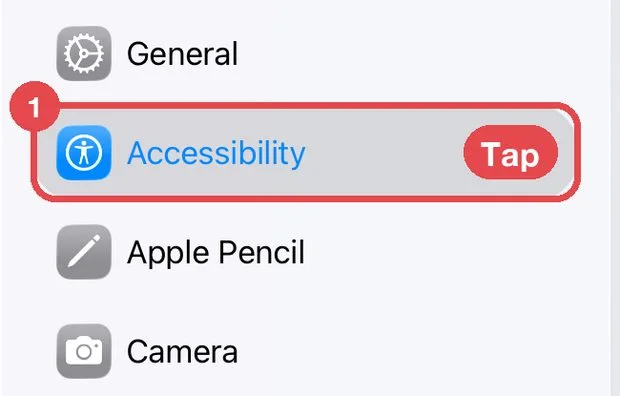
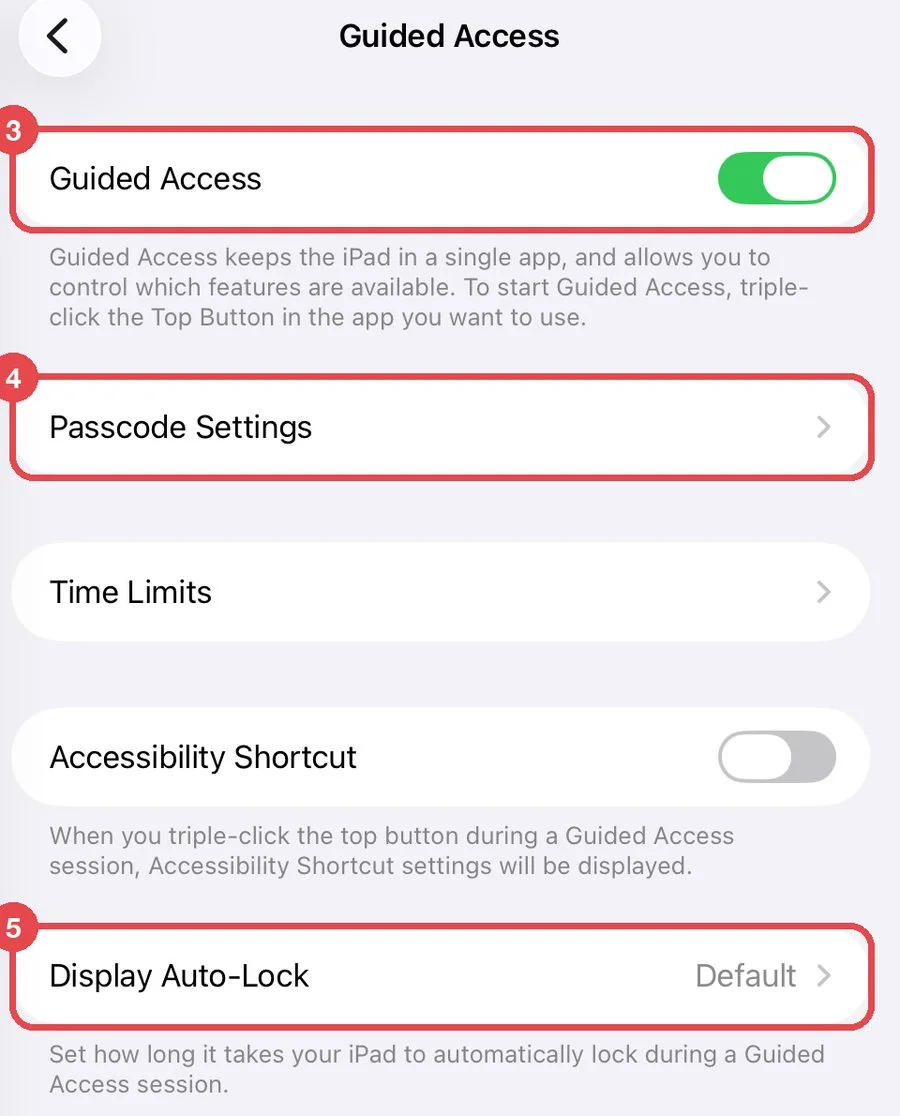
Open the device's Settings app and tap Accessibility 1. Scroll down to the General section and tap Guided Access 2. Turn the Guided Access switch on 3. Leave Accessibility Shortcut on the same page off.
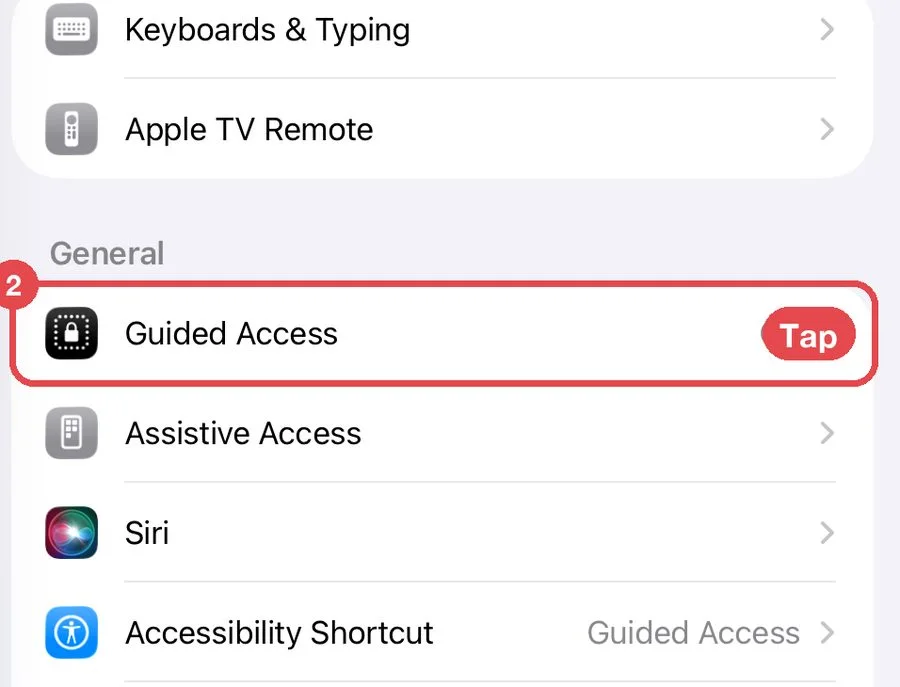
🔎 Items on the screen: switch Guided Access; rows Passcode Settings, Time Limits; switch Accessibility Shortcut; row Display Auto-Lock.
iPhone / iPad Step 3 · Set the Guided Access passcode
iPhone/iPad Settings → Accessibility → Guided Access → Passcode Settings
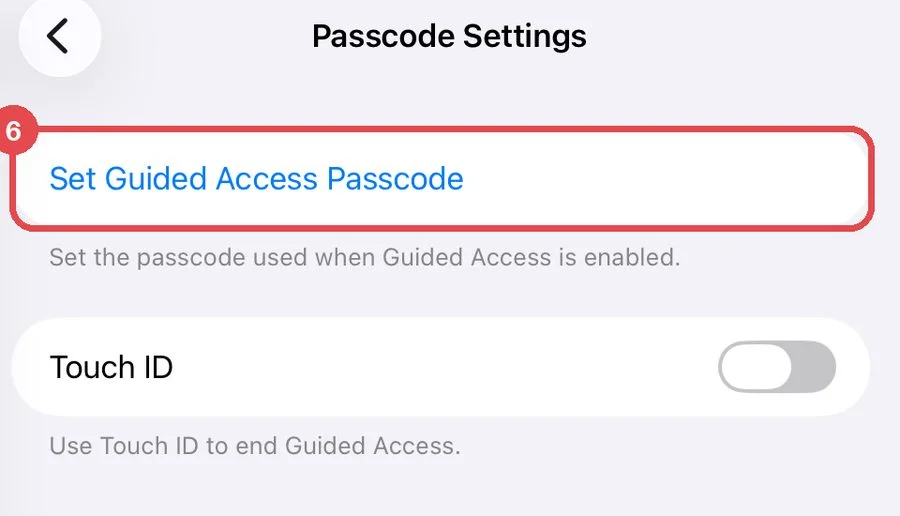
Tap Passcode Settings 4, then Set Guided Access Passcode 6, and enter a passcode twice. Use a different code from your Dashboard PIN. You can also turn on Touch ID or Face ID here, so you can end Guided Access with your fingerprint or face.
iPhone / iPad Step 4 · Set “Display Auto-Lock” to “Never”
iPhone/iPad Settings → Accessibility → Guided Access → Display Auto-Lock
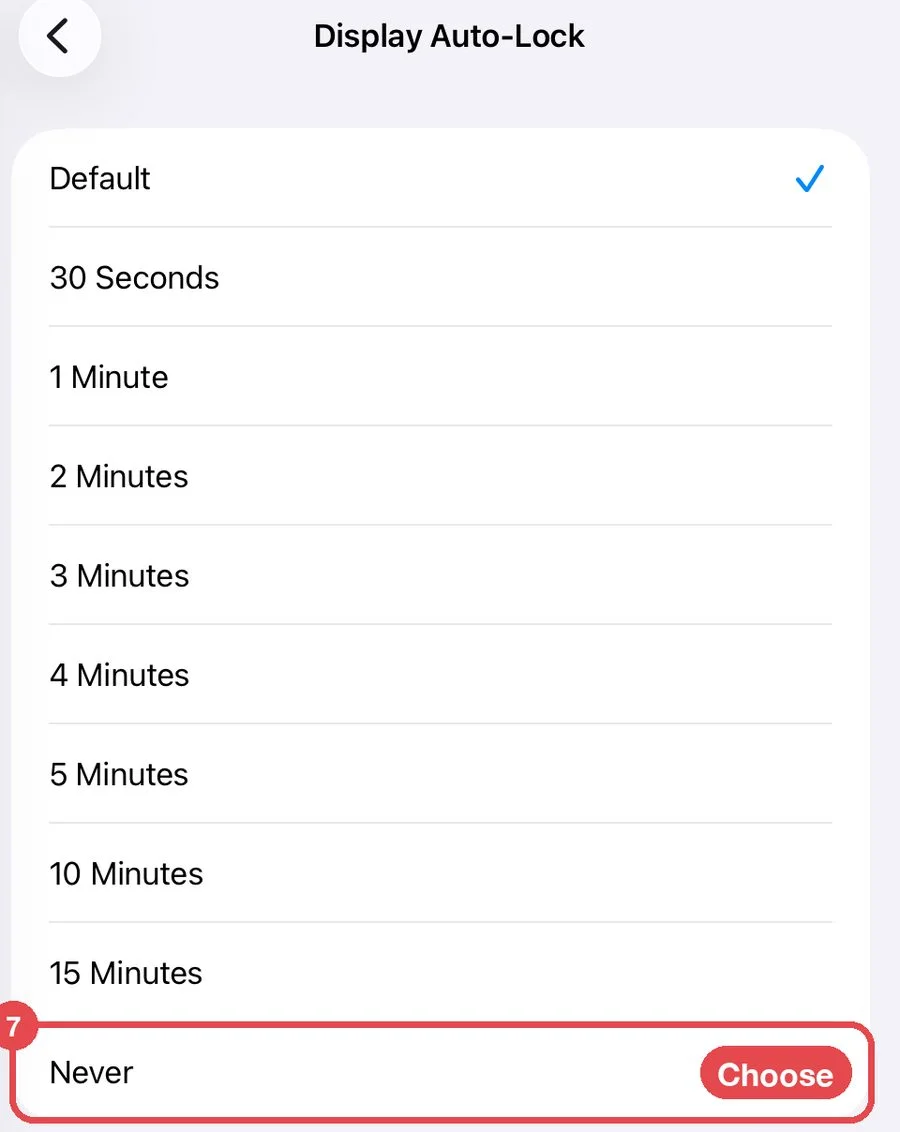
Go back, tap Display Auto-Lock 5 and choose Never 7. The screen then doesn't go dark during the event.
iPhone / iPad Step 5 · Start Guided Access on the welcome screen
AI Photo Booth Pro → Run the App → guest welcome screen
Start the booth so the guest welcome screen is showing. Triple-click the side button (iPhone with Face ID), the top button (iPad without a Home button) or the Home button (older devices). If a menu appears, tap Guided Access. Tap Options (bottom left), set them as in the table, tap Done, then tap Start (top right). Don't draw any circles on the screen.
| Option | Recommended setting |
|---|---|
| Side Button / Top Button | Off, so a guest can't lock the screen. |
| Volume Buttons | Off, unless you use them during the event. |
| Motion | Off if the device is mounted; the screen stays in its current orientation. |
| Keyboards | On. Guests need the keyboard to type an email address or phone number, or to fill in a form. |
| Touch | On. |
| Time Limit | Off. |
Android Step 6 · Give the device a screen lock
Android Settings → Lock screen → Screen lock type
Choose PIN, Pattern or Password. Swipe to unlock is not enough: without a real screen lock, the option that asks for a code when unpinning can't be turned on, and anyone can unpin the app.
Android Step 7 · Turn on “Pin windows” / “App pinning”
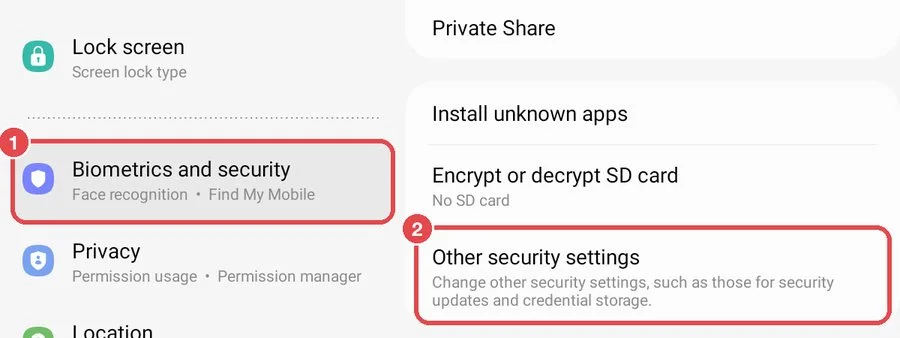
Samsung (One UI 4): Settings → Biometrics and security → Other security settings → Pin windows
The menu names depend on the manufacturer and Android version. If you can't find the menu, type pin into the search bar at the top of the Settings app.
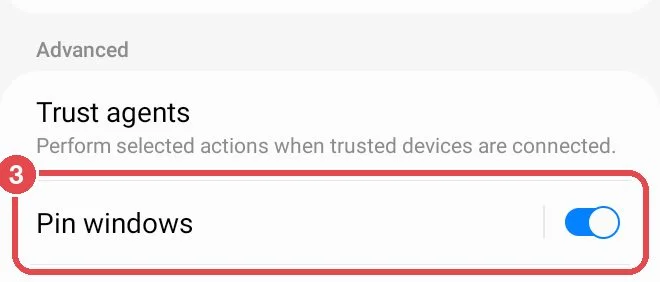
- Samsung, One UI 4 and earlier (screenshots): Biometrics and security 1 → Other security settings 2 → Pin windows 3
- Samsung, One UI 5 and later: Security and privacy → More security settings → Pin app
- Google Pixel and most other devices: Security & privacy → More security settings → App pinning
Android Step 8 · Turn on “Ask for PIN before unpinning”
… → Pin windows
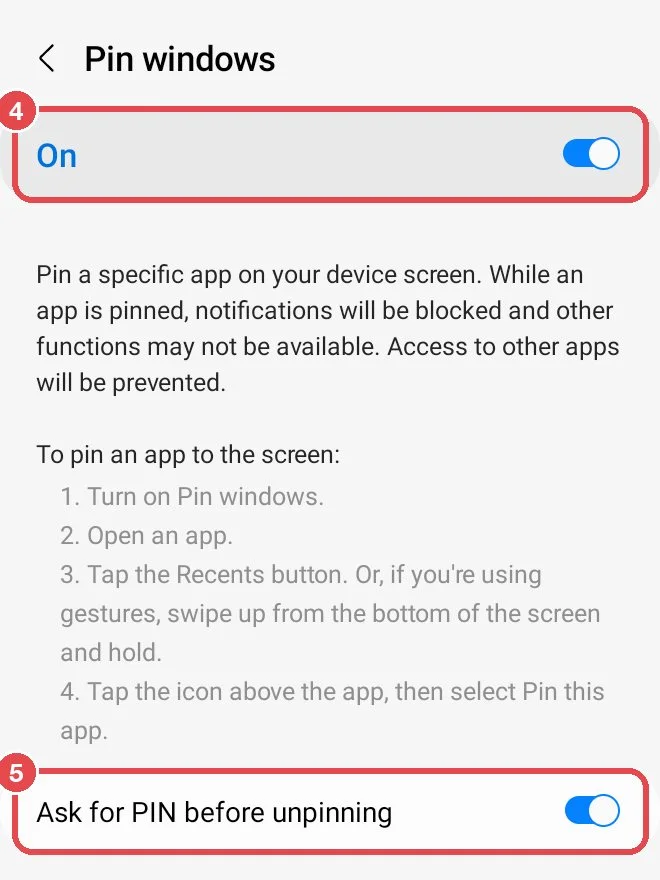
On the Pin windows page, turn on the switch at the top 4, then turn on Ask for PIN before unpinning 5. The name follows your screen lock type; without a screen lock it shows as Use screen lock type to unpin and can't be turned on.
🔎 Items on the screen: main switch On; Samsung's own pinning instructions; switch Ask for PIN before unpinning.
Android Step 9 · Pin the app on the welcome screen
AI Photo Booth Pro → Run the App → Recents
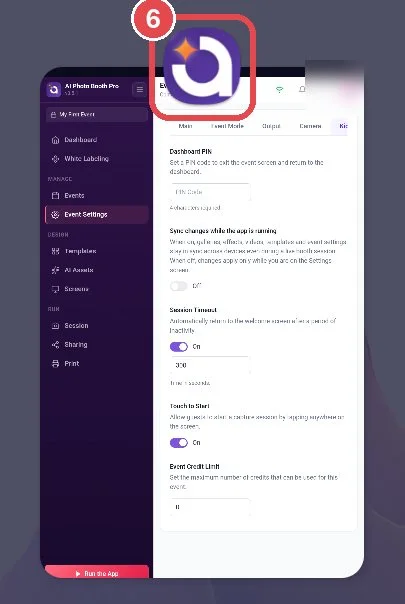
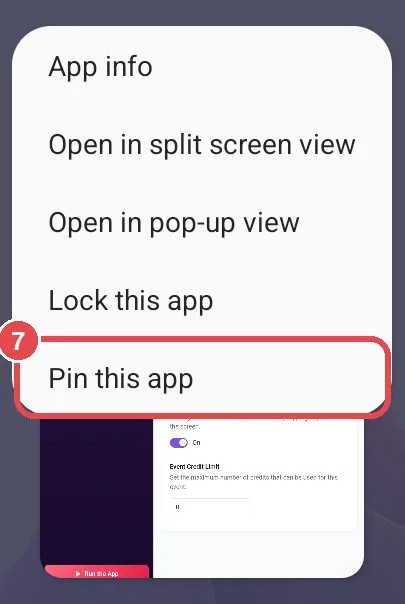
Start the booth so the guest welcome screen is showing. Open the recent apps view: tap the Recents button (on Samsung, the three lines at the bottom left), or with gesture navigation swipe up from the bottom and hold. Tap the AI Photo Booth Pro icon above its card 6, then tap Pin this app 7. On Pixel and most other devices the option is called Pin. While the app is pinned, notifications are blocked and guests can't open other apps.
All devices Step 10 · After the event, end the lock
iPhone / iPad: triple-click the same button again, enter your Guided Access passcode and tap End (top left).
Android: use the gesture for your navigation type, then enter the device's PIN, pattern or password.
| Navigation type | How to unpin |
|---|---|
| 3-button navigation | Touch and hold Back and Recents together. |
| Gesture navigation | Swipe up from the bottom and hold. |
| 2-button navigation | Touch and hold Back and Home together. |
- The Dashboard PIN is saved only when it is exactly 4 digits.
- Keep two codes: the Guided Access passcode or Android screen lock unlocks the device; the Dashboard PIN unlocks the app's settings. Keep both where your staff can find them and guests can't.
- Finish all setup first (sign in, event, printer, camera). To change anything later, end Guided Access or unpin the app.
- If the device restarts (for example, the battery runs out), unlock it, open the app, start the booth and lock it again.
- Using a Bluetooth remote or keyboard to take photos? Press it once after locking to check that it still works.
- Turning “Keyboards” off in Guided Access options: guests can no longer type an email address or phone number.
- Drawing circles on the screen when starting Guided Access: the circled areas stop responding to touch.
- Leaving an Android device on swipe to unlock: “Ask for PIN before unpinning” can't be turned on and anyone can unpin the app.
- Relying on the Dashboard PIN alone: guests can still swipe to the home screen and open other apps.
- Expecting the app to open by itself after a restart: “Run on Startup” is only available on Windows/macOS; on iOS and Android you start the app and the lock yourself.
Device menu names are based on Apple's, Google's and Samsung's own help pages and on a Samsung Galaxy Tab A7 (One UI 4.1) and an iPad (iPadOS 26). They may differ slightly on your device and system version.
