It describes the most common symptoms on the side of sharing (QR/email/SMS), cloud sync, internet connection and login (login with Activation King/email code OTP) on Activation King photo booth kiosk along with actual error messages verified from the code. Each item contains a symptom + cause + solution.
- Most issues require an active internet connection — login, sharing, and cloud sync do not work when the kiosk is offline
- An event must be selected before sharing settings (Email / SMS) can be edited — if the event is not selected, the sharing tabs will remain blank (Select an Event)
- Email and SMS sharing is OFF by default in the new activity — testing and sending cannot be done until the user turns on the toggle in the relevant tab
- For AI features (AI Effects, Face Swap, AI Video) the account must be on the Pro AI or Ultimate AI plan
- If the event is retrieved to Offline Modea, AI, sharing and cloud features are intentionally disabled
step by step
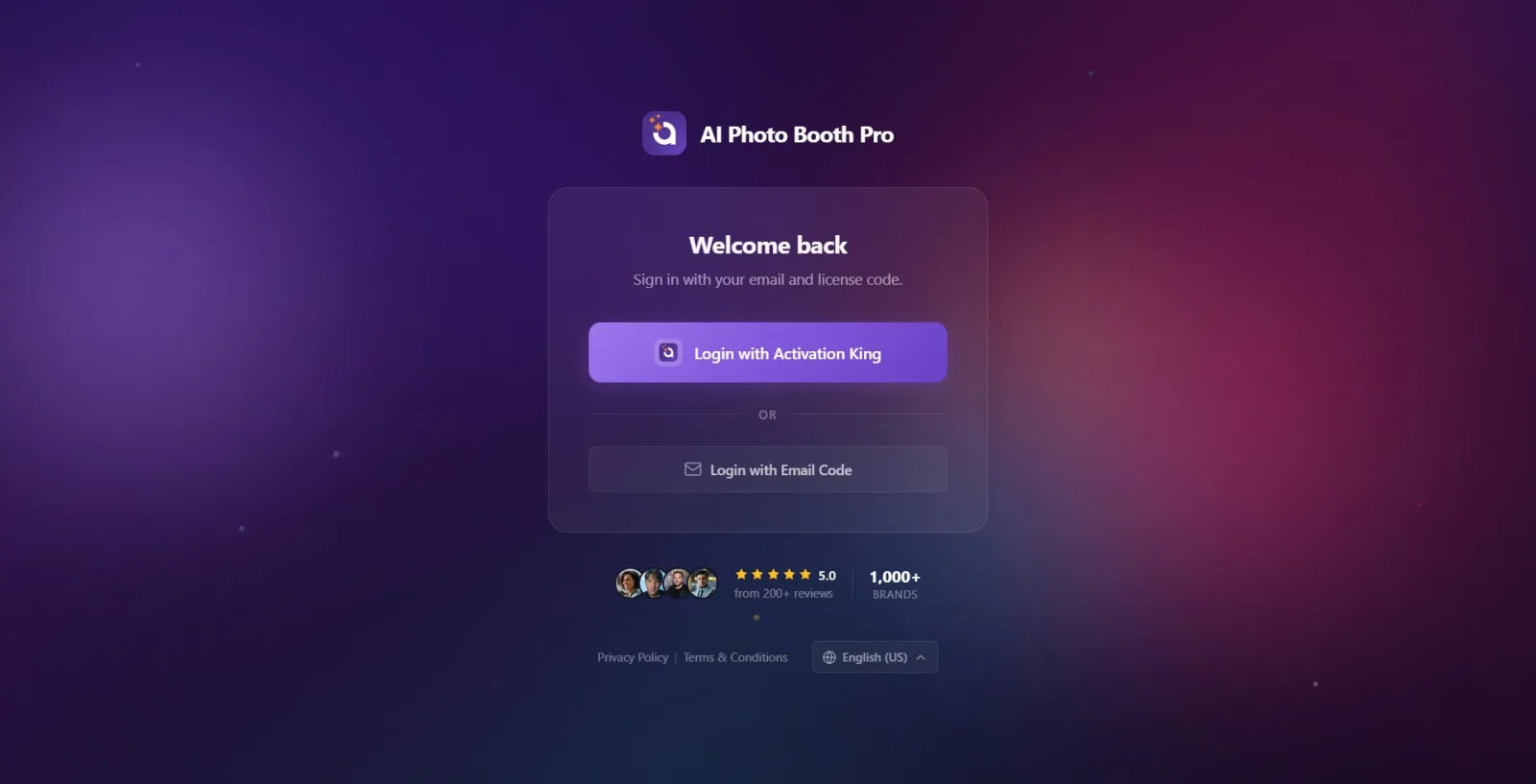
Symptom: Login buttons do not appear at all on the login screen
Login screen
Cause: There is no internet connection. The login screen hides the Login with Activation King and Login with Email Code buttons until the connection arrives; A connection waiting warning appears instead (code: LoginPage.razor, InternetConnected=false branch). Solution: Check the device's Wi-Fi/Ethernet connection; As soon as the connection is established, the warning disappears and the buttons appear automatically (no need to refresh manually — it triggers the ConnectivityChanged event). Note: on Android the connection check always returns 'online' (AlwaysOnlineConnectivityService — for ICMP ping issue); This banner does not appear there.
🔎 Items on the screen: Waiting for internet connection (WaitingForInternet)
Symptom: Login screen gets stuck on 'Checking your account', buttons do not appear
Login screen
Cause: Internet is available but the application startup flow (AppStartupFlow) is not finished yet — automatic login attempt / user information query (userinfo/refresh) continues in the background. The buttons are activated only when AppReady (startup flow finished + login not logged in) (code: LoginViewModel.UpdateAppReadyState). Solution: Wait a few seconds; If the server is slow, the check may take longer. If the device has been logged in before, when the flow is completed, it goes directly to the panel (this screen is skipped). If it hangs for a long time, check the internet quality and restart the app.
🔎 Items on the screen: Checking your account (CheckingAccount)
Symptom: Email verification code (OTP) not arriving
Login via Email (Send Code / Verification)
Reason: The code sending failed on the server or the email may have gone to wrong/spam. If 'Send Code' is pressed while the e-mail field is empty, a field error occurs; If the transmission fails, a server message or general error is shown. Solution: (1) Type the e-mail address correctly (a warning appears if it is empty). (2) Check your spam/junk folder. (3) Tap Resend Code in step 2 (there may be a short-term re-send limit, you can request again as soon as the countdown ends). (4) If you entered the wrong address, correct it with Change Email.
🔎 Items on the screen: Please enter your email address. (PleaseEnterEmail) · Failed to send verification code. (OtpSendFailed) · Resend Code (ResendOtpCode) · Change Email (ChangeEmail)
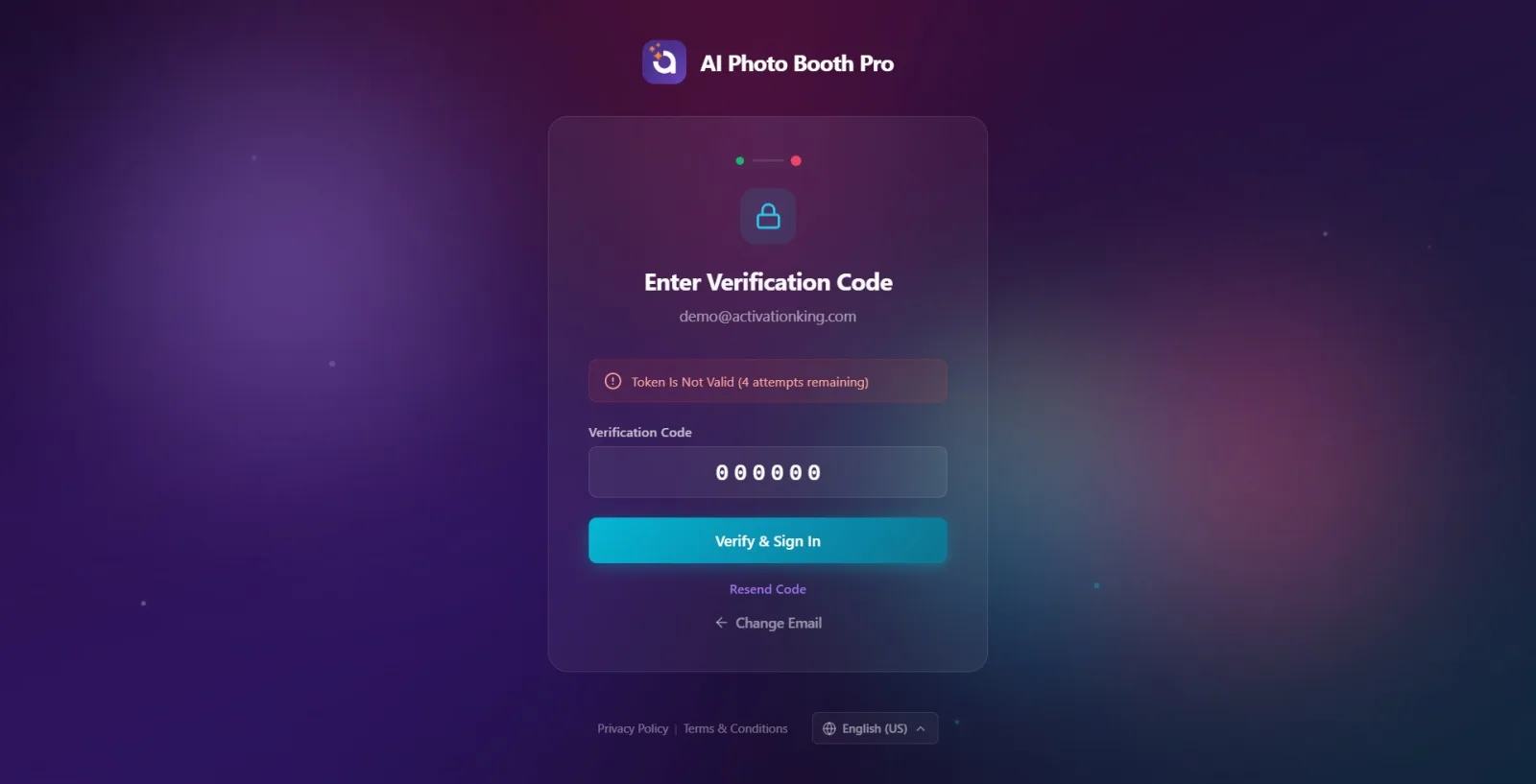
Symptom: Entered verification code is not accepted ('X attempts left')
Enter Verification Code (step 2)
Cause: The code is incorrect or out of date. The server returns the number of remaining rights (RemainingAttempts) for each incorrect attempt; The application shows the remaining right next to the error message (code: LoginViewModel.VerifyOtpAsync). Solution: Copy and paste the code from your email application (the field only accepts 6 digits). If you are unsure, get fresh code with Resend Code as it may be outdated (old code becomes invalid).
🔎 Items on the screen: Verification failed. Please try again. (OtpVerifyFailed) + '(3 attempts remaining)' (OtpAttemptsRemaining, {0}=remaining equity)
Symptom: Code field is locked, I can no longer enter codes
Enter Verification Code (step 2)
Cause: Too many wrong attempts — the server reduced the remaining allowance to 0, the application disabled the code input box and the 'Authenticate and Log In' button (IsCodeInputDisabled=true). Solution: Tap the Resend Code link; When a new code is requested, the trial right is reset and the field is reopened. Trying the old code again won't work.
🔎 Items on the screen: 'Too many failed attempts. Please request a new verification code.' (OtpAttemptsExceeded) · 'Resend Code' (ResendOtpCode)
Symptom: 'Sign In with Activation King' stuck / not returning from browser
Login screen → system browser → Authenticating...
Cause: This method opens the login page in the system browser (Windows: default browser, Android: Chrome Custom Tabs, iOS/Mac: Safari) and waits for a callback. If the user closes the browser/abandons the process, the callback never comes and the application waits on the Authenticating... screen. Solution: On Windows and Android, tap the 'Cancel' button on the standby screen to return to the home screen and try again (on iOS/Mac, the Safari session has its own cancellation). If it times out, the application will show an error and return to the login screen. In conscious cancellation, no error banner is displayed and the user returns to the login screen silently.
🔎 Items on the screen: Authenticating... (Authenticating) · Cancel (Cancel) · on error Login timed out. Please try again. (OAuthTimeout) / Sign-in could not be completed. Please try again. (OAuthSignInIncomplete) / Login failed. Please try again. (LoginFailed)
Symptom: Device suddenly logged out / 'Device Signed Out'
Login screen
Cause: The account is logged in on another device or the device limit has been exceeded or the license has expired — the server has invalidated the session for this device. Solution: Log in again. If you see Device Limit Exceeded, sign out of an unused device (Settings → Account). If 'license has expired', renew your subscription. An account cannot be used on multiple kiosks simultaneously.
🔎 Items on the screen: Device Logged Out (DeviceLoggedOut) · Device Limit Exceeded (DeviceLimitExceeded) · License time exceeded. Renew your subscription. (LicenseTimeExceeded)
Symptom: Login is successful, but the panel does not open (payment screen appears)
Entrance → Payment (Paywall)
Cause: Login is verified but the account requires active payment/subscription (PaywallRequired=true). In this case, the session is not fully opened, the payment screen is shown instead of the panel (code: LoginViewModel — If PaywallRequired, IsLoading is turned off and the page does not change). Solution: Complete the payment/subscription step; Once completed, you will be automatically moved to the panel (Event Management). The Completing your purchase... screen appears while the payment is being processed on mobile. This is not a mistake, it is a payment gateway.
🔎 Items on the screen: Completing your purchase... (CompletingPurchase)
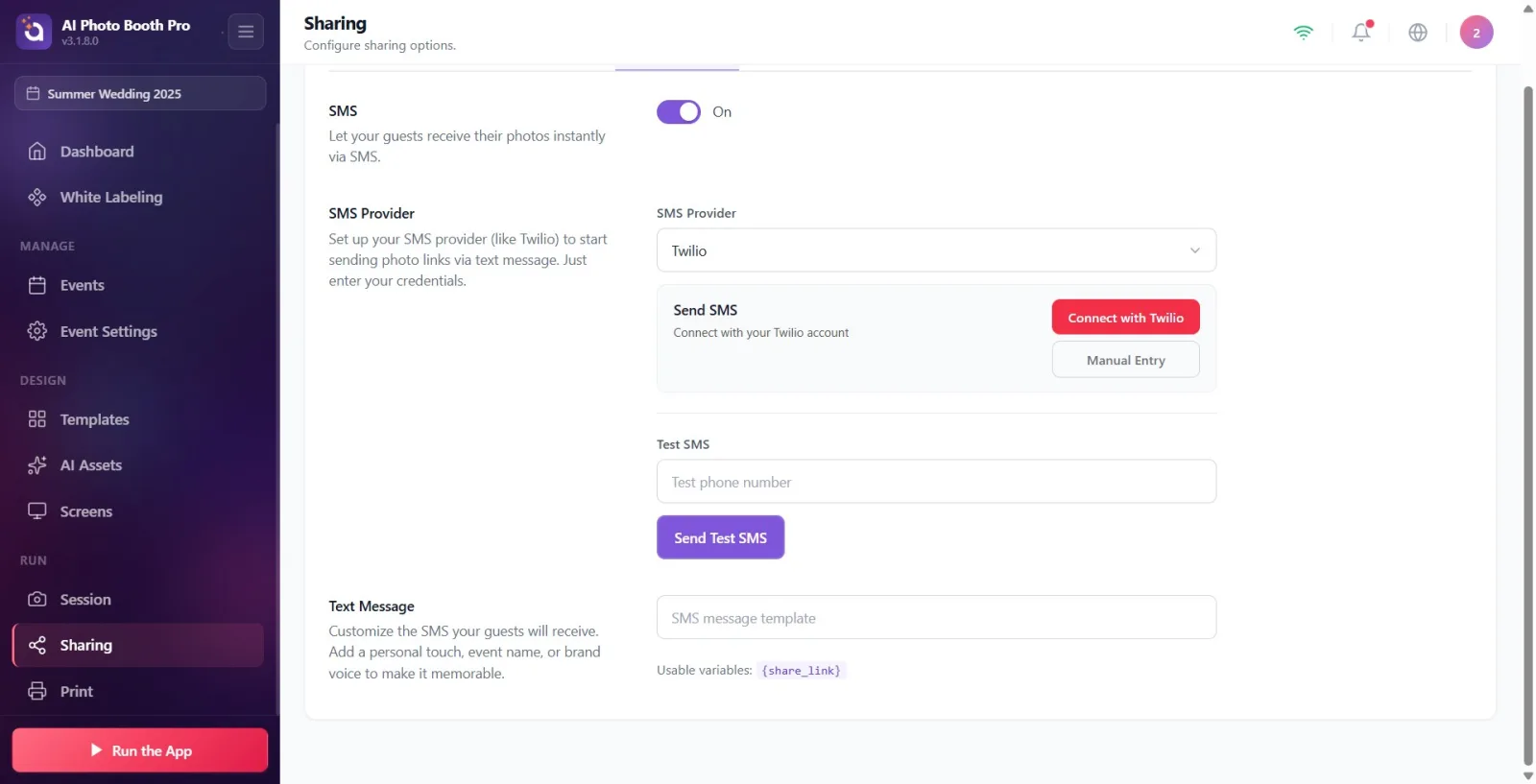
Symptom: Test SMS does not reach the phone
Sharing → SMS Sharing
Cause: The SMS provider is not connected/configured or the information entered is incorrect. Only Twilio is supported; If the provider setting is empty when Twilio is not connected, the request goes as 'Custom' and drops with an invalid-provider error. The test button silently does nothing if pressed with the blank phone number; If the transmission is not completed within 30 seconds, it is considered unsuccessful. Solution: (1) Make sure SMS toggle is on. (2) Connect to Twilio (Account SID / Auth Token / sender number with Connect with your Twilio account or Manual Entry). (3) Enter a valid phone number for testing and press Send Test SMS. If successful, green confirmation and success message appear.
🔎 Items on the screen: Failed: Could not send Test SMSi.' (TestSmsFailed) · Success: 'Test SMS was sent to your phone number.' (TestSmsSent) · button: Send Test SMS (SendTestSMS)
Symptom: Can't connect to Twilio for SMS ('Connection failed')
Sharing → SMS Sharing → Twilio Connect modal
Reason: The Account SID / Auth Token / sender number entered in the manual connect modal could not be verified by Twilio (code: SharingSmsViewModel.ConnectTwilioAsync — TwilioConnectFailed=true if success=false). Solution: Copy the Account SID (starts with AC) and Auth Token values exactly from the Twilio console; Enter the sending number in international format (e.g. +15550001234). If the information is correct, the card turns green and the Twilio Connected label + the linked number appears. Alternatively, you can use the web login flow with Connect with your Twilio account.
🔎 Items on the screen: Connection failed. Check your details. (TwilioConnectFailedMsg) · while connected Twilio Connected (TwilioConnectedLabel) · Connecting... (Connecting)
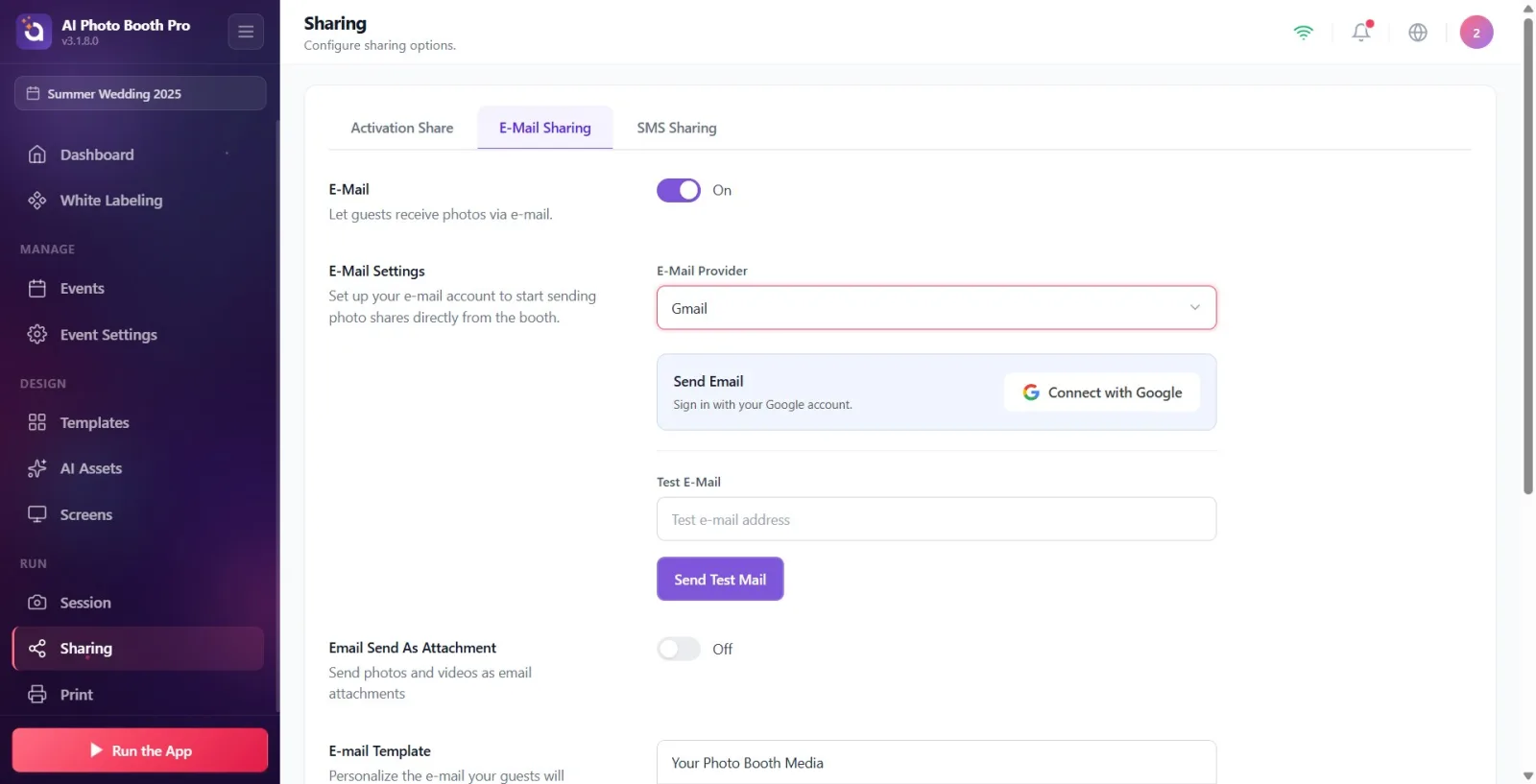
Symptom: Test email does not go to guest/address
Sharing → E-Mail Sharing
Cause: The email provider is not connected or the SMTP information is incorrect. If Gmail/Outlook is selected, the account must be connected via OAuth; When not connected, the SMTP username/password/server/port fields are visible and must be filled out. If the test button is pressed with an empty test address, it does nothing; In case of failure, the result code returned from the server is shown as a message. Solution: (1) Make sure the email toggle is on. (2) 'Connect with Google' for Gmail/Outlook / Connect with Outlook (when connected, it says 'Emails will be sent from this account without a password. No need for SMTP settings.'). (3) If you are using private SMTP, enter the username, application password, server (e.g. smtp.gmail.com) and port (e.g. 587). (4) Type a valid test address and press Send Test Mail.
🔎 Items on the screen: Success: The test email was sent to your mail address. (TestEmailSent) · button: Send Test Mail (SendTestMail) · connected information: Google Account Connected (GoogleAccountConnected) / 'Emails will be sent from this account without a password...' (OAuthEmailInfo)
Symptom: Sharing tabs are blank / test areas do not appear at all
Sharing (E-Mail / SMS)
Cause: Two possible cases: (a) No events selected — sharing settings are loaded only when an event is selected (code: LoadSettings, early exit if !IsEventSelected). (b) Email/SMS toggle off — when off, only the toggle is visible, the provider and test sections are hidden (default OFF in the new event). Solution: (1) First select/create an event. (2) Open the top toggle E-Mail / SMS in the relevant tab; When the sections are opened, the provider and test areas appear.
🔎 On-screen items: Select an Event (SelectAnEvent) · tab titles: E-Mail Sharing (EmailSharing), SMS Sharing (SMSSharing)
Symptom: QR code / Gallery button not visible in Booth, guest cannot share
Sharing → Activation Share
Cause: In the Activation Share section, the relevant switches may be turned off (Activate QR Code / Gallery button / Share) or the activity is not selected. These switches are per-event settings and control sharing options on the guest screen. Solution: Verify that Enable QR Code and other required keys are turned on in the Sharing → Activation Share tab. An event must be selected for the micro-site preview (otherwise the Select an Event warning will appear and the preview button will remain inactive).
🔎 Items on the screen: Enable QR Code (EnableQRCode) · Activation Share (ActivationShare) · Select an Event (SelectAnEvent)
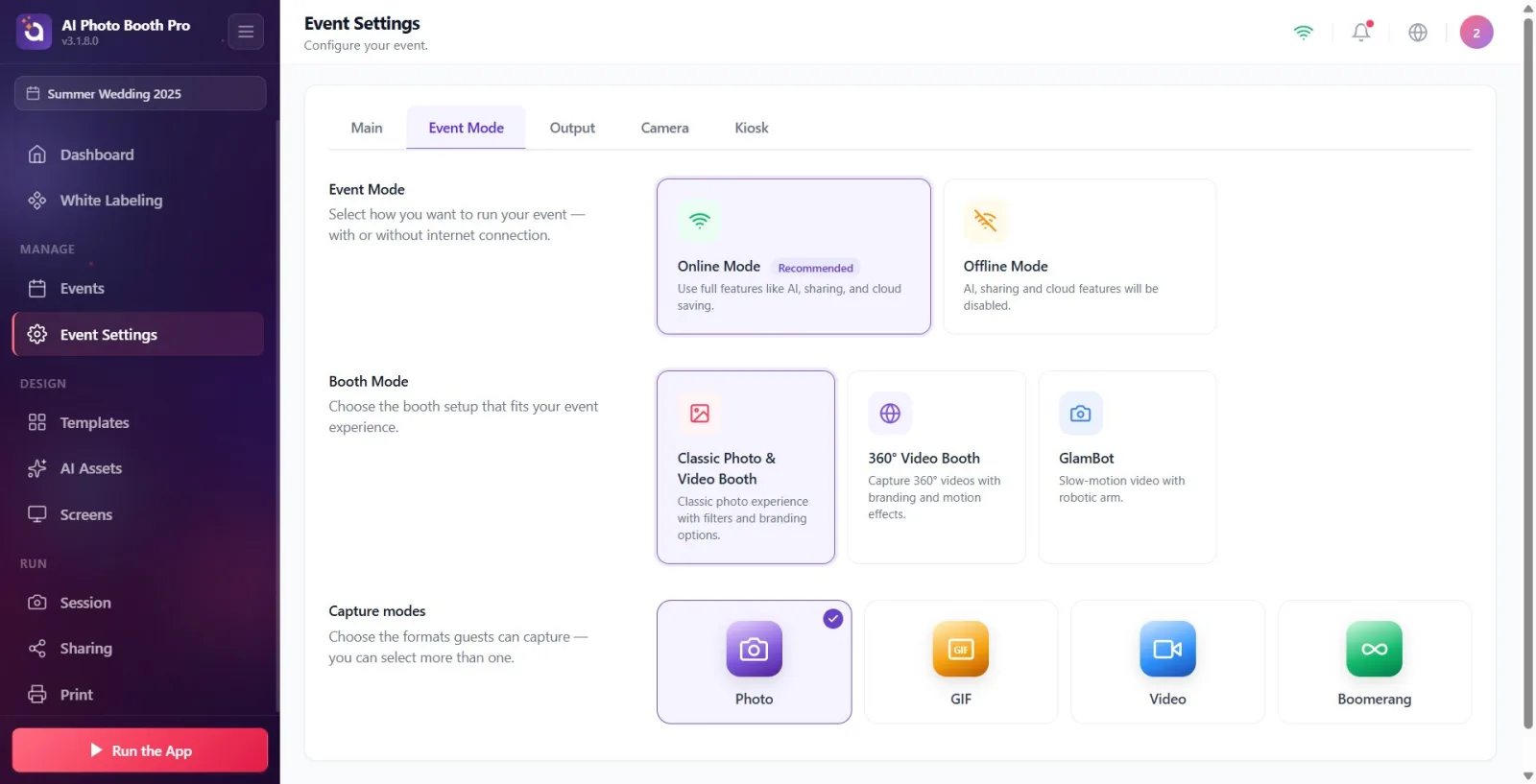
Symptom: AI, sharing and cloud saving not working (not even any errors)
Event Settings → Event Mode
Cause: Event Offline Modea was taken. This mode intentionally disables AI/sharing/cloud features (designed to work without internet). Solution: In Event Settings → Event Mode, change the card to 'Online Mode' (Recommended). In online mode, all features including AI, sharing and cloud saving are unlocked.
🔎 Items on the screen: Offline Mode — AI, sharing and cloud features will be disabled. (OfflineMode/OfflineModeDesc) · Online Mode — 'Use all features like AI, sharing and cloud saving.' (OnlineMode/OnlineModeDesc, 'Recommended' badge)
Symptom: AI Effects / Face Swap / AI Video does not open, has lock banner
AI Assets / AI tabs
Cause: The account's plan is insufficient for these features — AI Effects, Face Swap, and AI Video require the Pro AI or Ultimate AI plan. When the plan is insufficient, the lock banner is shown instead of the page content (code: AiAssets.razor, !IsAllowed branch). Solution: Open the payment/upgrade screen and upgrade your plan via the 'Upgrade to Pro AI' button in the banner. AI sections are unlocked after the upgrade.
🔎 Items on the screen: Pro AI or higher required (AiAssetsProRequired) · 'Your current {plan} account. 'Upgrade to Pro AI or Ultimate AI for AI Effects, Face Swap and AI Video.' (AiAssetsProRequiredSub) · button: Pro AIa Upgrade' (UpgradeToPro)
Symptom: 'Importing X/Y...' counter stuck on Gallery top right
Gallery
Cause: The counter shows sessions downloaded from the cloud and provisioned locally (media-pull + AtomicSwap pending, NotReadyToUse): If a session's media download does not complete, that session will remain permanently 'pending' and the timer will not progress (a timeout guard is deliberately omitted — to make mounted pulls visible). Solution: (1) Check the Internet connection; Pull is usually completed when the connection is restored. (2) Wait a while in the gallery — the app will automatically promote pending downloads to the priority queue (PromotePendingImports). (3) If it gets stuck permanently, close and reopen the activity or restart the app to complete the sync.
🔎 Items on the screen: Importing... (Importing) — counter format: 'Importing X/Y...'
Symptom: Media/thumbnails not loading, gallery appears empty
Gallery / Event import
Cause: The gallery may be being viewed before the cloud sync is complete — sessions are in 'importing' status while media has not yet landed locally; or the cloud is down because the activity is at Offline Mode; or no internet. Solution: (1) Verify internet connection. (2) Wait until the 'Importing X/Y...' counter in the top right finishes — once it resets, all media will be visible. (3) Make sure the activity mode is Online (if offline cloud/media sync will not work).
🔎 Items on the screen: Importing... (Importing) · Offline Mode (OfflineMode) · Waiting for internet connection (WaitingForInternet)
Before posting, be sure to test it with the Test button: if you see a green confirmation + success message, the provider is configured correctly.
For email, it's easiest to connect Gmail/Outlook with OAuth — no need to enter SMTP username/password/server/port while connected ('Mails will be sent from this account without password').
Only Twilio is supported for SMS; Copy the sender number and Auth Token/Account SID verbatim from the Twilio console, write the number with +country code.
The OTP code is 6 digits long and consists of numbers only; duration is limited — if unsure, get fresh code with Resend Code (old code becomes invalid).
If event is at Offline ModeAI/sharing/cloud is off; In an internet installation, be sure to select Online Modeu (Recommended).
If the Gallery 'Importing X/Y...' counter is ticking, synchronization is healthy; just wait. If it hangs the same number for a long time, investigate the internet/sync issue.
Looking for login buttons when there is no internet — only Waiting for internet connection appears until the connection comes up, then the buttons appear.
Trying to send a test without turning on the sharing toggle — When Email/SMS is turned off, the test fields do not appear at all (default is off in the new event).
Trying to edit sharing settings without selecting an event — the settings are only loaded when an event is selected.
Sending test in SMS without connecting Twilio — when there is no connection the request drops to the 'Custom' provider and Test SMSi could not be sent.' error is received.
Pressing the Test button with an empty test address/phone and waiting for a response — while the field is empty, the button silently does nothing (it doesn't even show an error).
Re-writing the old code in the OTP field, which was locked after many incorrect attempts - first it is necessary to get a new code with Resend Code and open the field.
Mistaking sharing/AI not working on Offline Mode as a malfunction — this mod deliberately turns off these features; It is necessary to switch to Online Modea.
Thinking that it is a mistake if the panel does not open even though the login is successful - if the account requires payment, paywall comes first, and when the payment is completed, the panel is opened.
Related topics
Sharing Settings (E-Mail / SMS / Activation Share) Login to the Application (Login / Email Code with Activation King) Activity Mode (Online / Offline) AI Assets and Blueprint Upgrade Subscription and Payment (Paywall)