
Before this: What are Sharing Settings and How to Configure them?
To enable guests to receive photo/print links via text message (SMS), you enable SMS in the SMS Sharing tab in Sharing settings, connect your own Twilio account, verify with a test SMS, and customize the message text to the guest. SMS are sent through your Twilio account; Fees and limits depend directly on Twilio.
- sharing-settings
step by step
Step 1 · Open SMS Sharing tab
Sharing → SMS
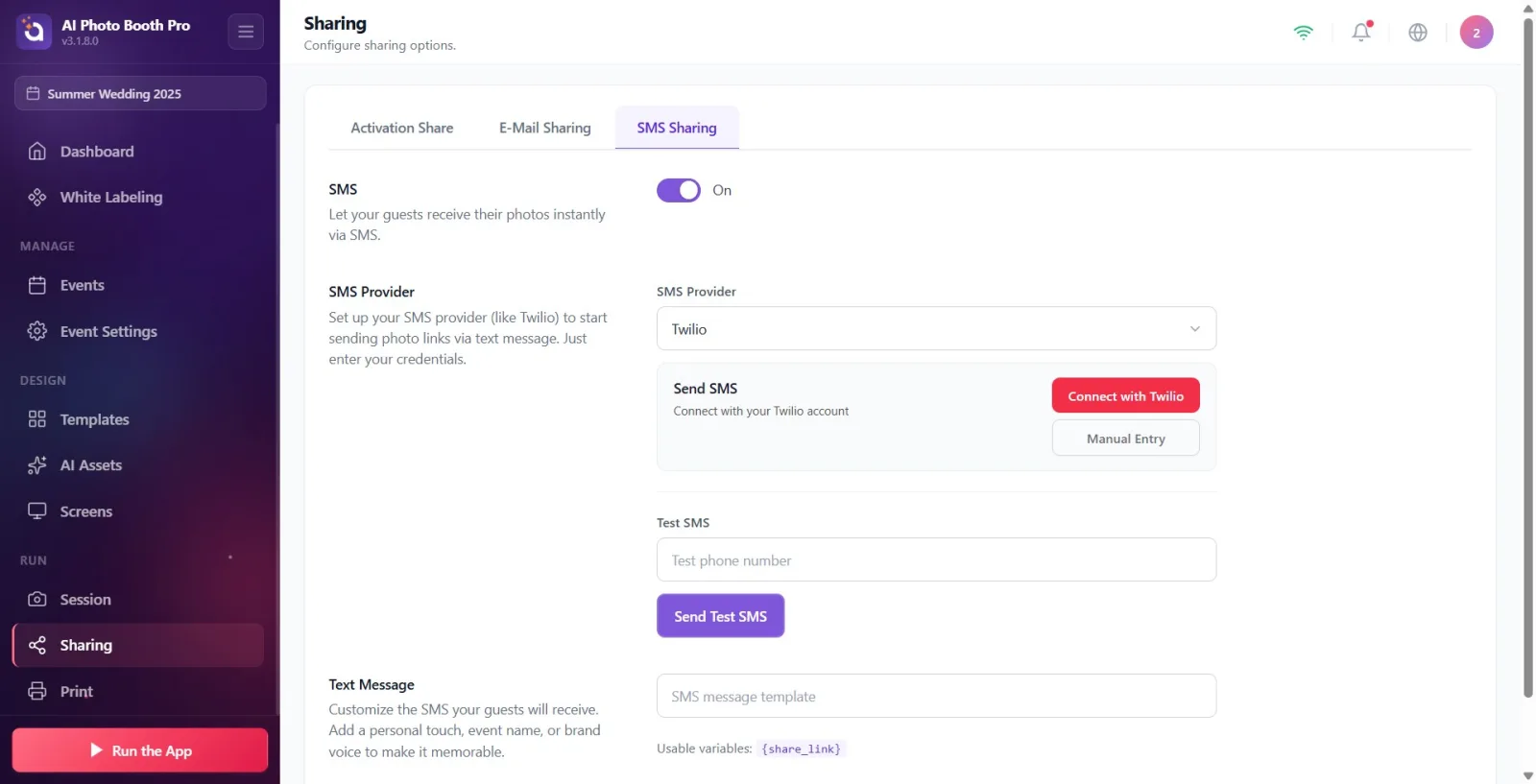
Open the Sharing page from settings. The top tab strip has three tabs: Activation Share, E-Mail Sharing, and SMS Sharing. Click the SMS Sharing tab; SMS settings open in this tab.
🔎 Items on the screen: Top tab strip: Activation Share / E-Mail Sharing / SMS Sharing.
Step 2 · Enable SMS sharing
Sharing → SMS
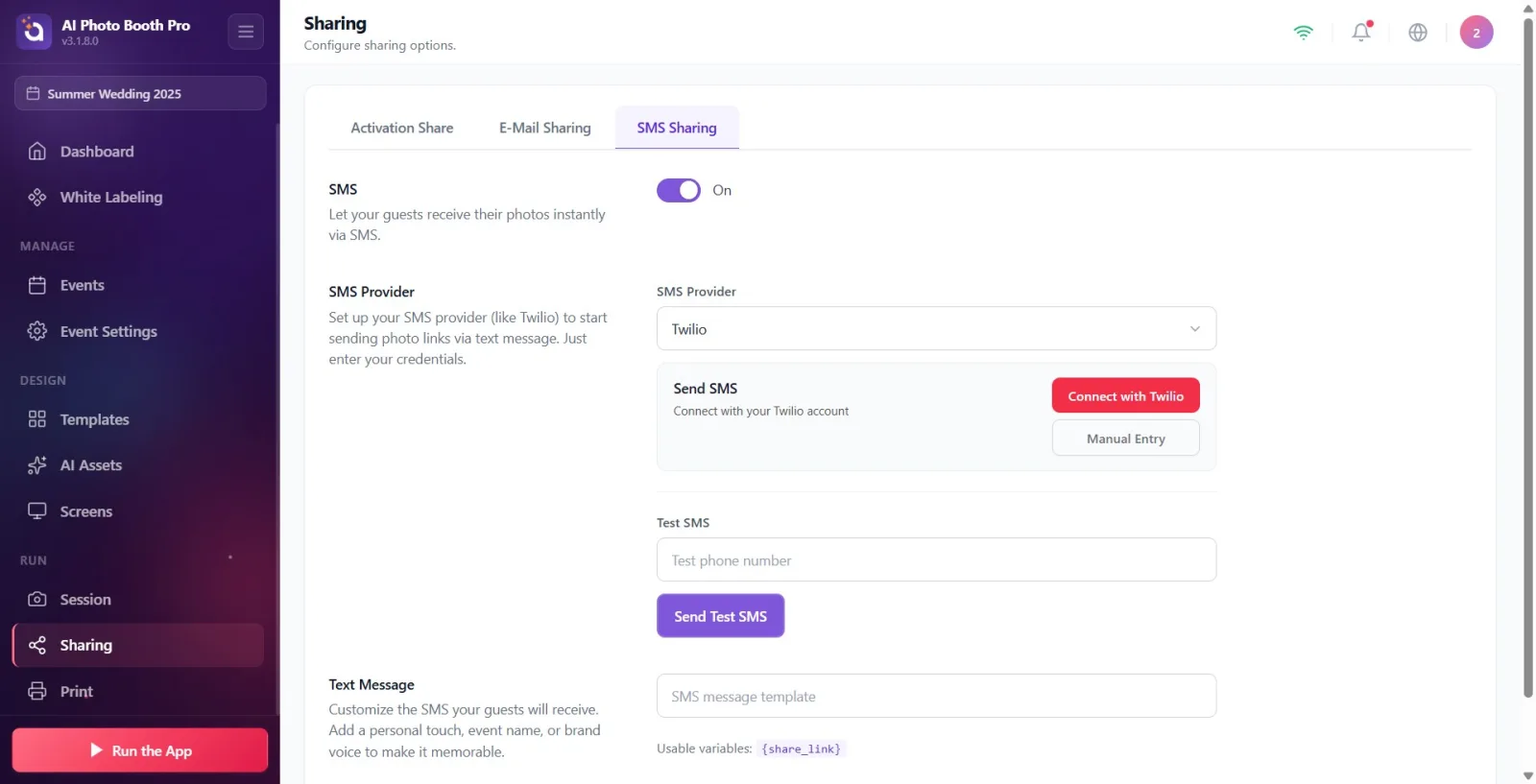
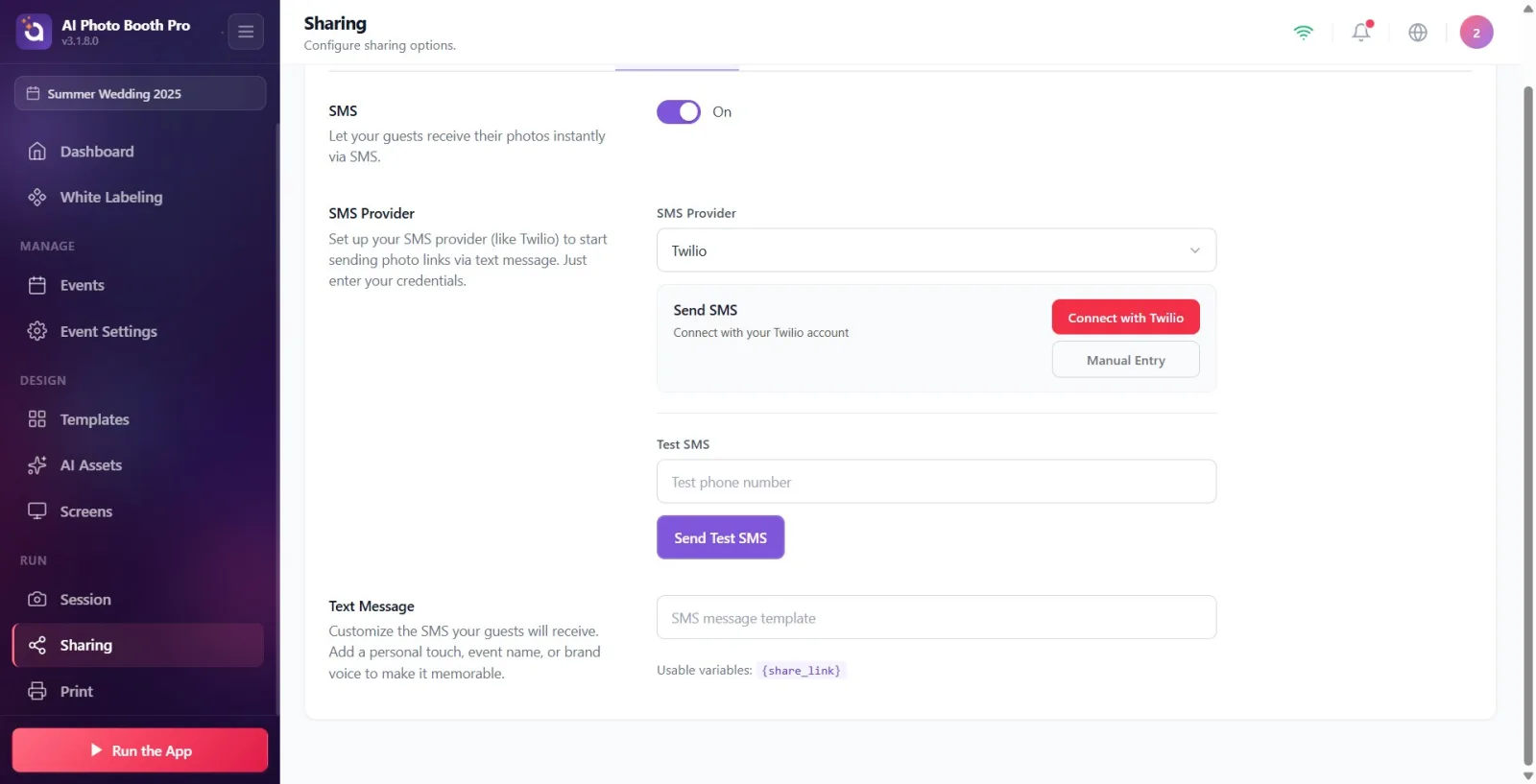
In the section titled SMS at the top (under the description 'Enable your guests to receive their photos instantly via SMS.') turn the toggle switch to 'On'. When closed the button text shows 'Closed', when turned on it shows 'On' and the provider and message sections appear below it. For a new event, this setting is OFF by default; The SMS option will not appear on the sharing screen that guests see until you turn it on.
🔎 Items on the screen: SMS section; on/off (toggle) button; status text On / Off.
Step 3 · Choose SMS provider
Sharing → SMS
Select the provider from the drop-down menu in the SMS Provider section. Currently only Twilio is supported (options like Vonage/MessageBird have been removed), so Twilio is the only option visible in the menu. Description of the section: 'Set up your SMS provider (like Twilio) and start sending photo links via text message. Just enter your credentials.'
🔎 Items on the screen: SMS Provider drop-down menu (single option: Twilio).
Step 4 · Connect your Twilio account with the web
Sharing → SMS
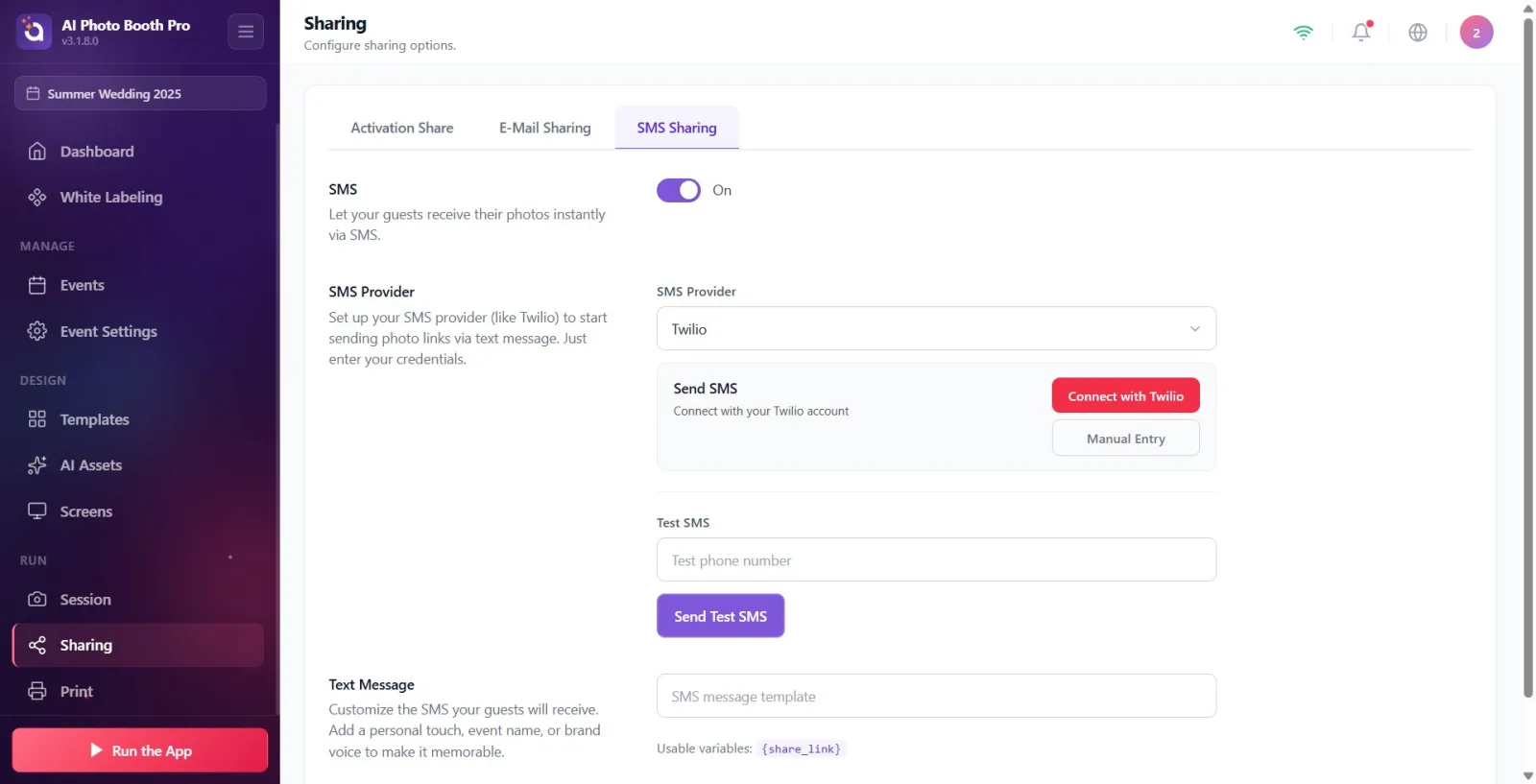
When the provider is Twilio, the connect card titled Send SMS appears (with the description Connect with your Twilio account). Click the Connect with Twilio button; In the window that opens, the Twilio login page loads and you log in with your own Twilio account. When the application reaches the Twilio console, it automatically reads and connects your Account SID, Auth Token and phone number (Connecting to Twilio...' / 'Auto-connecting...' status text is displayed). If the automatic read fails (e.g. the Auth Token is hidden), you will be prompted to manually complete the missing fields.
🔎 Items on the screen: Send SMS connect card; Connect with Twilio button; Manual Entry button; Twilio login window (WebView) opens.
Step 5 · Alternative: Bind with Manual Entry
Sharing → SMS
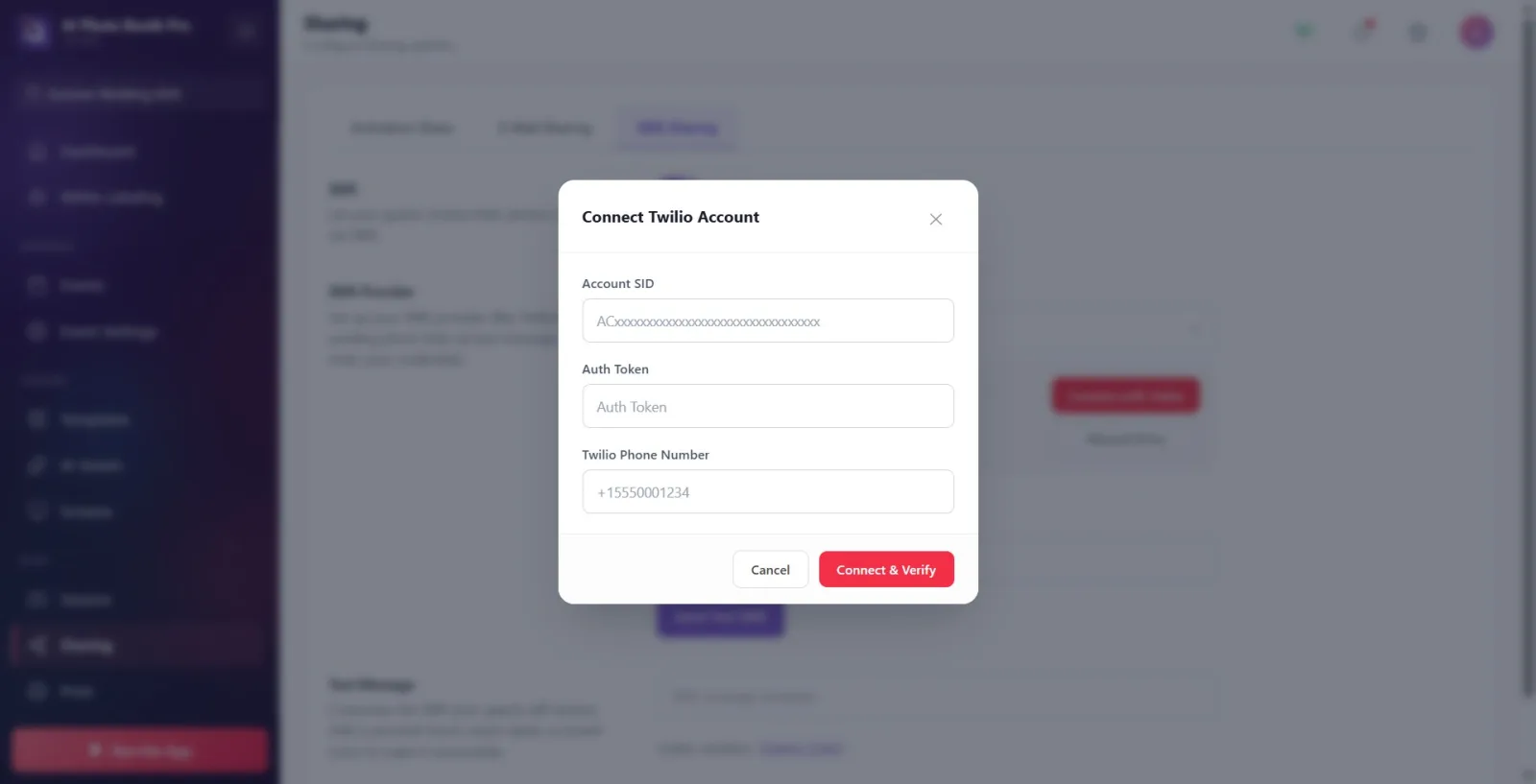
If you don't want to log in via the web, click the Manual Entry button on the connect card. In the Connect Twilio Account window that opens, fill in the 'Account SID', 'Auth Token' and Twilio Phone Number fields by copying them from your Twilio account, then press the Connect & Verify button. If the information is incorrect, Connection failed. Check your details. warning appears; to opt out, at Cancel.
🔎 Items on the screen: Manual Entry button; Connect Twilio Account modal: 'Account SID', 'Auth Token', Twilio Phone Number fields; Cancel and Connect & Verify buttons; error line Connection failed. Check your details..
Step 6 · Verify connection (connected status)
Sharing → SMS
When the connection is successful, a green card appears in the provider section: the label Twilio Connected and the connected sender phone number are shown. If you want to switch to a different account or remove the link, click the Disconnect button.
🔎 Elements on the screen: Green connected card: Twilio Connected label + connected phone number; Disconnect button.
Step 7 · On some installations: enter credentials manually
Sharing → SMS
In installations where the Twilio quick connect card is not visible, the provider section instead shows manual entry fields: Auth Key / SID, Account ID, Sender Phone Number and Country Code (default '+1'). Fill these fields with values from your Twilio account. (The standard kiosk usually displays the Connect with Twilio / Manual Entry card; these fields only appear in installations that do not support quick connect.)
🔎 Elements on the screen: Auth Key / SID, Account ID, Sender Phone Number, Country Code input boxes.
Step 8 · Send test SMS
Sharing → SMS
In the Test SMS field under the Provider section, type your number in international format (with country code, e.g. +90...) into the Test phone number box and press the Send Test SMS button. If successful, Test SMSi with badge Success has been sent to your phone number.' message; if unsuccessful, 'Test SMS could not be sent.' message appears. Don't start the activity until you get the actual message on your phone.
🔎 Items on the screen: Test SMS section; Test phone number input box; Send Test SMS button; Success badge; result message ('Test SMSi was sent to your phone number.' / 'Test SMS could not be sent.').
Step 9 · Customize message text
Sharing → SMS
In the Text Message section (under the description 'Customize the SMS your guests receive. Make them memorable by adding a personal touch, event name or brand voice.') type the SMS content that will be sent to the guest in the text box (SMS message template holds the hint text). Be sure to leave the {share_link} variable on line Usable variables in the text; During submission, this variable is automatically replaced with the guest's photo link. Example: 'Your photo is ready! View here: {share_link}'.
🔎 Items on the screen: Text Message section; message textbox (SMS message template placeholder); Usable variables: {share_link} script tag.
The Twilio account belongs to YOU: SMS are sent through your Twilio account, and charges are made directly to your account by Twilio. There is no separate 'SMS credit' within the app; SMS cost and limits depend on your Twilio balance/plan.
There are two ways to connect: Connect with Twilio (automatic credential reading via web) or Manual Entry (Account SID + Auth Token + entering phone number manually).
Sender number must be purchased/verified on Twilio; A random number that is not in your account will not work.
When connecting via the web, wait a few seconds until the Twilio console loads (the page is slow to load, especially on iOS/Mac); Wait until 'Twilio Connected' appears or the window closes.
Be sure to send yourself a message with Send Test SMS before the event; Don't trust the installation until you see the Success badge.
Do not delete the {share_link} variable from the message text — only this variable carries the guest's photo link.
Currently the only supported provider is Twilio; It is normal that there are no other options in the menu.
Don't forget to turn on the SMS switch; When it is turned off, the SMS option does not appear on the guest sharing screen at all.
Not making the SMS toggle switch On: even if you fill in the provider and message sections, the SMS option will not appear on the guest sharing screen when the switch is turned off.
Testing Twilio without connecting at all or leaving the credentials blank: Test SMSi could not be sent.' It fails with .
Twilio balance is exhausted: credit does not appear in the app, but SMS is not free on Twilio; If there is no balance, the shipment will fail.
Writing the test/sender number without country code: the number must be in international format (with '+' and country code, e.g. +90...).
Removing the {share_link} variable from the message template: the guest cannot access the link to his own photo.
Pasting an incorrect value such as API Key instead of Auth Token in the Manual Entry modal: Connection failed. Check your details. warning is received and the connection is not established.
Entering a number that does not exist in the Twilio account as the sender: Twilio rejects the send, the test SMS fails.
Related topics
E-Mail Sharing ActivationShare