
Before this: How to Create an Event?
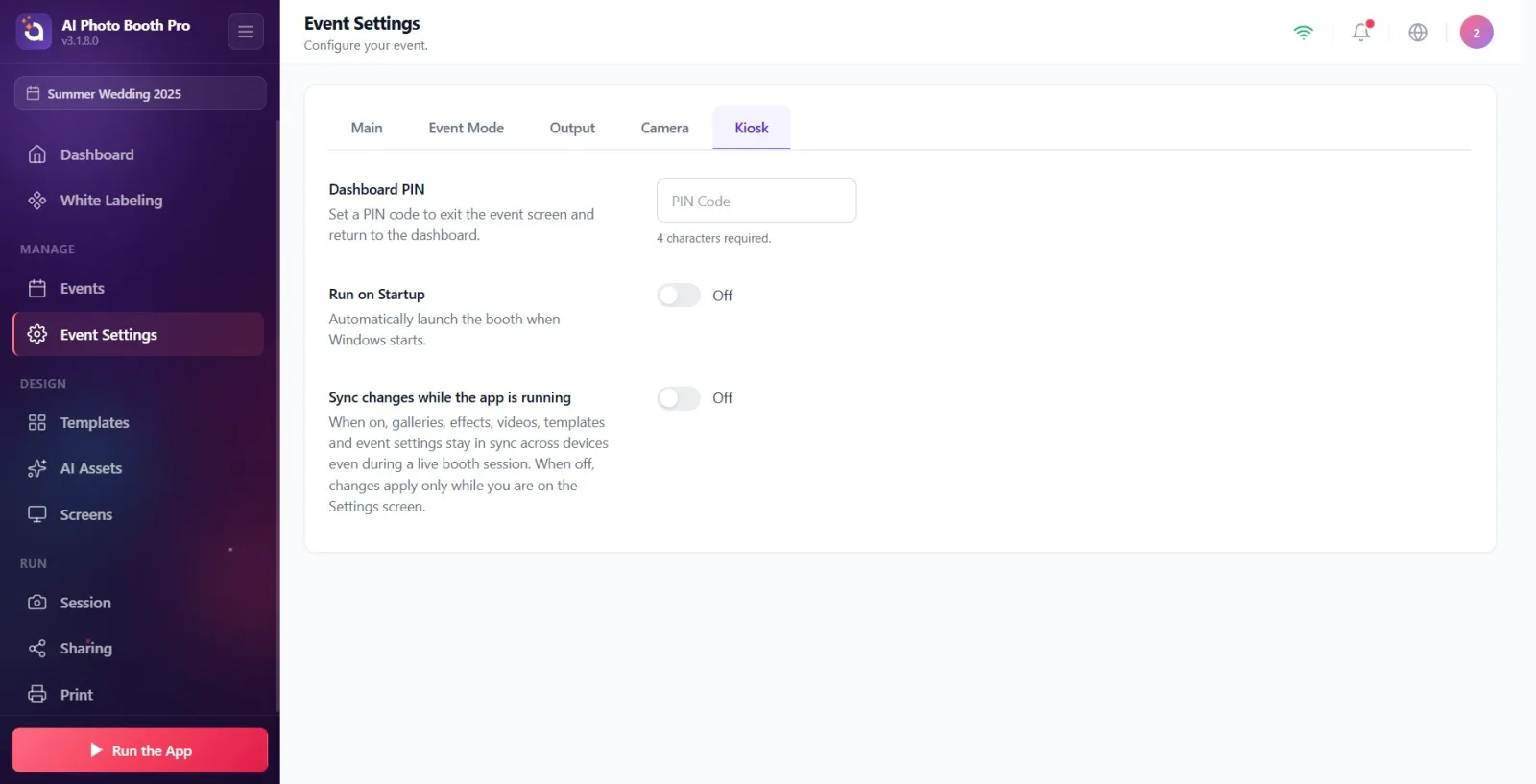
The 'Kiosk' tab of Event Settings contains three settings that determine the operating behavior of the booth: (1) Dashboard PIN — sets a 4-digit PIN to exit the running event screen and return to the control panel (Settings); (2) Run on Startup — Enables the application to open automatically when Windows/macOS starts (only visible on the desktop); (3) Sync changes while the app is running — turns on cross-device live sync of gallery/effect/video/template/event settings even while the booth is running. All three settings are event specific.
- An event must be created and selected (active) — the settings on this tab are event-scoped. If the event is not selected, PIN and keys will not be saved.
- Settings → Event Settings page must be open.
Step by step
Step 1 · Switch to Kiosk tab
Settings → Event Settings → Kiosk
On the Event Settings page, click the Kiosk tab at the far right from the top tab strip. Tabs from left to right: General, Event Mode, Output, Camera, Kiosk. When Kiosk is selected, Dashboard PIN, Run on Startup and Sync changes while the app is running sections appear under it, respectively.
🔎 Items on the screen: Top tab strip: General / Event Mode / Output / Camera / Kiosk. Page title is Event Settings.
Step 2 · Enter 4-digit PIN in Dashboard PIN field
Settings → Event Settings → Kiosk
Under the first section, Dashboard PIN, click the input box labeled PIN Code and enter a 4-digit PIN. The box accepts numbers only (numeric keyboard) and can hold up to 4 characters. Section description: 'Set a PIN code to exit the activity screen and return to the control panel.'
🔎 Items on the screen: Section title Dashboard PIN; narrow inputbox, placeholder PIN Code; numeric input, maximum 4 characters.

Step 3 · Monitor PIN verification status (helper text) and verify auto-registration
Settings → Event Settings → Kiosk
Follow the helpful text below the login box. When the field is empty, it says 4 characters required.. When entering 1-3 digits the text turns red and shows progress (e.g. '2/4'); In this case, the PIN will NOT be saved. When you enter the 4th digit, the text turns green and becomes PIN set. — the PIN is automatically saved after about half a second (there is no separate Save button). If you reduce it from a valid PIN to less than 4 digits again, 'PIN must be exactly 4 characters. 'Not recorded.' warning appears.
🔎 Elements on the screen: Auxiliary text states: 4 characters required. (neutral) / 'x/4' (red, error) / PIN set. (green, success). Orange notification (toast) on incorrect pass.

Step 4 · Know what PIN is for (logout / control panel lock)
Settings → Event Settings → Kiosk
The PIN you set will be asked when you want to log out while the stand is on the live event screen; When the correct PIN is entered, the activity screen is exited and the control panel (Settings) is returned. This PIN does not prevent the participant from taking photos/video — it just prevents non-operators from accessing the settings/panel. Note: PIN is event specific, you can set different PIN for different events.
Step 5 · Set Run on Startup key (Windows/macOS only)
Settings → Event Settings → Kiosk
If you set the switch under the second section Run on Startup to On, the stand will automatically turn on when the operating system starts (default Off). Section description: Automatically launch the booth when Windows starts. IMPORTANT: This section appears only on Windows and macOS; On iOS and Android, the section is not shown at all because the operating system does not offer this feature.
🔎 Items on the screen: Section title Run on Startup; On/Off switch (toggle), default Off. Appears only on desktop platforms.

Step 6 · Set Sync changes while the app is running key
Settings → Event Settings → Kiosk
If you change the switch under the third section Sync changes while the app is running to On, galleries, effects, videos, templates and event settings will remain synchronized between devices even when the booth is running (for multi-device setup). When Off (default), changes are only applied while in the Settings screen — so there are no surprise changes during the event.
🔎 Items on the screen: Section title Sync changes while the app is running; On/Off switch, default Off.

The PIN is only saved when it is exactly 4 digits. When you enter the 4th digit, the green text PIN set. appears and the PIN is automatically saved after ~0.5 seconds; There is no separate Save button.
The PIN field accepts numbers only and can take up to 4 characters.
Keys (toggle) are saved instantly; The PIN is saved with a small debounce — the last value is preserved even if you switch to another tab immediately after entering it.
Run on Startup appears only on Windows/macOS; This section never appears on tablet/phone.
If you want to keep settings live-synced in a multi-device setup, turn on Sync changes while the app is running; If you don't want changes during a single device or activity, leave it off.
All three settings are event-specific: you can keep different PINs and different sync preferences for different events.
Leaving the PIN without completing 4 digits: the auxiliary text will show 'x/4' (e.g. '2/4') in red and the PIN will NOT be saved. If you subsequently reduce the current PIN to less than 4, 'PIN must be exactly 4 characters. 'Not recorded.' warning appears.
Trying to change the PIN/key while the event is not selected — the value will not be saved because these settings are dependent on the event.
Looking for Run on Startup on iOS/Android — this setting is only available on Windows/macOS, not on mobile.
Mistaking PIN for participant lock: PIN is for exiting the running activity and returning to the control panel (Settings); It does not prevent the participant from shooting.
Leaving sync on and changing settings from another device mid-event — the change is reflected live; It is safer to keep it closed to prevent unwanted change during the event.
Related topics
Event Settings → General Event Settings → Camera Event Settings → Output