
Before this: How to Create an Event?
AI Assets is the section where you manage the artificial intelligence-supported image and video assets that will be presented to guests at your event from a single place. It consists of three tabs — AI Effects, AI Face Swaps and AI Video — and the ones you choose are automatically applied to the currently selected event.
- An event must be created and selected (active) — AI Assets only works for the selected event (IsDependendOnEventSelected)
- Must have internet connection — AI assets are generated/downloaded from the cloud (IsDependendOnInternetSelected)
- Your account must have AI features turned on — Pro AI or above plan required; In the Basic (Starter) plan, an upgrade warning appears instead of tabs
step by step
Step 1 · Open the AI Assets page
Settings (Sidebar)
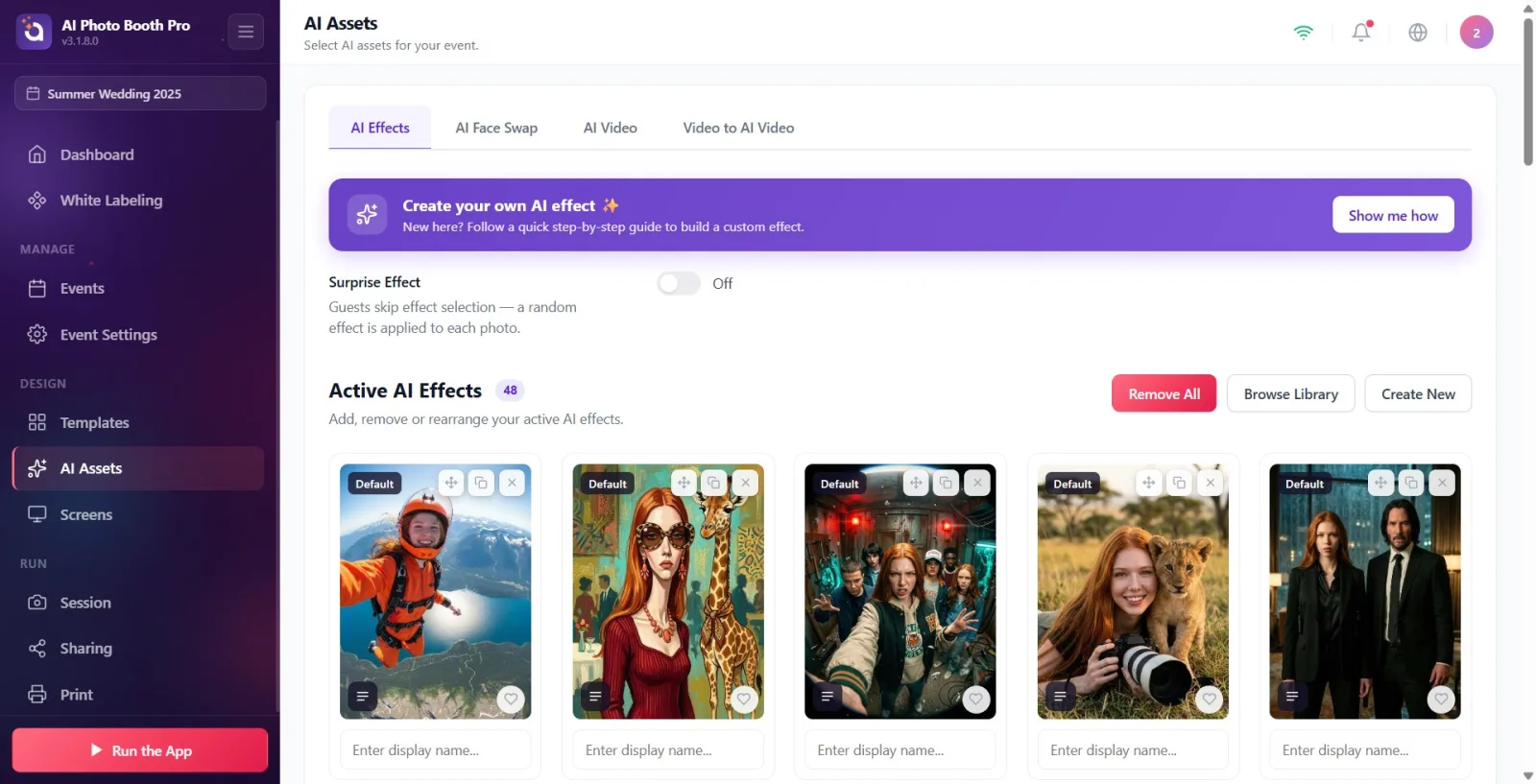
Tap AI Assets with a star icon in the group titled Design in the left sidebar of Settings. When the page is opened, AI Assets appears in the title and Select AI assets for your event. appears right below it. (The item only activates when an event is selected and there is an internet connection.)
🔎 Elements on the screen: Sidebar → Design group → AI Assets with star icon (the same group also contains Templates and Screen Design)
Step 2 · If your plan is not enough: lock alert
AI Assets
If your account is on the Basic (Starter) plan, a lock banner appears instead of tabs. The title is 'Pro AI or above required', the description below is 'You are currently in {your plan name} account. 'Upgrade to Pro AI or Ultimate AI for AI Effects, Face Swap and AI Video.' It is in the form. The 'Upgrade Pro AIa' button on the right opens the upgrade/purchase screen. This banner does not appear in Trial and Pro/higher plans; tabs appear directly.
🔎 Elements on the screen: Lock banner: 'Pro AI or higher required' title + description + 'Upgrade to Pro AI' button
Step 3 · Navigate between three tabs
AI Assets
At the top of the page, from left to right, there are three tabs: AI Effects, AI Face Swaps, and AI Video. Tapping a tab moves you to that feature's content area. When the page is first opened, the AI Effects tab appears. The tab you selected is remembered — the next time you open the page, the last tab you used will open.
🔎 Elements on the screen: Tab bar: AI Effects | AI Face Swaps | AI Video (active tab appears on hover)
Step 4 · What does the AI Effects tab do
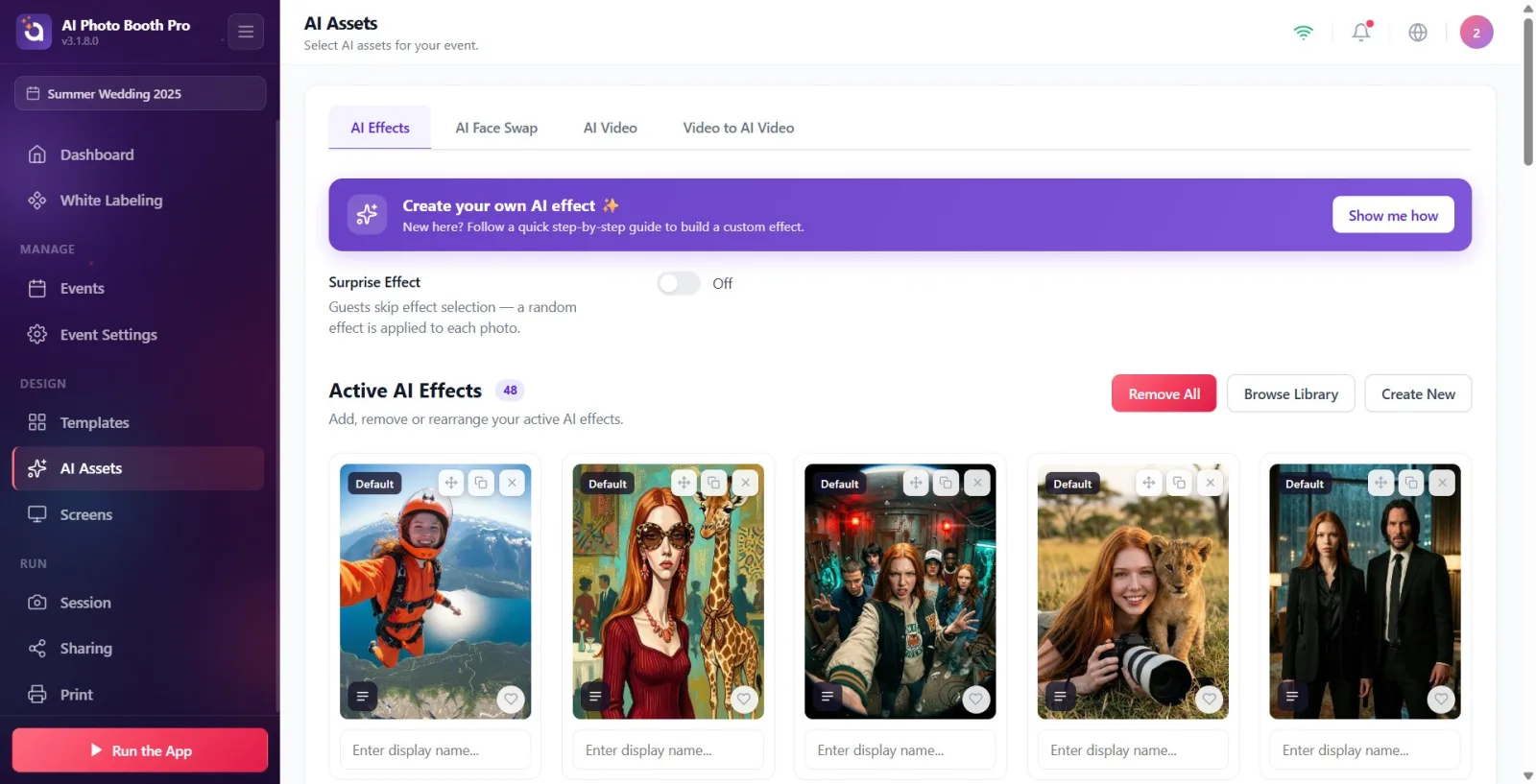
AI Assets → AI Effects
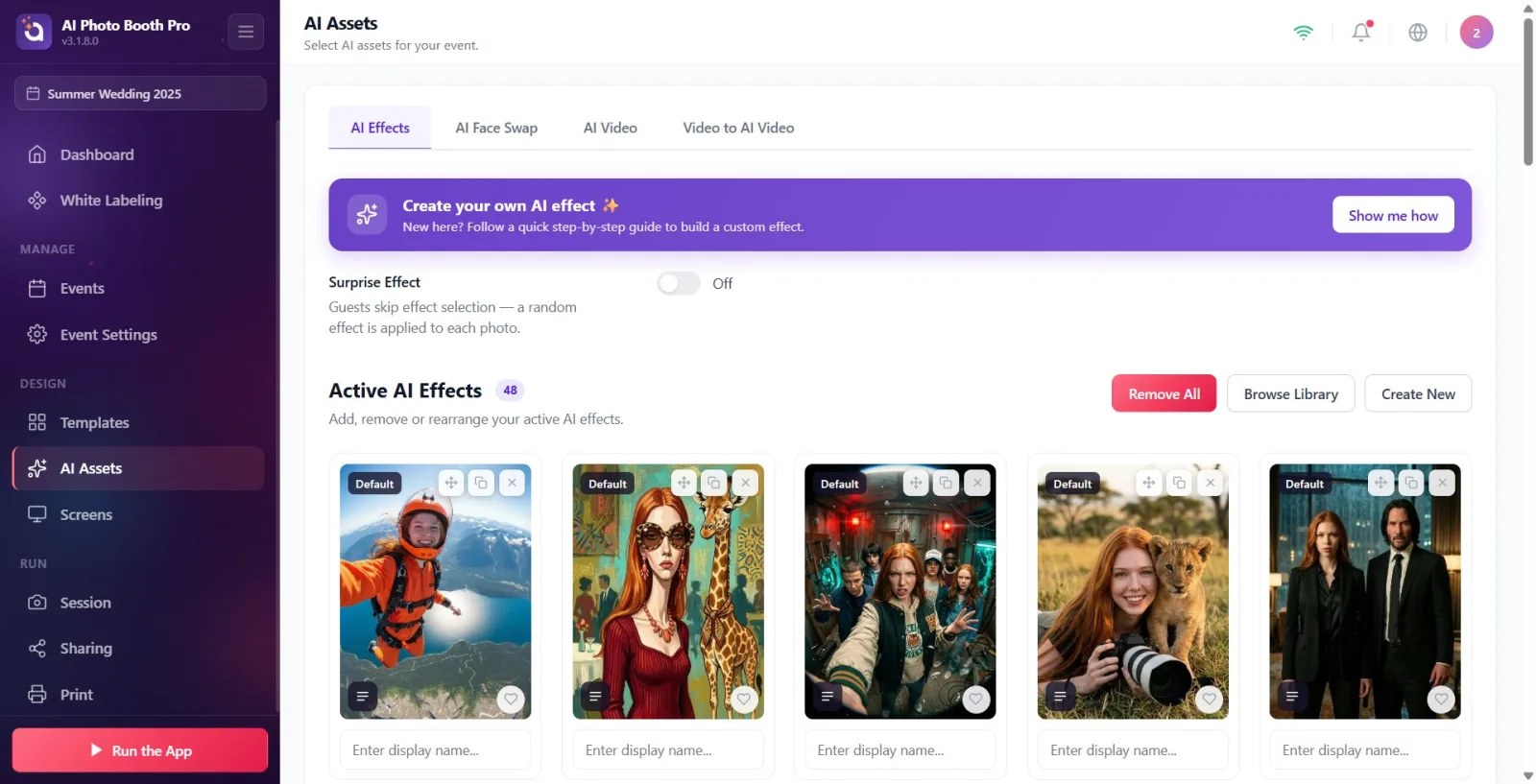
This tab manages the AI photo effects that will be applied to guests' photos. At the top is the Create your own AI effect ✨ directory banner; The 'Show me how' button starts the step-by-step tour. Below it is a 'Surprise Effect' switch and the 'Active AI Effects' library (description: 'Add, remove or rearrange your active AI effects.'). 'Browse Library' at the top right allows you to add ready-made effects, 'Create New' allows you to make your own; If there are effects in the list, you can remove them all from this event with 'Delete All'.
🔎 Elements on the screen: Create your own AI effect ✨ banner + Show me how | Surprise Effect key | Active AI Effects gallery | top right: Browse Library, Create New, Remove All
Step 5 · What does the AI Face Swaps tab do
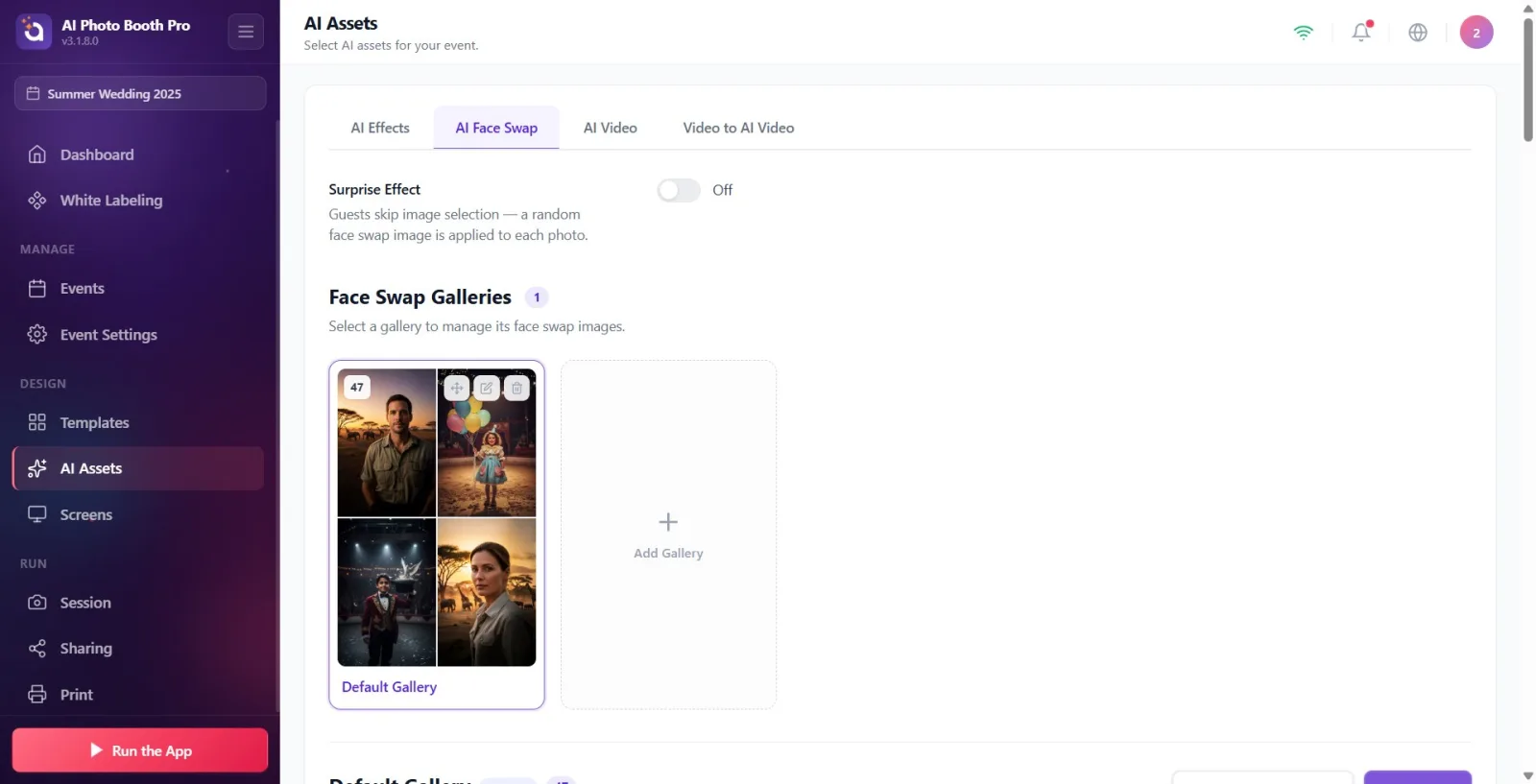
AI Assets → AI Face Swaps
In this tab, the character images in which the guest's face will be placed are managed as galleries. At the top are Face Swap Galleries (description: Select a gallery to manage its face swap images.) and Add Gallery. When you tap and select a gallery, its characters pop up underneath (description: 'Each image represents a character whose face guests can change. Drag to sort or tap face to enable/disable.'). With 'Add Image' you upload images ('Drop files here or click to browse'), and with 'Edit Gallery' you change the gallery. In images with multiple faces, you make Will be swapped / Will be skipped by tapping each face box. The Default gallery also has the Restore Default Gallery button.
🔎 Items on the screen: Face Swap Galleries + Add Gallery | selected gallery characters + Insert Image / Edit Gallery | face badge: Will be swapped / Will be skipped
Step 6 · What does the AI Video tab do
AI Assets → AI Video
This tab manages AI video effects produced from photos. There's a Surprise Effect switch at the top, with AI Video Effects Library (description: 'Use the library to add or remove effects and customize the experience for your event. New styles are added regularly.') underneath. You add a video effect with the 'Browse Library' and 'Create New' buttons in the top right. Cover videos are previewed on the card; Cards without covers read No cover set.
🔎 Items on the screen: Surprise Effect key | AI Video Effects Library gallery | top right: Browse Library, Create New | No cover set on capless card
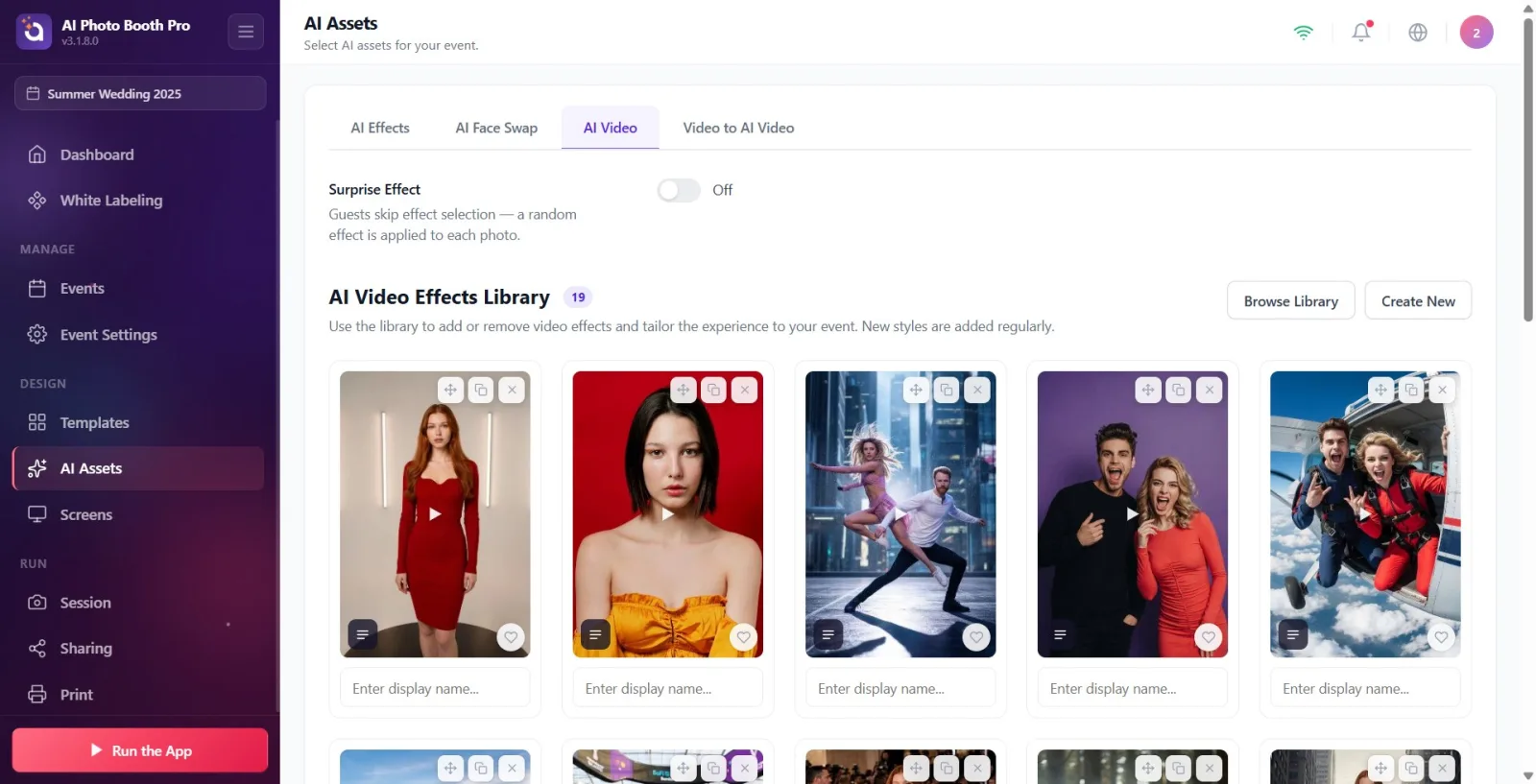
Step 7 · Common on each tab: Surprise Effect key
AI Assets (all tabs)
There is a Surprise Effect key in each of the three tabs. When on, it bypasses the guest selection screen and a random asset is applied to each shot. In effects the description is 'Guests skip the effect selection — a random effect is applied to each photo.', in face swap 'Guests skip the image selection — a random face swap image is applied to each photo.' It is in the form. Next to the switch, its status appears as 'OnorOff' and the change is saved immediately.
🔎 Items on the screen: Surprise Effect on/off switch + status text On / Off
Step 8 · Common operations on cards (favorite, sort, rename)
AI Assets (galleries)
Gallery cards in the three tabs work similarly: you can Favorite with the heart icon, change their order with hold-drag (Drag to reorder), edit the card's display name in the Enter display name... box at the bottom of the card, Remove / Delete with the icons on the card, or see crafting text with Promptu if available. If an asset is still being downloaded, the Importing... indicator and gray skeleton cards appear next to the counter in the header; Once completed, the real cards appear.
🔎 Items on the screen: Card actions: Favorite (heart), Drag to reorder, Enter display name... box, Remove/Delete, Promptu View', 'Importing...' indicator
Step 9 · Changes are automatically applied to the selected event
AI Assets
All selections here are applied to the currently selected (active) activity and are automatically saved without a separate Save button. Before editing for a different event, make sure the correct event is selected.
AI Assets is in the Design group in the sidebar and its icon is a star.
Your tab selection is remembered — when you reopen the page, you'll be presented with the tab you last used (first open is always AI Effects).
When Surprise Effect on each tab is open, the guest does not make a selection; the system implements a random asset — ideal for fast streaming.
Use the Browse Library button for ready-made assets, and the Create New button for your own asset from scratch.
You can highlight the cards by favoriteing them (Favorite), and determine the order in which they will be shown to the guest by dragging them (Drag to reorder).
The Importing... indicator and gray cards indicate assets are still being downloaded/prepared; When the process is completed, the real cards appear.
Changes are saved automatically; Don't look for a separate Save button.
Trying to enter the page without selecting an event or without internet — AI Assets requires both the selected event and an internet connection.
Searching for AI tabs in the Basic (Starter) plan — in this plan, the Pro AI or higher required lock banner appears instead of tabs; 'Upgrade to Pro AI' is required.
Mixing Browse Library with Create New — the first adds a ready-made asset to your list, the second creates a new asset from scratch.
Treating AI Effects/AI Video as well as Remove All or card Remove as permanent deletion from the library — these simply remove the entity from the active list of this event; can be added again later with Browse Library.
Trying to add a character without selecting a gallery in AI Face Swaps — a gallery must be selected first; The character/Insert Image section only opens when a gallery is selected.
Editing with the wrong activity selected — all selections here always apply to the currently active activity.
Related topics
Creating AI Effect Creating AI Video Effect Face Swap Galleries Surprise Effect