













Before this: How to Log In to the Application?
AI credits are the unit spent by the app's artificial intelligence operations (AI effect, face swap, AI video, background removal). Credits are kept in a single wallet linked to your Activation King account: every device and every event you sign in to with the same account spends from the same balance. The subscription (plan) determines which AI features are enabled; credits are what run these features. This article explains how many credits each operation costs, where you can see your balance and what to do if the credits you bought don't show up.
- Credits are spent only on artificial intelligence operations. Classic photo, GIF, boomerang and video captures that don't use AI do not spend credits.
- Saving an effect does not spend credits. The Test Effect button and every generation during the event do.
- Buying or renewing a subscription does not load credits into your account; credits are purchased separately.
- According to the credit articles on the website, the credits you buy do not expire.
- Your balance is shown in the app on the AI Credits card on the Dashboard, and on the website on the Dashboard → AI Credits page.
How many credits does each operation cost?
The cost depends on the operation and the model you choose. The table below shows the values displayed by v3.10.1. The exact figure is always shown on screen: the credit badge at the top of the effect or video creation window shows the cost during the shoot, and the number on the Test Effect button shows the test cost; both update when the model or resolution changes.
| Operation | Model / option | At the event (per generation) | Test Effect |
|---|---|---|---|
| AI Effect | Nano Banana 2.1 · 1K / 2K / 4K (default for a new effect) | 6 / 9 / 20 | 3 / 5 / 10 |
| AI Effect | Nano Banana 2 Lite (fixed 1K) | 6 | 3 |
| AI Effect | Nano Banana | 6 | 3 |
| AI Effect | Nano Banana 2 · 1K / 2K / 4K | 10 / 15 / 24 | 5 / 7 / 12 |
| AI Effect | Nano Banana Pro · 1K / 2K / 4K | 22 / 22 / 42 | 11 / 11 / 21 |
| AI Effect | GPT Image 2.5 Flare or Sunburst · Low / Medium / High / XHigh / Max | 6 / 10 / 24 / 45 / 90 | 3 / 5 / 12 / 23 / 45 |
| AI Effect | GPT Image 2 (retired; only in older effects) | 6 | 3 |
| Photo to AI Video | Hailuo 768p (default) · 6 / 10 s | 36 / 60 | 18 / 30 |
| Photo to AI Video | Hailuo 1080p · 6 s | 60 | 30 |
| Photo to AI Video | Kling · 5 / 10 s (double while Generate audio is on) | 65 / 130 | 33 / 65 |
| Photo to AI Video | Activation King · 1-15 s | 9 per second | 4.5 per second |
| Photo to AI Video | Genjutsu (reference video 4-10 s) · 480p / 720p | 55 / 120 per second | 27.5 / 60 per second |
| Video to AI Video | single model | 60 | 30 |
| AI Face Swap | 1 for each face in the photo | ||
| Background removal (AI BG Removal) | 1 per photo | ||
| Camera: Set Settings with AI | 2 per analysis |
In Photo to AI Video, credits are calculated per second: the longer the Video Duration you choose (for Genjutsu, the length of the reference video), the higher the cost. Half credits are not deducted; fractions are rounded up. On Kling, the cost doubles while Generate audio is on.
GPT Image 2 can no longer be selected for a new effect; it has been replaced by GPT Image 2.5 Flare (everyday work) and Sunburst (precise edits). Older effects saved with GPT Image 2 keep working; generation runs on GPT Image 2.5 and the credit cost does not change.
Costs are set on the server side and may change over time. If the table and the badge on screen differ, the value on screen applies.
Version note, 3.5.1 and later: the camera page has the Set Settings with AI button, and each analysis spends 2 credits. In 3.4.2 this button does not exist.
Do credits increase with the number of people?
It depends on the operation:
- AI Effect: No. The cost is per photo. Whether there is one person or five people in the photo, the same model spends the same credits.
- AI Face Swap: Yes. 1 credit is spent for each face in the photo; a photo of four people costs 4 credits.
- AI Video and background removal: Not dependent on the number of people; per video or per photo.
Regardless of the number of people, if a session has more than one AI step, each step spends separately. If the template has two poses and each has an AI effect, two generations are made. In Photo to AI Video, if you selected an AI effect as the Source Image, the effect is generated first, then the video, and the two costs add up (e.g. Nano Banana 2 1K effect + 5-second Activation King video = 10 + 45 = 55 credits).
Why are 2K and 4K more expensive?
Resolution selection exists for the Nano Banana 2.1, Nano Banana 2 and Nano Banana Pro models (1K / 2K / 4K, default 1K); with GPT Image 2.5 you choose a Quality tier instead. Below the selector it says Higher resolution costs more credits. If you are not going to make large prints, 1K is enough for most events; Nano Banana Pro 4K spends seven times the credits of the default model.
Subscription, trial and credits
The difference between subscription and credits
The plan determines which features are enabled. AI Effects, AI Face Swap and AI Video require the Pro AI or Ultimate AI plan. The Starter plan has no AI features; the Pro AI plan only lock appears on the AI Assets page.
Credits are a separate product. None of the plans (including Ultimate AI) load credits by themselves; buying or renewing a subscription does not change your balance. The reverse is also true: buying credits does not change your plan. If the app still shows Trial even though you have credits, you have no active subscription.
If your subscription ends, your credits are not deleted and stay in your account; but to use the AI features you need an active plan (or trial) again.
3.6.0 and later: on an account whose plan does not include the AI feature, the message This AI feature isn't included in your plan. Upgrade your plan to use it. appears during the shoot. In this case, buying credits does not solve the problem; the plan needs to be upgraded.
Credits in the trial
In the trial, AI Effects, AI Face Swap and AI Video are enabled. As soon as your trial starts, 100 free credits are added to your account once (once per account); this does not wait for email confirmation. The amount may change in the future; your current balance is shown on the AI Credits card on the Dashboard.
When the trial credits run out, you need to buy credits to keep using AI. If you can't see the starter credits on the card, sign out of the app and sign in again; missing starter credits are added when you sign in. If they still don't show up, write to us via live chat.
Do credits expire?
No. According to the 'Buy AI credits (top up your balance)' article on the website, the credits you buy do not expire and stay in your account even if your subscription ends. With larger packages, the price per credit goes down.
Current credit packages and prices are on the website, on the Dashboard → AI Credits page after you sign in to your account. Because prices can change, we don't list them here. The Add Credits and Add AI Credits buttons in the app also open the credit purchase screen.
Where are credits shown in the app?
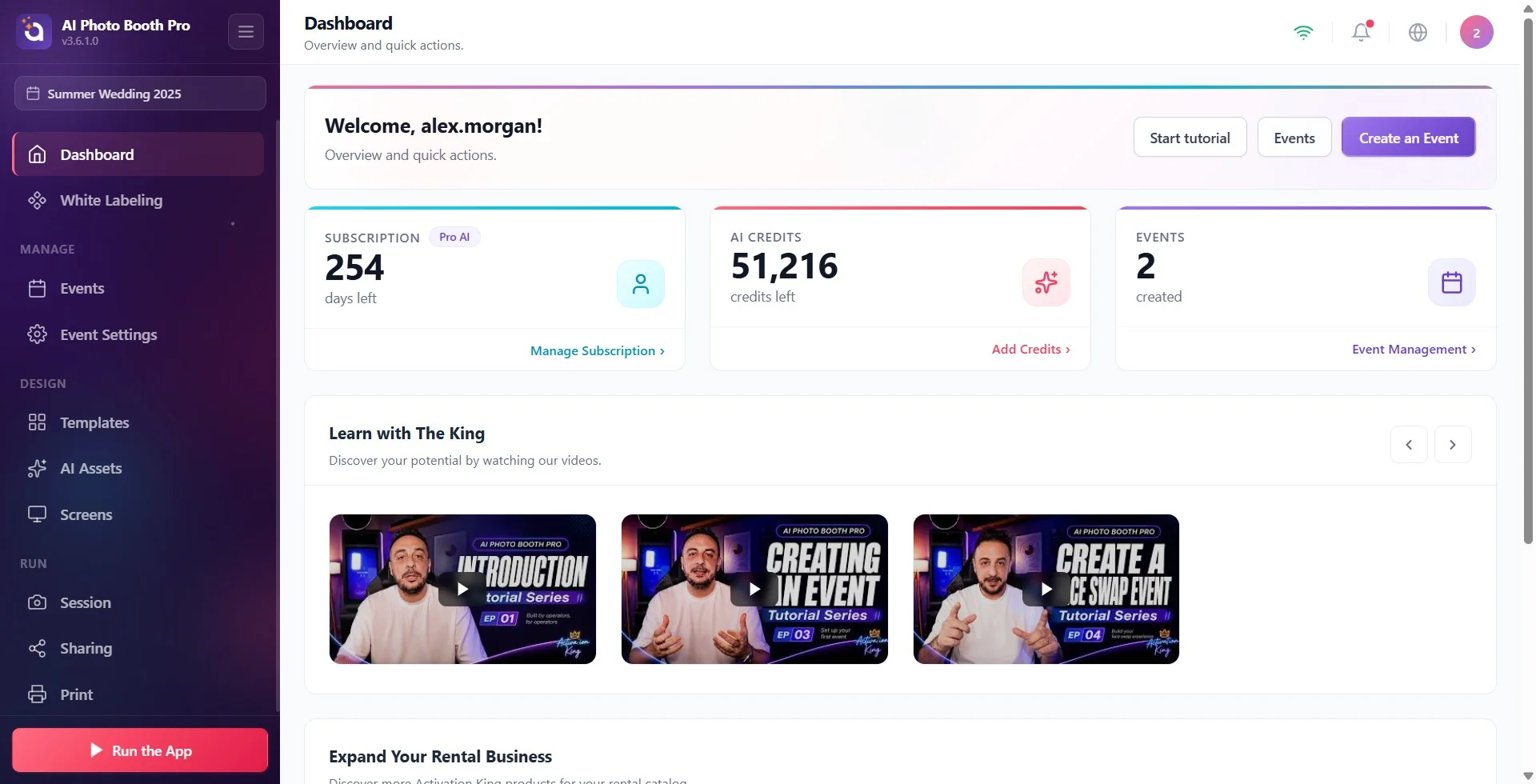
Step 1 · Look at the AI Credits card on the Dashboard
Dashboard
On the Dashboard that opens after you sign in, the blue AI Credits card shows the remaining credits, with the text credits left below. The value is read from the server and refreshed every time the Dashboard opens. Until the value arrives, the card shows ', '; this does not mean zero, and an internet connection is required. The Add Credits link on the card opens the credit purchase screen. Add AI Credits in the menu that opens when you tap the initials badge (avatar) at the top right opens the same screen; the top of the menu shows which account you are signed in with (name and email).
🔎 Items on the screen: AI Credits card: number of remaining credits + credits left; below it Add Credits. In the user menu Add AI Credits.
Step 2 · See in the creation window how many credits an operation will spend
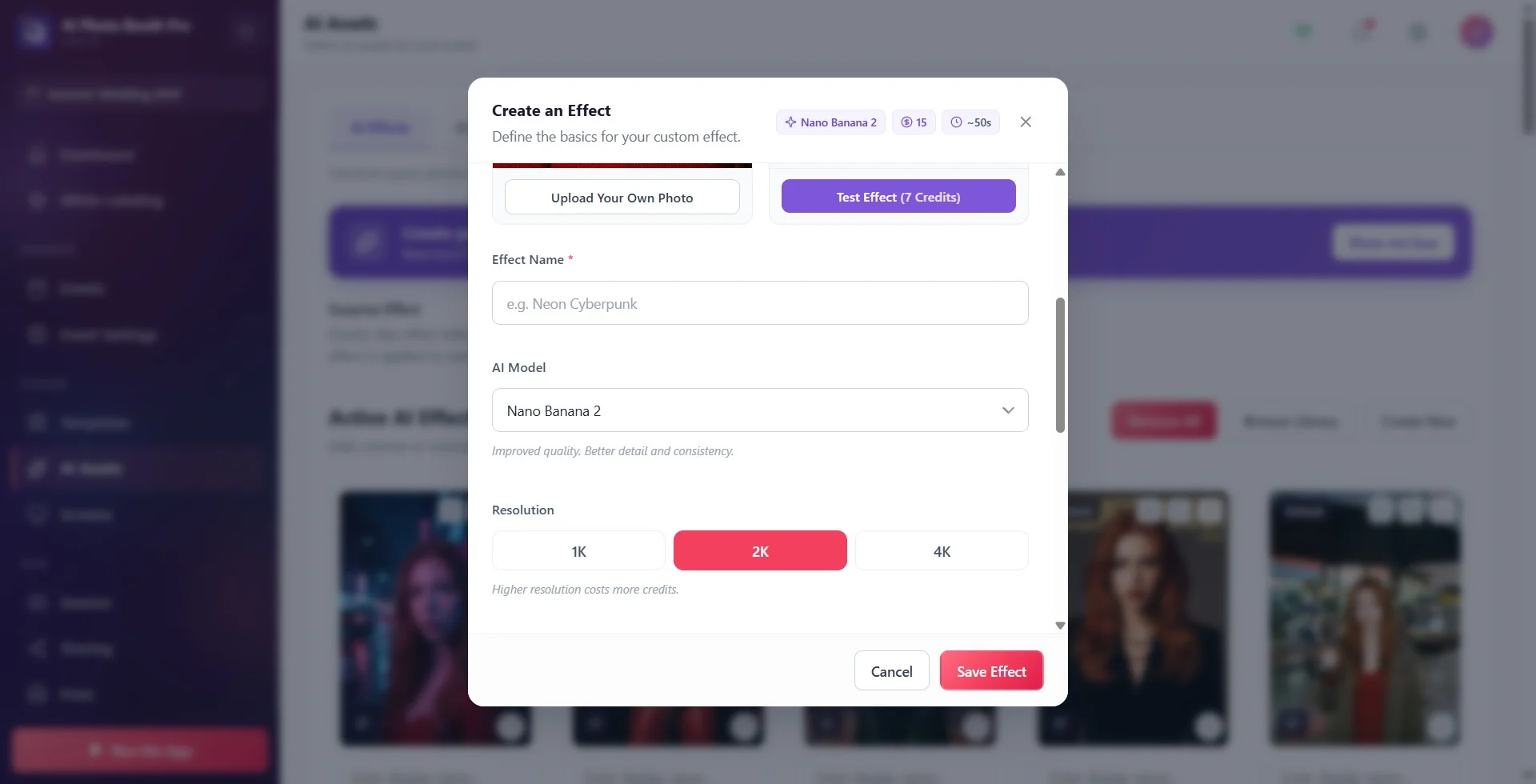
AI Assets → AI Effects → Create New
The badge in the top strip of the Create an Effect window shows the cost of the selected model at the event (per photo). The '(X Credits)' on the Test Effect button is the test cost. When you change the AI Model or Resolution, both update immediately. In the AI Video window, each option in the AI Model list is shown in the form 'Model, N Credits'. Detailed description: the How to Create Special AI Effect? and How to Create Custom AI Video? articles.
🔎 Items on the screen: in the top strip, model name + credit + duration badges; the Resolution selector (1K / 2K / 4K) and the hint Higher resolution costs more credits.; '(X Credits)' on the Test Effect button.
Step 3 · See how much was spent at an event
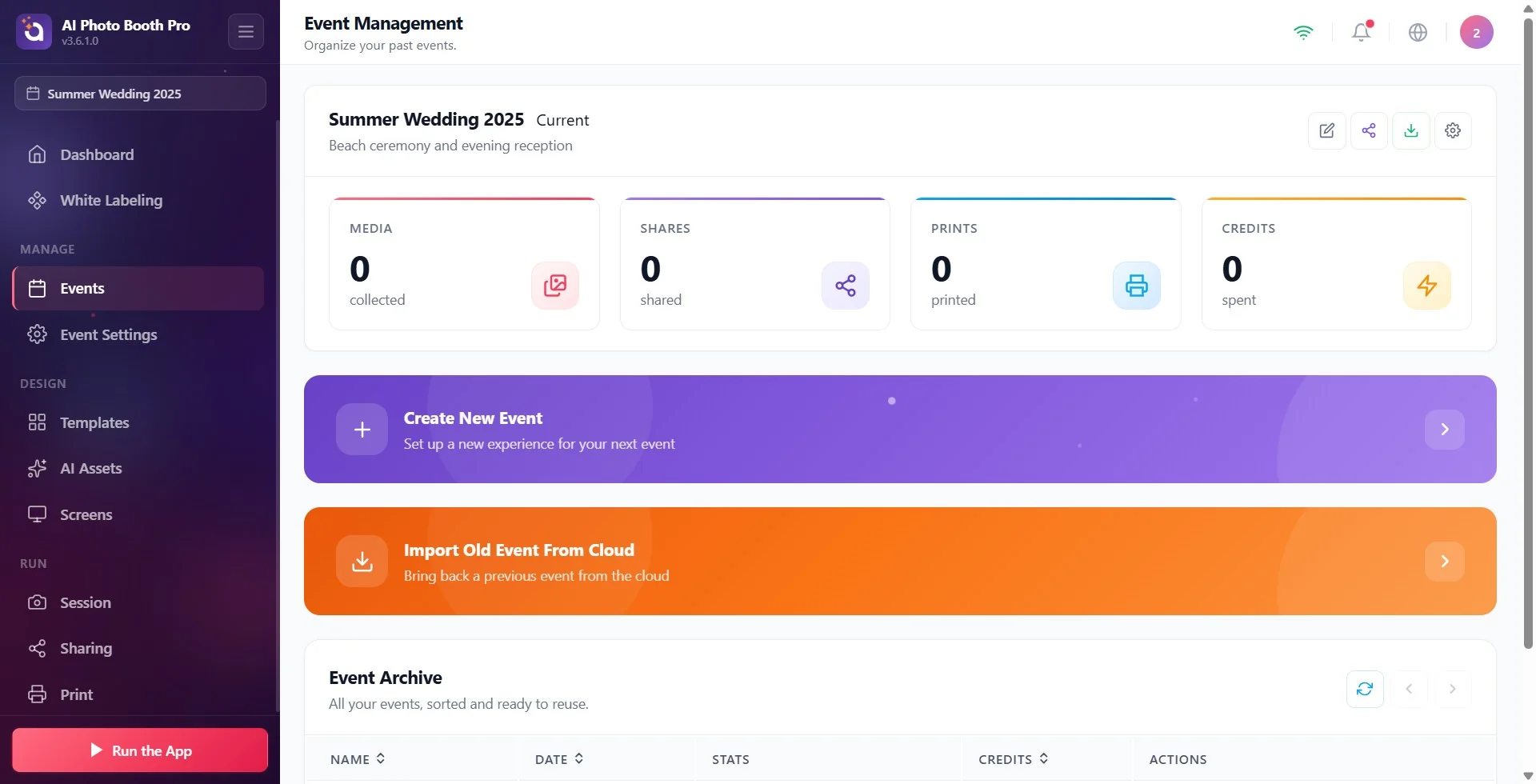
Event Management
In Event Management, the Credits box (spent) on the selected event's card and the Credits column in the Event Archive table show the credits spent at that event. For the selected event this number comes from the net spending on the server; if the server has no record (old or not yet synced sessions), it is calculated from the sessions on this device and may not match the exact transactions in your account one to one. The exact list is in the credit history on the website (Step 4).
Step 4 · For exact transactions, look at the credit history on the website
activationking.com → Dashboard → AI Credits
Sign in to your account on the website and open the Dashboard → AI Credits page. It lists the current balance, the usage of recent days and all credit transactions (purchase, spending, refund). If you see a credit purchase you didn't expect, look at the Auto-recharge card on the same page; if it is on, a top-up is made automatically from your saved card when the balance drops below the threshold you set.
Limit the credits to be spent at an event
Event Settings → Kiosk → Event Credit Limit
Enter the maximum number of credits that can be spent at this event in the Event Credit Limit box. 0 means no limit. When the limit is reached, templates that spend credits are not offered to guests. Details: the Event Settings, Kiosk article.
3.5.1 and later: Event Credit Limit is in the Event Settings → Kiosk tab. In 3.4.2 it is in the Session → General tab.
I bought credits but the app shows 0
Try these in order
- Reopen the Dashboard. Go to another page from the left menu and come back to the Dashboard; the AI Credits card is read from the server again every time it opens. If you see ', ' on the card, the value has not arrived yet; check that the connection icon in the top bar shows Connected.
- Are you on the right account? You must be signed in to the app with the same account as the email you used to buy the credits. The email you are signed in with is shown at the top of the avatar menu.
- Are you using V1 or V2? The credit balance is shown in V3; older versions may show your credits as 0. Credits are not lost: install V3 and sign in with the same account (see the Moving from V1/V2 to V3 article).
- Check on the website. If the balance and the purchase transaction are visible on the Dashboard → AI Credits page, the credits are in your account.
- Sign out and sign in again. Logout from the avatar menu, then sign in again with the same account.
- If it is still 0, write to us via live chat on the website: give the purchase date, the email you used and the app version.
What happens when credits run out?
If the balance is not enough, the AI step does not run and the guest sees the message Not enough credits. Please contact the event owner. In the AI analysis on the camera page, the warning Not enough credits for AI analysis (2 credits needed) appears and the credit purchase screen opens. Check your balance before the event; if you expect a busy day, consider turning on automatic top-up on the website.
Credits for a failed generation are refunded automatically (AI service error or timeout); the refund appears as a separate entry in your credit history. If AI is not working and the reason is not credits: see the AI Isn't Working: If You're at an Event, Do This First article.
Thinking your credits are zero when you see ', ' on the card: this only means 'not loaded yet'.
Thinking credits come with a subscription: credits are purchased separately.
Thinking Test Effect is free: each test spends about half the cost of a shot.
Forgetting that AI Face Swap spends per face in group photos.
Choosing Nano Banana Pro 4K and not noticing that the cost rises to seven times that of the default model.
Buying credits with one email and signing in to the app with another account.
Related topics
How to Use Dashboard? AI Isn't Working: If You're at an Event, Do This First How Do I Write a Good AI Prompt? How to Create Special AI Effect? How to Create Custom AI Video? How to Use Face Swap? Event Settings, How to Use the Kiosk Tab? Moving from V1/V2 to V3: License Code, Old Events and Credits
