
Before this: How to Create an Event?
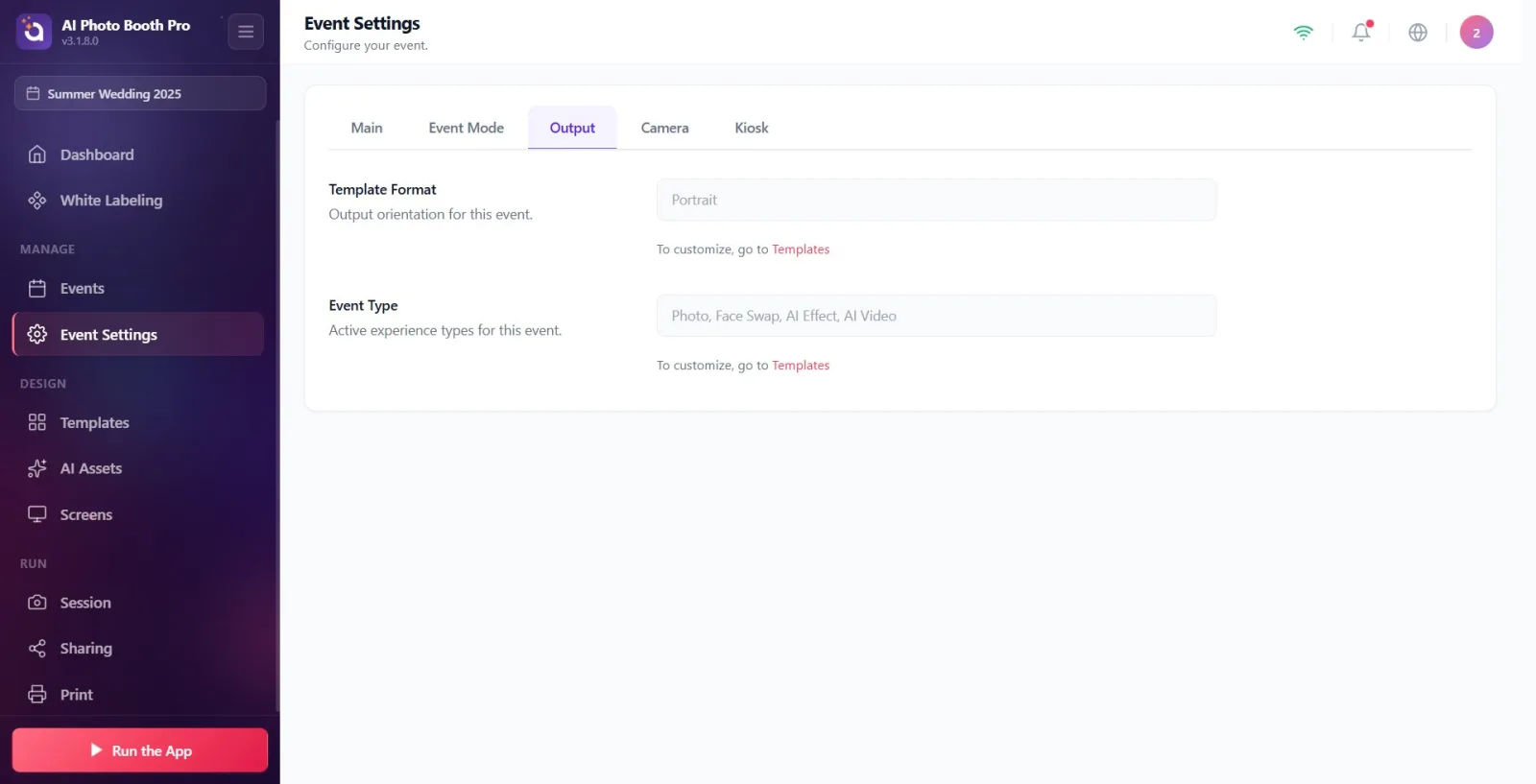
The Output tab shows the activity's output direction (Portrait/Landscape) and active experience types as read-only; these values are automatically derived from the templates you add to the activity. Actual output settings such as video codec (H.264/HEVC) and output quality (low/high) are in the General tab of the Session page, NOT in this tab.
- An event must be created and selected (if the event is not selected, the panels will appear blank)
- At least one template must be added to the event to see a meaningful Template Format / Event Type value
step by step
Step 1 · Open the Output tab
Settings → Event Settings → Output
Open the Event Settings page from the left menu, tap the Output tab from the top tab bar. This tab only shows information — there are no settings that can be changed here, there are two read-only panels (Template Format and Event Type).
🔎 Items on the screen: Tabs: General / Event Mode / Output / Camera / Kiosk. Output must be selected.
Step 2 · Read panel Template Format (read-only)
Settings → Event Settings → Output
The value under the Template Format heading indicates the orientation of the templates attached to the activity: Portrait if there is a vertical (height > width) template, Landscape if there is a horizontal (width > height) template, 'Portrait, Landscape' if both are present. If there are no templates, No templates added yet appears. This value cannot be changed directly.
🔎 Items on the screen: Read-only value + description: Output orientation for this event.
Step 3 · Read panel Event Type (read-only)
Settings → Event Settings → Output
The value Event Type lists the active experiences derived from the layer types in the templates, with a comma. Possible values: Photo, Green Screen, Face Swap, AI Effect, AI Video, AI Bg Removal, GIF / Video, Video Print. If there are no templates, No templates added yet appears. This value cannot be changed directly.
🔎 Items on the screen: Read-only value + description: Active experience types for this event.

Step 4 · Go to Templates to change format/type
Settings → Event Settings → Output
Both panels are read-only; values cannot be changed here. To change it, tap the Templates link (purple) in the To customize, go to tooltip at the bottom of the panels — the Output Templates page opens. The canvas size format and layers automatically determine the event type of the templates you add.
🔎 Elements on the screen: Hint text: link To customize, go to + Templates
Step 5 · Codec and quality settings are not here: Session → 360 / Video
Settings → Session → 360 / Video
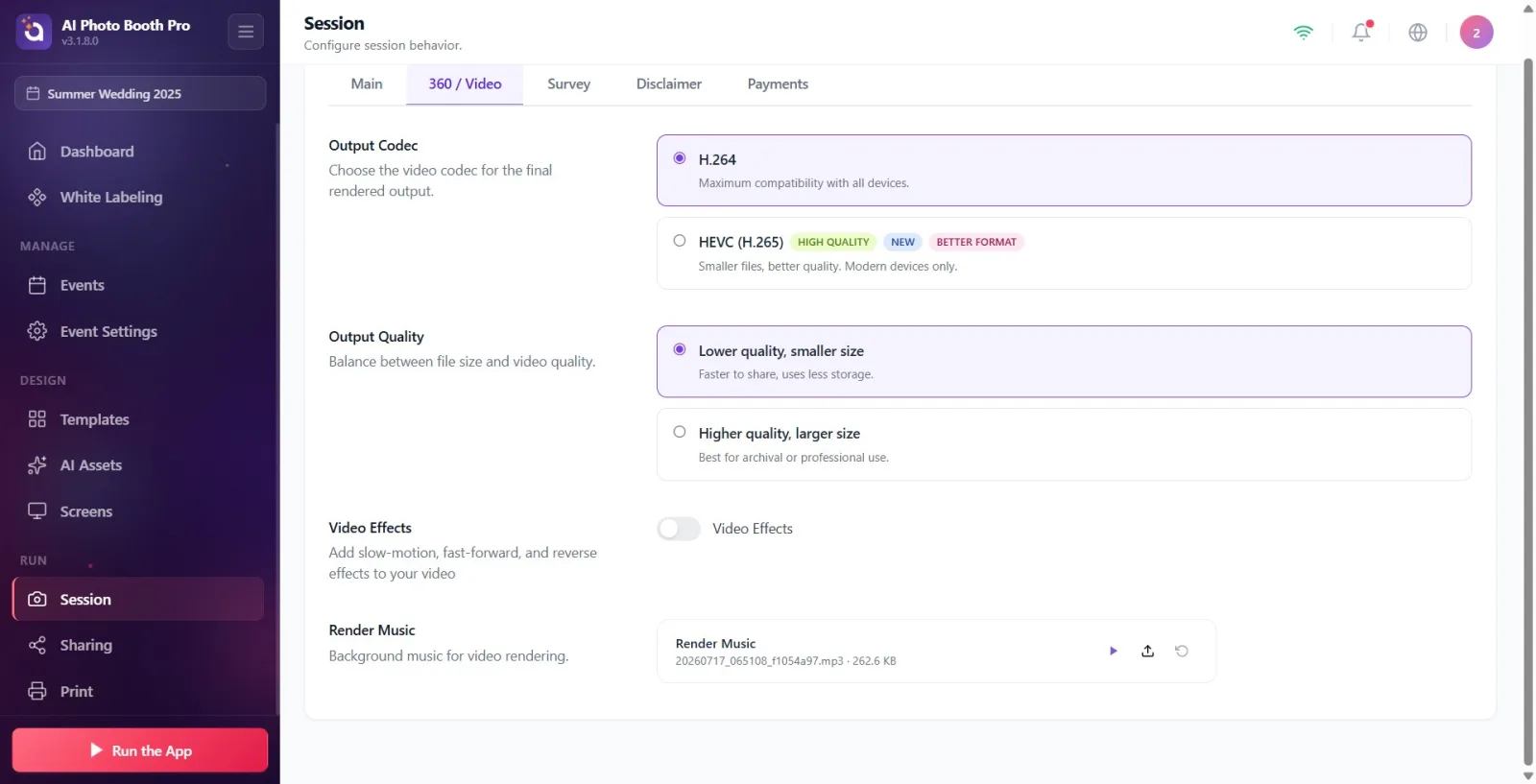
Video codec (H.264 / HEVC) and output quality options are not available in the Output tab. To do this, open the Session page from the left menu and switch to the 360 / Video tab at the top; The Output Codec and Output Quality sections are there. (These settings were previously in the General tab, now moved to the 360 / Video tab.)
🔎 Items on the screen: Session page tabs: General · 360 / Video · Survey · Disclaimer · Payments. 360 / Video must be selected for codec/quality.
Step 6 · Select Output Codec (H.264/HEVC)
Settings → Session → 360 / Video
There are two cards in the Output Codec section. Default H.264 — described as Maximum compatibility with all devices.. The other one is HEVC (H.265) — description 'Smaller files, better quality. Only modern devices.' and has the labels 'High quality', 'New', 'Better format'. Tap the radio button for the card you want; the selection is saved instantly (there is no separate Save button).
🔎 Items on the screen: Two radio cards: H.264 and HEVC (H.265). Section description: 'Select video codec for final processed output.'
Step 7 · Select Output Quality (Low / High)
Settings → Session → 360 / Video
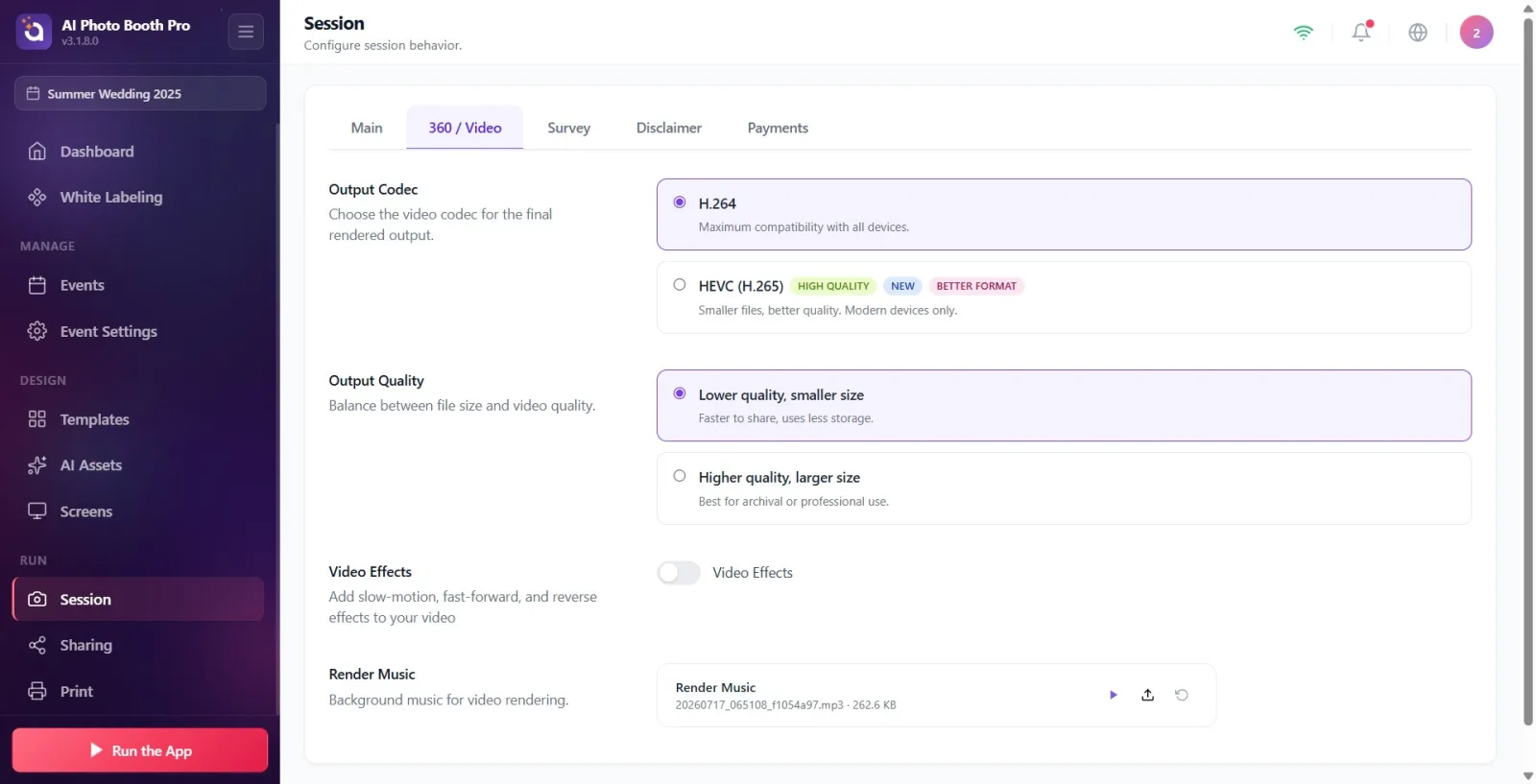
There are two cards in the Output Quality section. Default is Lower quality, smaller size — Faster to share, uses less storage.. The other one is Higher quality, larger size — Best for archival or professional use.. Choose one based on the purpose of the event; The selection is saved immediately.
🔎 Items on the screen: Two radio cards: Lower quality, smaller size and Higher quality, larger size. Section description: Balance between file size and video quality.
Step 8 · Platform restriction and resolution note
Settings → Session → 360 / Video
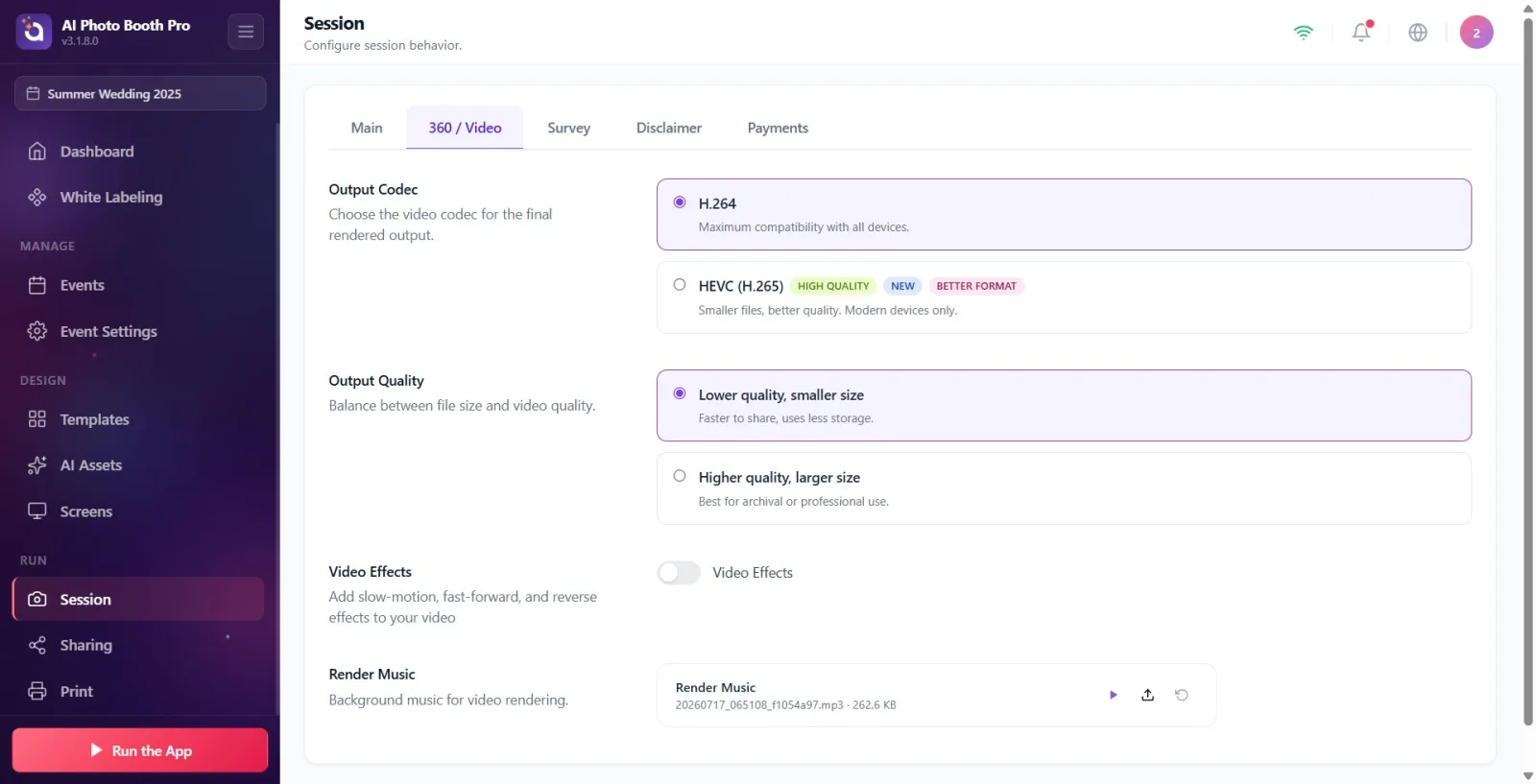
The HEVC (H.265) card is only visible if the device supports HEVC encoding: always on on Windows / iOS / macOS; On Android, if the device does not have a HEVC hardware encoder, the card will not be shown at all and H.264 will be used automatically. There is also no separate Resolution setting — the output resolution is automatically scaled. Codec and quality selection applies only to video rendering output (does not affect photo printing).
🔎 Items on the screen: HEVC card visibility depends on device capability
The Output tab is completely read-only: you change the Template Format and Event Type values you see by adding and editing templates from the Templates (Output Templates) page, not from here.
The value Portrait / Landscape comes from the canvas size of the template: Portrait if height > width, Landscape if width > height.
HEVC (H.265) gives smaller file and better quality, but only plays smoothly on modern devices; leave H.264 (default) for widest compatibility.
Higher quality, larger size for archive or professional submission; select Lower quality, smaller size for fast sharing and low storage.
Codec and quality selections are saved instantly on tap — don't look for a separate Save button.
Codec/quality only affects video (GIF/Video, Video Print, AI Video, etc.) rendering output; classic photo printing is not affected by these settings.
Look for the codec or quality setting in the Output tab — these settings are not there; It is in the 360 / Video tab of the Session page.
Attempting to change Template Format or Event Type directly — these are read-only; but it changes by adding/editing the template.
Mistaking No templates added yet as an error — it just means no template has been added to the event yet; Add template from Templates link.
Not seeing the HEVC (H.265) card on the Android device — if the device does not have a HEVC encoder, the option is hidden, this is normal and H.264 is used automatically.
Expecting a separate Resolution setting — there is no such user setting in the application; The output resolution is determined automatically.
Related topics
Event Settings → Event Mode Output Templates (Templates) Session (Session Settings) → 360 / Video (Codec and Quality) Print Settings