
Symptom-cause-solution guide for camera not connecting to the photo booth kiosk, no preview, error during shooting and DSLR/GoPro/virtual camera (OBS) specific problems. All error texts are taken from the real Turkish source file of the application (SettingsResource.tr.resx).
- Troubleshooting is mostly done in Settings → Event Settings → Camera tab (live preview + Select Camera window is here)
- The camera you want to use must be physically connected: USB for webcam/DSLR, Bluetooth for GoPro (Windows only), source application must be open and streaming for virtual camera (OBS)
- GoPro and Virtual Cameras appear only on Windows; 'Camera permission' issues only occur on Android/iOS; DSLR (Canon/Nikon) support is on Windows USB
step by step
Symptom: Camera shows 'Offline', no preview and 'Searching for camera...' returns
Settings → Event Settings → 'Camera' (connected camera card)
Cause: Selected camera physically disconnected (USB plug removed, GoPro turned off/gone away, DSLR went to sleep). The app enforces a 'sticky camera' policy — it doesn't AUTOMATIC jump to another camera, it sticks to the operator's chosen device and runs a reconnect watcher in the background. The monitor tries to turn on the same device again at increasing intervals (500ms → 1s → 2s → 4s → 8s, up to 10s); If it's a GoPro target, it also performs a Bluetooth scan every round. Solution: (1) Check the USB cable and port, unplug and plug back in if necessary. (2) If it is a GoPro, turn on the camera and move it closer to the kiosk. (3) The preview continues automatically when the device comes back — no manual action required. (4) If you want to leave this camera and switch to another camera, select another camera from the Select Camera window (this will cancel the pending tracker).
🔎 Items on the screen: Orange dot + Offline on the connected camera card; spinner + Searching for camera...
Symptom: 'Another app is using the camera. Close to continue.'
Settings → Event Settings → 'Camera' (toast/warning)
Cause: Another application (Zoom, Microsoft Teams, Windows Camera app, Skype, etc.) is keeping the webcam in 'exclusive' mode; Windows gives the camera to only one application (MediaFrameReader status is ExclusiveControlNotAvailable). This error really means 'using another app'. Solution: (1) Completely close the other application using the camera (it may be running in the background — check the taskbar/system tray). (2) Open the Select Camera window and press Refresh or select the camera again. Note: If the webcam gives this error during an active shooting (session), the application keeps the booth alive by moving it to the next camera in the added list, or if it is not available, to the Desktop Arrangement.
🔎 Items on the screen: Alert title Camera in use; message 'Another app is using the camera. Close to continue.'
Symptom: 'Camera unavailable. Make sure it is connected and not removed.'
Settings → Event Settings → 'Camera' (toast/warning)
Cause: The device is inaccessible — physically broken/removed or there is a driver/port problem (MediaFrameReader status is DeviceNotAvailable or UnknownFailure). This is NOT 'using another app'; A different message is deliberately shown. Solution: (1) Check the USB cable and port; try another USB port (back/motherboard port if possible). (2) Unplug it and plug it in again after a few seconds. (3) Connect directly instead of USB hub. (4) Refresh the list with Select Camera → Refresh. If the problem persists, try changing the cable/camera.
🔎 Items on the screen: Message 'Camera unavailable. Make sure it is connected and not removed.'
Symptom: Virtual camera (OBS/ManyCam/XSplit) is selected but no image appears — 'Virtual camera is installed but not broadcasting.'
Settings → Event Settings → 'Camera' (Virtual Cameras)
Cause: The virtual camera driver appears in the 'Virtual Cameras' list because it is registered in Windows, but the source application is NOT streaming (e.g. 'Start Virtual Camera' is off in OBS). The application cannot open the device (OpenCV/DirectShow does not produce a stream) and reports this specific situation with a separate message. Solution: (1) Open the source application (OBS/ManyCam/XSplit). (2) In OBS, press the 'Start Virtual Camera' button at the bottom right; Enable virtual camera output in ManyCam/XSplit. (3) Make sure the scene/source is selected and there is an image in the preview. (4) In the app, select Select Camera → virtual camera again. Note: The virtual camera still appears in the Windows list even when the source application is closed — so check 'is it streaming' rather than 'is it connected'.
🔎 Items on the screen: Group Virtual Cameras (detail Virtual camera (OBS, etc.)); message 'Virtual camera is installed but not broadcasting. Open the source application (e.g. OBS) and start the virtual camera ("Start Virtual Camera"), then try again.'
Symptom: Camera does not open at all and says 'Camera permission denied. 'Switched to Desktop Editing mode.' (Android/iOS)
Event Settings → 'Camera' (mobile)
Cause: Camera permission is not granted/denied to the application on the mobile platform (Android/iOS). Since the permission is a hard block, the application automatically falls into Desktop Editing (import from file) mode to prevent the booth from freezing, and the real camera does not open. Solution: (1) Open Device Settings → Apps → (app name) → Permissions → Camera. (2) Completely close and restart the application. (3) Open Event/Event Settings again; The camera returns to normal mode if allowed. Note: This message is not expected on Windows; Look for Camera in use/'unavailable' scenarios instead of permission on Windows.
🔎 Items on the screen: Message Camera permission denied. Switched to Desktop Editing mode.; connected camera appears as Desktop Arrangement (Import from file)
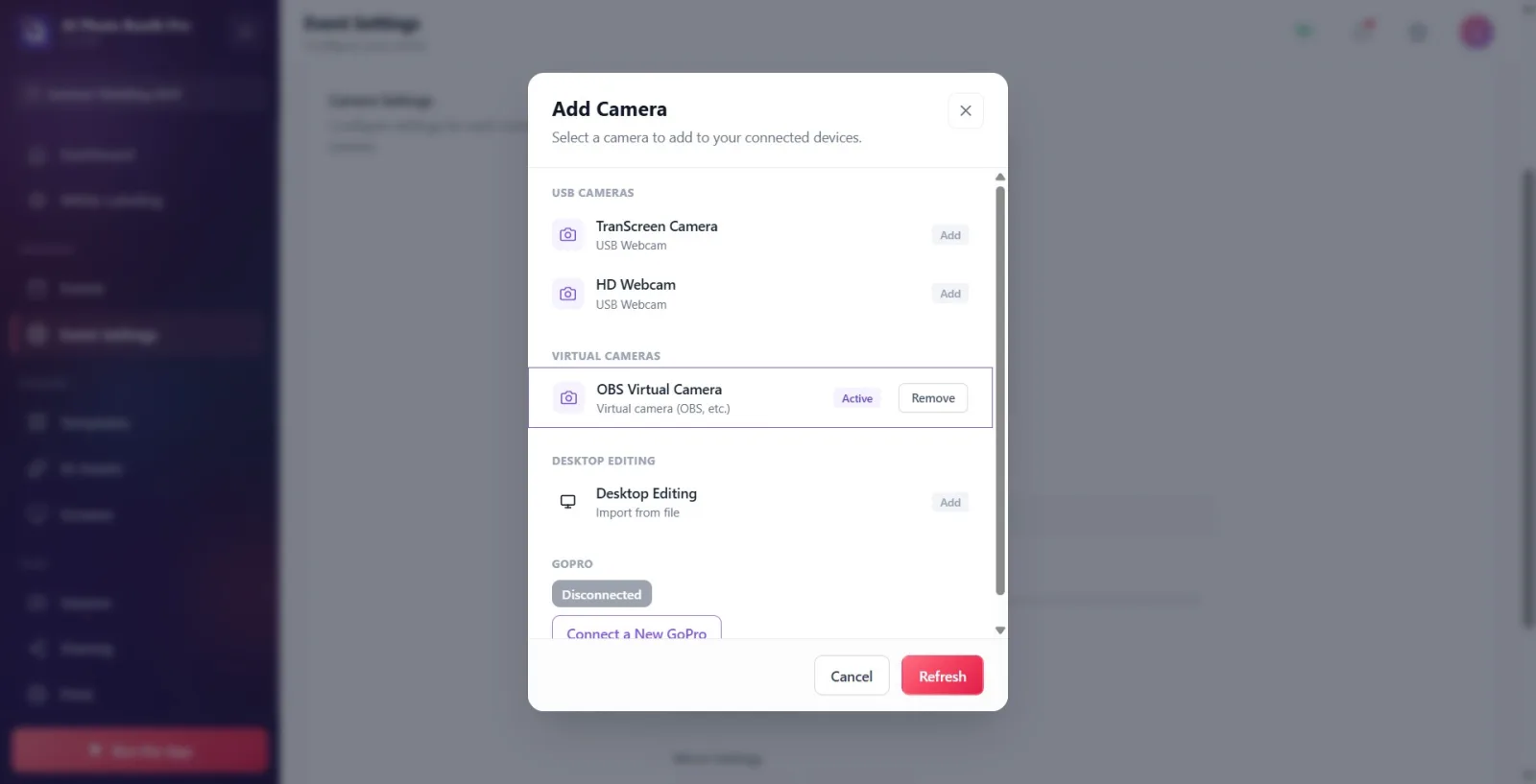
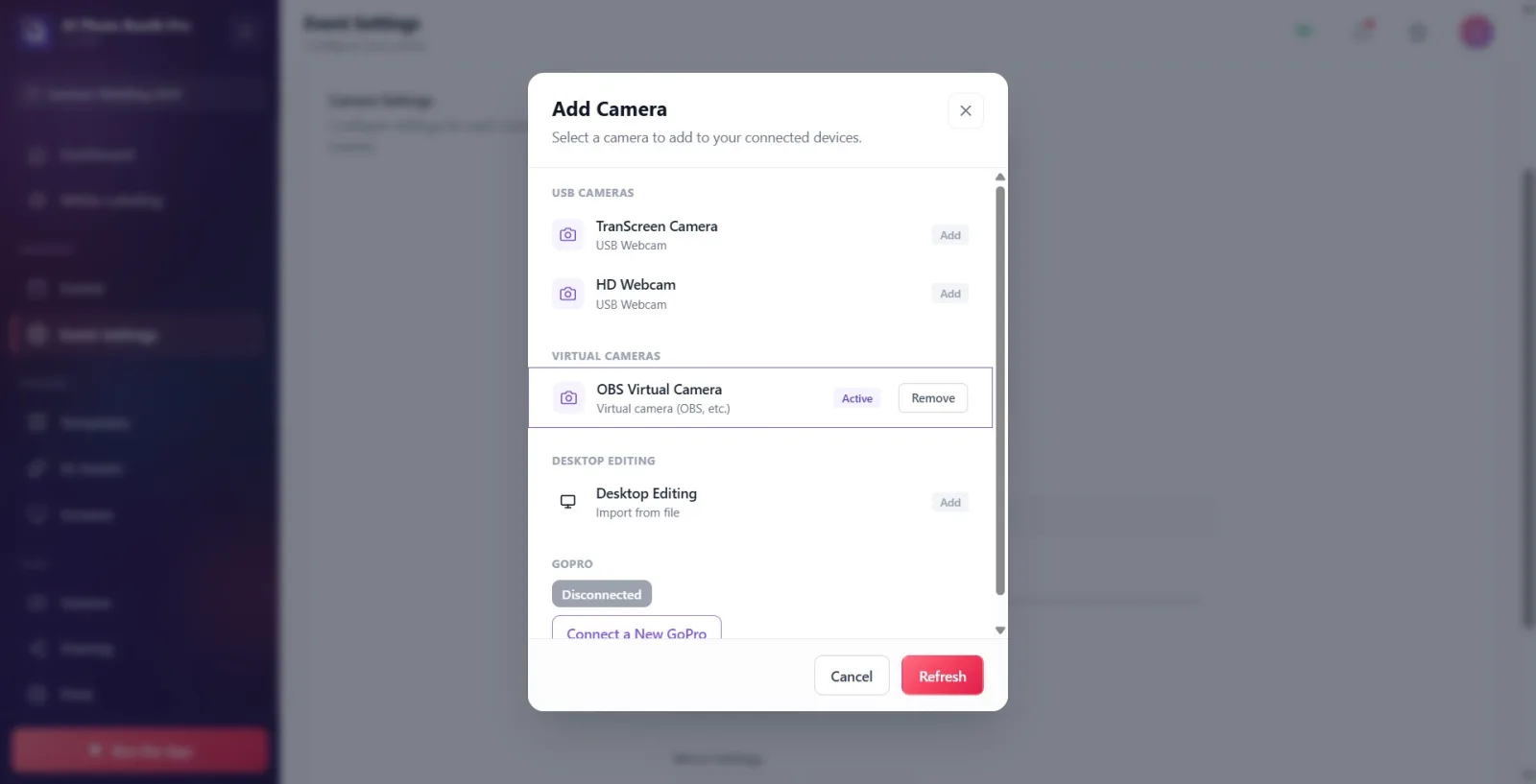
Symptom: Camera does not appear at all in the 'Select Camera' window / newly attached device does not appear in the list
Settings → Event Settings → 'Camera' (Add Camera window)
Cause: The device is not yet enumerated (USB just inserted, driver is being installed), the source application of the virtual camera is closed, or the list comes from a short-term cache. Solution: (1) Press the Refresh button at the bottom of the Select Camera window — the cameras will be scanned again. (2) If it is not visible, unplug the device and plug it in again, then Refresh again. (3) For the virtual camera, first start broadcasting in the source application (OBS Start Virtual Camera). (4) For DSLR, keep the camera on and in 'PC connection/PTP' mode; Scan for Bluetooth with Connect a New GoPro for GoPro. The official tip in the app is the same: 'If it doesn't appear, try unplugging it and plugging it in again.'
🔎 Elements on the screen: Add Camera window; Refresh and Cancel buttons on the bottom bar; group headers Built-in Cameras / USB Cameras / Virtual Cameras / Desktop Editing / GoPro
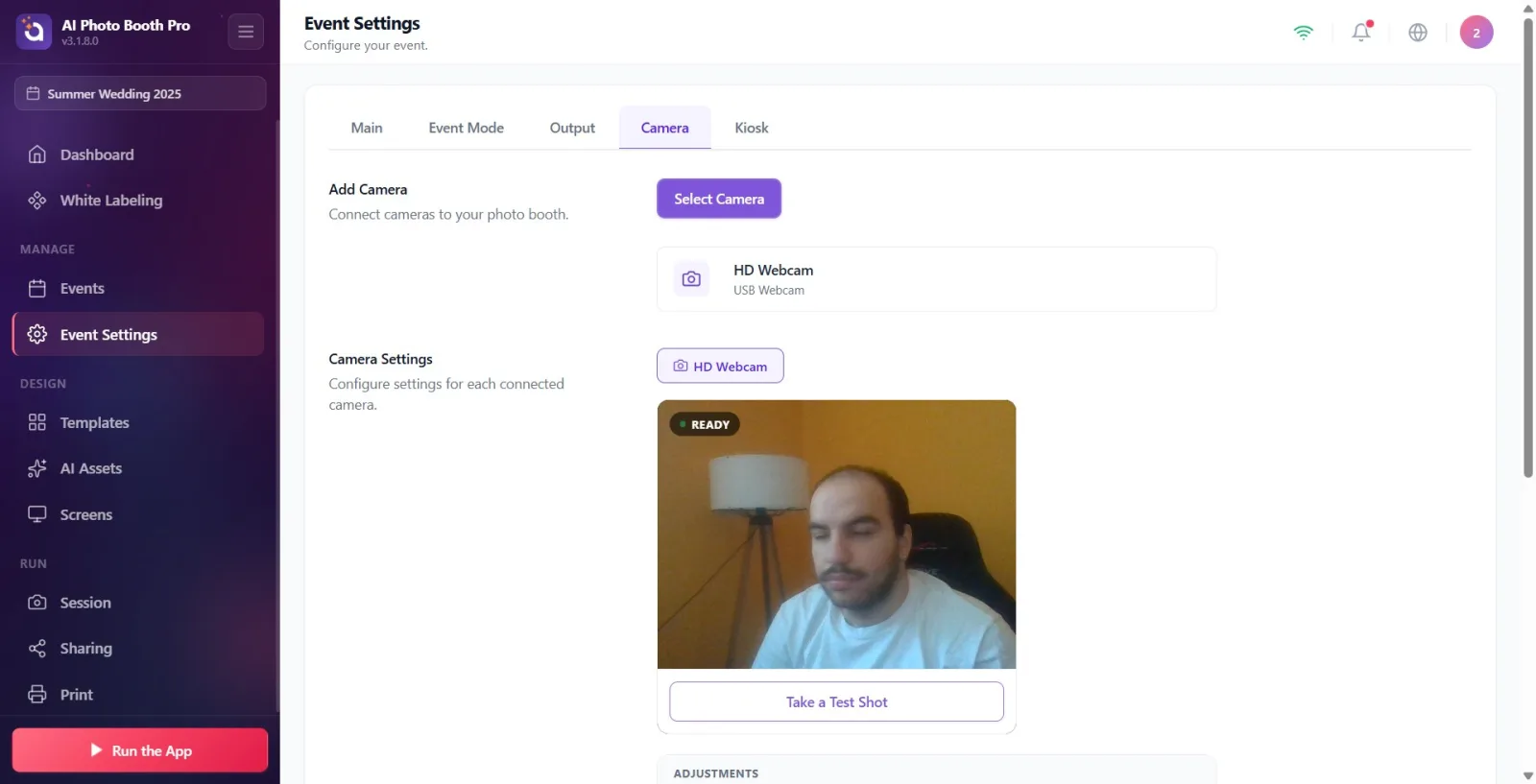
Symptom: Pressing 'Take Test Photo' but nothing happens / card says 'No Camera Selected'
Settings → Event Settings → 'Camera' (Camera Settings)
Cause: There is no active (selected + open) camera — no camera has been added yet, or the selected camera is offline. Test shooting only works when there is an active camera; If there is no active camera, the button silently does nothing. Solution: (1) Press Select Camera from Add Camera section. (2) CLICK on a camera from the list — the click both adds and activates that camera (only the camera with the Added badge is not active and does not appear in the preview). (3) Take a Test Shot works when the camera name and Ready badge in the preview appear on the connected camera card. While an active camera is indeed required, the app carries the following warning: 'No active camera. Please select a camera before taking a test shot.'
🔎 Items on the screen: No Camera Selected on the card in empty state; Take a Test Shot button; Ready badge with green dot in ready preview; The corresponding warning is 'No active camera. Please select a camera before taking a test shot.'
Symptom: Camera disconnected during recording (session) — 'Camera disconnected. Check USB cable and camera.' fashionable
Shooting/Session screen (booth)
Cause: Camera physically disconnected in the middle of active shooting (cable pulled, DSLR shut down, GoPro WiFi dropped). To prevent the underlying uncancellable native call from blocking forever, the application runs a break-protection: when the break signal arrives (or a hard time limit of 70 seconds at the latest), it stops shooting, shows the break modal to the user, and clears the session. Solution: (1) Check the USB cable and camera, reconnect if necessary. (2) Check battery/card status on DSLR. (3) Keep the GoPro on and close. (4) Press confirm in the modal (session cleared) and restart shooting after camera comes back.
🔎 Items on the screen: Error title Camera Error; message 'Camera connection lost. Check the USB cable and camera.'; generic shooting error text 'An error occurred while shooting. Please try again or choose a different camera.'
Symptom: DSLR capture fails — 'Camera busy or preparing.' or 'The photo could not be received in time.'
Shooting screen / Camera tab (DSLR)
Cause: The DSLR body was unable to process the capture request — busy (burst shooting, mirror up/sensor cleaning, body adjustment being applied) or photo could not be transferred in time (slow SD card, full buffer, high resolution/RAW). These messages are derived from Canon/Nikon MTP error codes (e.g. 81/8D03/2019 = busy). Solution: (1) Wait a few seconds and try again — Busy is usually temporary. (2) If there is a process such as mirror-locking/sensor cleaning/long exposure on the body, wait for it to finish. (3) If transfer is slow, lower the resolution (Small) or choose JPEG instead of RAW (see high resolution warning below). (4) Replace the SD card with a fast card.
🔎 Items on the screen: 'Camera busy or preparing. Wait a few seconds and try again.'; 'The photo could not be received in time. Please try again. If the problem persists, check the camera connection.'
Symptom: DSLR cannot focus / blank frame — 'Camera failed to focus.' or 'The camera failed to take a photo. Remove the lens cap...'
Shooting screen / Camera tab (DSLR)
Cause: Autofocus failed to lock (low light, no contrast/flat surface, subject too close) or the body accepted the shot but did not produce a new image (lens cap attached, lens obstructed, did not hold focus). Solution: (1) Back off a bit and try again; If the environment is dark, increase the light. (2) Remove the lens cover and any obstacles in front of it. (3) If the problem persists, move the lens to MF (manual focus). (4) Adjust the focus distance (move away if the subject is too close).
🔎 Items on the screen: 'The camera could not focus. Please step back a bit and try again; If the environment is dark, increase the light. If the problem persists, move the lens to MF (manual focus).'; 'The camera could not take a photo. Remove the lens cap, remove anything obstructing the lens and make sure it can focus, then try again.'; 'The lens cover is closed. Open the door and try again.'
Symptom: DSLR memory card error — card missing / full / write protected
Shooting screen / Camera tab (DSLR)
Cause: There is no memory card in the DSLR body, the card is full or the card is write protected/faulty (Canon/Nikon code mapping: NoCard/StoreNotAvailable, StoreFull, CardProtect/DiskError). Most DSLRs also reject the shutter release without a card. Solution: (1) 'No card' → insert a working SD/CF card into the body. (2) Fill → free up space on the card or replace it with a blank card. (3) 'Write protected' → turn the physical lock switch on the side of the card to the on position; If it is faulty, replace the card. (4) You may need to turn the camera off and on after the card.
🔎 Items on the screen: There is no memory card in the camera. Insert a card and try again.; 'The camera memory card is full or cannot be written to. Free up space on the card or replace it.'; 'The memory card is write protected or defective. 'Unlock or replace card.'
Symptom: DSLR battery low / shot rejected — 'Camera battery too low.'
Shooting screen / Camera tab (DSLR — Advanced Settings)
Cause: DSLR battery level is critical; 'Camera battery too low' error appears while shooting. In the Advanced Settings heading in the Camera tab, the battery percentage badge blinks red and warns when low. Solution: (1) Charge the battery or replace it with a charged battery. (2) Connect the camera to the power adapter (AC adapter / dummy battery) if possible — recommended for long events. (3) After replacing the battery, refresh the settings/battery status with Read Status.
🔎 Items on the screen: Error 'Camera battery is too low. Charge it or connect it to the power adapter.'; Battery badge + warning 'Camera battery low (%{0}%) — charge or replace before shooting' in Advanced Settings
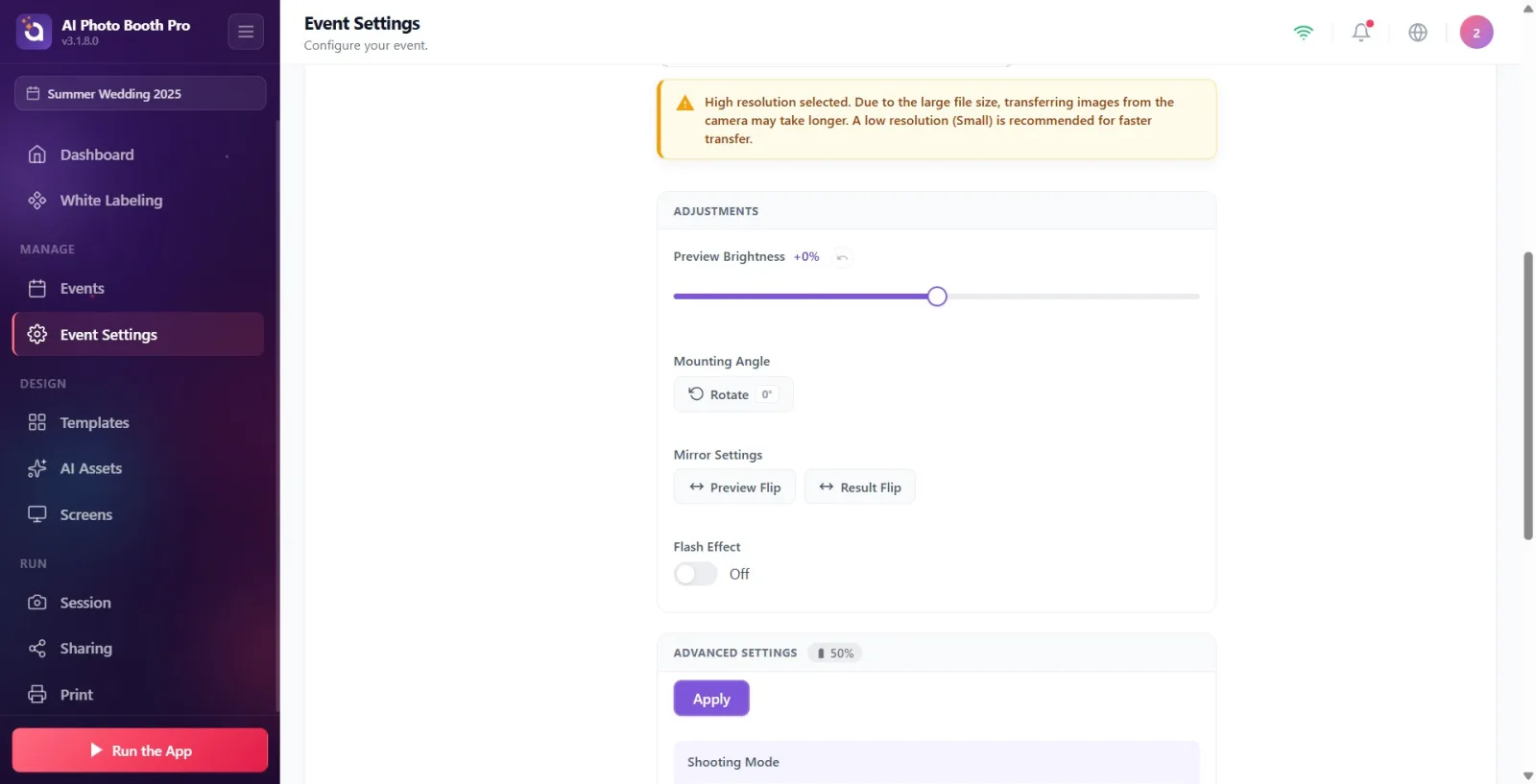
Symptom: High resolution/RAW warning on DSLR and photos are very slow to arrive
Settings → Event Settings → 'Camera' (Camera Settings DSLR)
Cause: High resolution or RAW format is selected on the DSLR; Large files take a long time to transfer from the camera, creating a countdown/inter-shot wait. A permanent yellow warning card appears at the top of the settings panel. Solution: (1) Lower the Image Quality/resolution from Advanced Settings (Small recommended) — then press Apply. (2) Choose JPEG instead of RAW. (3) Don't forget to write the change to the camera with Apply (otherwise it will remain in the draft). The warning card remains visible until low resolution/JPEG is selected.
🔎 Elements on the screen: Yellow warning card: 'High resolution selected. Images may take longer to transfer from the camera due to the large file size. Low resolution (Small) is recommended for faster transfer.'; 'RAW format is selected. ... JPEG format is recommended for faster transfer.'
Symptom: The dial/ISO/mode on the DSLR body is rotated but the value on the screen is not updated (consumer Nikon)
Settings → Event Settings → 'Camera' (Advanced Settings)
Cause: Some consumer-grade DSLR bodies (e.g., entry-level models such as the Nikon D3500) do not report a dial/mode change on the body as an event to the application (MTP does not issue a DevicePropChanged). So when you rotate the value from the body, the drop-down menus on the screen show the old value. Solution: (1) Press the Read Status button on the Advanced Settings toolbar — the values are refreshed from the camera. (2) Turn on the Auto Read switch for continuous sync — auto-refreshes every few seconds. Note: Since professional bodies (Nikon D5/D850/Z9 etc.) broadcast this event, they generally do not need a manual refresh.
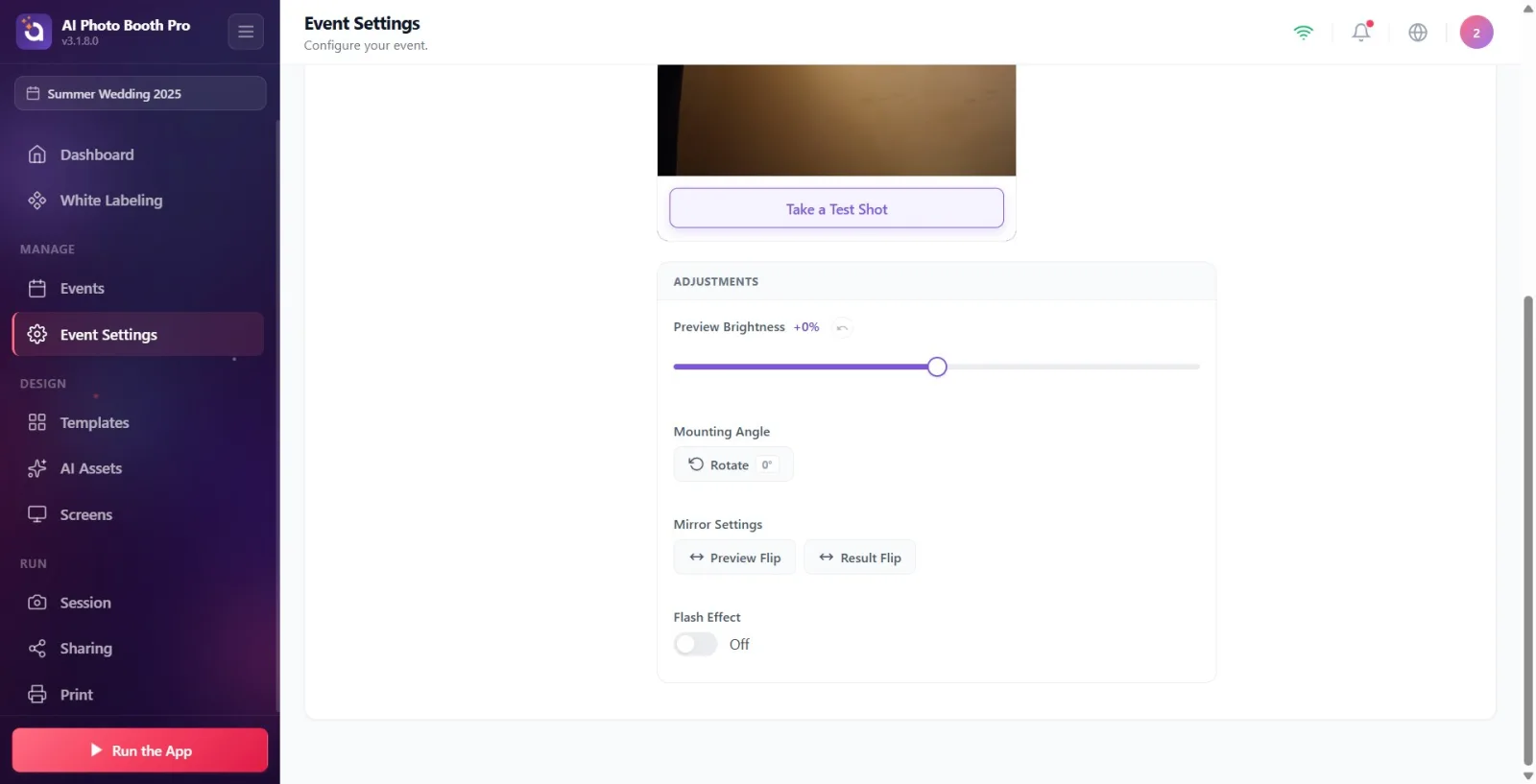
🔎 Elements on the screen: Advanced Settings toolbar: Read Status button; Auto Read key; Reading status... layer in preview while reading
Symptom: 'Set Settings with AI' button is inactive or 'Not enough credits for AI analysis'
Settings → Event Settings → 'Camera' (Camera Settings DSLR)
Why: The AI setting recommendation button activates only when (a) a supported DSLR is active and (b) a test photo has just been taken; Additionally, each call costs 2 credits. If the credit is insufficient, the analysis does not start and the credit purchase screen opens. Solution: (1) First take a frame with Take a Test Shot in the preview — the button appears below Retake. (2) If your credit is insufficient, get a loan from the credit paywall. (3) AI recommendations are not automatically applied; It appears as a draft in the menus, review it and write it to the camera with Apply.
🔎 On-screen elements: Set Settings with AI button + '(2 Credits)' label; Analyzing settings… during analysis; warning if credit is insufficient Not enough credits for AI analysis (2 credits needed)
Symptom: GoPro not connecting (Windows only) — 'Failed to establish BLE connection.' / 'WiFi connection could not be established.' / 'GoPro is not responding'
Settings → Event Settings → 'Camera' (Add Camera · GoPro)
Why: GoPro connection is two-step — first Bluetooth (BLE) pairing, then connecting to the GoPro's WiFi hotspot. If one of the steps fails (GoPro off/remote, Bluetooth off, hotspot failed, camera unresponsive) the connection cannot be established. The colored status label on the GoPro section and the live log below indicate at what stage it was installed. Solution: (1) Turn on the GoPro and move it closer to the kiosk. (2) Turn on the computer's Bluetooth. (3) Start new scan with 'Connect New GoPro'; If the connection is lost, press 'Reconnect'. (4) Watch the log dump ('Pairing Bluetooth...', 'Connecting to GoPro WiFi...', GoPro not responding etc.) — which step it got stuck on is visible here. (5) If it fails constantly, turn GoPro off and on, reset previous WiFi pairing. Note: GoPro is only supported on Windows; On other platforms, the GoPro section is not visible.
🔎 Items on the screen: group GoPro (detail GoPro · Bluetooth); initial status label Disconnected; Connect a New GoPro and conditional Reconnect buttons; live log lines; error texts BLE connection failed., WiFi connection failed., Hotspot failed to open, GoPro not responding, Connection failed
Symptom: Shot with GoPro but photo/video not coming to kiosk — 'Failed to download photo. Footage on GoPro memory card — auto retrying.'
Shooting screen / GoPro (Windows)
Cause: The GoPro shutter worked and the shot was recorded on the GoPro's memory card, but the transfer of the file to the kiosk over WiFi was interrupted (WiFi was weak/cut out, GoPro went away). Solution: (1) The camera automatically tries again — wait briefly (Waiting...). (2) Press Retry Nowto try it now. (3) Keep the GoPro close to the kiosk and turned on; Do not allow walls/metal obstacles in between. (4) If you want to skip that frame, use Skip This Shot. Note: Since the footage is safe on the GoPro card, it is usually transferred automatically once the connection is restored.
🔎 Elements on the screen: Title GoPro Connection Issue; message 'Failed to download photo. Footage on GoPro memory card — auto retrying.' ('Failed to download video...' for video); buttons 'Try Again Now', 'Skip This Shot', 'Reconnect'; 'Waiting...'
Preview and active shooting behave differently: If the camera selected in settings/preview breaks, the application will NOT jump to another camera (sticky) and waits for it to come back with Offline + Searching for camera...; If the webcam/DSLR fails in the middle of an active session, it will be transferred to the next camera in the added list, or if it is not available, it will be transferred to Desktop Arrangement.
Don't confuse two different 'unavailable' messages: 'Another application is using the camera' = another program is holding the webcam (close that program); 'Camera unavailable' = device broken/inaccessible (check cable/port).
Critical distinction in virtual camera (OBS) problems: although the device appears 'connected', no image will appear unless streaming has started in the source app — 'Start Virtual Camera' in OBS first.
If the device is not in the list, the first reflex is: Select Camera → Refresh; then unplug it; then Refresh again.
High resolution/RAW on a DSLR slows down the transfer; for fast streaming, set Image Quality to Small/JPEG and press 'Apply'.
On some DSLR bodies, such as the consumer Nikon, the physical dial change is not immediately reflected on the screen — refresh with Read Status or turn on Auto Read.
GoPro is only supported on Windows; If the connection is stuck, the live log dump in the GoPro section shows which stage (BLE/WiFi) is the problem.
During long events, connecting the DSLR to the power adapter prevents 'Camera battery too low' blackouts.
Trying again without closing the other app holding the webcam (Zoom/Teams/Windows Camera) — the 'Another app is using the camera' message will not disappear.
Selecting OBS/virtual camera and forgetting Start Virtual Camera in the source application — 'Virtual camera is installed but not broadcasting' warning appears.
In case of Offline/Searching for camera..., panicking and choosing another camera — due to fixed policy, the preview returns automatically when the cable/GoPro comes back; What really needs to be done is to fix the physical connection.
Leaving the camera at Added and not making it active — camera with badge Added will not appear in preview; Click on the line to activate it.
Changing Image Quality/resolution on DSLR and not pressing 'Apply' — change stays in draft, slow transfer issue persists.
Denying camera permission on mobile and then being surprised that the camera doesn't open — the app relegates to Desktop Editing; It must be allowed from system settings.
Not checking the physical write-protect lock of the card when receiving a DSLR card error ('card missing/full/protected').
Calling Set Settings with AI without taking a test photo — the button is activated only after a test shot and with 2 credits.
Related topics
Event Settings → camera Camera & OBS Setup Session Settings Event Settings → Kiosk