
Before this: How to Create an Event?
How to Connect to GoPro Booth
This guide explains how to connect a GoPro to a photo booth: first you prepare the GoPro and Windows PC, then pair via Bluetooth with Connect a New GoPro from the GoPro section of the Add Camera window in Event Settings → Camera, the app automatically connects to the GoPro's WiFi. GoPro mounting is only supported on Windows; If the connection is lost, you can 'Reconnect' and recover with the 'GoPro Connection Problem' recovery window that appears while shooting.
- Windows PC (GoPro is supported on Windows only — the 'GoPro' section will not appear on other platforms)
- A Windows PC with working Bluetooth and WiFi hardware (one for pairing, one for GoPro hotspot connection)
- The application must be properly INSTALLED (MSIX) — Windows blocks Bluetooth access if run from a copied folder
- A GoPro with Open GoPro API support (usually HERO9 Black and later: HERO10/11/12, MAX)
- Fully charged GoPro + memory card with free space (microSD)
- An event must be created and open for editing (the Event Settings screen should appear)
step by step
Step 1 · Prepare the GoPro (battery, memory card, power)
On device (non-app)
Use a charged GoPro and insert a memory card (microSD) with free space — the GoPro first saves each shot to its own memory card, the app then downloads it to the PC via WiFi; If the card is missing or full, the shot cannot be downloaded. Turn on the GoPro with the power/mode button on the side. Note: GoPro mounting is only supported on Windows.
Step 2 · Turn on wireless on GoPro and put it in pairing mode
GoPro device menu (non-app)
Make sure the GoPro's wireless connections are turned on. Scroll down and verify that connections are turned on in the Preferences → Connections menu; If old pairings are causing problems, clear them with 'Reset Connections' and make the GoPro visible (pairable) to a new device. DO NOT leave the GoPro connected to the GoPro Quik app on the phone — the GoPro connects to one device at a time, the PC cannot pair if the phone is connected. Keep the GoPro close to the PC (Bluetooth range) during pairing.
Step 3 · Prepare Windows PC (Bluetooth + WiFi + installed application)
Windows/application
Make sure both Bluetooth and WiFi are turned on on the PC — the app finds the GoPro via Bluetooth, then connects the PC's WiFi to the GoPro's own hotspot. The application must be properly INSTALLED (MSIX); If run from a copied folder, the scan returns a 'Bluetooth access check failed' error. Important: The WiFi adapter connected to the GoPro's hotspot cannot access the internet at that time — use Ethernet or a second network adapter in booths that require internet.
Step 4 · Open Select Camera and GoPro partition
Settings → Event Settings → 'Camera' (Add Camera window)
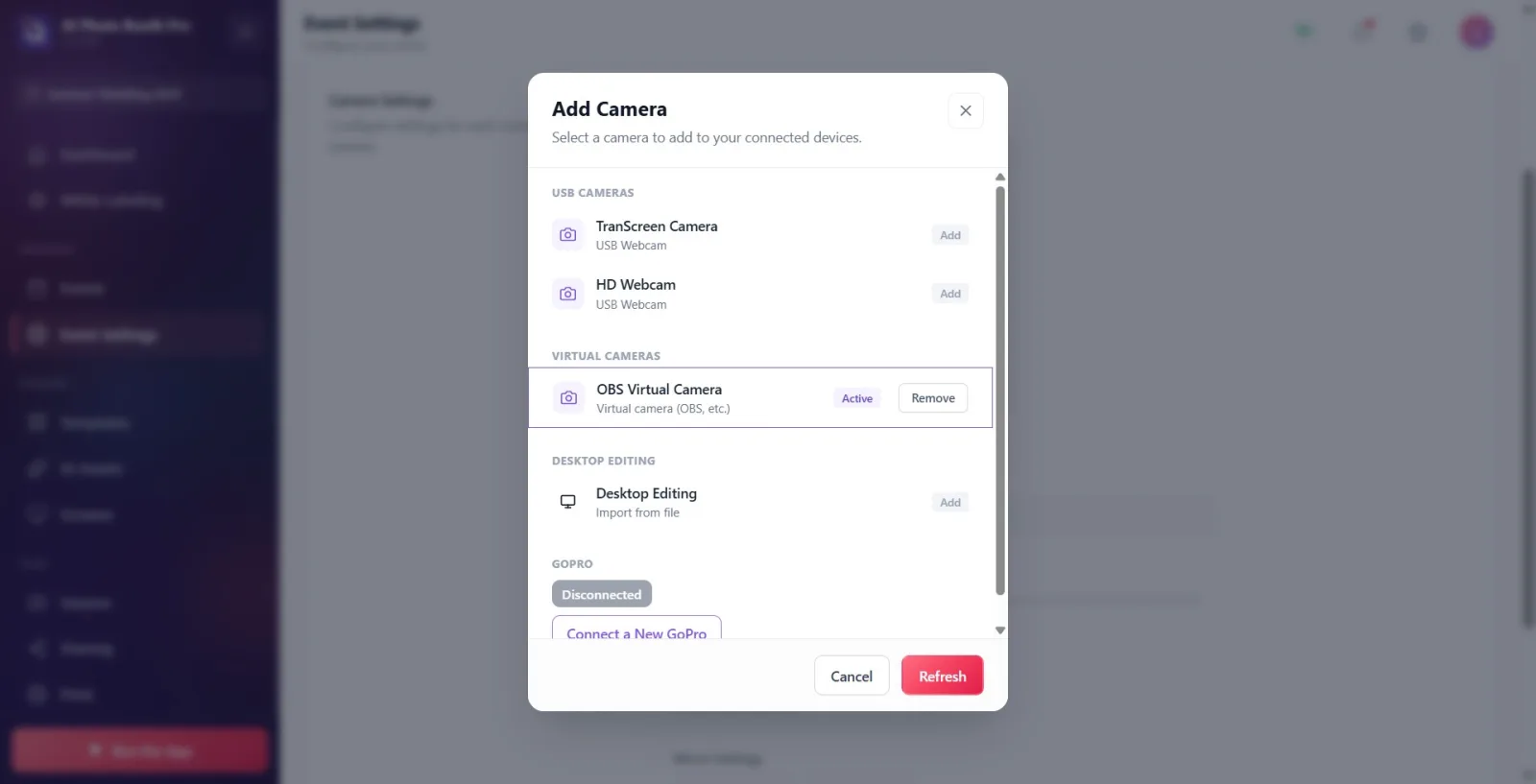
Open the 'Camera' tab in Event Settings and press the 'Select Camera' button in the 'Add Camera' section. In the 'Add Camera' window that opens, scroll to the bottom: In Windows there is always a GoPro section visible (device detail GoPro · Bluetooth). If there is no GoPro paired yet, the list is empty, but the section title, colored status label (initially Disconnected), and Connect a New GoPro button appear. This section does not appear at all on non-Windows platforms.
🔎 Items on the screen: GoPro group title; colored status label Disconnected; Connect a New GoPro button; conditional Reconnect button.
Step 5 · Start Bluetooth scan with Connect a New GoPro
Settings → Event Settings → 'Camera' (Add Camera · GoPro)
Press the Connect a New GoPro button. The app first checks for Bluetooth access, then scans for nearby GoPros. As the scan continues, a spinner spins and the status label changes to Scanning for GoPro.... Found GoPros are listed in the 'GoPro' section with an 'Add' badge. If the GoPro does not appear: Make sure the GoPro is on, wireless is active and not connected to the phone, then press Connect a New GoPro again (or refresh the list with Refresh at the bottom of the window).
🔎 Items on the screen: Connect a New GoPro button; rotating spinner; colored status label; scanned GoPro lines (Add badge); Refresh under window.
Step 6 · Select found GoPro — automatic BLE + WiFi connection
Settings → Event Settings → 'Camera' (Add Camera · GoPro)
Click on the GoPro row in the list. The app automatically: pairs via Bluetooth, reads WiFi information from the GoPro, turns on the GoPro's WiFi hotspot, and connects the PC to this hotspot. The live log dump below the section shows the steps: Pairing Bluetooth... → Reading GoPro WiFi info... → 'Turning on GoPro WiFi...' → 'Connecting to GoPro WiFi...' → GoPro connected. This process may take a few seconds; Do not select another camera before it is completed, or the connection will be cancelled.
🔎 Items on the screen: GoPro line (clicking becomes Active); color changing status label; live log dump (e.g. Pairing Bluetooth..., 'Connecting to GoPro WiFi...').
Step 7 · Connected — verify preview and connected camera card
Settings → Event Settings → 'camera'
Once connected, the status label becomes GoPro connected (green) and the Active badge appears in the GoPro line; Usually the window closes on its own. You'll see the GoPro name and GoPro · Bluetooth detail on the connected camera card in the Add Camera section, the live preview in the Camera Settings section, and the green Ready badge in the top left. If you want, verify the framing and lighting with Take a Test Shot before the actual shooting.
🔎 Items on the screen: Connected camera card (GoPro icon + name + GoPro · Bluetooth); Active badge; live preview card + Ready badge; Take a Test Shot button.
Step 8 · Reconnect (WiFi recovery) if connection is lost
Settings → Event Settings → 'Camera' (Add Camera · GoPro)
If the GoPro's WiFi drops, the Reconnect button appears in the GoPro section of the Add Camera window; This button attempts to recover WiFi directly without scanning from scratch. The connected camera card remains 'stable' (does not jump to another camera): it shows 'Offline' with an orange dot and a spinning icon + Searching for camera... as the app attempts to automatically reconnect. Once connected, the GoPro is registered; It silently auto-reconnects on the next activity launch (if the PC's Bluetooth is on).
🔎 Items on the screen: Reconnect button; orange dot + Offline on connected camera card; spinner + Searching for camera... while searching.
Step 9 · GoPro Connection Issue recovery window while shooting
Kiosk shooting screen (booth)
If the photo/video cannot be downloaded from the GoPro while shooting, the app will open a recovery window titled GoPro Connection Issue after a few silent attempts. The message states that the shot is not lost: 'Failed to download photo. Footage on GoPro memory card — auto retrying.' ('Failed to download video...' for video). The window lists each attempt live (Arrow / error + duration ms) and offers three buttons: Retry Now (attempts download immediately), Reconnect (sets up BLE/WiFi from scratch), 'Skip This Shot' (skips this shot). Below is the 'Last log lines' technical breakdown; When the download is successful, 'Download successful!' confirmation appears. The auto-test loop in the background continues even when the window is open — most of the time it recovers on its own without pressing anything.
🔎 Elements on the screen: Title GoPro Connection Issue; status Waiting...; trylist (Arrow/error + ms); buttons Retry Now / Reconnect / Skip This Shot; Recent log lines; success screen Download successful!.
The GoPro first saves the photo/video to its own memory card, then downloads it to the PC via WiFi — let's have a memory card inserted and a card with free space.
The PC's WiFi connects to the GoPro's hotspot, so it can't go online while that adapter is connected; In installations that require internet, use Ethernet or a second network adapter.
During connecting, the live log dump under the GoPro section shows the stages in order: Pairing Bluetooth... → Reading GoPro WiFi info... → 'Turning on GoPro WiFi...' → 'Connecting to GoPro WiFi...' → GoPro connected.
The GoPro camera is 'stable': if it temporarily disconnects, the app will not jump to another camera — it will show Offline + Searching for camera... and try to reconnect automatically.
Once successfully connected, the GoPro is registered; If the PC's Bluetooth is on at the next event launch, it will automatically reconnect silently (without asking for confirmation).
Connecting may take a few seconds; If you select another camera before it is completed, the working connection will be canceled — wait patiently.
If the download gets stuck while shooting, most of the time you don't need to press anything: the recovery window automatically tries in the background and says Download successful! when the download comes.
Running the application from a copied folder without installing it: Bluetooth scan fails with 'Bluetooth access check failed' — application must be installed as MSIX.
Searching for the GoPro partition on a non-Windows platform: The GoPro partition appears only on Windows.
Leaving GoPro connected to GoPro Quik app on phone: GoPro connects to one device at a time, PC cannot pair while phone is connected — disconnect phone first.
Leaving Bluetooth or WiFi off on the PC: Bluetooth is required for pairing, WiFi is required for the GoPro hotspot.
Not inserting the memory card or leaving it full: footage cannot be saved/downloaded to the GoPro, the recovery window constantly remains on 'auto retrying'.
Becoming impatient and selecting another camera while the connection is ongoing: the working BLE/WiFi connection will be cancelled.
Keeping GoPro away from PC: Pair/disconnect when out of Bluetooth range — keep it close while pairing.
Related topics
Event Settings → camera Camera & OBS Setup Camera Problems