













Drawing Settings is where everything related to the guest's drawing experience comes together on one page: a live preview of the drawing screen, whether AI is used, canvas size, products guests paint, backgrounds, the frame, stickers, coloring pages, brush tips, and the second screen. This article covers the top of the page: the preview, AI result, and Canvas size. Each of the other sections has its own article.
This guide covers AI Drawing Screen 2.2.2. Available controls may vary by platform and version; platform-specific limitations are noted below.
- An event must be created.
Step by step
Step 1 · Open the Drawing Settings page
Left menu → Drawing Settings
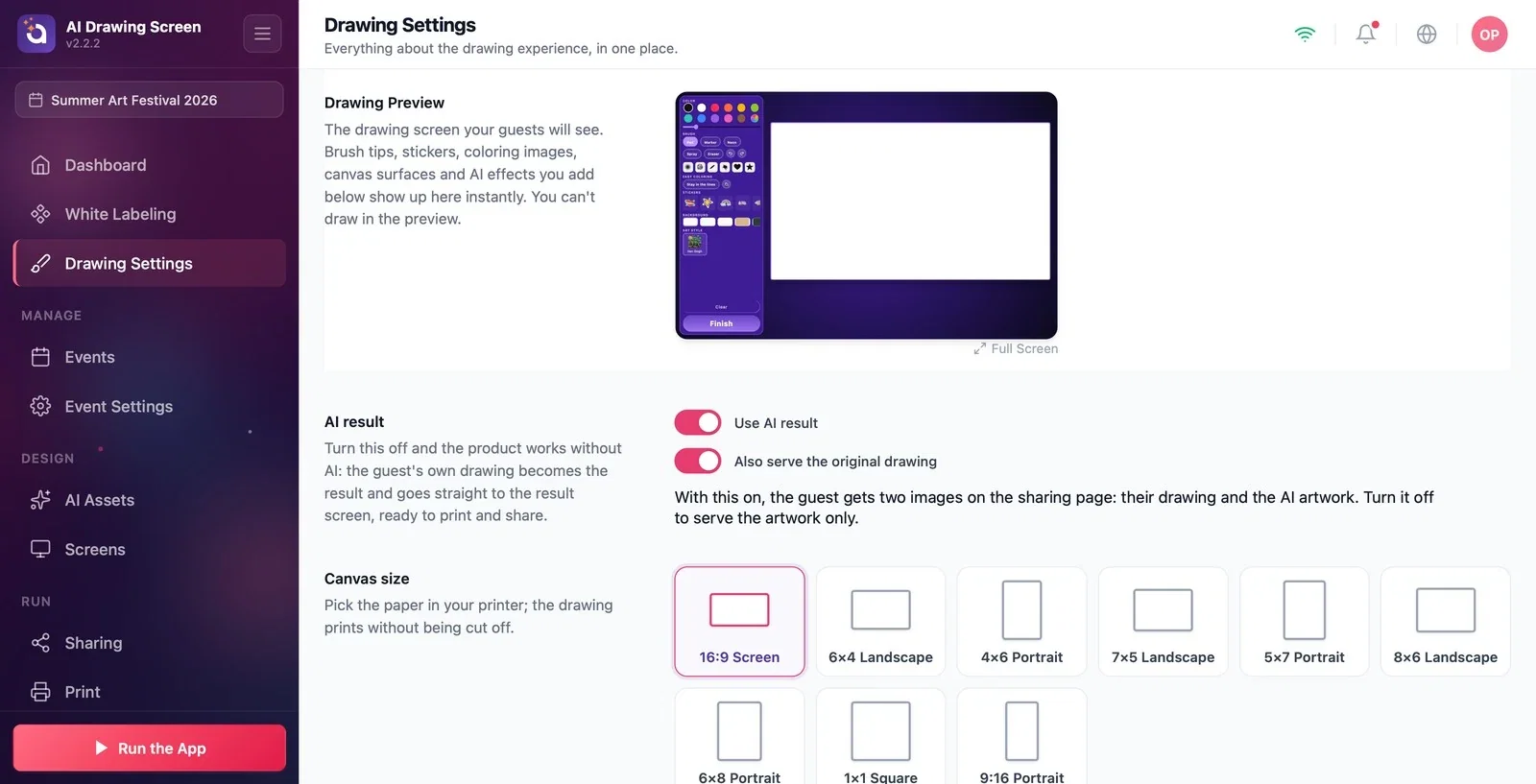
Click Drawing Settings near the top of the left menu. The Drawing Preview sits at the very top of the page and stays at the top of the screen as you scroll down, so you can see the effect of every change you make in the sections below on the drawing screen at the same time. You can't draw in the preview; it only shows how things look.
Step 2 · Preview the guest's drawing screen in full screen
Drawing Settings → Drawing Preview → Full Screen
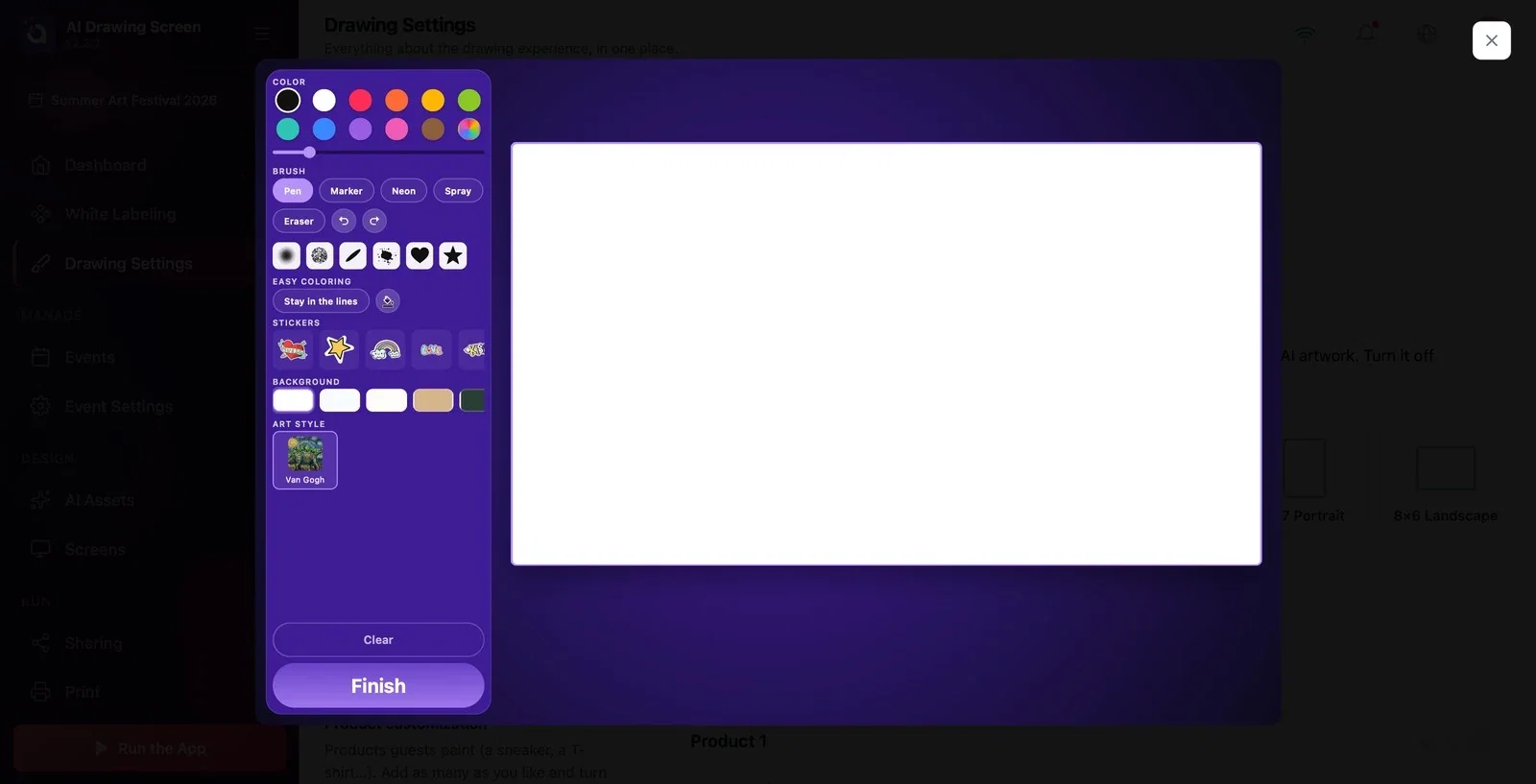
Click the Full Screen link below the preview. The drawing screen your guests will see opens in a large view. The tool panel on the left contains, from top to bottom:
- Color: the color palette and thickness slider. - Brush: Pen, Marker, Neon, Spray, Eraser; undo/redo buttons and brush tips. - Easy coloring: Stay in the lines and the bucket (Fill). - Stickers and Background. - Art style: the AI styles assigned to the event. - At the bottom, Clear and Finish.
The canvas the guest draws on is on the right. Close the preview with the X in the top right corner.
Step 3 · Set up the AI result
Drawing Settings → AI result
When Use AI result is on (default), the guest's drawing is turned into an artwork by AI in the chosen style. If you turn it off, the product works without AI: the guest's own drawing becomes the result and goes straight to the result screen, ready to print and share — in this case, no AI credits are spent. When Also serve the original drawing is on (default), the guest gets two images on the sharing page: their own drawing and the AI artwork; if you turn it off, only the artwork is sent. In this version, the kiosk startup check still requires an AI-enabled plan even when AI results are off; this switch does not bypass the plan requirement.
Step 4 · Choose the Canvas size to match your printer
Drawing Settings → Canvas size
If you are going to print, choose the size of the paper in your printer; the drawing then prints without being cut off. Options: 16:9 Screen (default, the screen ratio when there's no printing), 6×4 Landscape, 4×6 Portrait, 7×5 Landscape, 5×7 Portrait, 8×6 Landscape, 6×8 Portrait, 1×1 Square, and 9:16 Portrait screen (for kiosk screens mounted vertically). The selected card is highlighted and the canvas in the preview switches to the new ratio.
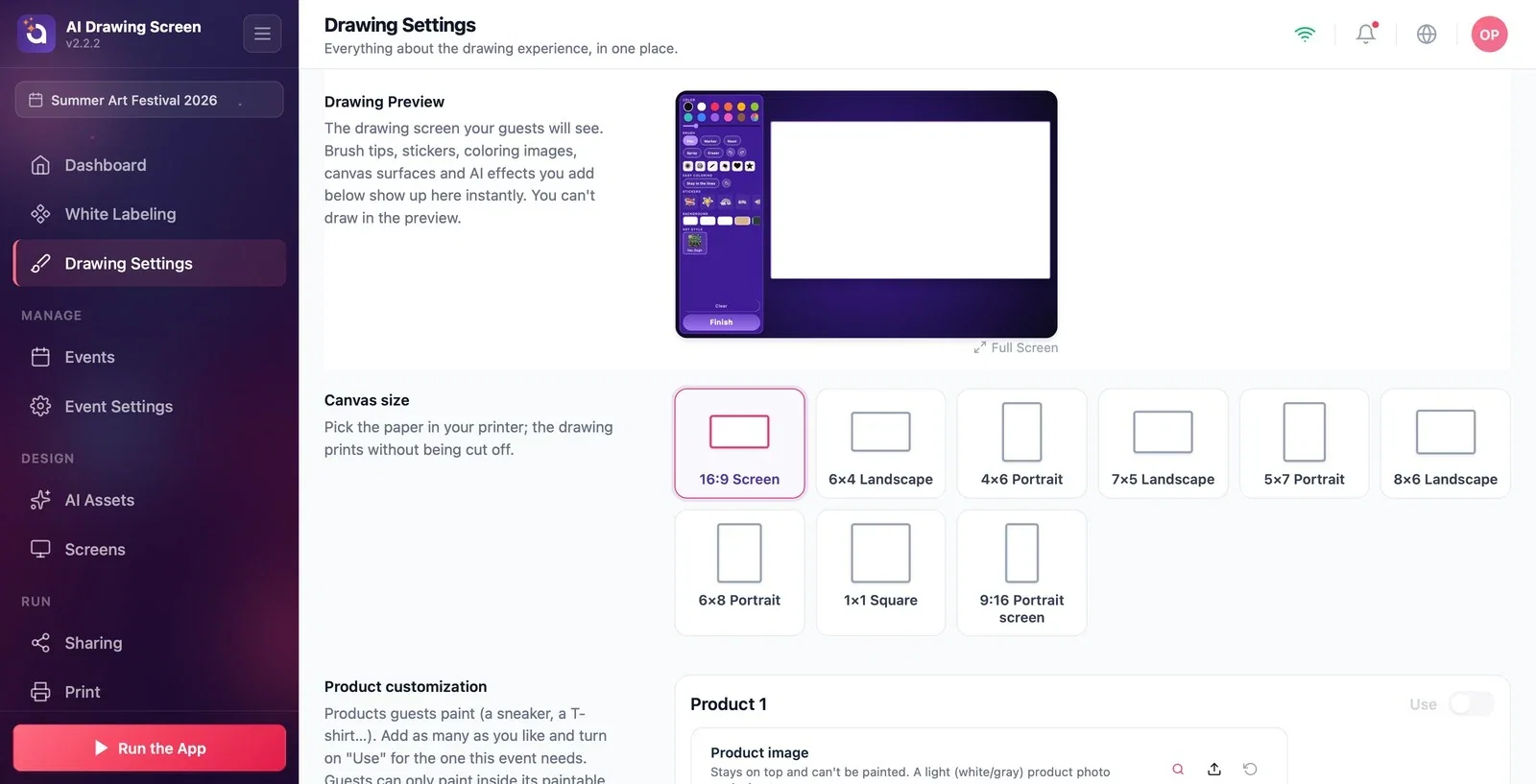
If you aren't printing, choose the ratio that fits the kiosk's screen: 16:9 Screen for a landscape screen, 9:16 Portrait screen for a portrait screen.
If your event is only about coloring or drawing in color, turn off Use AI result; no credits are spent and guests get their own drawing.
Watch the preview at the top as you make each change; it looks exactly the same on the guest's screen.
Leaving 16:9 Screen selected when the printer has 6×4 paper — the drawing won't fit the paper properly; choose the card that matches your paper.
Trying to draw in the preview — the preview only shows how things look; run the kiosk to try it out.
Related topics
Canvas Surface and FrameStickers and Brush TipsAI AssetsPrint Settings
