













The survey is a short form that collects information from guests before they start drawing or after they finish (name, e-mail, phone, free text, options). In the guest screen settings it is called Input. The survey is on by default in new events.
This guide covers AI Drawing Screen 2.2.2. Available controls may vary by platform and version; platform-specific limitations are noted below.
- An event must be created and selected.
- If you collect personal data, set up the Disclaimer screen too.
Step by step
Step 1 · Open the Survey tab
Session → Survey
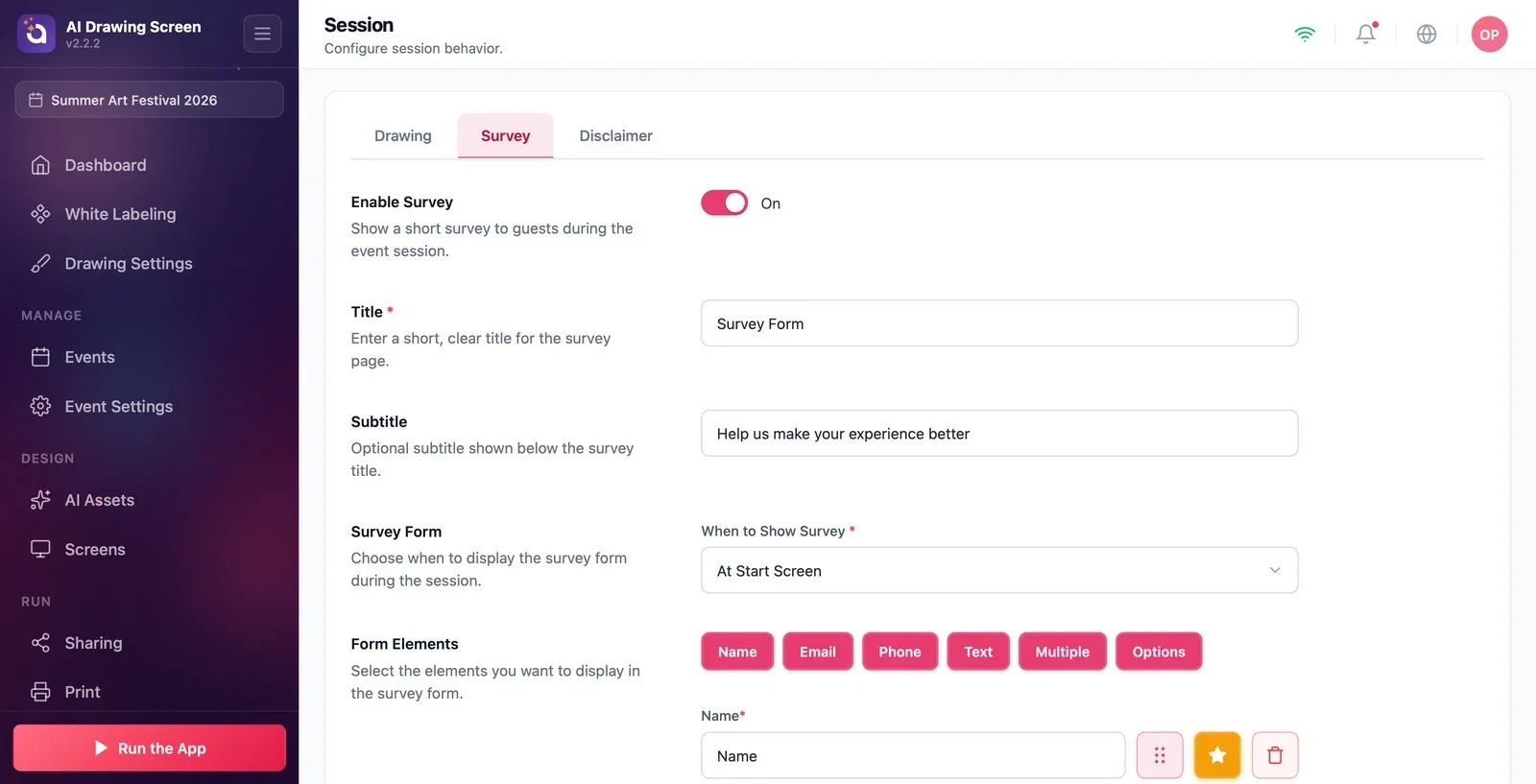
On the Session page, click the Survey tab. The Enable Survey switch at the very top turns the survey on and off (On in new events).
Step 2 · Title and timing
Session → Survey
In the Title (required) and Subtitle fields, enter the text to show above the form. From the When to Show Survey list, choose where the form appears: At Start Screen (before the guest starts drawing) or After Drawing (when the guest finishes the drawing).
Step 3 · Add form fields
Session → Survey → Form Elements
Click the Form Elements buttons for the fields you want to add: Name, Email, Phone, Text, Multiple, Options. Each field you add appears as a row below; with the icons next to the row you can drag to reorder it, make it required with the star, or delete it with the trash can. Type the field's on-screen label in the box on the row.
Step 4 · What does the guest see?
Kiosk → Info form
At the time you chose, the guest is shown the info form (the Input screen); they fill in the fields and continue. You can change the form's button texts (Continue button, Skip button, Cancel button) in the Screens → Texts → Input group. The form's background comes from Screens → Main → Other screens → Input.
If you make the e-mail field required, you'll have the guest's address for sharing.
Long forms slow down the line; 2–3 fields are enough.
Leaving the survey on when you don't want it — the survey is on by default in new events; if you won't use it, turn off Enable Survey.
Collecting personal data without a disclaimer — add a consent screen from the Disclaimer tab.
Related topics
Session — DisclaimerTextsGuest Flow
