













The guest gets their artwork with the QR on the result screen (and, if you turned them on, by email, Share or printing); most of these depend on the artwork being uploaded to the cloud. Events and settings, on the other hand, are stored locally on each installation and synced with the cloud. This page lists the typical symptoms related to the QR, the share button, email, the result copy folder and syncing between devices. AI Drawing doesn't have PhotoBooth's offline event mode; artwork generation requires the internet anyway.
This guide covers AI Drawing Screen 2.2.2. Available controls may vary by platform and version; platform-specific limitations are noted below.
Step by step
Symptom: The QR opens the event gallery instead of the guest's artwork, or appears late
Kiosk → result screen
Reason: The QR is a link to the guest's own artwork page. Until the session reaches the cloud, the QR temporarily points to the event's gallery page; the result screen checks every few seconds and, once the upload is finished, automatically replaces the QR with the guest's page. This replacement only happens while the result screen is open. If a White Label domain is connected, the link uses your domain. Solution: Check the kiosk's internet connection and have the guest scan the QR on the result screen after a few seconds; a guest who scanned too early should scan again.
Symptom: There is no QR at all on the result screen
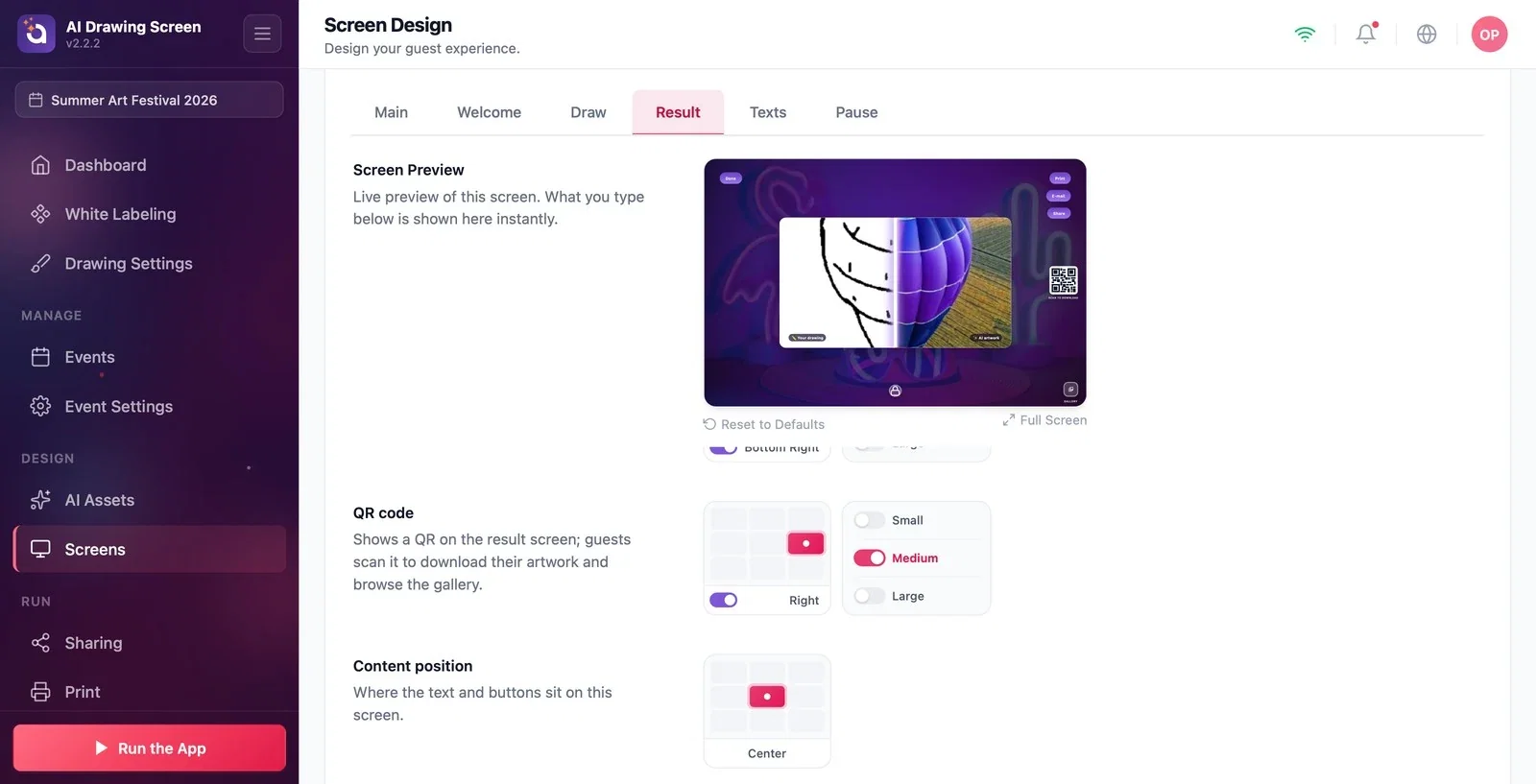
Screens → Result → QR code
Reason: (1) The QR's position is set to off on the Screens → Result tab. (2) The event has never synced with the cloud; since the link cannot be created, the QR is not drawn. The Enable QR Code switch in Sharing → Activation Share does not turn the QR on the kiosk's result screen on or off. Solution: In the Screens → Result → QR code grid, choose a position for the QR and set its size; make sure the kiosk is connected to the internet.
Symptom: Nothing happens when you press Share
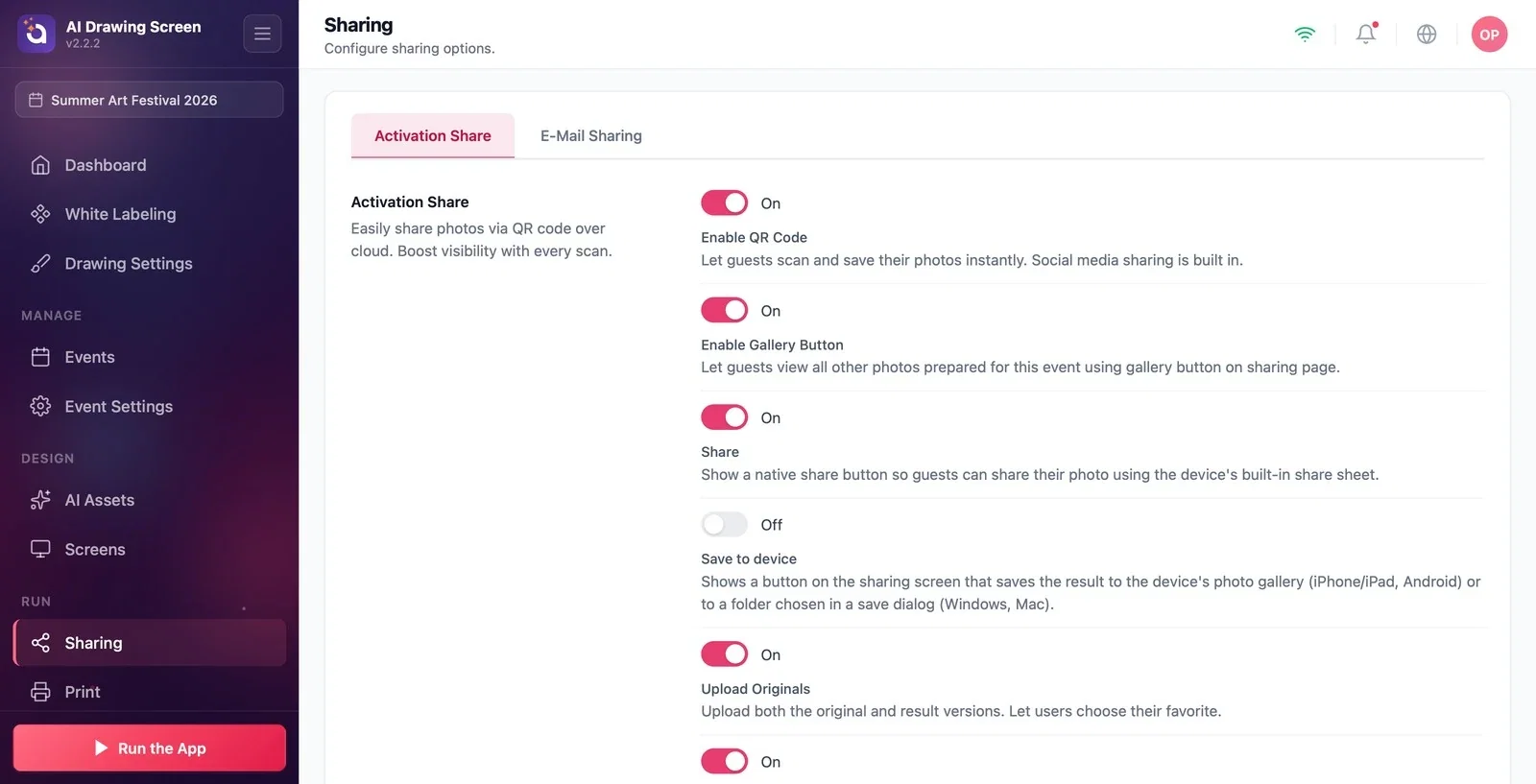
Sharing → Activation Share → Share
Reason: Share opens the kiosk's own operating system share menu with the artwork file; it is not the QR panel. On Windows, the Windows share window opens; on Android, the system share list. When we tried it on a full-screen Mac kiosk, nothing appeared on the screen; the menu may be anchored to the top-left corner of the screen and stay invisible (on iPad, it is expected to appear as a small window at the top left). If it cannot open, no error is shown on screen. The button is on for new events. Solution: On Mac kiosks, turn off Sharing → Activation Share → Share and direct guests to the QR.
Symptom: There is no email button, or the email isn't sent
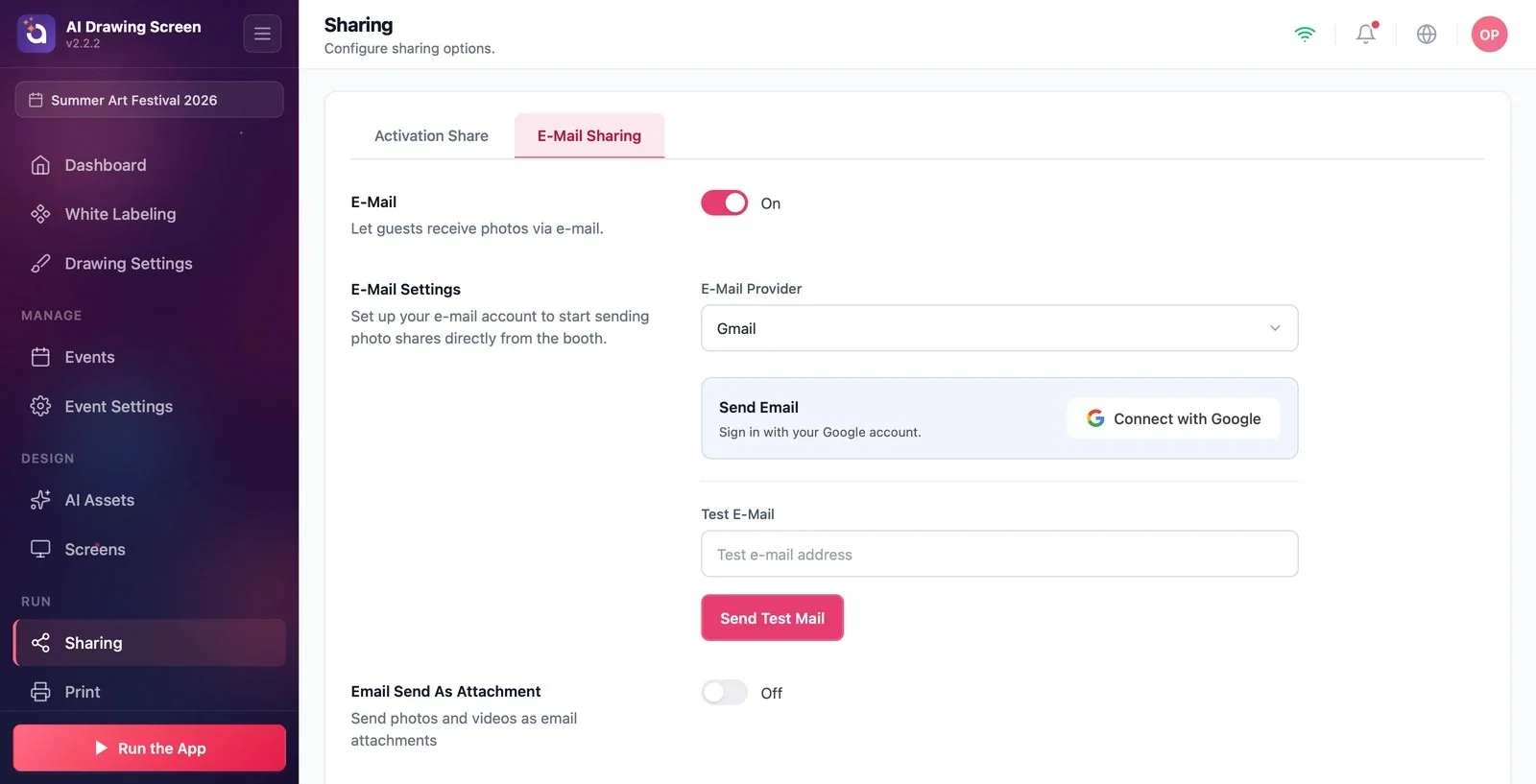
Sharing → E-Mail Sharing
Reason: (1) E-Mail is off for new events; while it is off, the E-mail button doesn't appear on the result screen. (2) Email is on, but no account is connected: the provider is Gmail by default, and nothing can be sent until a Google account is connected. The guest sees Could not send and "E-mail could not be sent right now. Please ask the staff."; the test mail shows Access token is missing. Please connect your account first. or SMTP configuration is incomplete. If Test E-Mail is empty, Send Test Mail does nothing. (3) The guest saw On its way ("Your artwork is on its way to your inbox.") but the email never arrived: this message means the email has been queued; it is sent once the session and the artwork reach the cloud, and stuck sends are retried for up to 24 hours. If sending fails on the server side, the guest gets no warning. Solution: Turn on E-Mail; complete Connect with Google under E-Mail Provider (or enter your Outlook / Custom SMTP details); enter your own address in Test E-Mail and try it with Send Test Mail. For emails that don't arrive, check the kiosk's internet and the recipient's junk (spam) folder.
Symptom: Two images on the sharing page (or only one) / some switches have no effect
Sharing → Activation Share → Upload Originals
Reason: Upload Originals and Also serve the original drawing in Drawing Settings are the same setting (changing one also changes the other). When it is on (default), the guest's drawing comes first on the sharing page, followed by the AI artwork, and arrows appear between the two images on the result screen. Save to device does not add a button to the AI Drawing result screen. Enable Gallery Button only controls the gallery button on the sharing page; the kiosk's own Gallery shortcut is set in Screens. Solution: To give the guest only the AI artwork, turn off Upload Originals (or Also serve the original drawing).
Symptom: The result copy folder stays empty (Mac)
Session → Drawing → Result copy folder
Reason: The copy folder writes a copy of every artwork to a folder on the computer. The default folder path is filled in automatically only on Windows; on Mac, you type the path by hand, and there is no folder picker. For security reasons, the Mac app may not be able to write to folders outside its own area; copy errors are not shown on screen. We could not confirm that it works on Mac. Solution: Use the copy folder on a Windows kiosk. On Mac, get to the artworks through the QR, the gallery and the cloud copy; the cloud copy works independently of the copy folder.
Symptom: Two computers show different events / the kiosk gallery only shows that computer's artworks
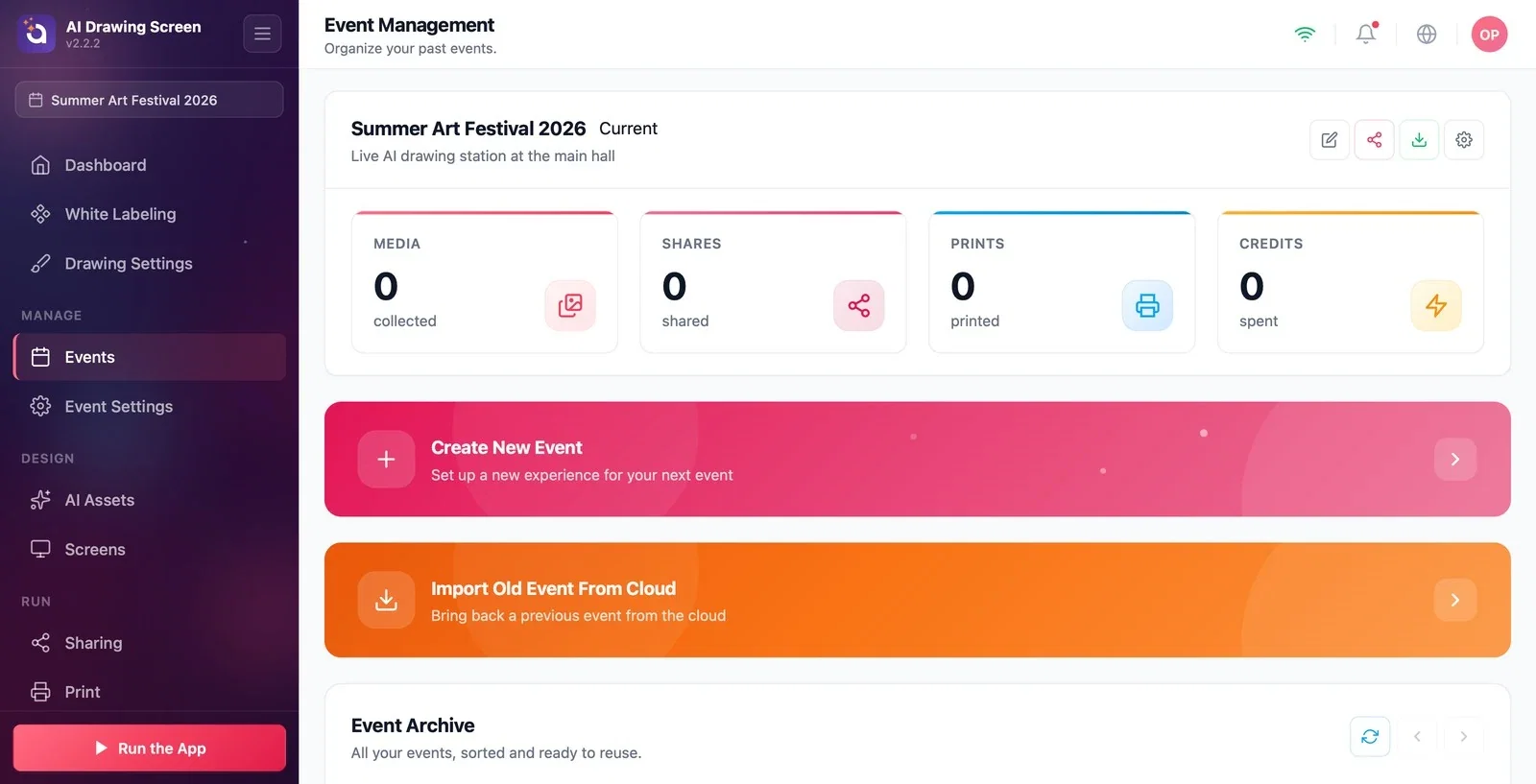
Events → Import Old Event From Cloud
Reason: Events are stored in each installation's own database and sent to the cloud; another computer gets them only by importing them. Syncing happens only for the selected event and only while you are on the settings screen (or also while the kiosk is running, if Sync changes while the app is running is on); this switch is off by default. The kiosk's Gallery shows the artworks created on that computer for that event. Solution: On the other computer, go to the Events page, find the event with Import Old Event From Cloud (or Sync Cloud Events) and press Import. To have setting changes arrive while the kiosk is running too, turn on Event Settings → Kiosk → Sync changes while the app is running.
Before the event, scan a QR with your own phone and send yourself a test email.
If you use more than one kiosk, set up the event on one computer and import it from the cloud on the others.
Turning off Enable QR Code and expecting the QR to disappear from the kiosk — the kiosk QR is managed in Screens → Result → QR code.
Expecting the QR to open the guest's artwork on a kiosk without internet — the link isn't created until the artwork is uploaded to the cloud; without internet, the artwork can't be generated in the first place.
Related topics
Sharing SettingsEmail SharingResult ScreenCreating an Event
