













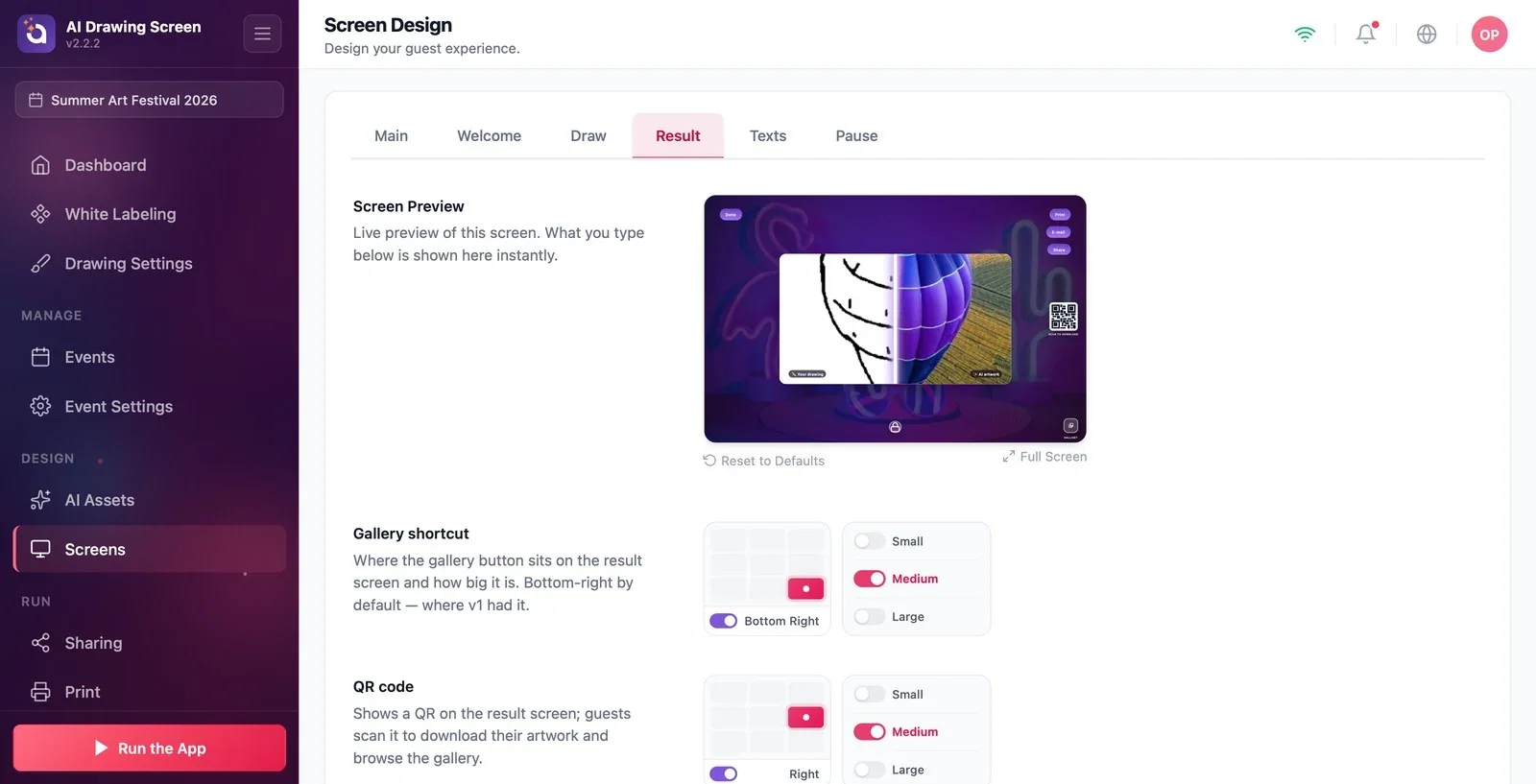
The result screen is what guests see when their AI artwork is ready: the guest's drawing and the AI artwork, the QR code, and the Print, E-mail, Share, and Done buttons. On the Result tab you set the position and size of the gallery shortcut and the QR code, the position of the text and the logo, and the background.
This guide covers AI Drawing Screen 2.2.2. Available controls may vary by platform and version; platform-specific limitations are noted below.
- An event must be created and selected.
Step by step
Step 1 · Open the Result tab
Screens → Result
On the Screens page, click the Result tab. The preview shows a sample result: the sketch and the AI artwork in the middle, the QR code on the right with Scan to download above it, the Print, E-mail, and Share buttons at the top right, and the gallery shortcut at the bottom right.
Step 2 · Set up the QR code
Screens → Result → QR code
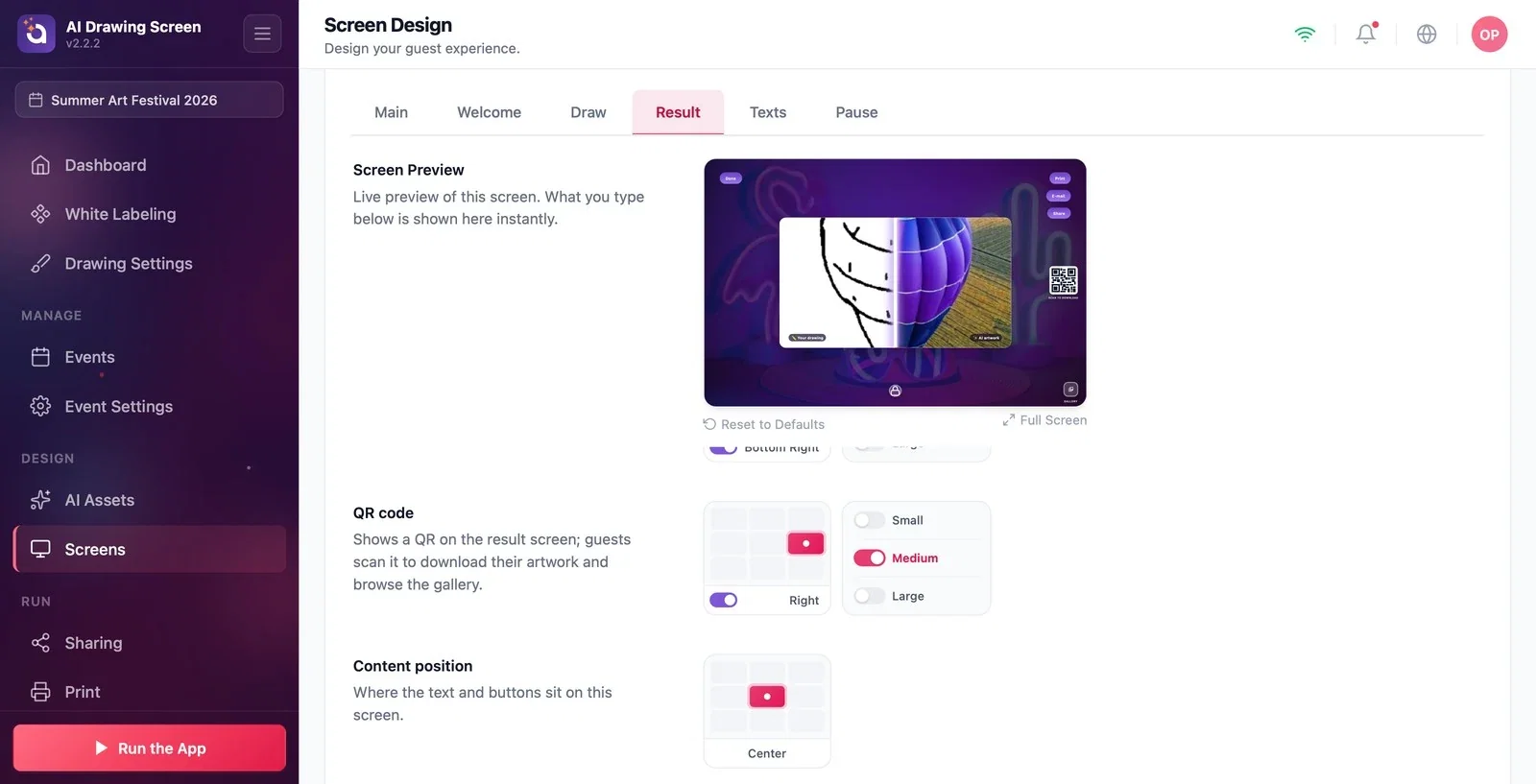
The QR code appears on the result screen; guests scan it to download their artwork and can browse the event gallery. Choose where the QR goes from the position grid (default: right edge) and its size from the options next to it (Small / Medium / Large, default Medium). To remove the QR from the screen, turn off the switch in the position grid. The Gallery shortcut setting, in turn, sets the position and size of the gallery button on the result screen (default Bottom Right) and is independent of the one on the drawing screen.
Step 3 · Content, logo, and background
Screens → Result
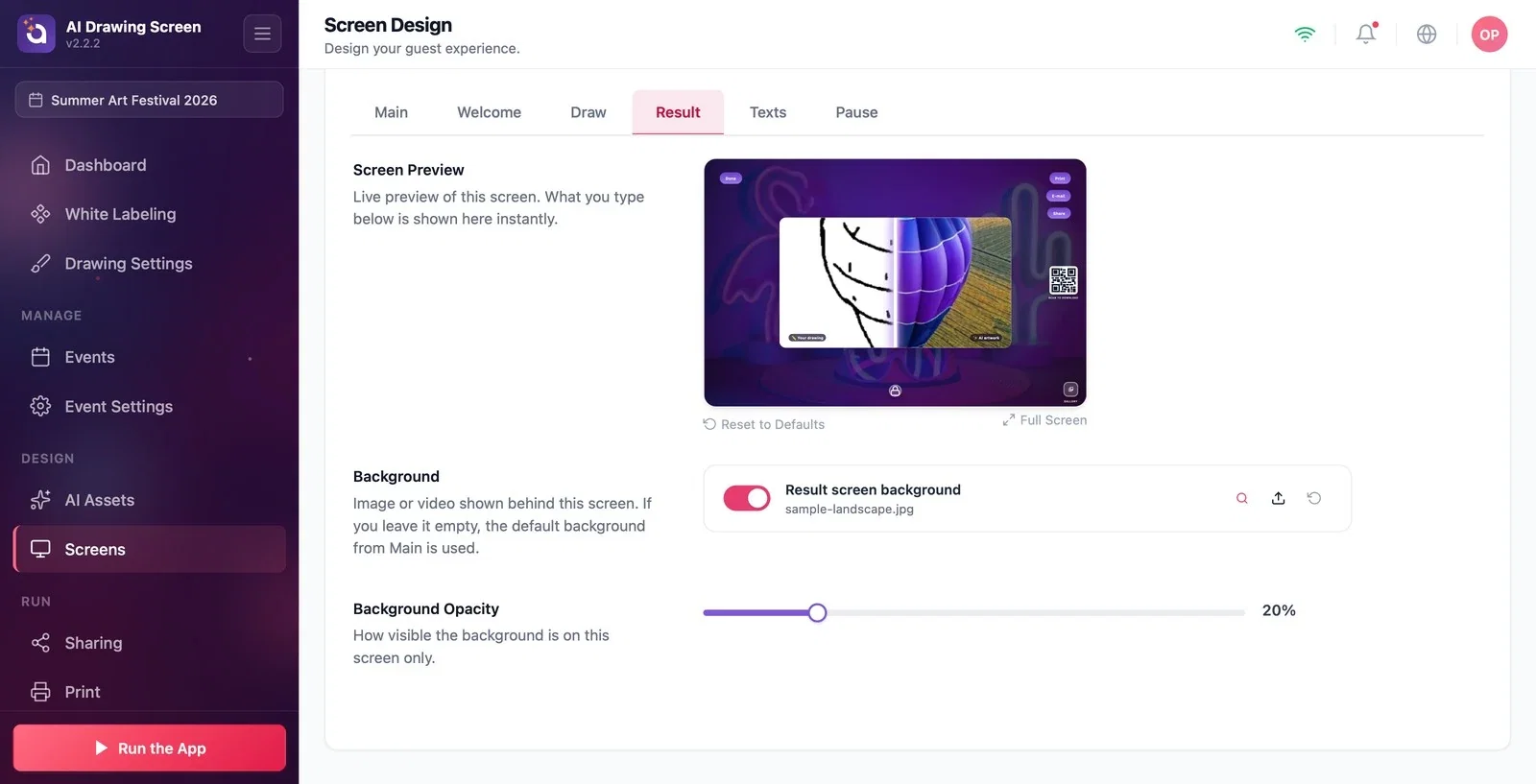
Use the Content position and Logo position grids to choose where the text, buttons, and logo sit. You can upload an image or video just for this screen to the Result screen background slot; if you leave it empty, the default background from the Main tab is used. Background Opacity applies to this screen only.
Keep the QR large on screen (Medium or Large) so guests can scan it with their phones from a distance.
Change the wording of the result screen buttons on the Texts tab, and set how Print and Share behave on the Print and Sharing pages.
Turning off the QR without thinking about how guests will get their artwork — if printing or e-mail sharing isn't on, guests have no way to reach their artwork.
Moving the gallery shortcut on one screen and expecting it to change on the other too — the drawing and result screens have separate shortcut settings.
Related topics
TextsSharing SettingsPrint SettingsGuest Flow
