













The disclaimer is a consent screen shown to the guest before the session starts; the guest cannot continue without accepting it. Use it at events where you collect personal data or share the guest's artwork (data protection rules such as GDPR, privacy notices). It is on by default for new events.
This guide covers AI Drawing Screen 2.2.2. Available controls may vary by platform and version; platform-specific limitations are noted below.
- An event must be created and selected.
- The text you want to show (e.g., your privacy notice) must be ready.
Step by step
Step 1 · Open the Disclaimer tab
Session → Disclaimer
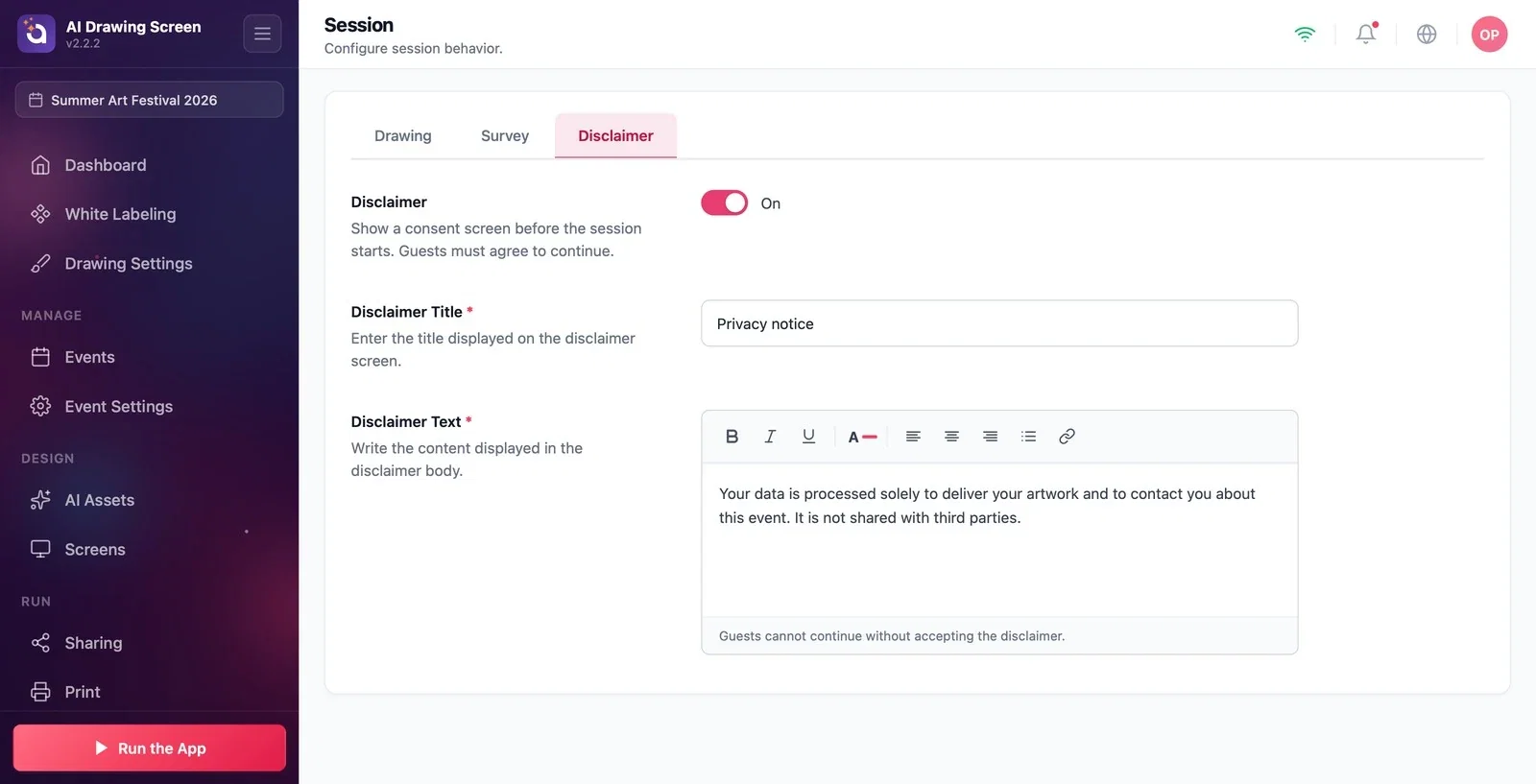
On the Session page, click the Disclaimer tab. The switch at the top turns the consent screen on or off; its description reads Show a consent screen before the session starts. Guests must agree to continue.
Step 2 · Write the title and the text
Session → Disclaimer
In the Disclaimer Title (required) field, type the title shown on screen; in the Disclaimer Text (required) field, type the consent text. With the editor toolbar you can add bold, italic and underlined text, colors, alignment, bullet points and links (e.g., a link to your full privacy notice). Below the field is the note Guests cannot continue without accepting the disclaimer.
Step 3 · What does the guest see?
Kiosk → Disclaimer screen
When the guest touches the welcome screen, the disclaimer screen comes first; the guest checks the consent box and continues. You can change the checkbox and link texts in the Consent checkbox and Consent link rows of the Input group under Screens → Texts.
Keep the text short and link to the full text; nobody reads long text on a kiosk screen.
Leaving the default text without adapting it to the event — enter your own company and event details.
Turning the disclaimer off while collecting guest data — if you collect data, keep the consent screen on.
Related topics
Session — SurveyTextsGuest Flow
