













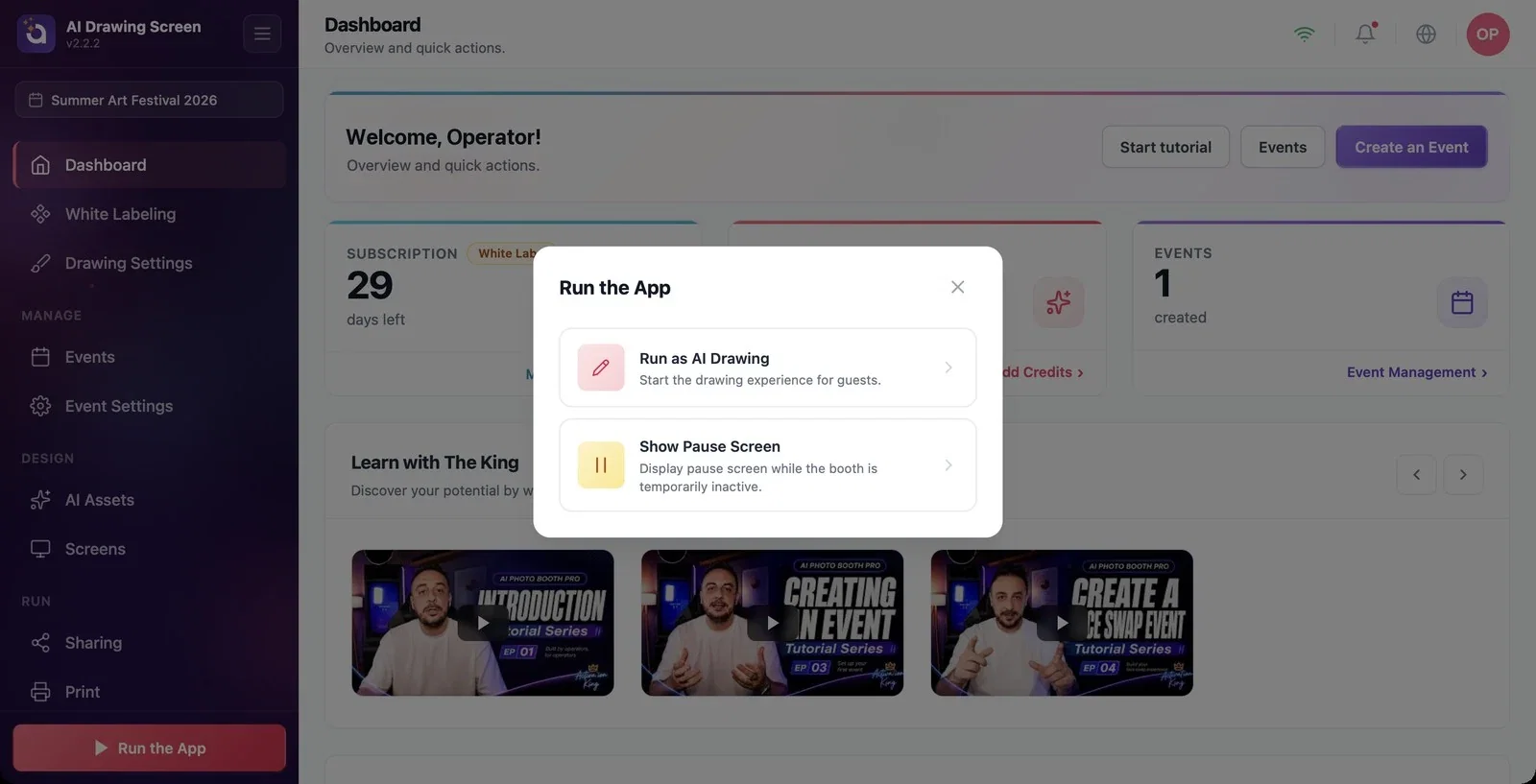
When your settings are ready, you start the kiosk with the Run the App button at the bottom of the left menu. The window that opens has two options: the normal drawing experience for guests, or the pause screen. The kiosk opens in full screen; to return to the dashboard, use the dashboard icon (or F11/F12 on the keyboard).
This guide covers AI Drawing Screen 2.2.2. Available controls may vary by platform and version; platform-specific limitations are noted below.
- An event must be created and selected.
- If Use AI result is on, at least one AI style must be assigned to the event.
- If you want the kiosk to stay locked, set a Dashboard PIN under Event Settings → Kiosk.
Step by step
Step 1 · Open the Run the App window
Left menu → Run the App
Click the Run the App button at the very bottom of the left menu. The window that opens has two options:
- Run as AI Drawing — Start the drawing experience for guests. This is normal use. - Show Pause Screen — opens the kiosk with the pause screen; guest touches do not start a drawing (see Pause Screen).
To cancel, use the X at the top right of the window.
Step 2 · Pre-check warnings
Run the App → Run as AI Drawing
Before the kiosk opens, the app checks the event:
- If your plan does not include AI generation, the warning AI features are not included in your plan appears (AI generation is the heart of this app and it is turned off on your current plan. Upgrade your plan to run the event.). You can go to the subscription screen with Upgrade plan or return to the settings with Go back; the kiosk does not start. - If Use AI result is on and no AI style is assigned to the event, a warning titled Before you start appears: This event is not fully set up: followed by what is missing. Use Go back to go to AI Assets and assign a style; if you continue with Start anyway, guests cannot finish their drawings.
Step 3 · While the kiosk is running
Kiosk (full screen)
The kiosk opens in full screen, and the welcome screen waits for the guest. The guest starts by touching anywhere on the screen; for the details of the flow, see the Guest Flow article. If Session Timeout is on, the kiosk automatically returns to the welcome screen when nobody touches it for a while. If the second screen is turned on, the kiosk also opens on the second monitor.
Step 4 · Exiting the kiosk
Kiosk → dashboard icon
To return to the dashboard, touch the dashboard icon on the welcome screen (its position and visibility are set in Screens → Main → Dashboard Icon). If the icon's visibility is 0%, tap the invisible area in the corner you chose 5 times in a row. On kiosks with a keyboard, the F11 or F12 key does the same. If you have set a PIN, the Dashboard PIN is asked first; with the correct PIN you return to the dashboard.
Before the event starts, try the kiosk yourself once: draw, press Finish and go all the way to the result screen.
Set a PIN at busy events; it keeps guests from getting into the dashboard.
Pressing Start anyway at the pre-check warning without assigning a style — guests cannot finish their drawings.
Turning off the dashboard icon position on a kiosk without a keyboard — you need F11/F12 to exit.
Forgetting the PIN — share the PIN only with team members you trust, and write it down.
Related topics
Guest FlowPause ScreenKiosk SettingsScreen Design (Main)
