













Coloring pages are ready-made drawings that guests can add to the canvas and move around (e.g. outline pictures for kids). You upload the images in the Drawing Settings → Coloring images section; guests pick one on the drawing screen and color it. The Easy coloring tools on the drawing screen (Stay in the lines and the bucket) make coloring easier.
This guide covers AI Drawing Screen 2.2.2. Available controls may vary by platform and version; platform-specific limitations are noted below.
- An event must be created.
- Have your coloring page images ready: clean, closed black lines on a white background give the best result.
Step by step
Step 1 · Open the Coloring images section
Drawing Settings → Coloring images
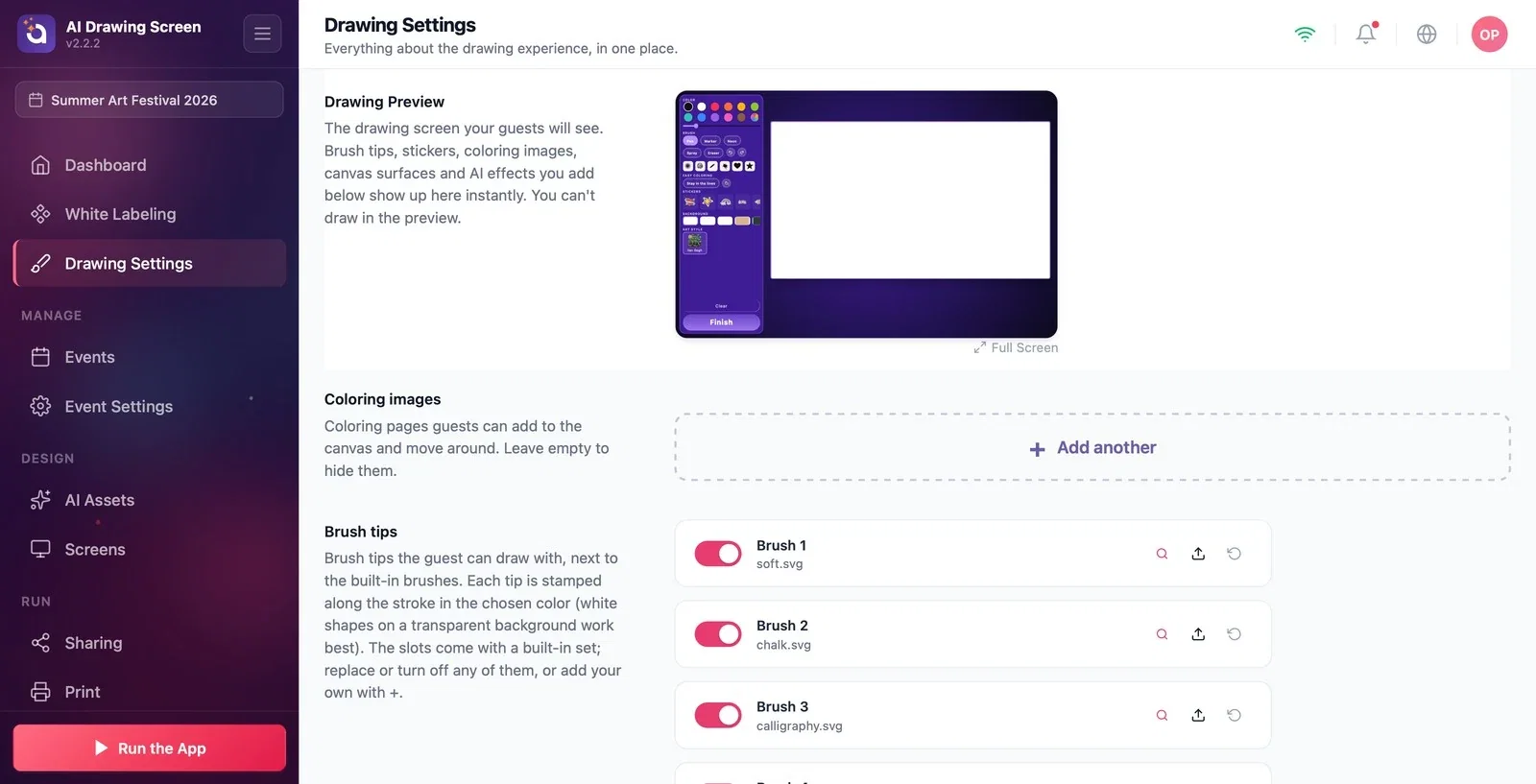
On the Drawing Settings page, scroll down to the Coloring images section. This section starts out empty; as long as it stays empty, the coloring page option doesn't appear on the guest's drawing screen.
Step 2 · Add a coloring page
Drawing Settings → Coloring images → Add another
Click Add another; in the Coloring image slot that appears, choose your image with the Upload icon. Repeat to add more pages. The pages you add show up in the preview at the top immediately. To remove a page temporarily, turn off the slot's toggle.
Step 3 · How do guests color? (Easy coloring)
Kiosk → drawing screen → Easy coloring
On the drawing screen, the guest adds a coloring page to the canvas, moves it into place with a finger, and colors it. The Easy coloring section of the tool panel has two helpers:
- Stay in the lines: when it is on, the brush stroke stays inside the area where it started — start inside a shape and it won't spill outside; start outside and it won't spill inside. - Bucket (Fill): when it is on, the tapped area fills with the selected color; the hint Tap an area to fill it appears on the screen. Choosing a brush, the eraser, or a sticker turns the bucket off.
These tools work on everything on the screen, not just coloring pages: shapes the guest draws and stickers can also be colored without going over the lines or filled with the bucket.
Use images with closed lines (no gaps); if a line has a gap, the bucket fill spills over.
At kids' events, you can turn off Use AI result and have guests just color; each guest gets their own coloring.
Uploading an image with gray or blurry lines — the area borders become unclear, and Stay in the lines and the bucket don't work as expected.
Leaving the section empty and expecting guests to see coloring pages — you must upload at least one image.
Related topics
Drawing SettingsProduct PaintingStickers and Brush Tips
