













The pause screen appears on the kiosk when you take a break from the event (a coffee break, a setup change) and keeps guests from starting a drawing. You design it on the Screens → Pause tab; to start the kiosk in break mode, use the Show Pause Screen option in the Run the App window.
This guide covers AI Drawing Screen 2.2.2. Available controls may vary by platform and version; platform-specific limitations are noted below.
- An event must be created and selected.
Step by step
Step 1 · Open the Pause tab
Screens → Pause
On the Screens page, click the Pause tab. The Pause Screen switch at the very top is on by default; if it is off, a blank curtain appears during the break instead of the screen you designed. The preview below it shows the pause screen.
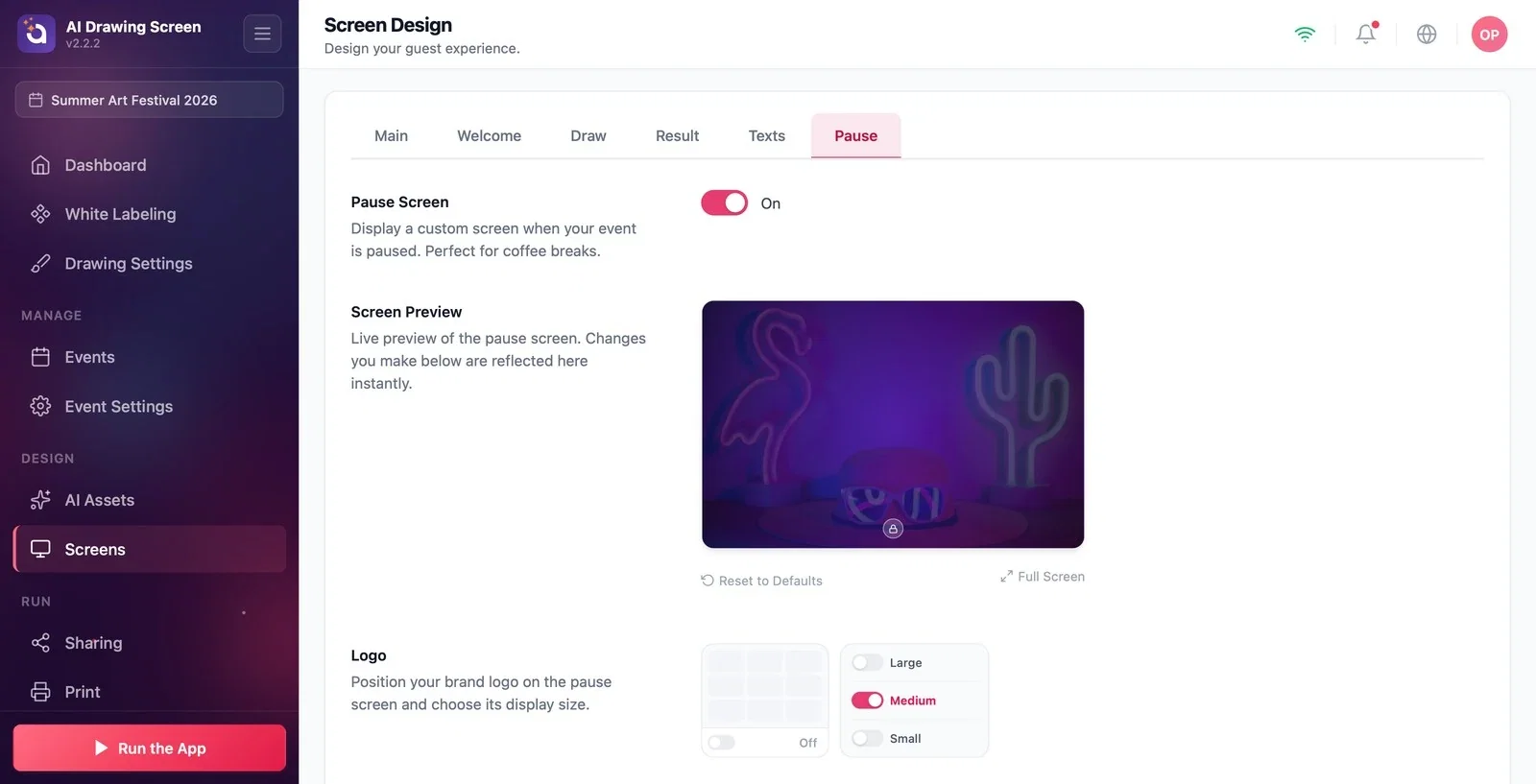
Step 2 · Logo and content
Screens → Pause → Logo / Content
In the Logo section, choose where the logo sits on the pause screen and its size (leave the position turned off to hide the logo). In the Content section, choose the position and alignment (Align Left / Align Center / Align Right) of the title and message block. In the two fields below, type the title and message to show your guests (e.g., 'We're taking a short break' — 'Back in 15 minutes!').
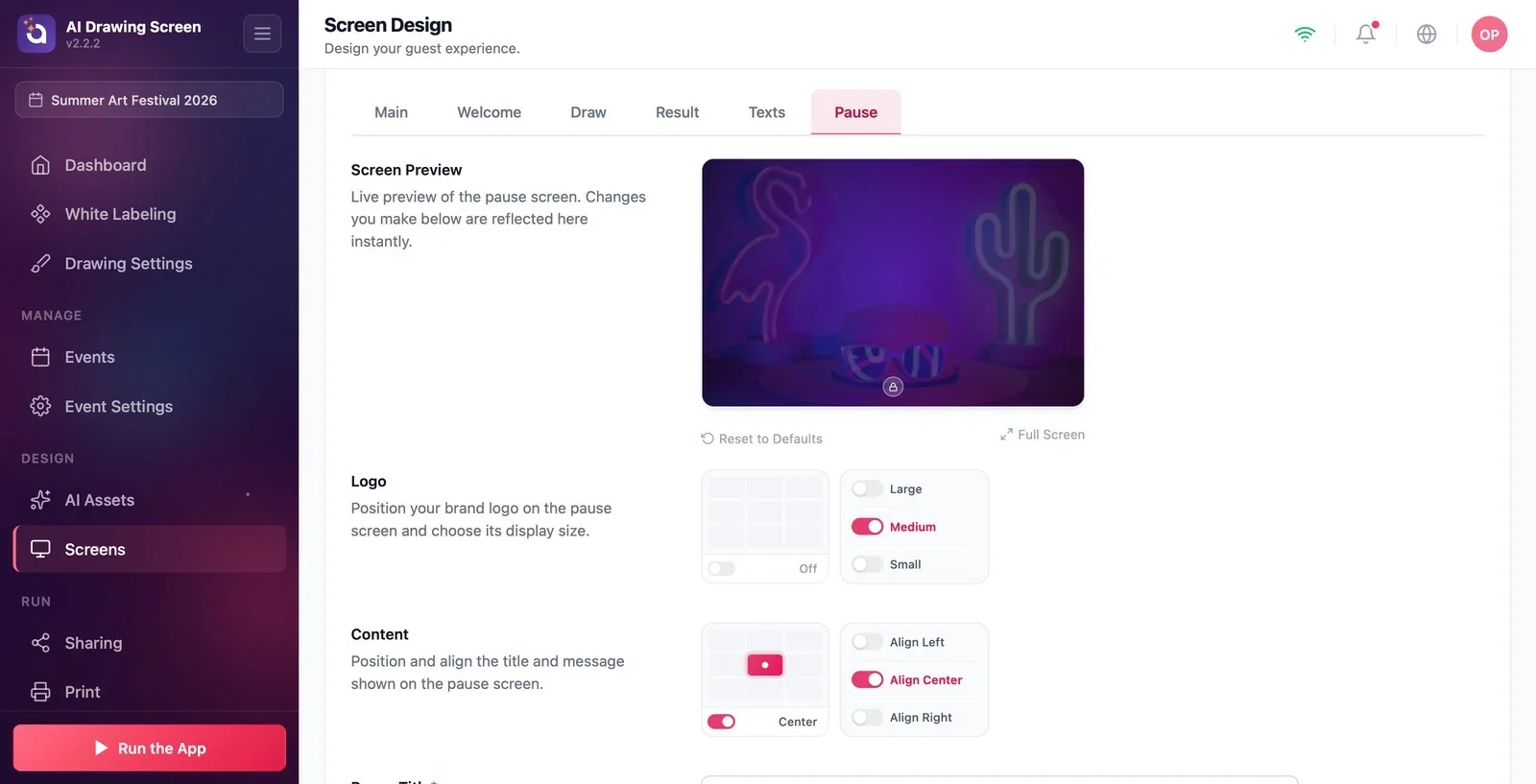
Step 3 · Background
Screens → Pause → Custom Background
Upload an image or video to the Custom Background slot to show during the break; adjust how visible it is with the Background Opacity slider.
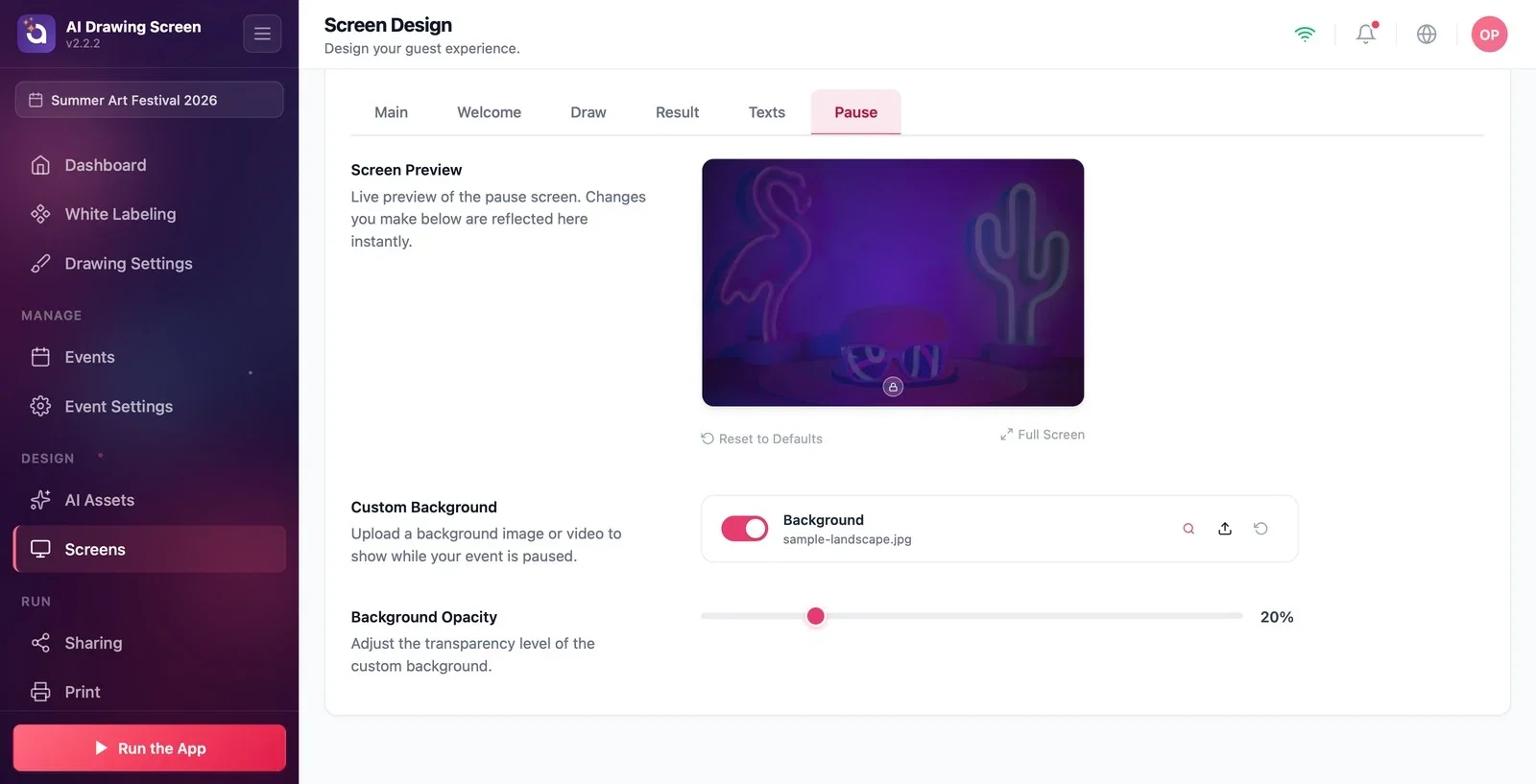
Step 4 · Start and end the break
Left menu → Run the App → Show Pause Screen
Click the Run the App button at the bottom of the left menu; the window that opens has two options: Run as AI Drawing (normal kiosk) and Show Pause Screen (break). To start the break, choose Show Pause Screen; the kiosk opens on the pause screen, and guest taps don't start a drawing. To end the break, return to the control panel with the dashboard icon (or F11/F12), then start the kiosk normally with Run the App → Run as AI Drawing.
Put an image such as the event sponsor or the schedule on the pause screen so the screen isn't sitting idle.
Leaving the kiosk running normally during a break — a guest can tap the welcome screen and start drawing; use Show Pause Screen for breaks.
Turning off the Pause Screen switch and then wondering why your design doesn't appear — the switch must be on.
Related topics
Running the AppScreen Design (Main)Kiosk Settings
