













To print the guest's artwork on a printer connected to the kiosk, you use the Print page to add the printer to the event, adjust its alignment with a test print, and set how printing is triggered (the guest's Print button or automatically) and what its limits are.
This guide covers AI Drawing Screen 2.2.2. Available controls may vary by platform and version; platform-specific limitations are noted below.
- The printer must be connected to the kiosk computer and installed in the operating system.
- Drawing Settings → Canvas size must be chosen to match the paper in the printer (e.g., 6×4).
Step by step
Step 1 · Add a printer
Left menu → Print → Add Printers
Click Print in the Run group of the left menu. Use the Add Printer button in the Add Printers section to add one of the computer's printers to the event. Added printers appear in the list with their name, type (Local Printer) and status (online / Offline); you remove a printer from the list with Remove. Remote printers connected to other computers under the same subscription can also be selected here.
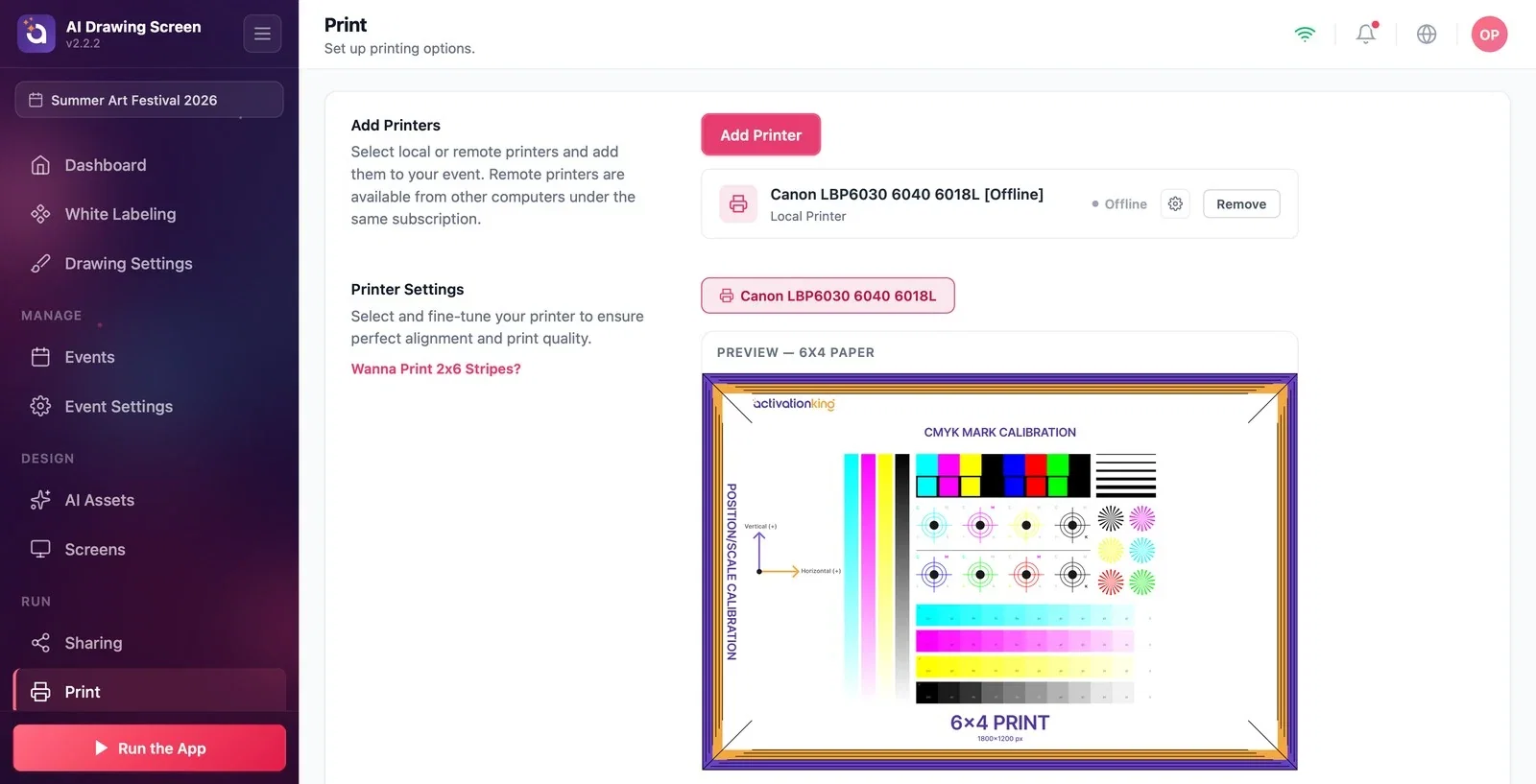
Step 2 · Adjust the alignment with a test print
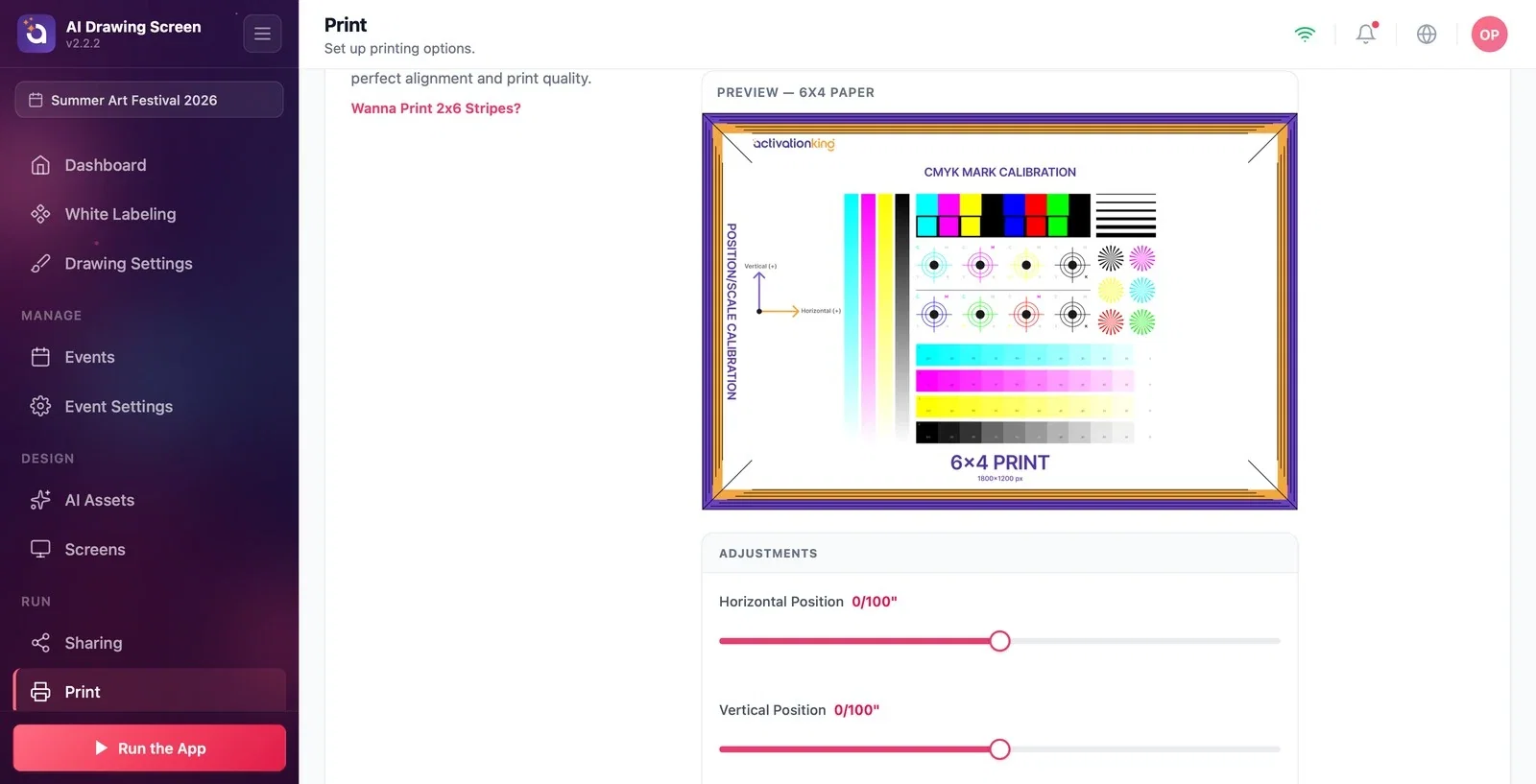
Print → Printer Settings
In the Printer Settings section, select the printer you want to adjust. The preview shows the calibration page. Fine-tune where the print sits on the paper and how big it is with the Horizontal Position, Vertical Position, Horizontal Scale and Vertical Scale sliders under Adjustments. Choose the paper size and print a test page with Test Print; repeat until the margins look even.
Step 3 · Print behavior and limits
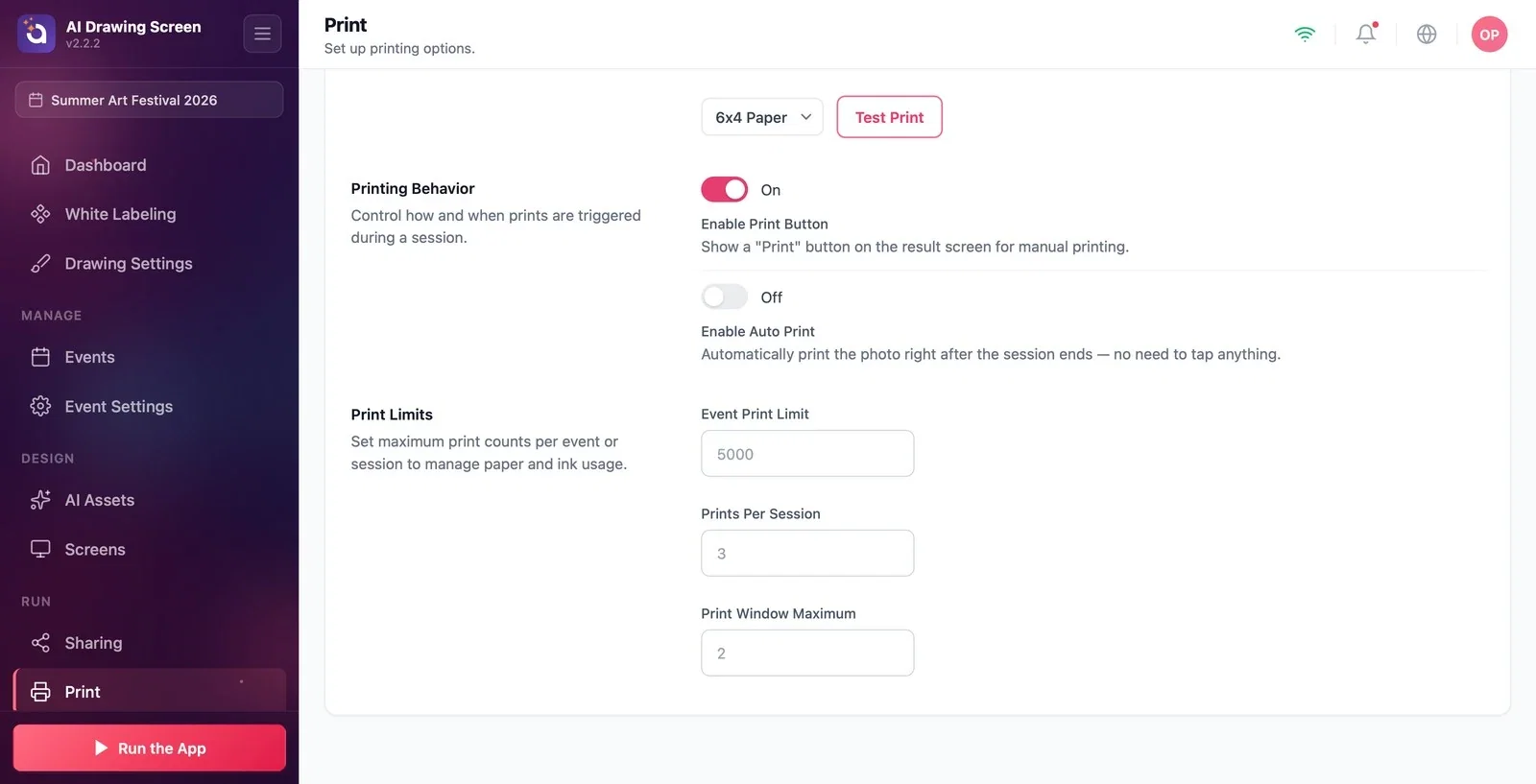
Print → Printing Behavior / Print Limits
Enable Print Button (on by default) shows the Print button on the result screen for the guest to press. If Enable Auto Print (off by default) is on, every artwork is printed without the guest touching anything. Under Print Limits, you cap paper and ink use with Event Print Limit, Prints Per Session and Print Window Maximum.
First choose the canvas size for your paper in Drawing Settings, then make a test print; the drawing then fits on the paper without being cut off.
At busy events, set a Prints Per Session limit; it keeps one guest from taking a large number of prints.
Looking for the printer in the list before installing it in the operating system — the printer must be installed on the computer first.
Using the Wanna Print 2x6 Stripes? link on the page for AI Drawing — strip printing is for the photo products; drawings print as a single frame.
Related topics
Drawing Settings (Canvas size)Result ScreenTroubleshooting — Printing
