













On the drawing screen, guests pick a sticker from the Stickers section and tap anywhere on the canvas to stamp it; with the brush tips in the Brush section, they draw shaped strokes. Both come filled with a built-in set. On the Drawing Settings page, you can turn off the ones you don't want from this set, replace them, or add your own images.
This guide covers AI Drawing Screen 2.2.2. Available controls may vary by platform and version; platform-specific limitations are noted below.
- An event must be created.
- If you are going to add your own sticker or brush tip, have the image file ready.
Step by step
Step 1 · Open the Stickers section
Drawing Settings → Stickers
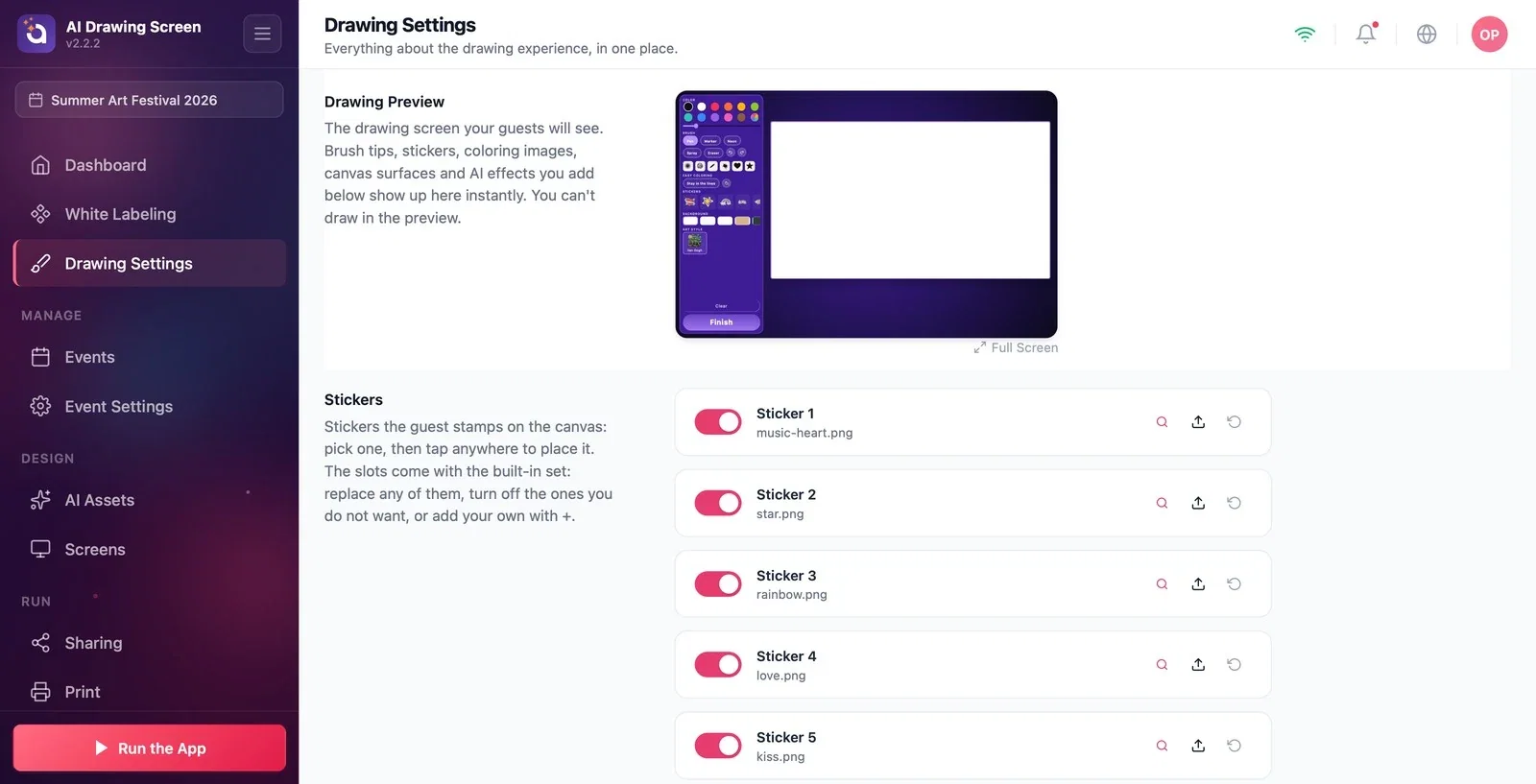
On the Drawing Settings page, scroll down to the Stickers section. The built-in set has 42 stickers (heart, star, rainbow, crown, fruit…). Each slot has an on/off toggle on the left and the Preview, Upload, and Reset icons on the right.
Step 2 · Edit the stickers
Drawing Settings → Stickers
Turn off stickers that don't suit the event with their toggles; they are removed from the guest's list. To replace a slot with your own image (e.g. the event logo or a mascot), click Upload; Reset goes back to the built-in image. Use Add another at the end of the list to open a new slot and upload your own sticker. A PNG with a transparent background gives the best result.
Step 3 · Set up the Brush tips
Drawing Settings → Brush tips
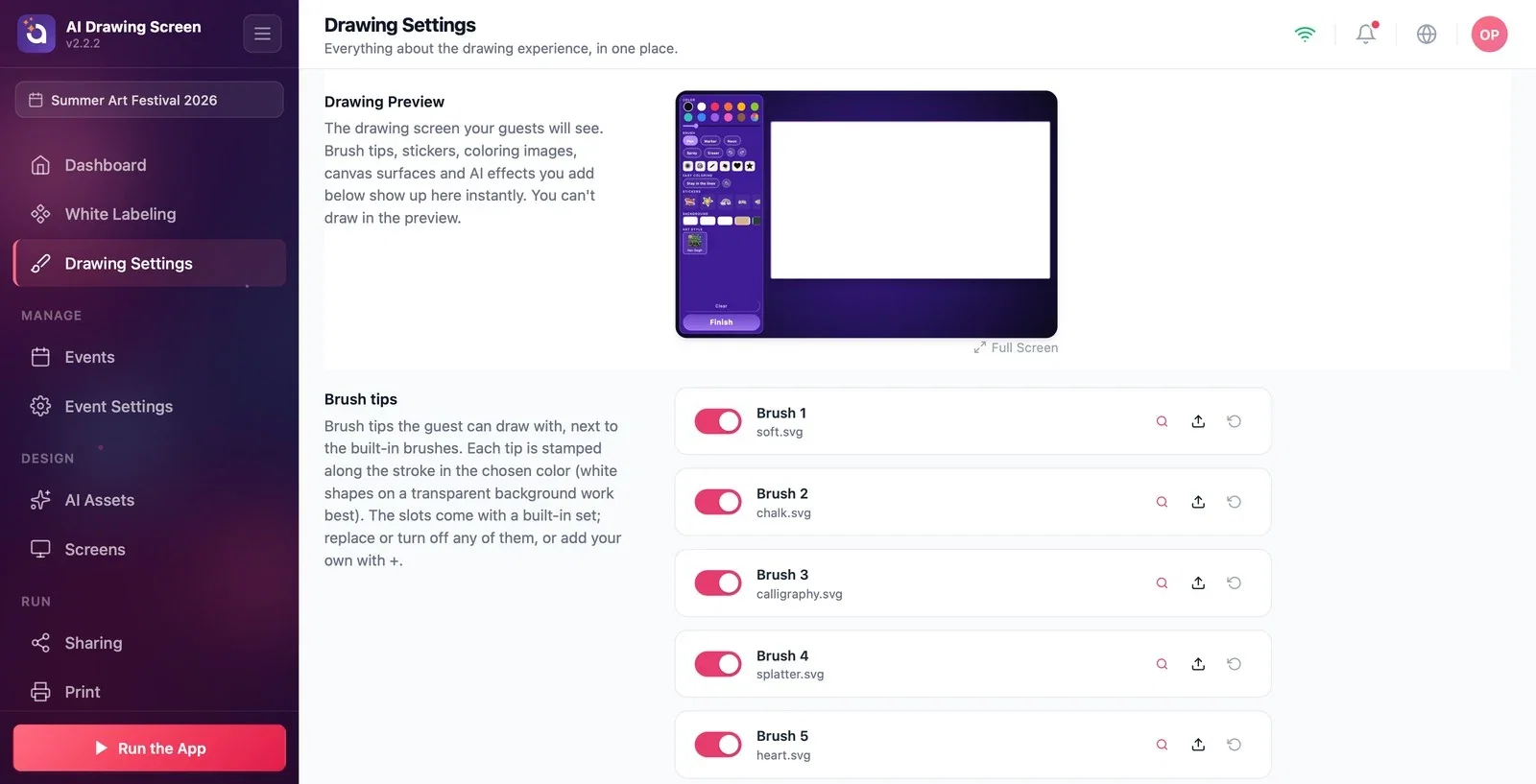
The Brush tips section contains shaped tips (soft, chalk, calligraphy, splatter, heart…) that guests can use alongside the built-in brushes (Pen, Marker, Neon, Spray). The tip is stamped along the stroke and colored in the chosen color, so when you add your own tip, use a white shape on a transparent background. As with stickers, you can turn slots off, replace them with Upload, or add a new tip with Add another.
At a corporate event, turn off some of the fun stickers and add your brand stickers.
Prepare brush tip images as a white shape on a transparent background; the tip is colored in the color the guest picks.
Uploading a colorful image as a brush tip — the tip is always colored in the chosen color, and the image's own colors are lost.
Uploading a PNG with a filled background as a sticker — it looks like a square box on the canvas.
Related topics
Drawing SettingsCanvas Surface and FrameColoring Pages
