













When email sharing is on, the guest can send their artwork to their own email address with the E-mail button on the result screen. Emails are sent from the account you connect (Gmail, Outlook or your own SMTP server); you personalize the content with a template.
This guide covers AI Drawing Screen 2.2.2. Available controls may vary by platform and version; platform-specific limitations are noted below.
- An event must be created and selected.
- You must have the details of the email account used for sending at hand.
Step by step
Step 1 · Open the E-Mail Sharing tab
Sharing → E-Mail Sharing
On the Sharing page, click the E-Mail Sharing tab. The E-Mail switch is off for new events.
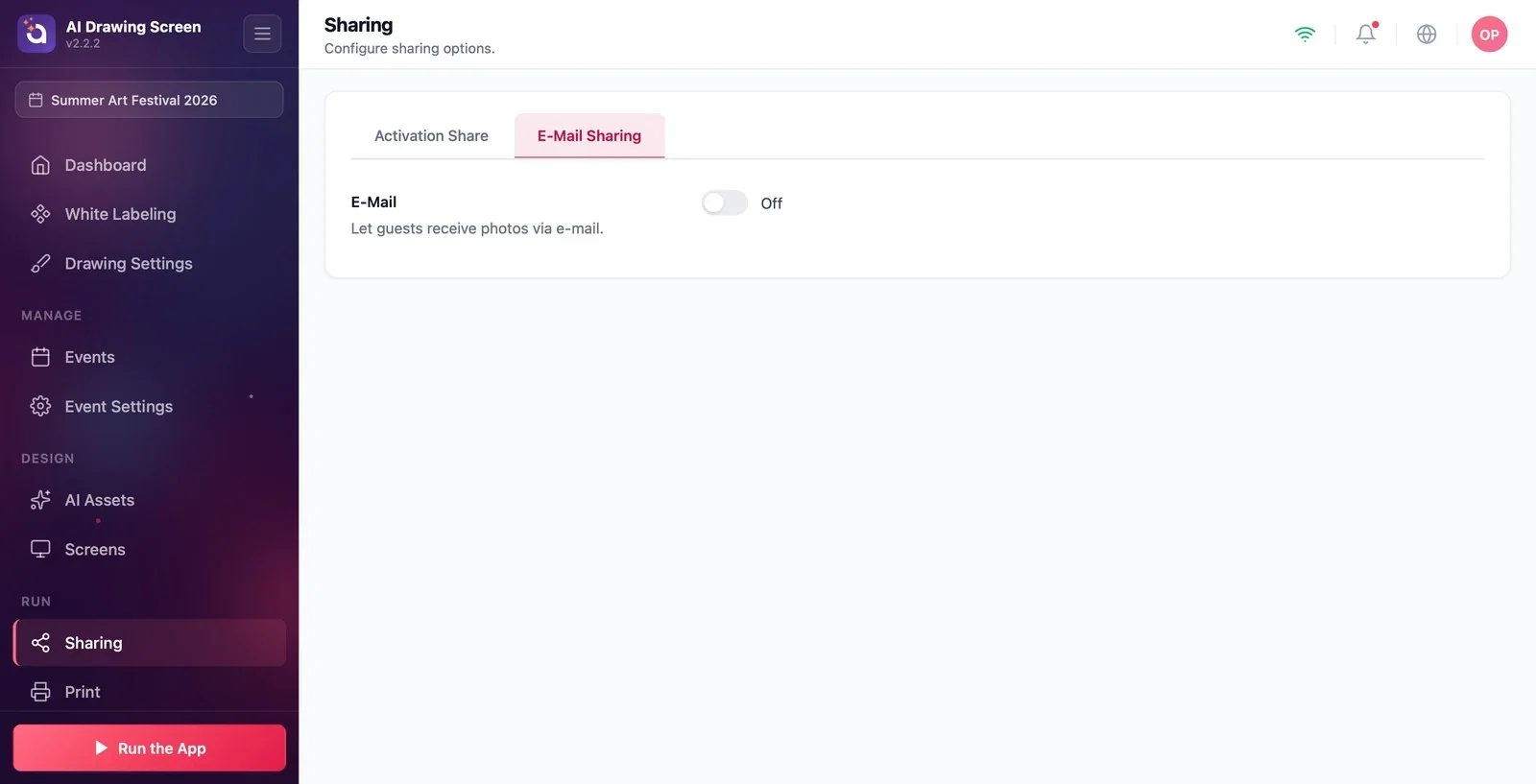
Step 2 · Turn on email and connect the account
Sharing → E-Mail Sharing → E-Mail Settings
Turn on the E-Mail switch; the E-Mail Settings section appears below it. Choose Gmail, Outlook or Custom SMTP from the E-Mail Provider list. For Gmail, use the Connect with Google button to sign in to your Google account and grant permission; for Custom SMTP, enter your server details. Once connected, send yourself a test email with Send Test Mail.
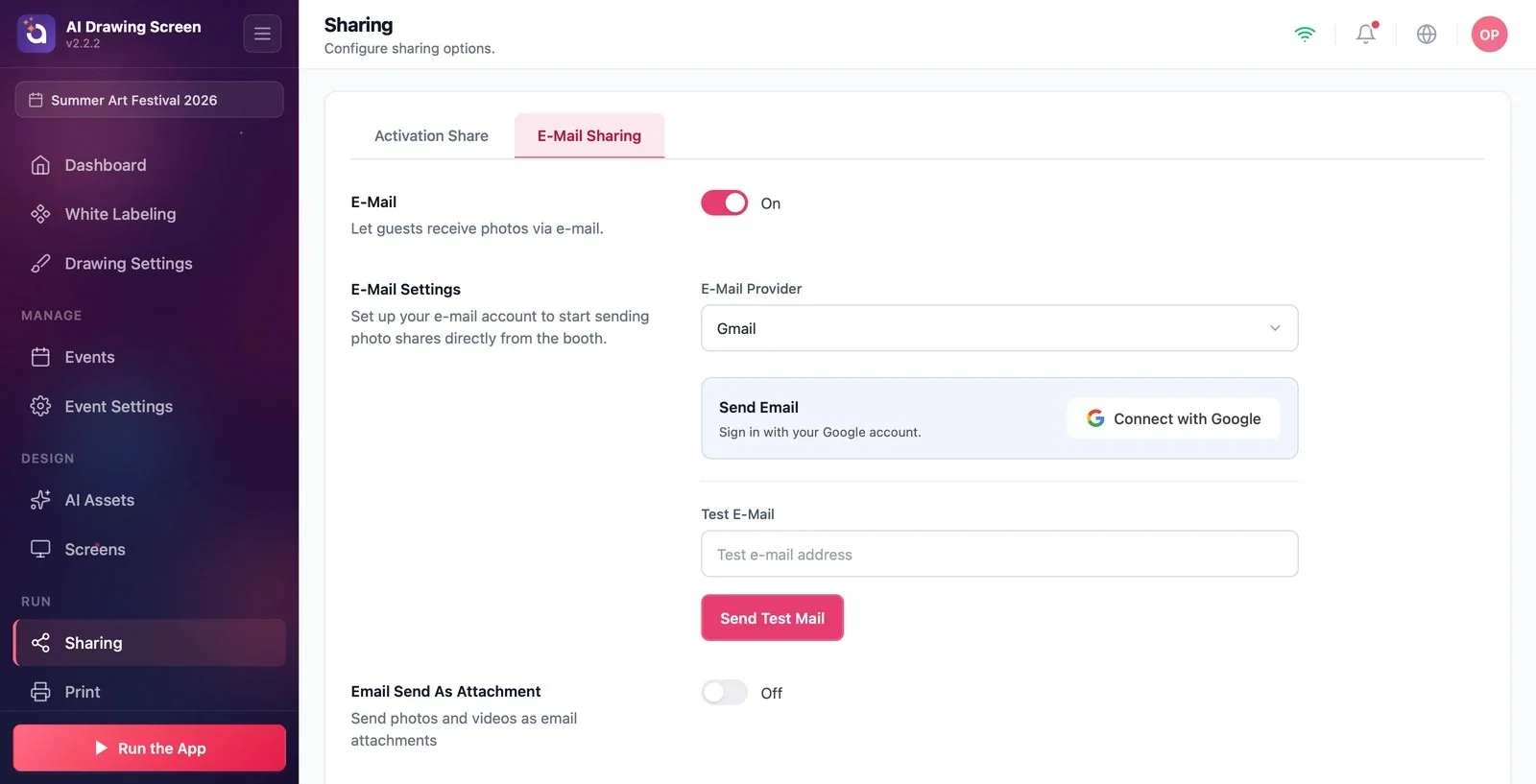
Step 3 · Personalize the template
Sharing → E-Mail Sharing → E-mail Template
In the E-mail Template editor, write the email the guest will receive. Variables are filled in automatically in the email: {{media}} is the artwork itself, {{cloud_link}} is the link to the page in the cloud, and {{media_url}} is the artwork's direct address. If Email Send As Attachment is on, the artwork is also attached to the email. The default template was written for a photo booth ("Thanks for visiting our photo booth!"); change it to fit your event and AI Drawing.
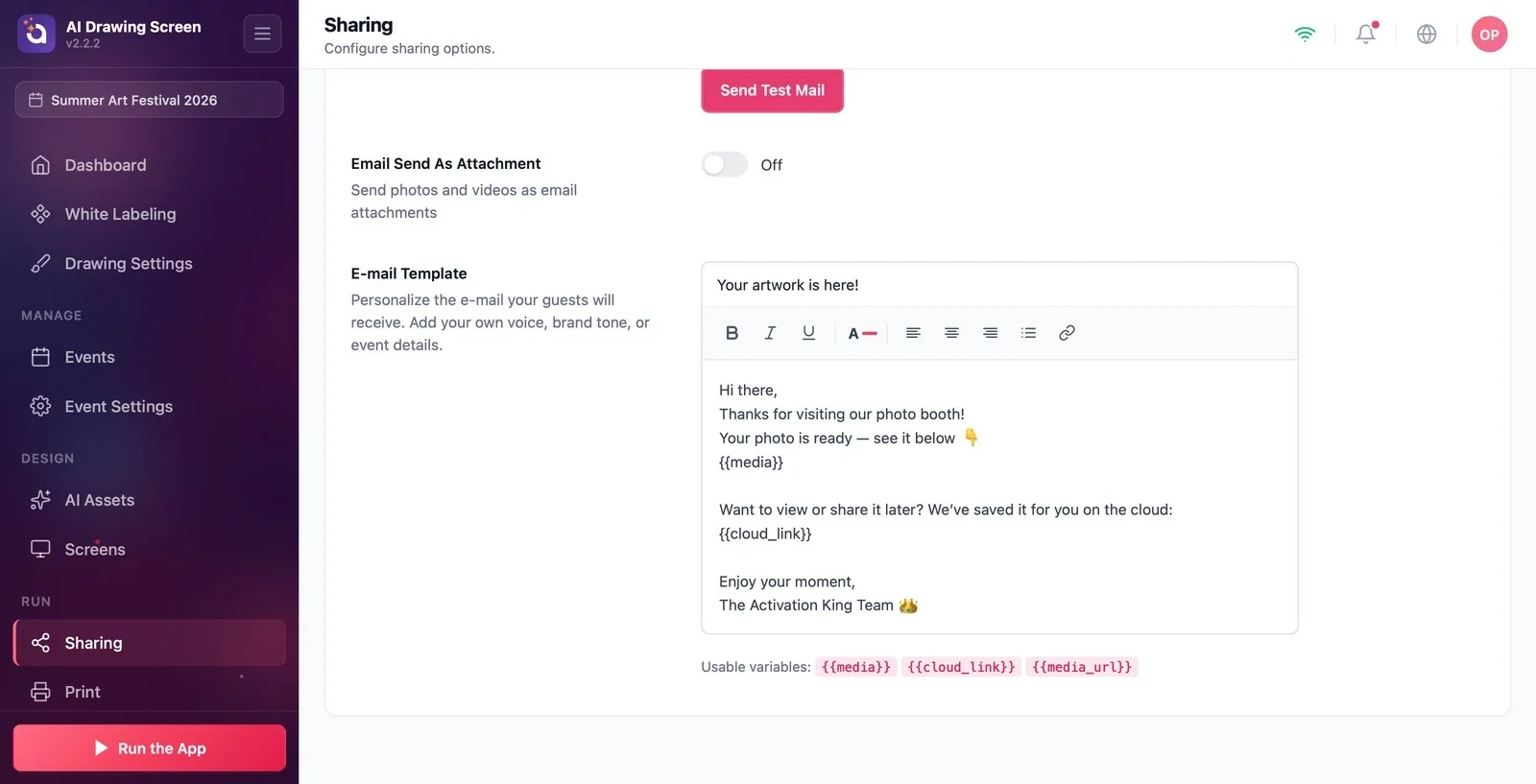
You can use {{cloud_link}} in the template; some mail servers may delay attachments. The link also requires the artwork to be successfully uploaded and accessible in the cloud; open the delivered link before the event to check it.
Always test sending with Send Test Mail before the event.
Turning the switch on without connecting an account — the guest sees the E-mail button, but the email is never sent.
Leaving the default template unchanged — the guest receives an email that talks about a "photo booth" and a "photo".
Related topics
Sharing SettingsResult ScreenTroubleshooting — Sharing
