













The second screen shows the event to onlookers on a second monitor (e.g. a large TV) connected to the kiosk computer: either the guest's latest artwork or the drawing live. While the kiosk is idle, an optional Idle video can loop. The setting is at the very bottom of the Drawing Settings page. You need two displays — on a single-monitor setup, the second screen won't open.
This guide covers AI Drawing Screen 2.2.2. Available controls may vary by platform and version; platform-specific limitations are noted below.
- A second monitor must be connected to the kiosk computer and set up in the operating system as a separate display (extended desktop).
- An event must be created.
Step by step
Step 1 · Go to the Second screen section
Drawing Settings → Second screen
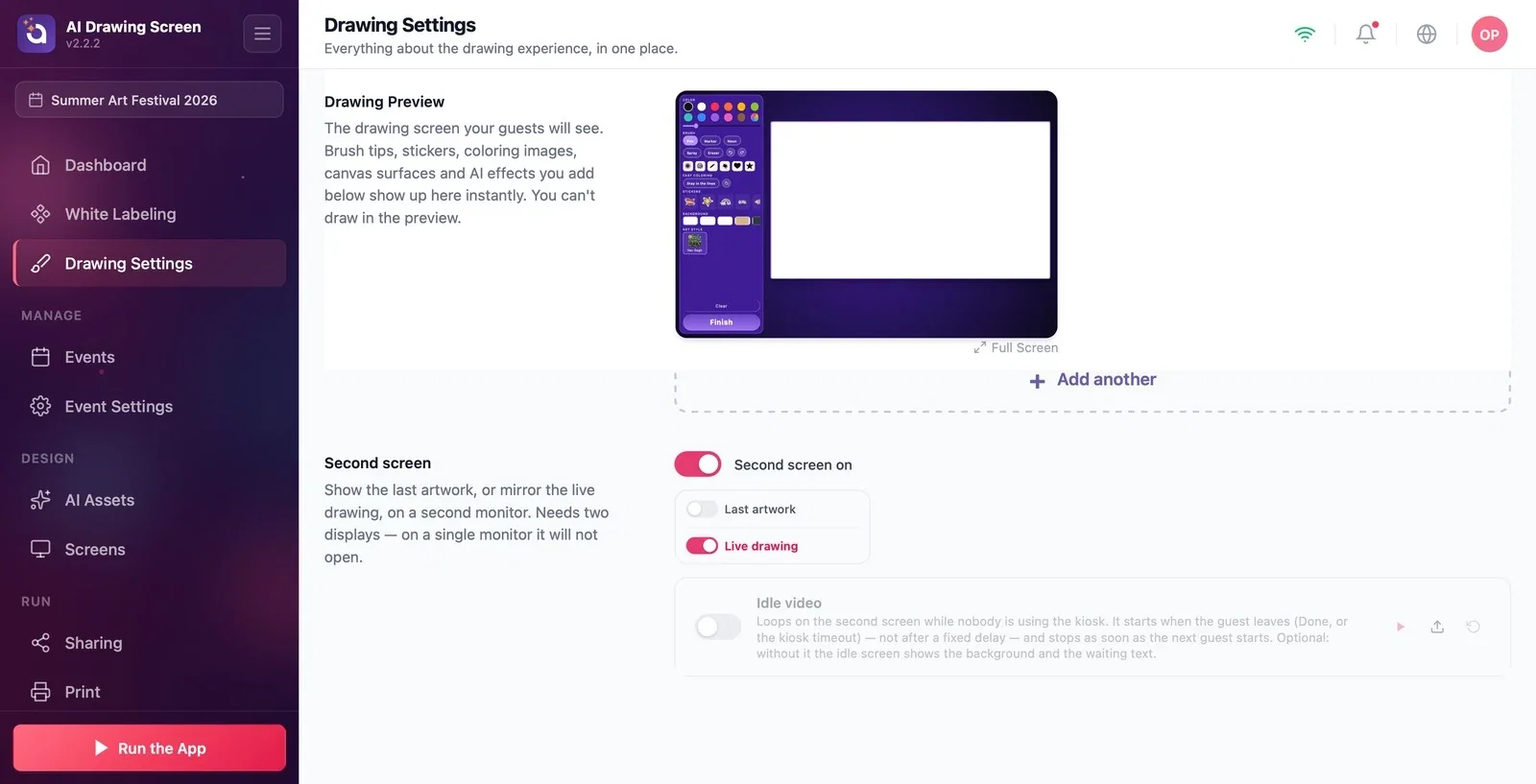
Scroll to the very bottom of the Drawing Settings page. The Second screen on toggle is on by default for new events.
Step 2 · Choose what to show
Drawing Settings → Second screen
Choose one of the two modes:
- Last artwork: each guest's finished artwork is shown on the second screen — onlookers see the result. - Live drawing: while the guest draws, the canvas is mirrored to the second screen in real time — onlookers watch the process.
If you won't be using the second screen at all, turn off the Second screen on toggle.
Step 3 · (Optional) Add an Idle video
Drawing Settings → Second screen → Idle video
Upload a video to the Idle video slot with Upload and turn on its toggle. The video loops on the second screen while the kiosk is idle: it starts when the guest leaves (Done or the kiosk timeout) — not after a fixed delay — and stops as soon as the next guest starts. If you don't upload a video, the idle screen shows the event's latest artwork; if the event has no artwork yet, it shows the background and the waiting text.
Step 4 · Run the kiosk
Left menu → Run the App
The second screen opens automatically on the second monitor when you start the kiosk with Run the App. On a single monitor nothing happens; this is not an error. When nobody is using the kiosk (and there is no Idle video), the second screen shows the event's latest artwork.
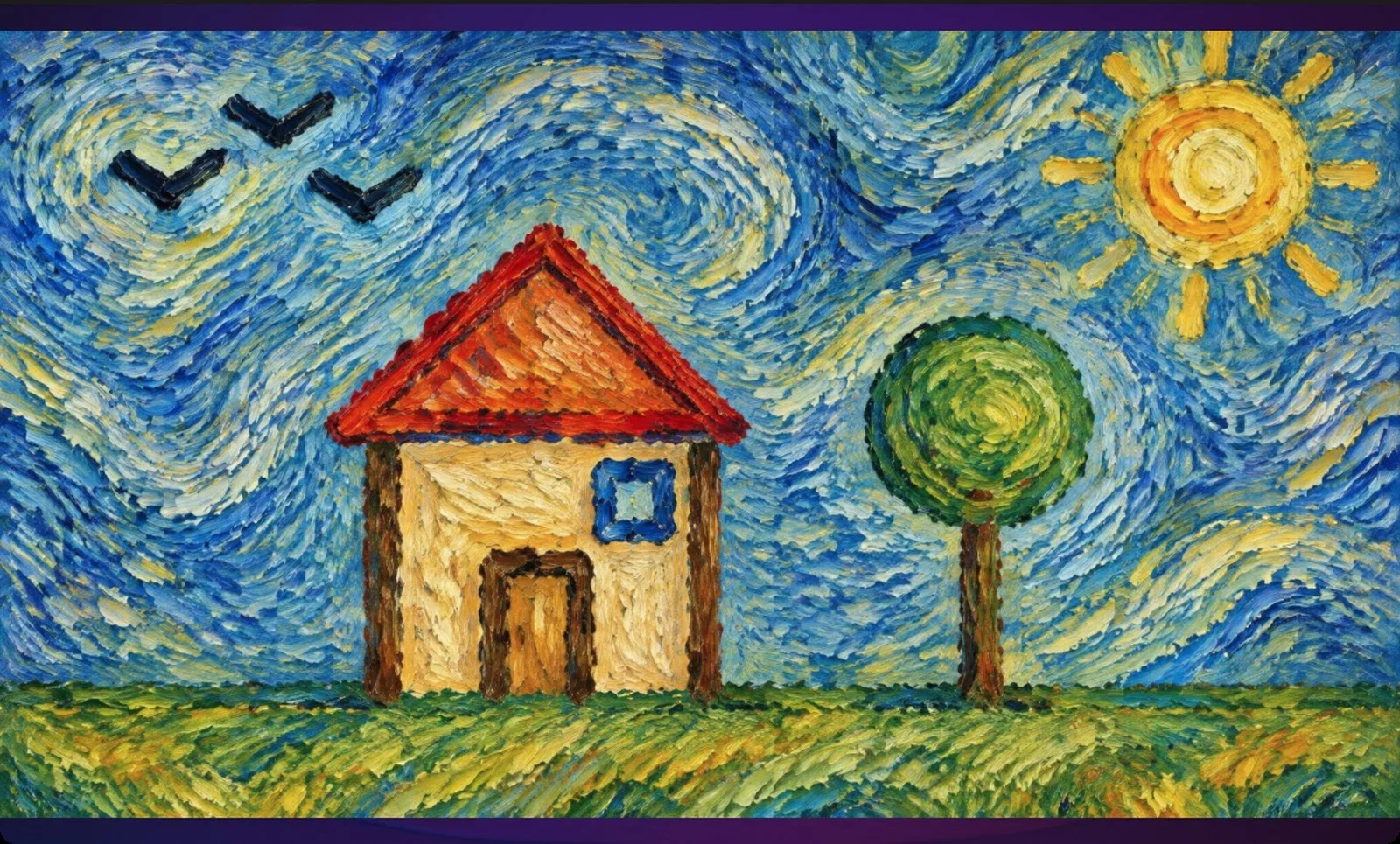
In crowded areas, Live drawing draws attention; people waiting in line watch the drawing.
Add your event's promo video as the Idle video so the screen isn't empty while the kiosk is idle.
Expecting the second screen to open on a single-monitor computer — you need two displays.
Leaving the monitor in screen mirroring (duplicate display) mode — extend the desktop for the second screen.
Expecting the canvas cover frame to appear on the second screen — the frame is only shown on the kiosk screen.
Related topics
Drawing SettingsRunning the AppCanvas Surface and Frame
