













AI Drawing uses AI to turn the guest's drawing into an artwork in an art style. These styles are managed on the AI Effects tab of the AI Assets page: here you decide which styles are assigned to the event, their order, and whether guests choose a style. The styles assigned to the event appear in the Art style section of the drawing screen.
This guide covers AI Drawing Screen 2.2.2. Available controls may vary by platform and version; platform-specific limitations are noted below.
- An event must be created and selected.
Step by step
Step 1 · Open the AI Assets page
Left menu → AI Assets → AI Effects
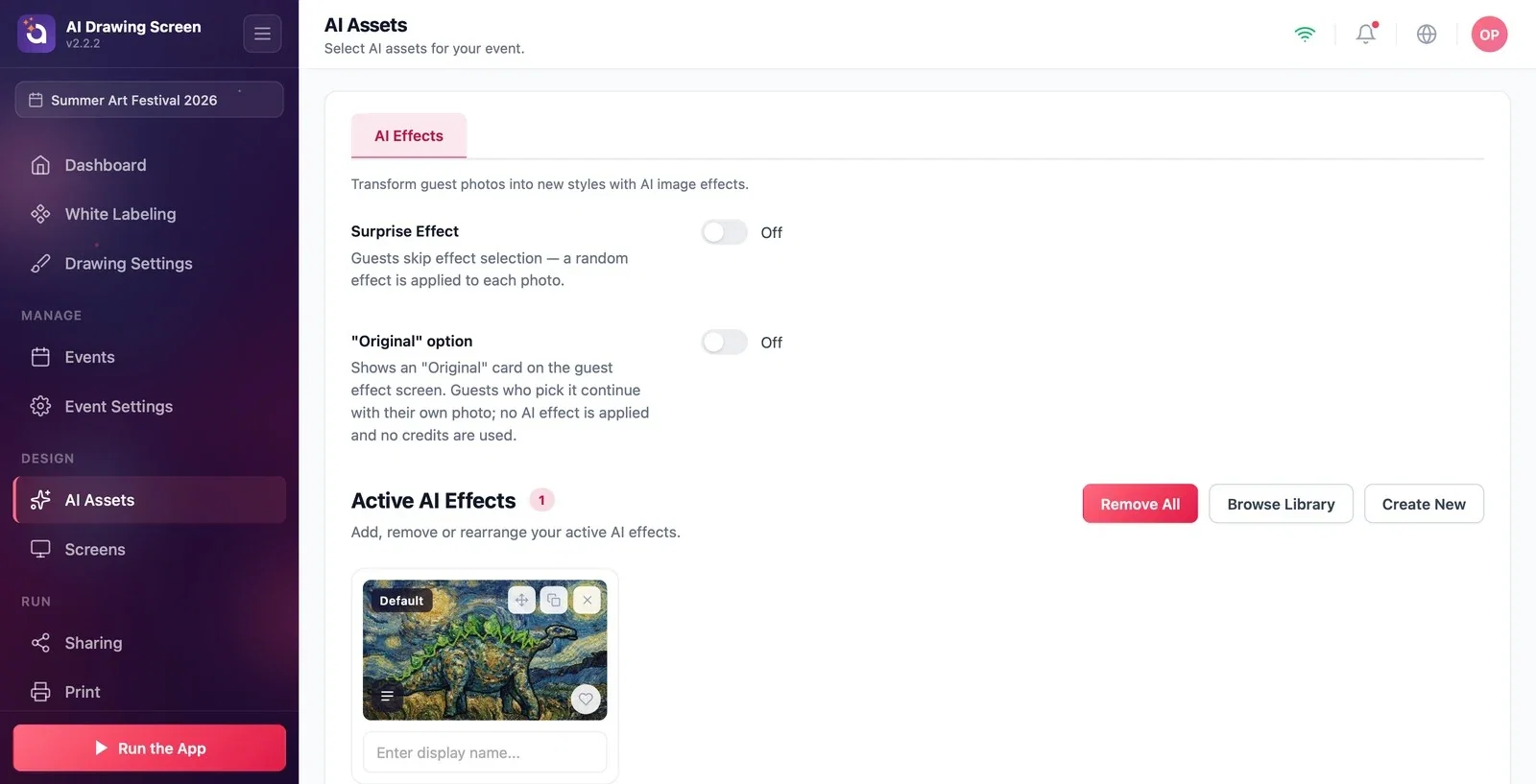
Click AI Assets in the Design group of the left menu. The AI Effects tab has two switches at the top and the Active AI Effects list below. A new event comes with the 'Van Gogh' style, labeled Default.
Step 2 · How does the guest choose a style?
AI Assets → Active AI Effects
Whether guests choose a style is decided automatically by how many styles you assign to the event; there is no separate setting:
- If one style is assigned, it is applied automatically. On the drawing screen, the guest sees only that style's card and doesn't make a choice. - If more than one style is assigned, the Art style shelf appears on the drawing screen, and the guest picks one before finishing the drawing. - If Surprise Effect is on, the shelf is not shown; a random one of the assigned styles is applied to each drawing.
The order of the cards sets the order on the shelf; you can change it by dragging the cards.
Step 3 · Surprise Effect and "Original" option
AI Assets → AI Effects
Surprise Effect: when on, guests don't choose a style and a random style is applied — what awaits the guest's drawing becomes a surprise. The "Original" option is meant for the photo products that use this page; even if you turn it on in AI Drawing, no 'Original' card appears on the drawing screen. If you want guests to get their own drawing without AI, turn off the Drawing Settings → AI result → Use AI result switch.
If you want guests to choose, assign 3–4 different styles; too many styles cause indecision and slow down the line.
At a corporate event, assigning a single on-brand style speeds up the flow: guests just draw and tap Finish.
Not assigning any style to the event — guests can't send their drawing to the AI; assign at least one style.
Assigning a single style and wondering why the shelf doesn't appear — with one style, the shelf isn't shown and the style is applied automatically.
Turning on the "Original" option to run without AI — it has no effect in AI Drawing; turn off Use AI result instead.
Related topics
Adding a Style from the LibraryCreating a Custom StyleDrawing SettingsAI Credits
