













The Drawing tab on the Session page provides Result copy folder for an additional local copy. Check that the folder is writable and a test artwork is actually copied; folder copying on Mac has not been verified in this version. Cloud upload is a separate process requiring an internet connection and a successful upload.
This guide covers AI Drawing Screen 2.2.2. Available controls may vary by platform and version; platform-specific limitations are noted below.
- An event must be created and selected.
- The folder the copies go to must be accessible on the kiosk computer.
Step by step
Step 1 · Open the Session → Drawing tab
Left menu → Session → Drawing
Click Session in the Run group of the left menu; its tabs are Drawing, Survey, and Disclaimer. The Drawing tab has the Result copy folder section and the Folder path field.
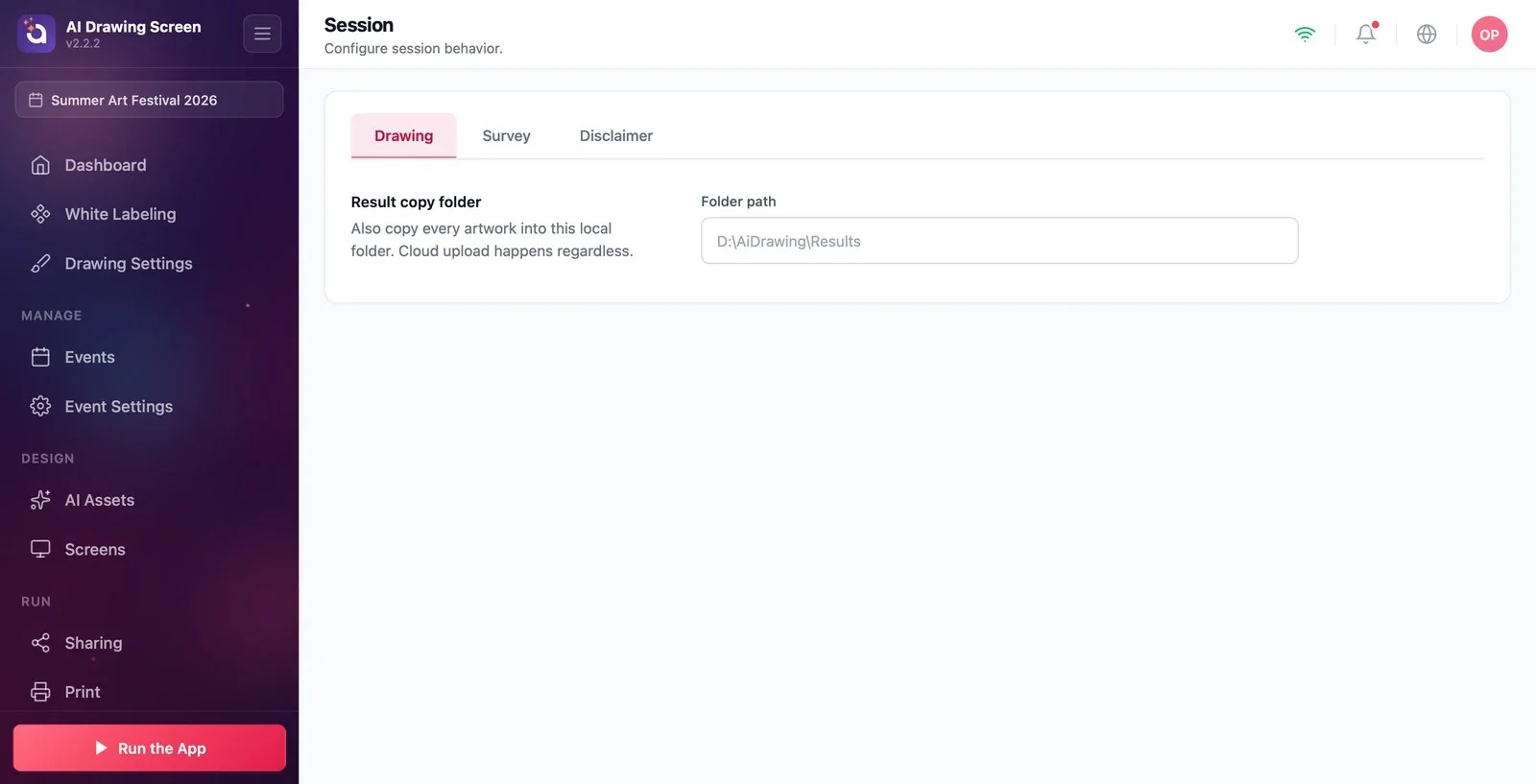
Step 2 · Enter the folder path
Session → Drawing → Folder path
On Windows, when a new event is created, this field is filled in automatically with a folder under 'C:\ActivationKing\AiDrawing\Results\' named after the event number and name; you can type a different path if you like (e.g., 'D:\Events\SummerFestival'). A path you type is never changed automatically again. On Mac and other platforms, the field starts empty. If you clear the field, no local copy is made; the artworks are still uploaded to the cloud.
If you will hand the artworks to your client on a USB drive after the event, use this folder.
If the folder can't be reached (e.g., a disconnected drive), copying is skipped silently and the guest flow doesn't stop; check the folder at the start of the event.
Clearing the folder field only disables the additional local copy; it does not prove that cloud upload succeeded. Open a test artwork on its sharing page before the event to verify it.
Typing a drive letter that doesn't exist — no copy is made, but no error is shown either.
Related topics
Session — SurveySession — DisclaimerCreating an Event
