













In AI Drawing, all settings (drawing screen, AI styles, screen design, sharing, printing) belong to an event, so the first thing to do is create one. You create an event with a short wizard on the Event Management page: you enter a name and description, then choose whether to start from scratch or copy a previous event. The new event automatically becomes the current event.
This guide covers AI Drawing Screen 2.2.2. Available controls may vary by platform and version; platform-specific limitations are noted below.
- You must be logged in to the app.
- If you want to copy the settings of a previous event, that event must exist in this account.
Step by step
Step 1 · Open the Event Management page
Left menu → Events
Click Events in the Manage group of the left menu; the Event Management page opens. If you don't have any events yet, the page says No events yet and shows two options: Create First Event, or Import from Cloud below the or divider (to bring back an event you created on another device).
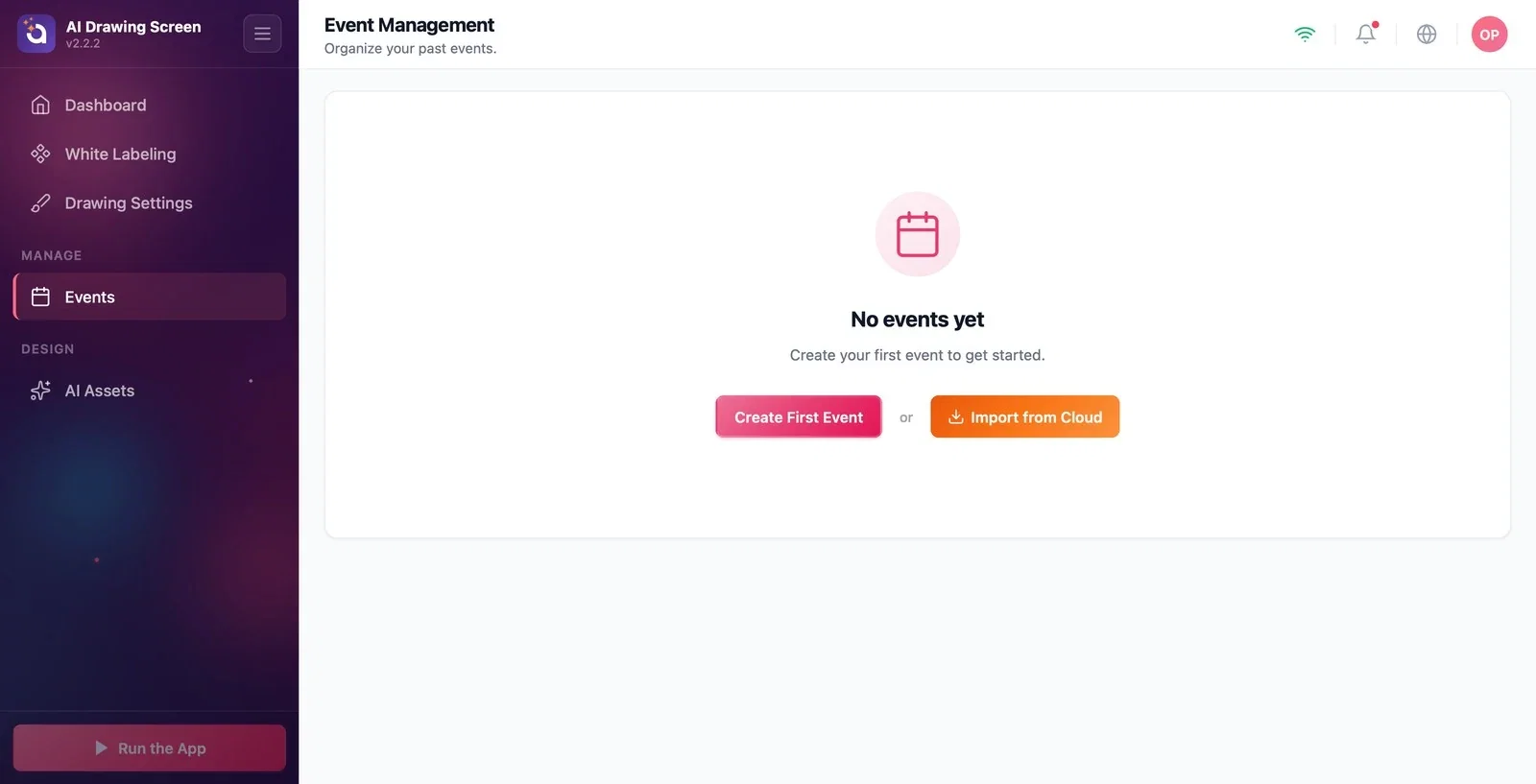
Step 2 · Start the wizard — name and description
Event Management → Create New Event → Event Details
Click the Create First Event button (for later events, the Create New Event card). The first step of the Create New Event window, Event Details, opens. For your first event, the name field is pre-filled with My First Event and the top of the window says We've filled in the basics for your first event. Change anything you want or continue.; for later events, the fields are empty.
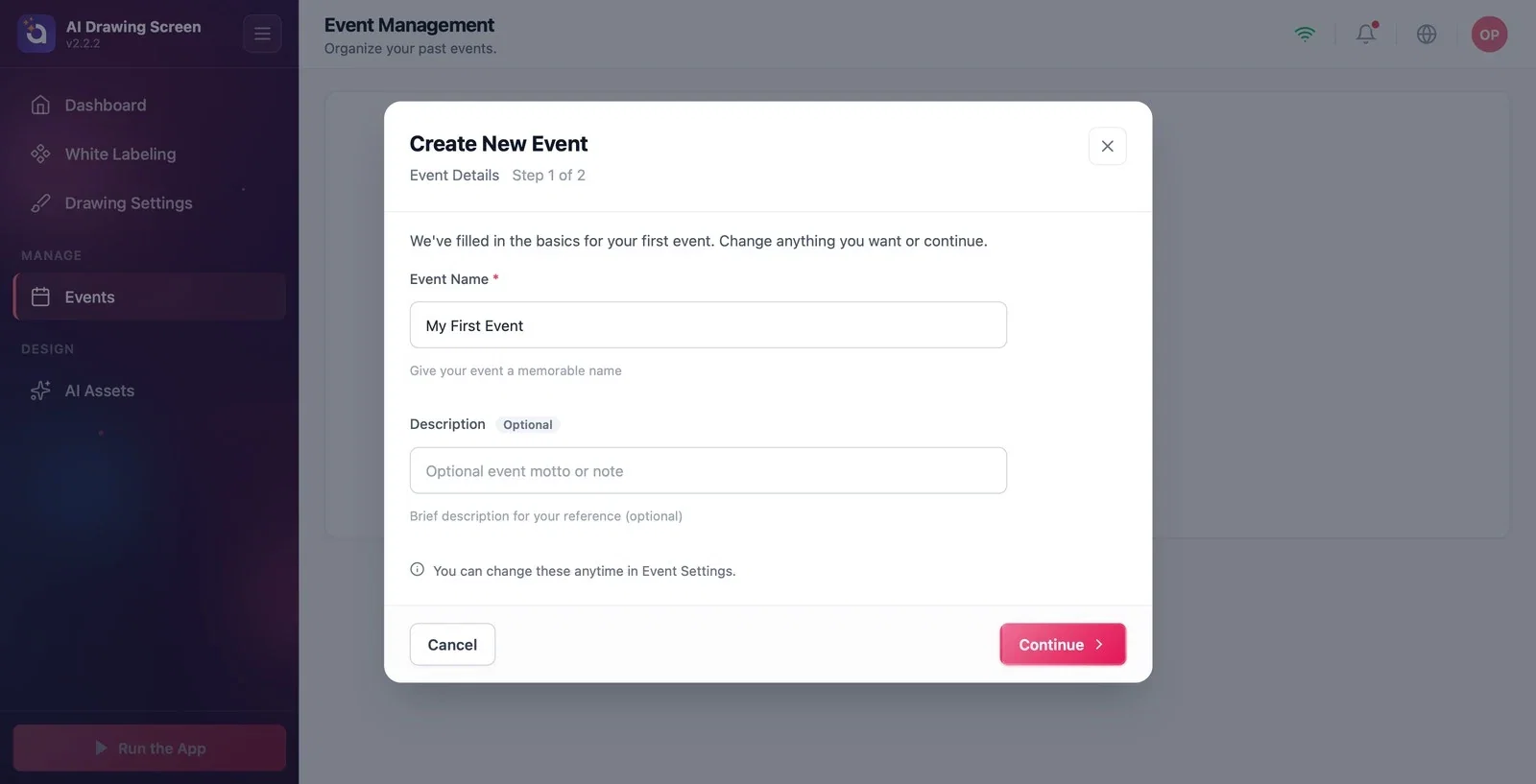
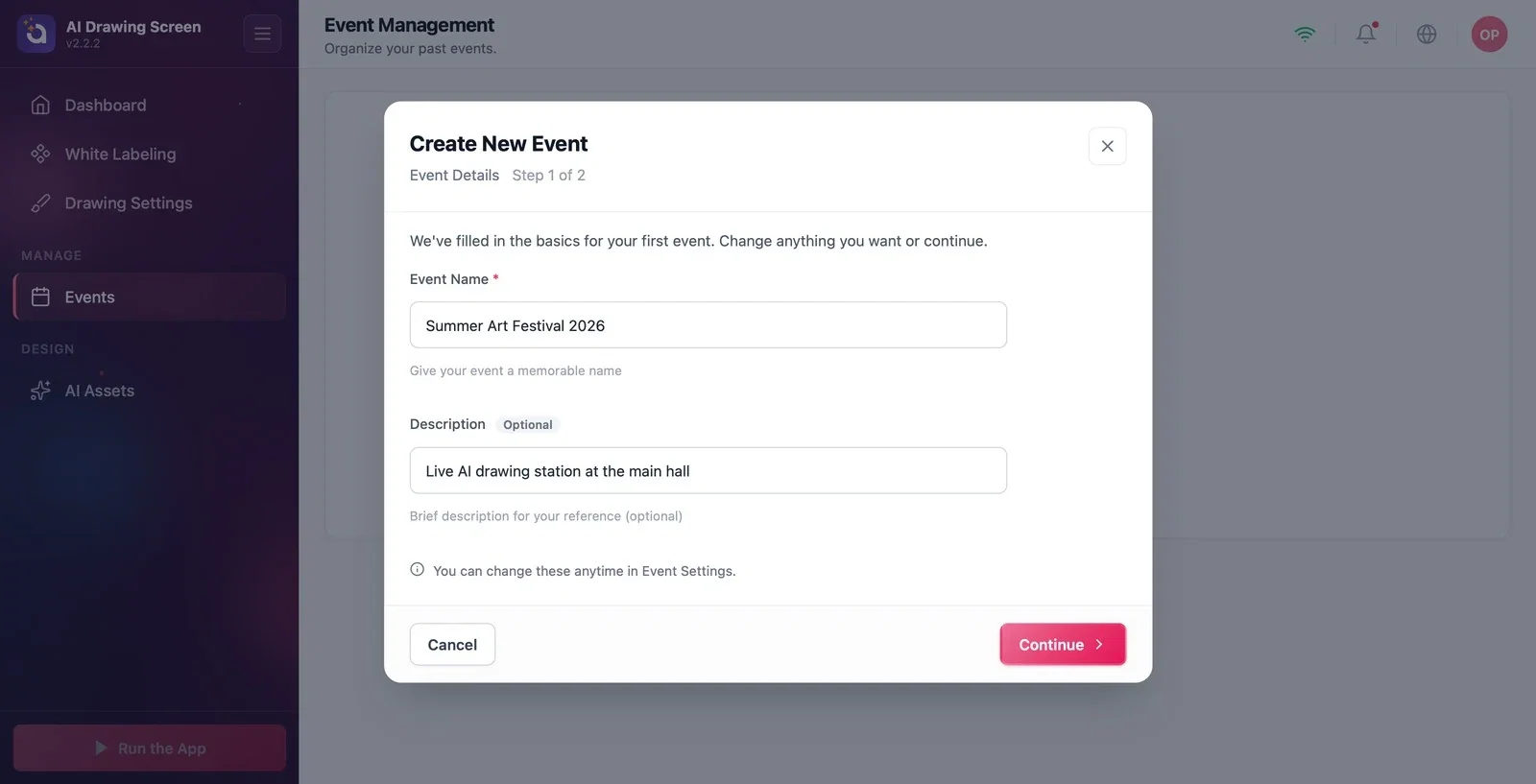
Step 3 · Name the event and continue
Create New Event → Event Details
Type a name that identifies your event in the Event Name field (e.g. 'Summer Art Festival 2026'); if you like, add a short note for yourself in the Description field. The name is required — the wizard won't move on while the field is empty. Click the Continue button. You can also change the name and description later on the Event Settings → Main tab.
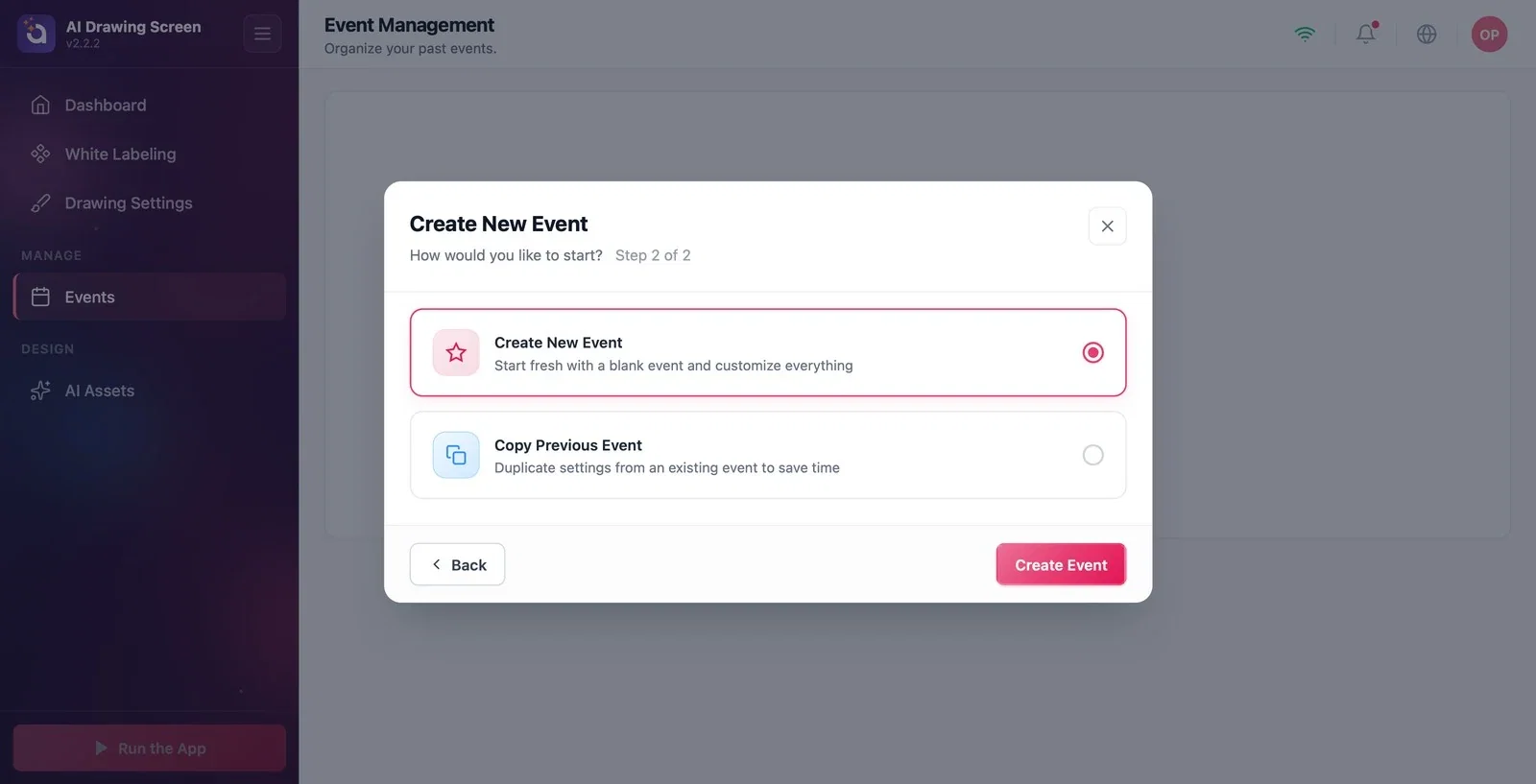
Step 4 · Choose how to start
Create New Event → How would you like to start?
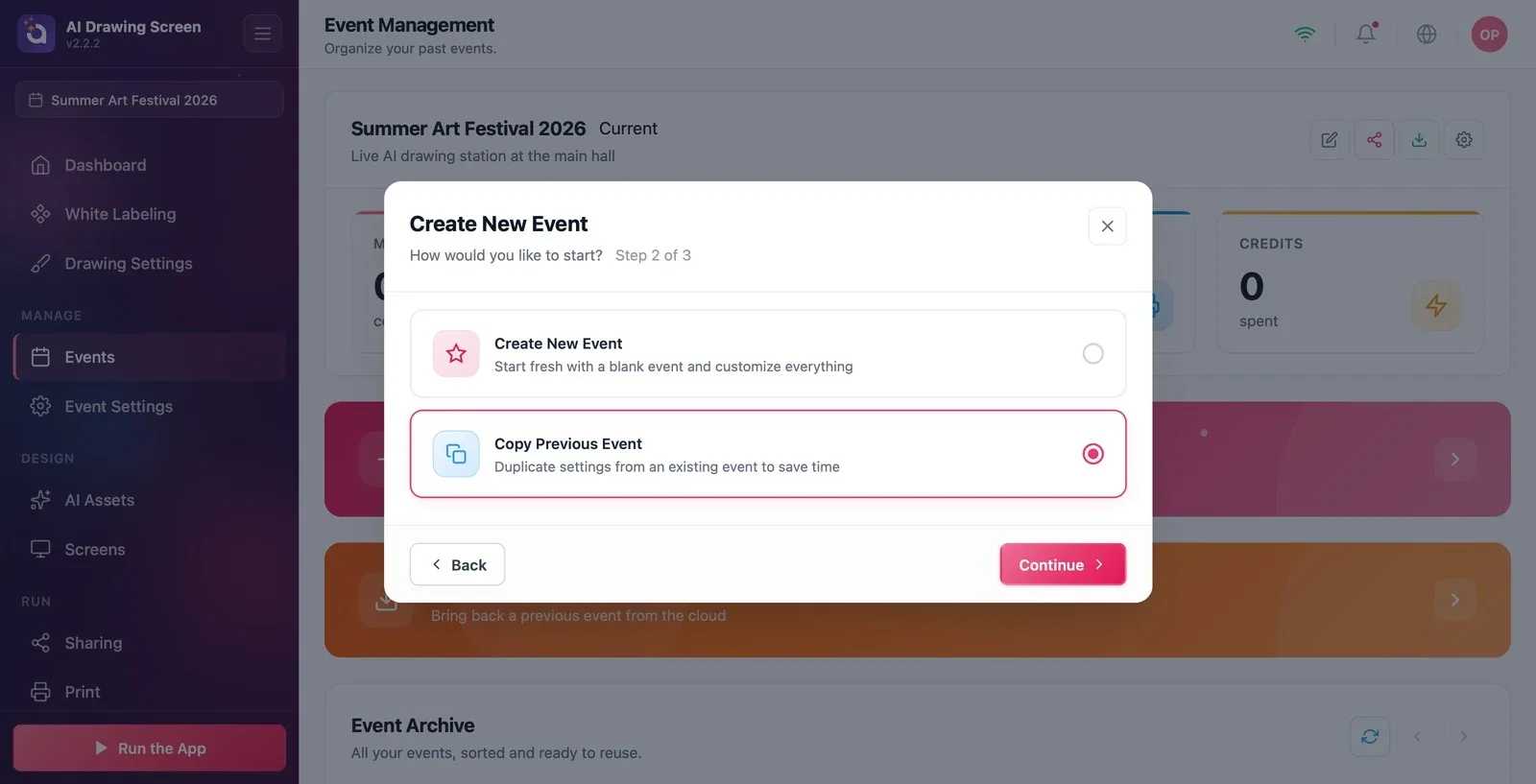
Choose one of the two cards. Create New Event (selected by default): Start fresh with a blank event and customize everything. Copy Previous Event: Duplicate settings from an existing event to save time. If you are starting from scratch, click the Create Event button right away and go to Step 6.
Step 5 · (Optional) Copy a previous event
Create New Event → Copy Previous Event → Select an event to copy from
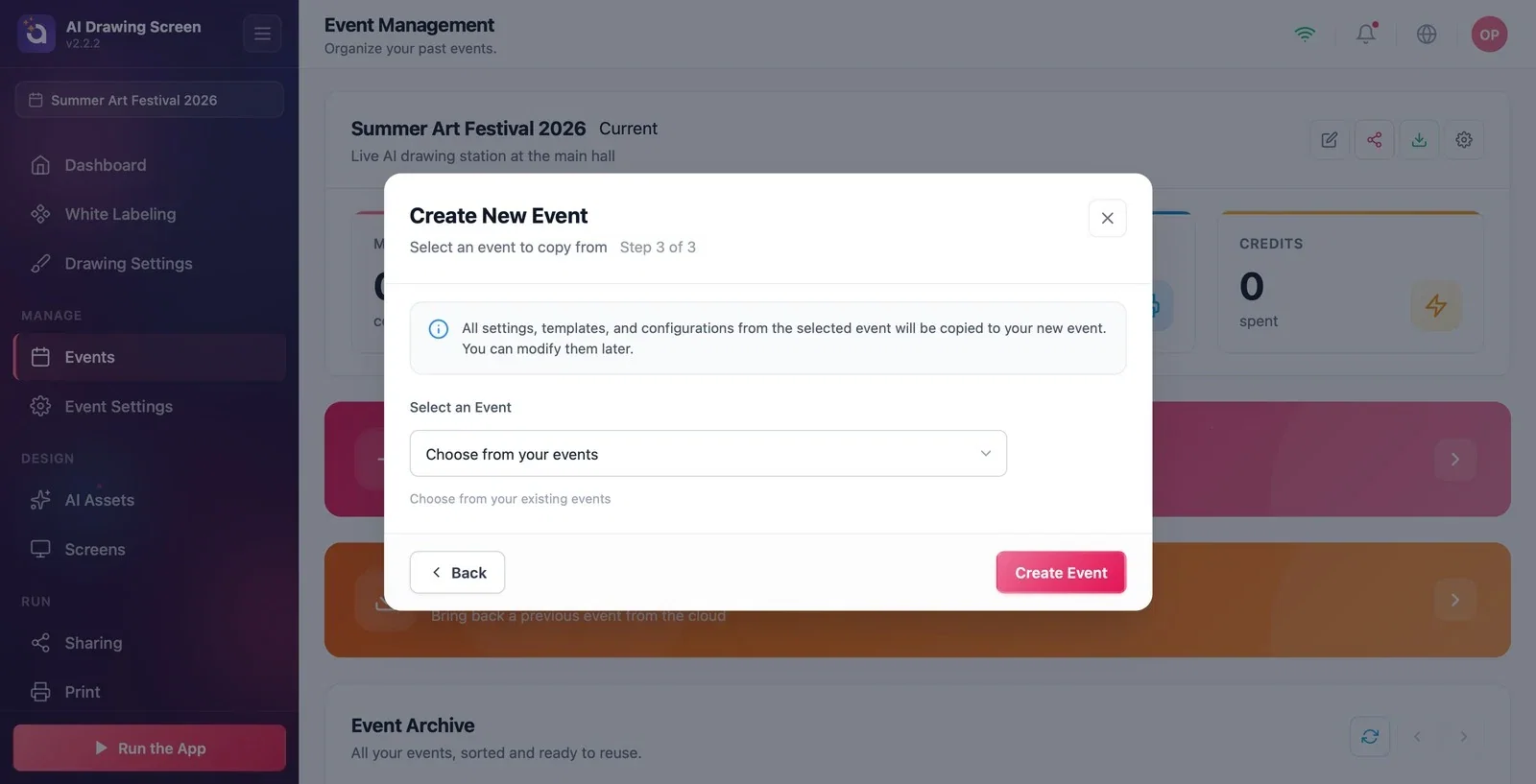
When you select the Copy Previous Event card, the wizard gets three steps and the button changes to Continue. Click Continue, and in the last step that opens, choose the source event from the Select an Event list. All settings of the selected event are copied to the new event; after copying, you can change anything you like in the new event without affecting the source event. Finish with Create Event.
Step 6 · The event is created — Guided Setup summary
Create Event → Guided Setup
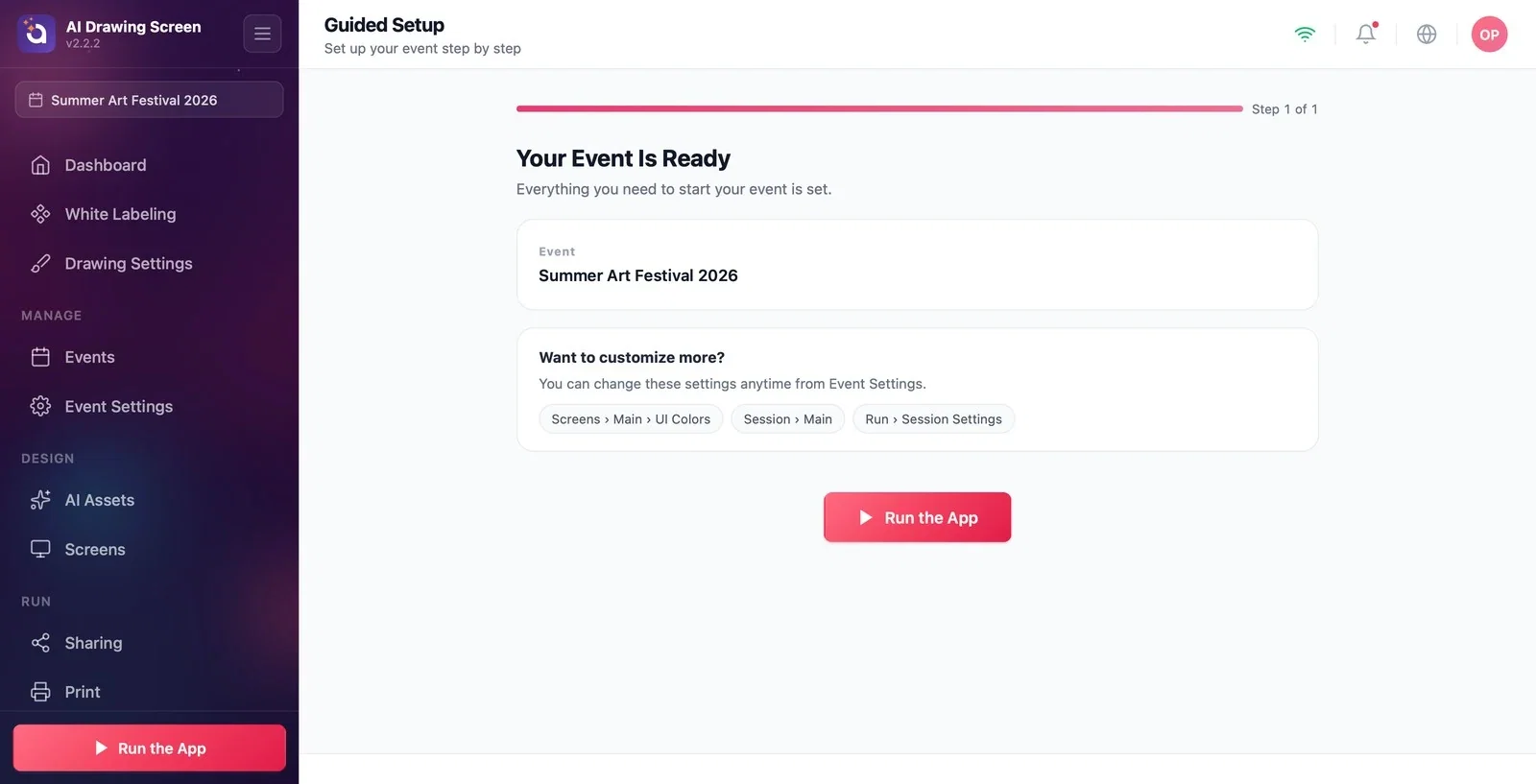
After you click Create Event, Creating Your Event... appears briefly, and then the Guided Setup page opens. In AI Drawing, this page is a one-step summary: the event's name appears under the Your Event Is Ready title. From here you can start the kiosk right away with Run the App, or go to the settings from the left menu. The new event also becomes the current event: its name appears at the top of the left menu, and the event menus (Event Settings, Screens, Sharing, Print, Session) become available.
Step 7 · See your event in Event Management
Left menu → Events
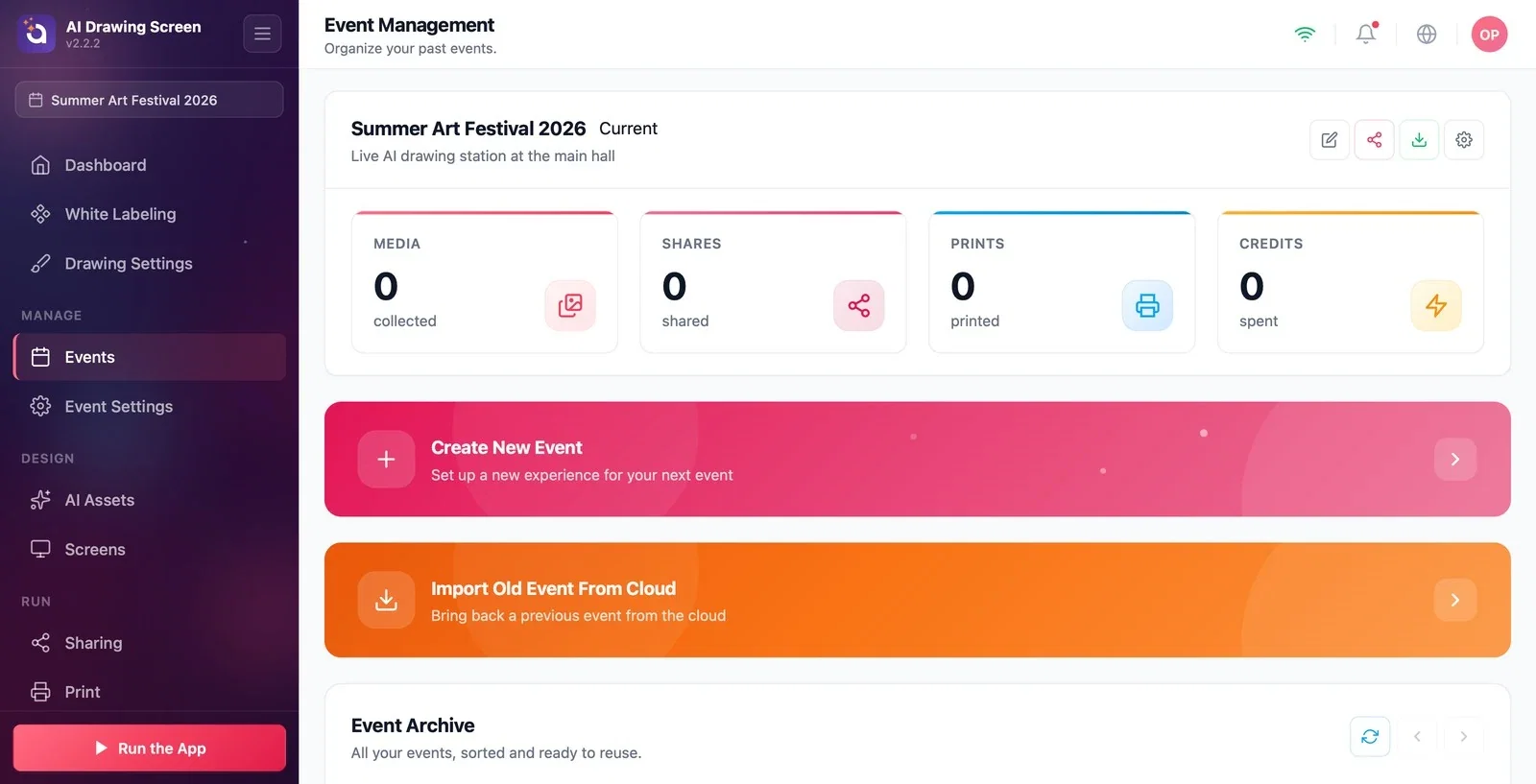
The current event's card (with the Current tag) appears at the top of the Event Management page: its name, description, and counters (media, shares, prints, credits spent). The icons on the right of the card are Edit, Share, Download photos & videos, and Event Settings. Below it are the Create New Event and Import Old Event From Cloud cards, and at the very bottom, the Event Archive table listing all your events.
Each event keeps its own settings. To reuse the same setup for a different event, Copy Previous Event is the fastest way.
The name and description are for you only; they don't appear on guest screens. You can change them later on the Event Settings → Main tab.
If you created the event on another computer, bring it over with Import Old Event From Cloud instead of setting it up again.
Looking for settings without an event — menus such as Screens, Session, and Print only appear when an event exists.
Leaving the name field empty and wondering why Continue doesn't work — Event Name is required.
Looking for shortcuts on the Guided Setup summary — the settings actually live in the left menu: colors under Screens → Main, session settings under Session.
Related topics
Event Settings → MainDrawing SettingsAI Assets
