













Most of the issues you run into while a guest's drawing is being turned into artwork with AI come from four sources: your plan, the AI styles assigned to the event, credits (account balance and event limit) and the internet connection. This page lists the typical symptoms seen on the kiosk or in Run the App, along with their reasons and solutions. Because the texts on the guest screens can be changed in Screens → Texts, the wording on your kiosk may be different.
This guide covers AI Drawing Screen 2.2.2. Available controls may vary by platform and version; platform-specific limitations are noted below.
Step by step
Symptom: Run the App says "AI features are not included in your plan"
Left menu → Run the App
Reason: Your plan does not include AI features. This check runs before the kiosk starts and applies even if Use AI result is off in Drawing Settings. The window only has Upgrade plan and Go back; there is no "start anyway" option. When the app starts automatically at computer startup (Run on Startup), no warning appears; the settings screen opens instead of the kiosk. Solution: Switch to a plan that includes AI with Upgrade plan, or with Manage Subscription on the Dashboard → Subscription card.
Symptom: "Before you start" warning, or Touch to start is dimmed
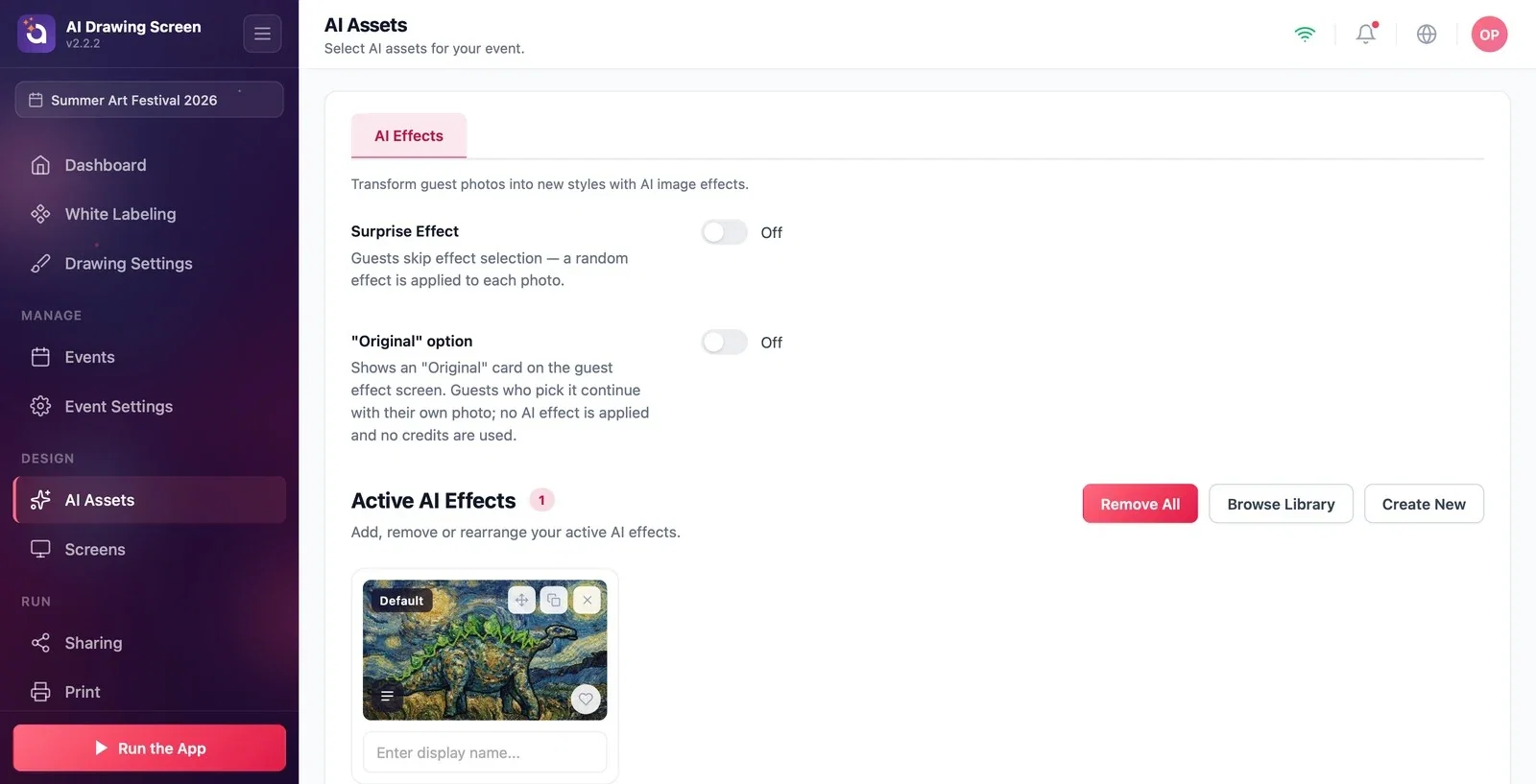
AI Assets → AI Effects → Active AI Effects
Reason: No AI effect (style) is assigned to the event. Run the App reports this with the Before you start warning (Start anyway / Go back); if you start anyway, guests cannot finish their drawings. On the welcome screen, Touch to start appears dimmed and a note saying the styles are loading appears; on the drawing screen, the hint No style configured appears above Finish. Right after sign-in, you may see this for a few seconds while the effects sync with your account; the kiosk checks again every few seconds. Solution: On the AI Assets → AI Effects tab, add a ready-made effect with Browse Library or create your own effect with Create New (see Adding a Style from the Library). If you won't use AI, turn off Drawing Settings → Use AI result.
Symptom: The guest sees the "Something went wrong" screen
Kiosk → result screen
Reason: The artwork could not be generated. The screen shows Something went wrong and We could not create your artwork. Please try again.; the actual cause is not shown on screen, it is only written to the app's logs. Possible causes: there are not enough AI credits on the account; there is no internet (the drawing could not be uploaded within 30 seconds); the style assigned to the event was deleted; the AI service is temporarily not responding; the license or the session has expired; generation took longer than 90 seconds. Back to drawing takes the guest to the drawing screen; it does not resend the drawing, so credits are not deducted a second time. Solution: Check these in order — the internet connection; the balance on the Dashboard → AI Credits card; the event's effects in AI Assets; if the problem continues, sign out and sign in again.
Symptom: Generation takes a very long time or fails at the end
Kiosk → generation screen
Reason: The progress bar on Creating your artwork… is an estimate, not a measurement of server progress. Duration varies with model, resolution, connection and service load. In this version, exceeding the app's 90-second wait may show Something went wrong; this does not prove that server processing stopped or whether credits were charged. Before retrying, check the result and credit usage; contact support if the outcome is unclear. Solution: Improve the connection (wired if possible); if a particular effect is slow, try a faster or lower-resolution option that meets your needs.
Symptom: The guest sees the "Drawing is paused" warning
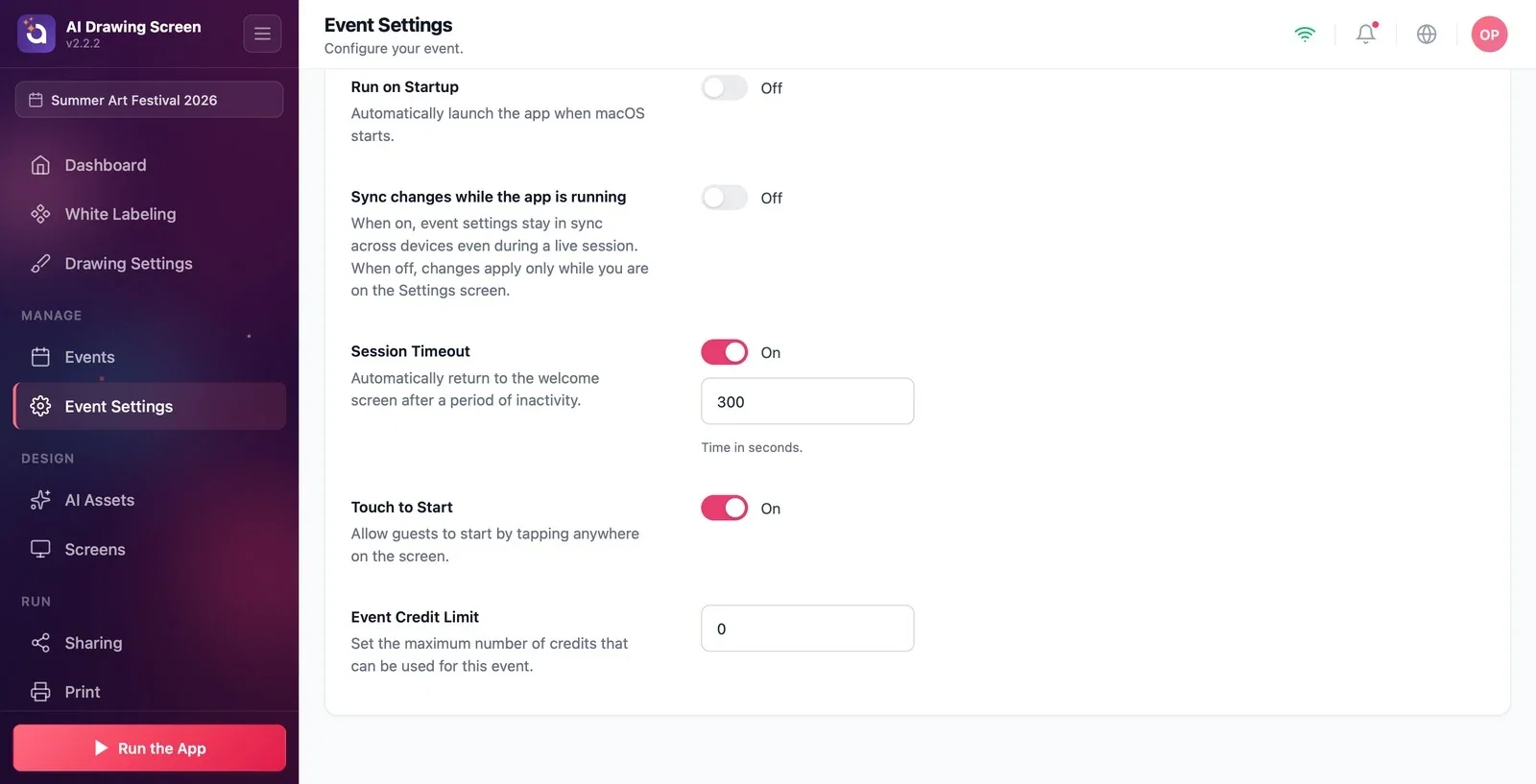
Event Settings → Kiosk → Event Credit Limit
Reason: The event has reached the credit limit it is allowed to spend. When the guest presses Touch to start, they see Drawing is paused and This event has used all of its credits. Please let the staff know. The limit is enforced only on the kiosk, and only successful generations count; if several kiosks run the same event, the total is updated as sessions sync. Solution: On the Event Settings → Kiosk tab, raise the Event Credit Limit, or set it to 0 for no limit; the guest can continue on the next touch. Don't confuse this warning with the pause screen opened with Show Pause Screen (We'll be back soon!); that is a screen the operator opens on purpose.
Symptom: The result is the guest's own drawing, not the AI artwork
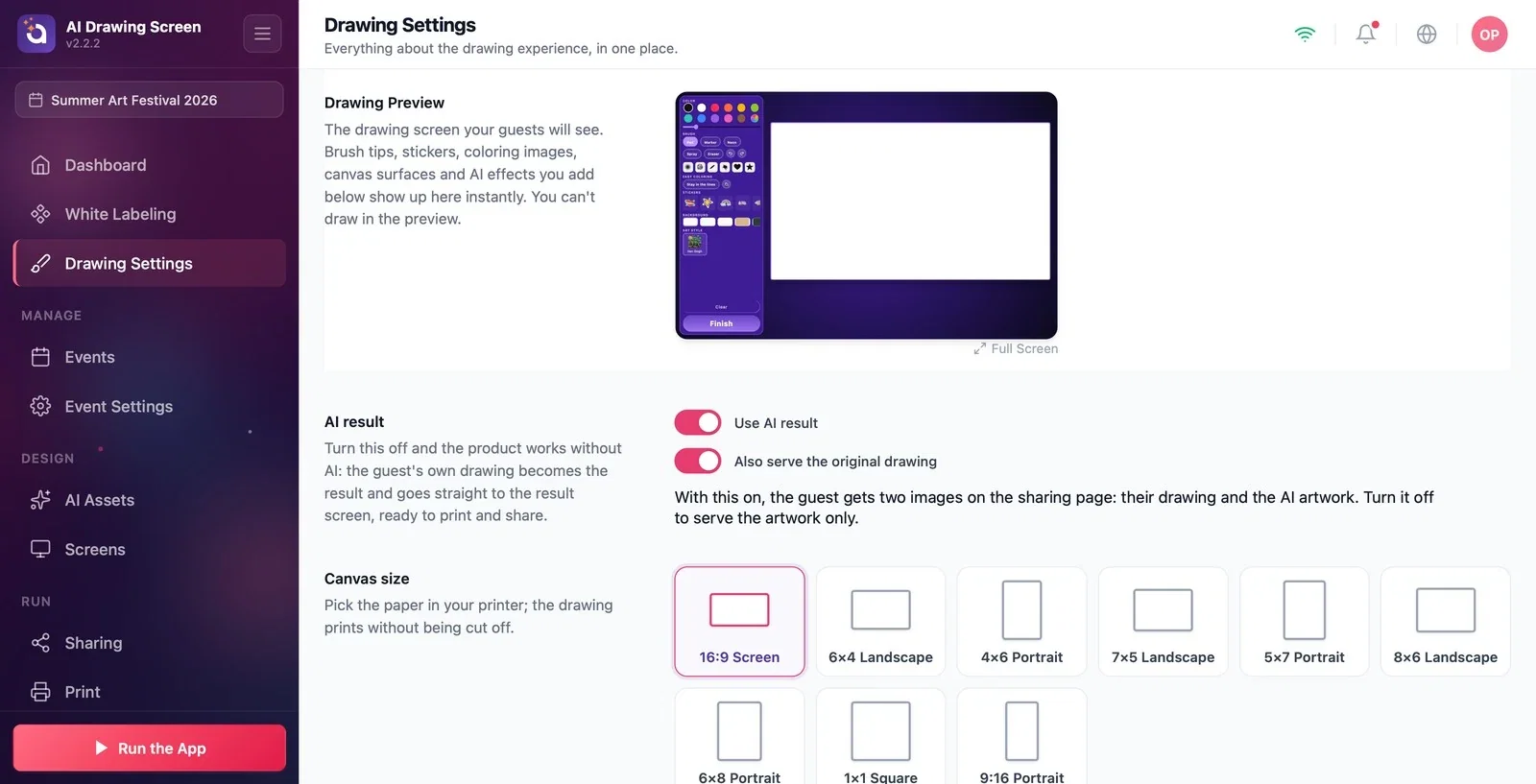
Drawing Settings → AI result
Reason: There are three possibilities. (1) Use AI result is off: AI doesn't run at all, no credits are spent, and the guest's drawing becomes the result as is. (2) Also serve the original drawing is on (default): on the sharing page, the guest's drawing comes first, followed by the AI artwork; the guest may see the first image and think AI didn't work. (3) The guest switched to their own drawing with Show my sketch on the result screen. Solution: If you want AI artwork, turn on Use AI result; if you want only the artwork to appear on the sharing page, turn off Also serve the original drawing.
Symptom: A "TRIAL" watermark on the screens and artworks
Dashboard → Subscription
Reason: The account is on a trial. On a trial account, a diagonal "TRIAL" text appears over the kiosk screens, and the same text is stamped into the artwork file; printing, the gallery, the copy folder and the QR page all use this file. Solution: Switch to a paid plan. If the plan change doesn't show right away, sign out and sign in again, or wait 5 minutes. After the plan changes, only new artworks are free of the watermark; the text stays on artworks created during the trial.
Do a test generation before the event; if you see Something went wrong, check the internet and the AI Credits balance first.
The app does not check the credit balance before generating; when the balance runs out, the guest goes straight to the Something went wrong screen. To add credits, use Dashboard → AI Credits → Add Credits, or Add AI Credits in the user menu.
Confusing the Event Credit Limit with the account balance — the limit is only a cap set on the kiosk for this event; if the account has no credits, nothing can be generated, whatever the limit is.
Do not treat leaving the screen as cancellation of server processing or a credit refund. Check the result and credit usage before starting an unnecessary repeat generation.
Related topics
AI AssetsAI CreditsEvent Settings (Kiosk)Drawing Settings
