













Printing is managed in two places: the Print page in the left menu (adding printers, fine-tuning, print behavior and limits) and the Print button on the kiosk's result screen. How the artwork is laid out on paper depends on Drawing Settings → Canvas size. Printing works on Windows, Mac, iPad/iPhone and Android. This page lists the most common symptoms, along with their reasons and solutions.
This guide covers AI Drawing Screen 2.2.2. Available controls may vary by platform and version; platform-specific limitations are noted below.
Step by step
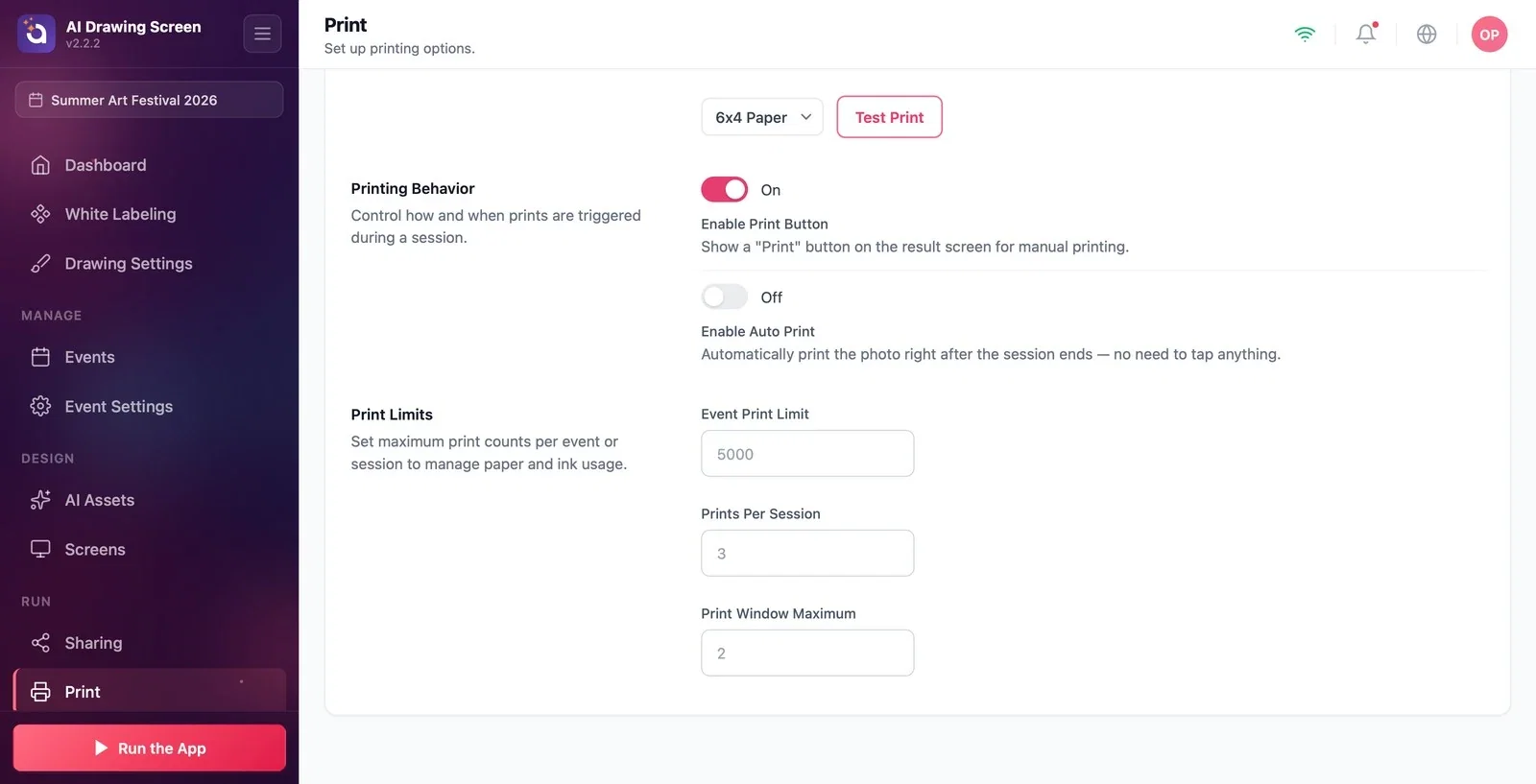
Symptom: There is no Print button on the result screen
Print → Printing Behavior / Print Limits
Reason: There are three possibilities. (1) Enable Print Button is off. (2) The Event Print Limit has been reached: in this case the button is hidden without any warning. (3) Generation failed: on the Something went wrong screen, the corner buttons don't appear at all (see Troubleshooting — AI Generation). Deleting the button's text in Screens → Texts does not hide the button. Solution: On the Print page, turn on Enable Print Button under Printing Behavior; then raise or clear the Event Print Limit under Print Limits.
Symptom: The button says Offline
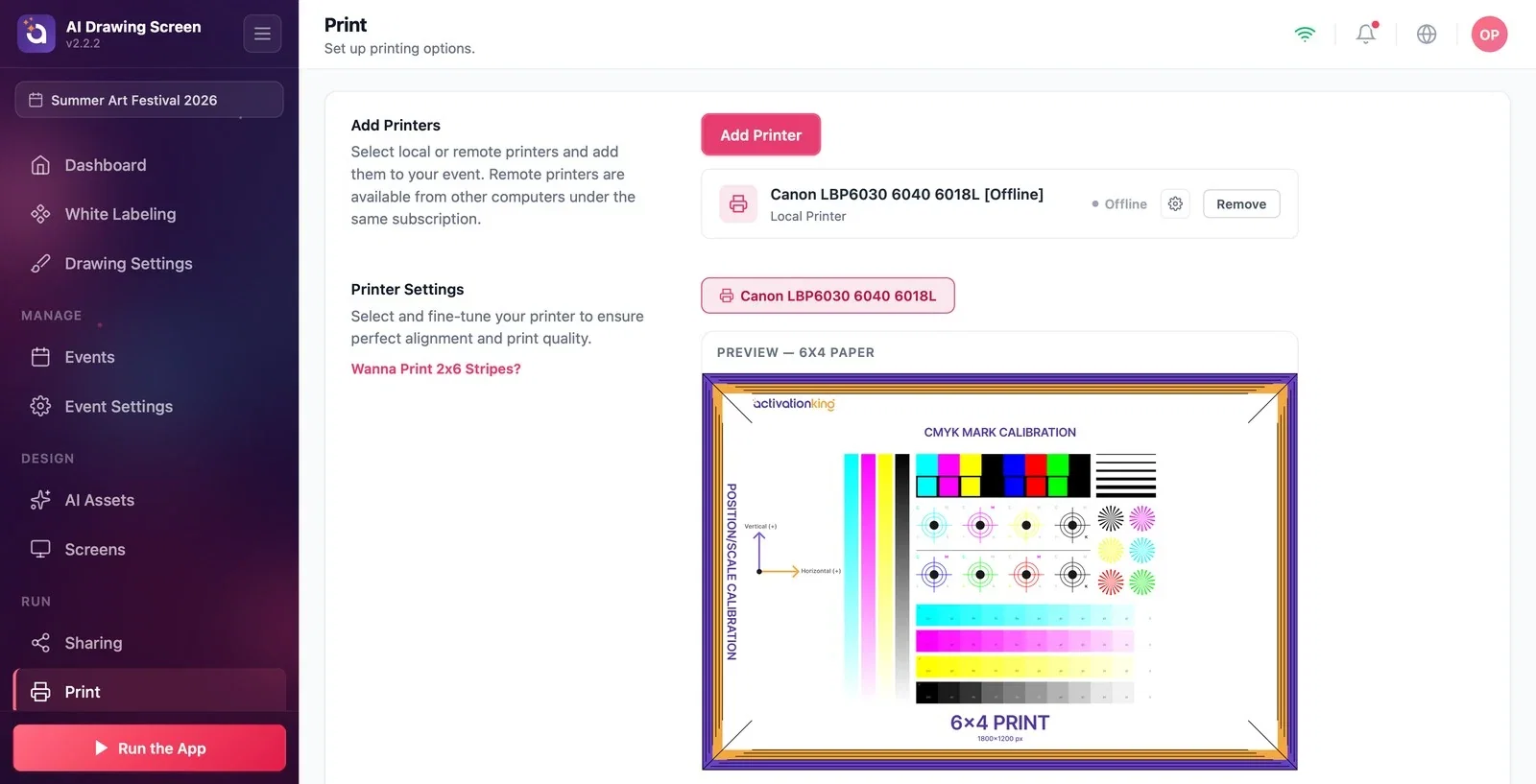
Print → Add Printers
Reason: None of the printers added to the event is online, or no printer has been added at all; in both cases the button is visible but says Offline. If the guest touches it, the Printer Offline warning with The selected printer is not available appears. Once the printer connects, the button recovers on its own within a few seconds. Solution: On the Print page, use Add Printer to select the printer from the Local Printers or Remote Printers list and bring it to Added status. If the list says No printers found, connect the printer and press Refresh. On Mac and iPad, the app must be allowed local network access; printers are found through this permission.
Symptom: It says Limit Exceeded, or the number of copies is restricted
Print → Print Limits
Reason: Prints Per Session has been reached: the button says Limit Exceeded, and touching it shows the Print Limit Reached warning. Until then, the button shows the remaining allowance (e.g., "Print (2)"). When the Event Print Limit is reached, on the other hand, the button is hidden completely. In the Select quantity window, the guest can choose at most the smallest of these values: the remaining allowance for the session, the remaining allowance for the event, Print Window Maximum and 10. An empty limit, or one less than 1, counts as unlimited; if Print Window Maximum is empty, 5 is used. The gray numbers in the boxes are only examples and are not applied. Test prints don't count toward the limits; failed prints do count toward the event limit. Solution: Set the three values under Print Limits to suit your needs.
Symptom: Auto print is on, but nothing prints
Print → Printing Behavior
Reason: Auto print only works while Enable Print Button is also on; if you turn the button off, auto print stops too. Other causes: no printer has been added; the printer was offline at the moment of printing (the job counts as failed and is not printed even if the printer connects later). Auto print does not run for artworks opened from the gallery or for failed generations; it runs only once per artwork. Solution: Turn on both Enable Print Button and Enable Auto Print, choose the Auto Print Count (1–5), and check that the printer is online. The count is still subject to the limits.
Symptom: The print is the wrong size, has white bands, or its edges are cut off
Drawing Settings → Canvas size
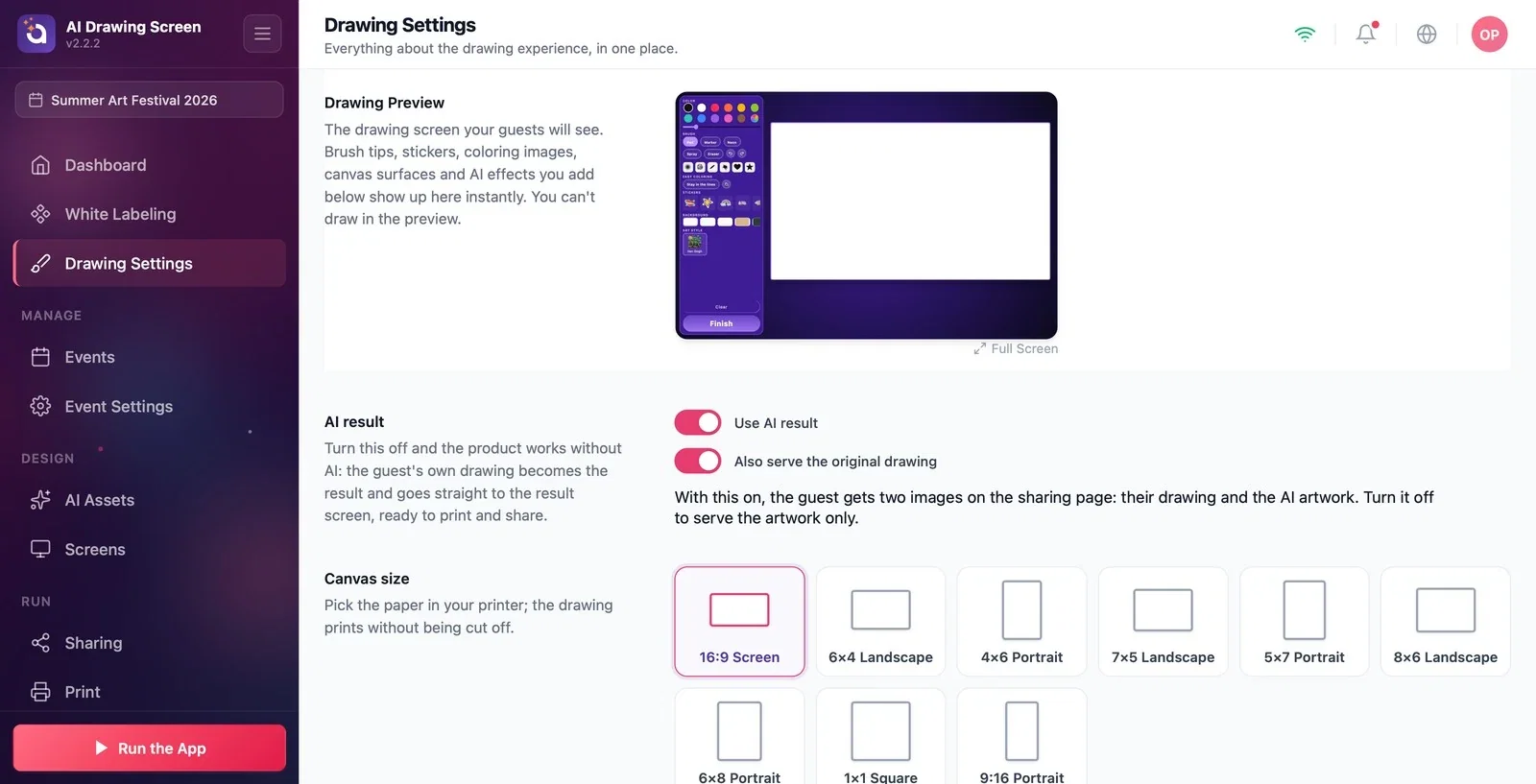
Reason: AI Drawing does not send a paper size to the printer; the printer prints on its own default paper (on Windows, the driver default; on Mac, the system default, scaled to fit the page). The format of the drawing is set by Canvas size. If the canvas and the paper don't match, Windows crops the artwork from the center to fit the paper's format (anything the guest drew near the edges is lost), while the other platforms fit the artwork onto the page and leave white bands. The paper list in Printer Settings is only for the preview and Test Print; it does not affect guest prints. Solution: (1) Choose Drawing Settings → Canvas size to match the paper in the printer (e.g., 6×4). (2) Set the printer's default paper in the operating system to the same size; on Windows and Mac, the gear icon in the printer row opens the system's printer settings. (3) For small shifts, use the Printer Settings → Adjustments sliders. Because the AI artwork can come back at a slightly different aspect ratio than the canvas, a very small crop may still happen.
Symptom: With a remote printer, the button says Print but nothing comes out
Print → Add Printers → Remote Printers
Reason: Remote printers (printers connected to another computer on the same account) are always treated as available; the button never shows Offline for them. The print job waits for the artwork to be uploaded to the cloud and is printed when the other computer picks it up. Solution: Check that both computers are connected to the internet, that the app is open and signed in on the computer the printer is connected to, and that the printer is added on that computer's Print page.
Symptom: "TRIAL" text on the prints
Dashboard → Subscription
Reason: The account is on a trial; the "TRIAL" text is stamped into the artwork file, and printing uses this file. Solution: Switch to a paid plan. Artworks created during the trial keep the text, even when reprinted from the gallery (see Troubleshooting — AI Generation).
Before the event, check the alignment with Test Print and the real print with a test generation; the two are printed through different paths.
After matching the canvas size to the paper, also set the printer's default paper to the same size.
Choosing the paper size from the list in Printer Settings and expecting guest prints to change — that list is only for testing.
Turning off Enable Print Button and relying on auto print alone — auto print stops too.
Related topics
Print SettingsDrawing Settings (Canvas size)Troubleshooting — AI Generation
