













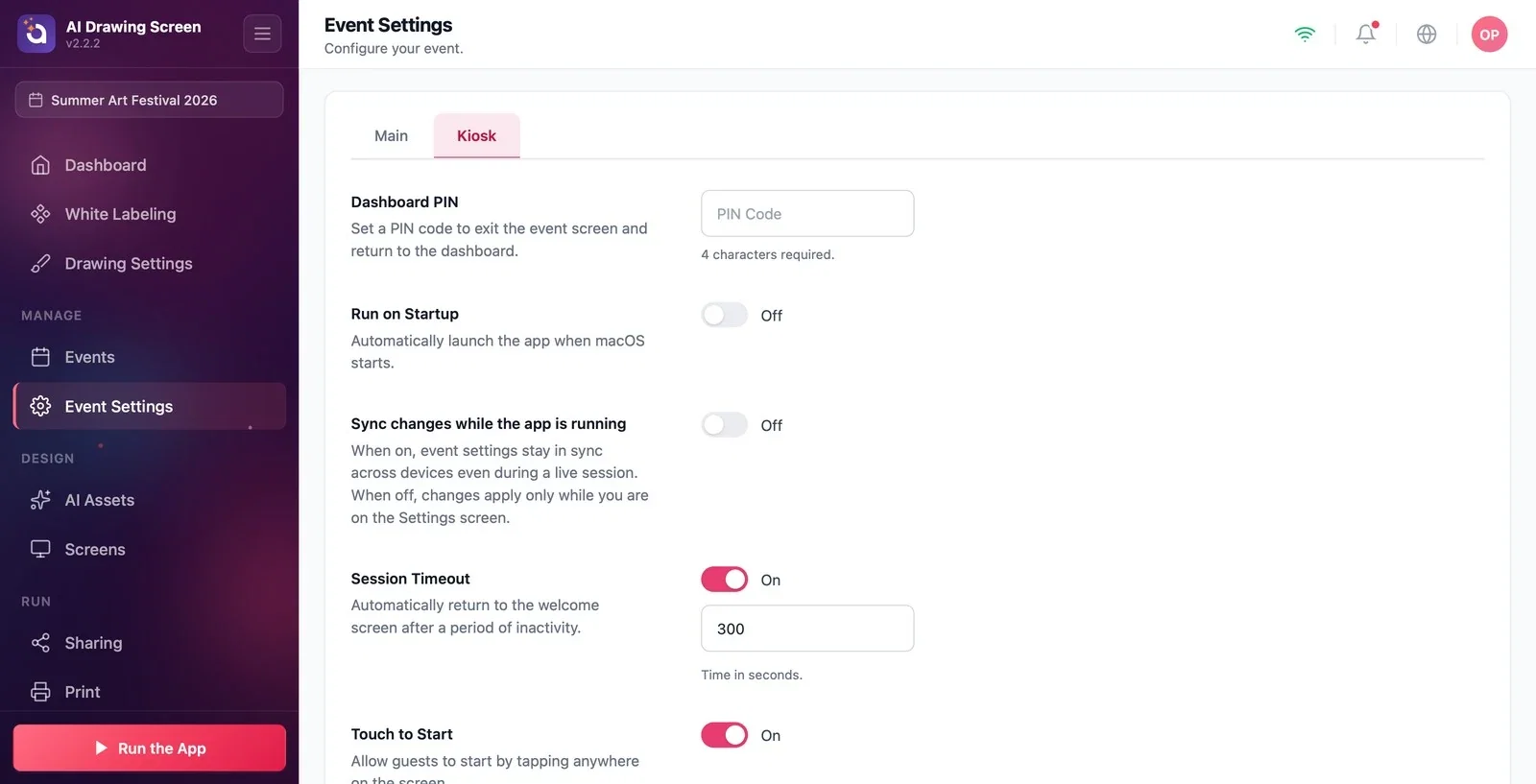
The Kiosk tab of Event Settings brings together six settings that control how the kiosk behaves during the event: the Dashboard PIN for exiting the kiosk, launching the app when the computer starts (Run on Startup), syncing settings while the app is running, returning to the welcome screen after inactivity (Session Timeout), starting by tapping the screen (Touch to Start), and the maximum number of credits the event can spend (Event Credit Limit). All of them apply only to the selected event and are saved automatically.
This guide covers AI Drawing Screen 2.2.2. Available controls may vary by platform and version; platform-specific limitations are noted below.
- An event must be created and selected.
- The Event Settings page must be open.
Step by step
Step 1 · Switch to the Kiosk tab
Event Settings → Kiosk
On the Event Settings page, click the Kiosk tab in the tab bar at the top. The Dashboard PIN, Run on Startup, and Sync changes while the app is running sections appear in that order; scroll down to see the other three.
Step 2 · Set the Dashboard PIN
Event Settings → Kiosk
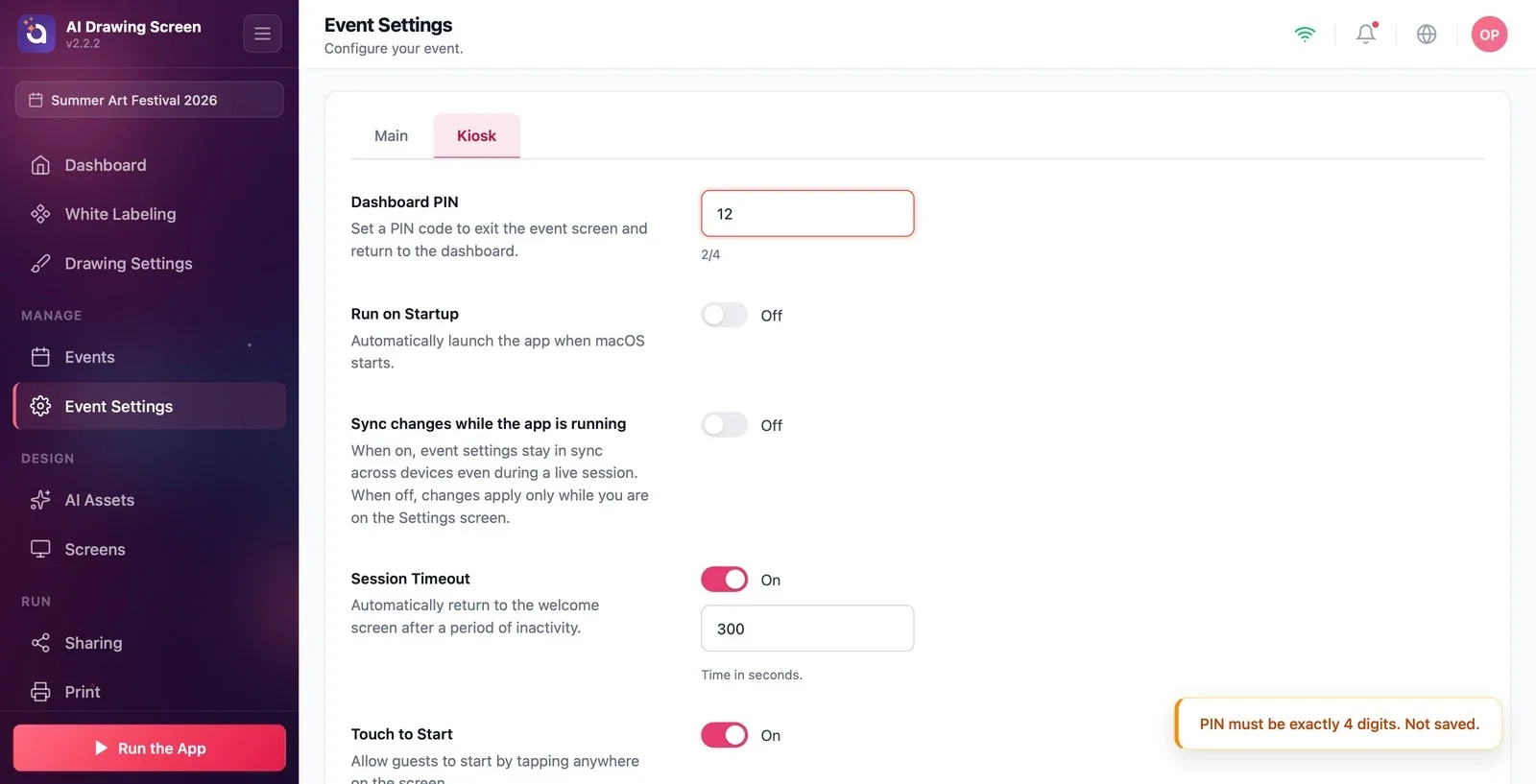
Type 4 digits in the PIN box. The helper text below the box shows the status: 4 characters required. while it is empty, a red progress count (e.g. '2/4') when you have entered 1–3 digits — in this case the PIN is not saved — and a green PIN set. once you enter the fourth digit. The PIN you set is requested when you want to return to the dashboard while the kiosk is running; it doesn't affect guests' drawing, it only locks access to the settings.
Step 3 · Run on Startup (works on Windows only)
Event Settings → Kiosk
If you switch the toggle On, AI Drawing starts automatically when Windows starts, so no staff member is needed when the kiosk computer restarts (default Off). This setting only works on Windows. It also appears on Mac, where its description says 'Automatically launch the app when macOS starts.', but currently the app does not start automatically on Mac even if the toggle shows On. If you need automatic startup on Mac, add AI Drawing to the list in macOS System Settings → General → Login Items. This section doesn't exist on iPad, iPhone, or Android.
Step 4 · Sync changes while the app is running
Event Settings → Kiosk
When this is On, this event's settings stay in sync across devices even while the kiosk is running — turn it on if several kiosks use the same event and you want a change made on one to reach the others immediately. When it is Off (default), changes are only applied while you are on the Settings screen, so there are no surprise changes during the event.
Step 5 · Session Timeout and Touch to Start
Event Settings → Kiosk (scroll down)
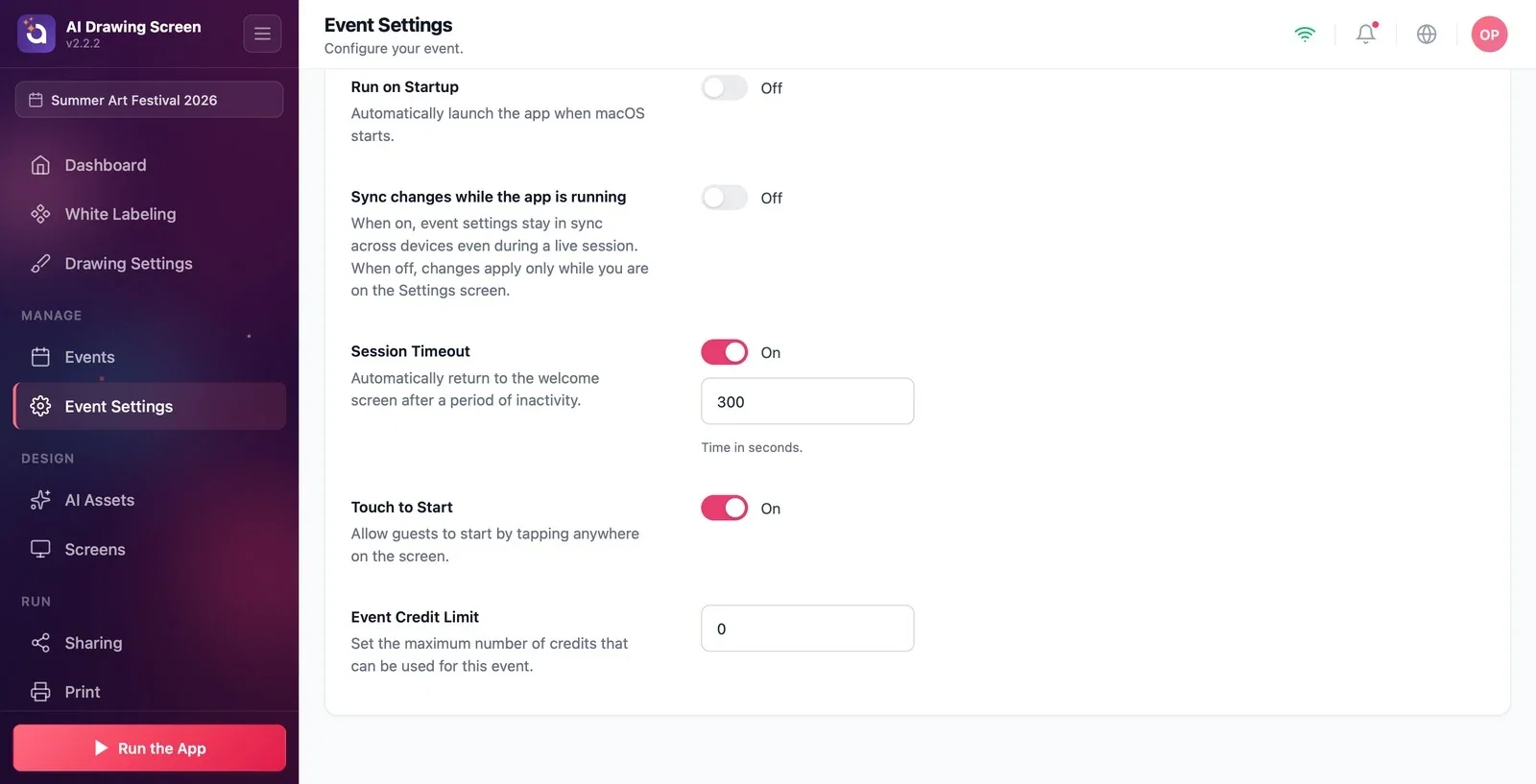
When Session Timeout is on (default On, 300 seconds), the kiosk returns to the welcome screen if the guest doesn't touch the screen for the set time; type the time in seconds in the box. When Touch to Start is on (default), guests can start by tapping anywhere on the welcome screen.
Step 6 · Set the Event Credit Limit
Event Settings → Kiosk (at the bottom)
Enter the maximum number of AI credits this event can spend. 0 means no limit (default). Once the limit is reached, guests can't start a new drawing; when they tap the welcome screen, they see the Drawing is paused title with the message This event has used all of its credits. Please let the staff know. When you raise the limit, the flow continues normally on the next tap.
The PIN is only saved once all 4 digits are entered; there is no separate Save button.
At busy events, keep Session Timeout on so a drawing a guest left unfinished doesn't stay on the screen.
Event Credit Limit is a credit budget, not a drawing-count quota. The cost of one drawing varies with the selected model and resolution; do not treat it as a guaranteed number of drawings.
Leaving the PIN with fewer than 4 digits — the red 'x/4' text appears and the PIN is not saved.
Turning on Run on Startup on a Mac kiosk and expecting the app to open by itself — this setting currently only works on Windows.
Confusing the Event Credit Limit with your credit balance — the limit only caps this event's spending; your account's credit balance is shown on the Dashboard.
Related topics
Running the AppAI CreditsEvent Settings → Main
