
The fastest way to get help is the live chat, available on every page. It is powered by The King, our AI assistant, and it is far more than a scripted bot: it reasons about your situation in real time and hands you to a human whenever you need one.
Not just a chatbot
The King does not read from a fixed script. When you are signed in it looks at your live account and situation to give an answer made for you, not a generic FAQ. It can take into account:
- Your current plan, your AI credits balance, and your most recent order.
- For an app or hardware problem, your recent setup, such as the camera and printer you used, your operating system, and any recent app or server errors, so it can pinpoint the real cause instead of guessing.
- The live system status, so if a service is slow or down right now it tells you and you do not waste time.
- Screenshots you attach: it can see the image and read an error message or a settings screen.
Because it reasons over this live context, two people asking the same question can get different, correct answers based on what is actually happening on each account.
Open the chat
Click the round chat button in the bottom-right corner of any page. You can also open it from Support → Open chat, or from Dashboard → Support tickets. The launcher shows a green dot and how many agents are online, but The King answers instantly at any hour.
Attach a screenshot or a video
- Use the paperclip in the chat box to attach an image (up to 5 MB) or a short video (up to 50 MB).
- On a computer you can also paste a screenshot directly with Cmd/Ctrl + V.
- The King can see images and answer from them; for a video, a member of our team reviews it.
A clear screenshot of the problem is the single fastest way to get an accurate answer.
Talk to a human
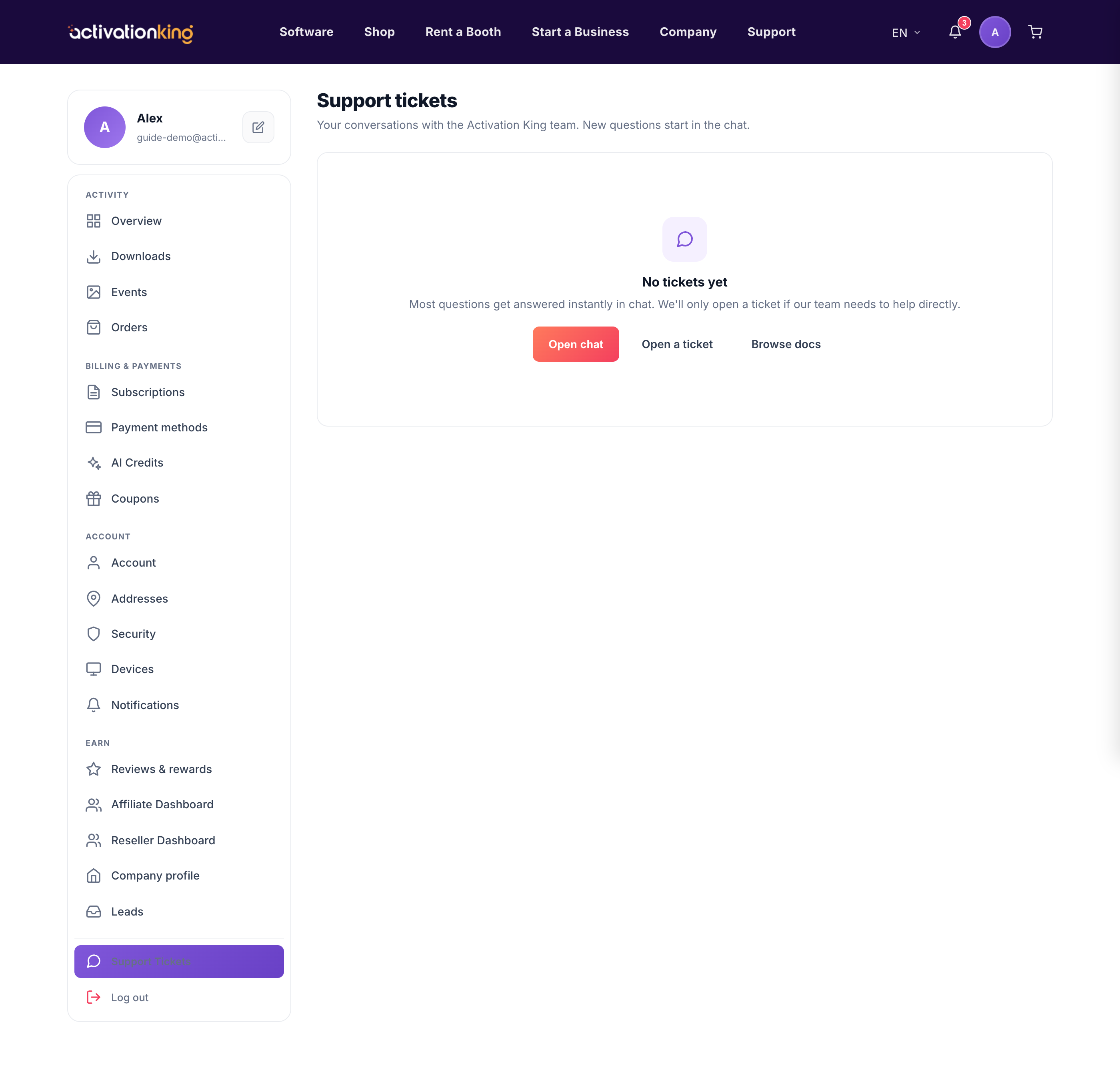
If the issue needs a person, or you simply click Talk to a human, we open a support ticket that carries your full chat transcript and the context The King already gathered, so a team member picks up exactly where you left off and nothing is repeated. You can follow it under Dashboard → Support tickets.
Remote support
For a tricky setup issue, an agent can start a remote support session to see your screen with your permission, using AnyDesk. When it is offered, the chat links you to the guided remote support page.
Good to know: because The King reads your live account and device details, the more specific you are, and the more you attach a screenshot, the faster and more precise the answer. Your chat history is saved, so you can close it and come back anytime.
