
Stránka Oznámení shromažďuje oznámení vašeho účtu, jako jsou obnovení, odpovědi a aktualizace, na jednom místě. Udržuje pohromadě vše, co vyžaduje vaši pozornost, aby vám nic neuniklo.
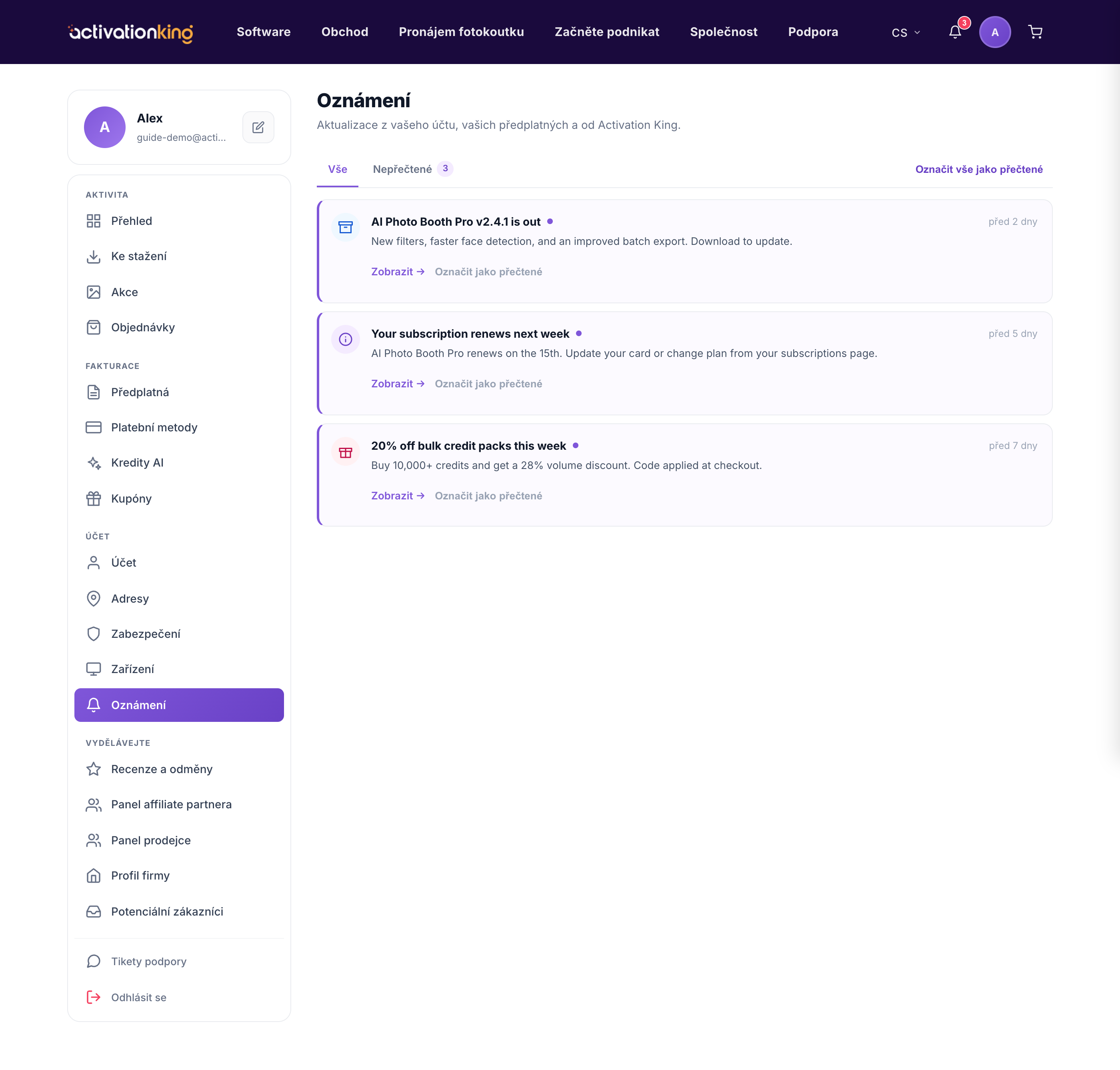
Oznámení jsou uspořádána do dvou karet, Vše a Nepřečtené, takže si můžete buď projít celou historii, nebo se zaměřit pouze na to, co jste ještě neviděli.
- Otevřete Dashboard → Oznámení.
- Přepínejte mezi kartami Vše a Nepřečtené a zvolte si, co uvidíte.
- Kliknutím na oznámení přejdete přímo na související stránku, například platbu nebo odpověď podpory.
- Jakmile jste oznámení vyřídili, označte jej jednotlivě jako přečtené, nebo použijte volbu označit vše jako přečtené a vymažte seznam jedním úkonem.
Abyste zůstali informováni, nemusíte být na této stránce. Ikona zvonku v záhlaví webu zobrazuje počet nepřečtených na každé stránce a nabízí náhled několika nejnovějších oznámení, takže rychlý pohled vám prozradí, zda dorazilo něco nového. Kliknutí ze zvonku vás zavede ke stejným položkám, které byste viděli na celé stránce.
Dobré vědět: sledujte zvonek kvůli oznámením o platbách nebo podpoře, aby vám nic důležitého neuniklo.
