
The Downloads page is where you get and update every Activation King app. It is a single picker that lists each app for every platform, so you always install the right build for your device.
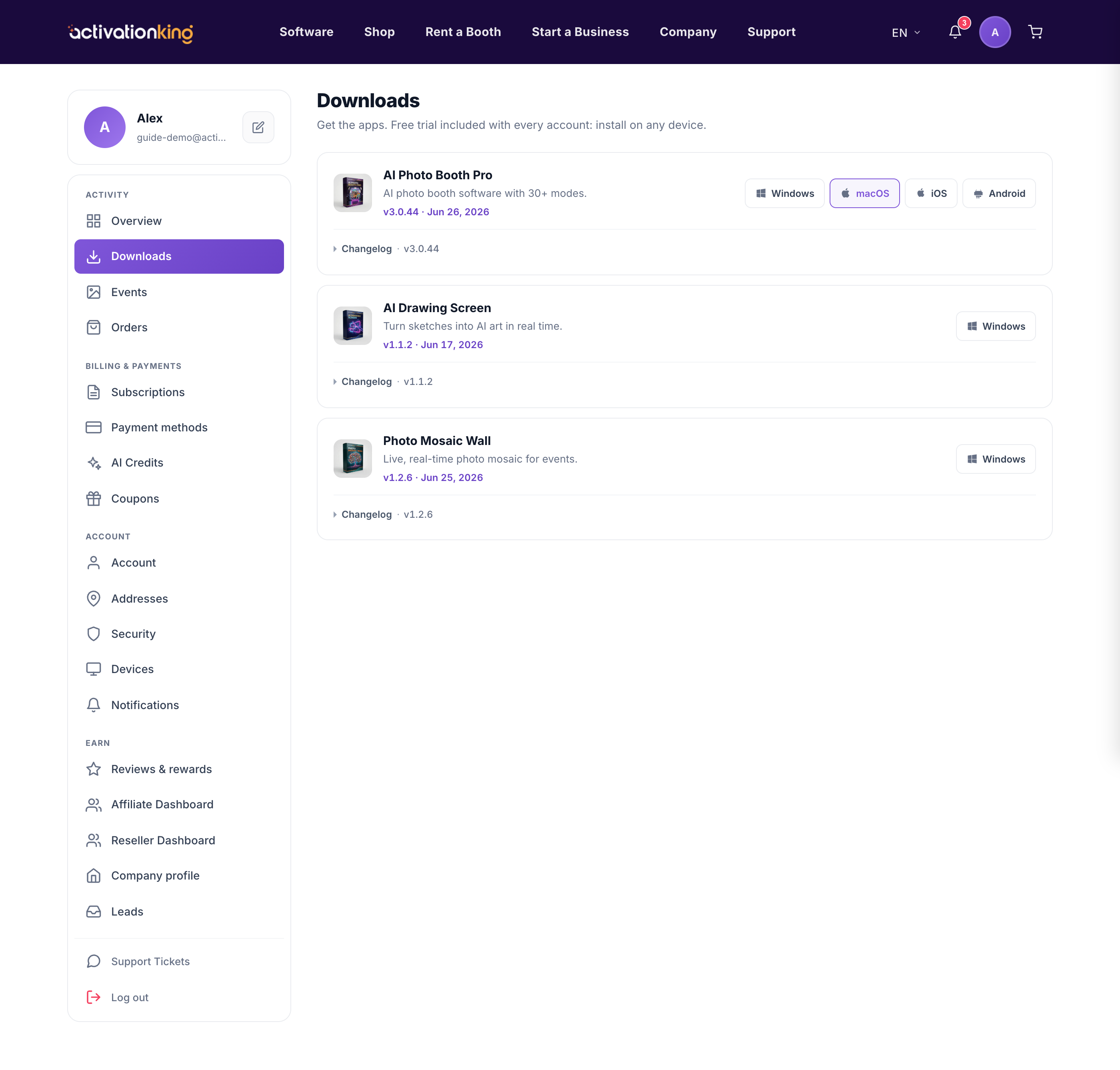
Each app is offered for Windows, Mac, iOS, and Android, and every option shows its current version number so you can tell what is live. Your operating system is highlighted with a Recommended badge, which points you to the correct download without guesswork. Every release also carries a What's new list, so you can see exactly what changed before you update.
- Open Dashboard → Downloads. The full list of Activation King apps appears.
- Find the app you need, for example AI Photo Booth Pro, AI Drawing Screen, or Photo Mosaic Wall.
- Click the download for your platform, or use the option marked with the Recommended badge for your operating system. The installer for that build begins downloading.
- Open the What's new list first if you want to review the changes in the release before installing.
- Install the app, then sign in with your Activation King account to activate it.
Because the version numbers are shown next to each build, you can compare what you have installed against what is available and update only when there is something new. If you run several apps or several devices, work down the list and grab each one from the same page.
Good to know: check this page after an event season for updates; the What's new notes flag new features and fixes, so you know what you are gaining before you install.
