
Düzenlediğin her etkinlik, o sırada çekilen fotoğraf ve videolardan oluşan bir galeri oluşturur ve her galeri hesabında güvenle saklanır. Etkinlikler sayfası, bu galerilere göz attığın, izlediğin ve indirdiğin yerdir.
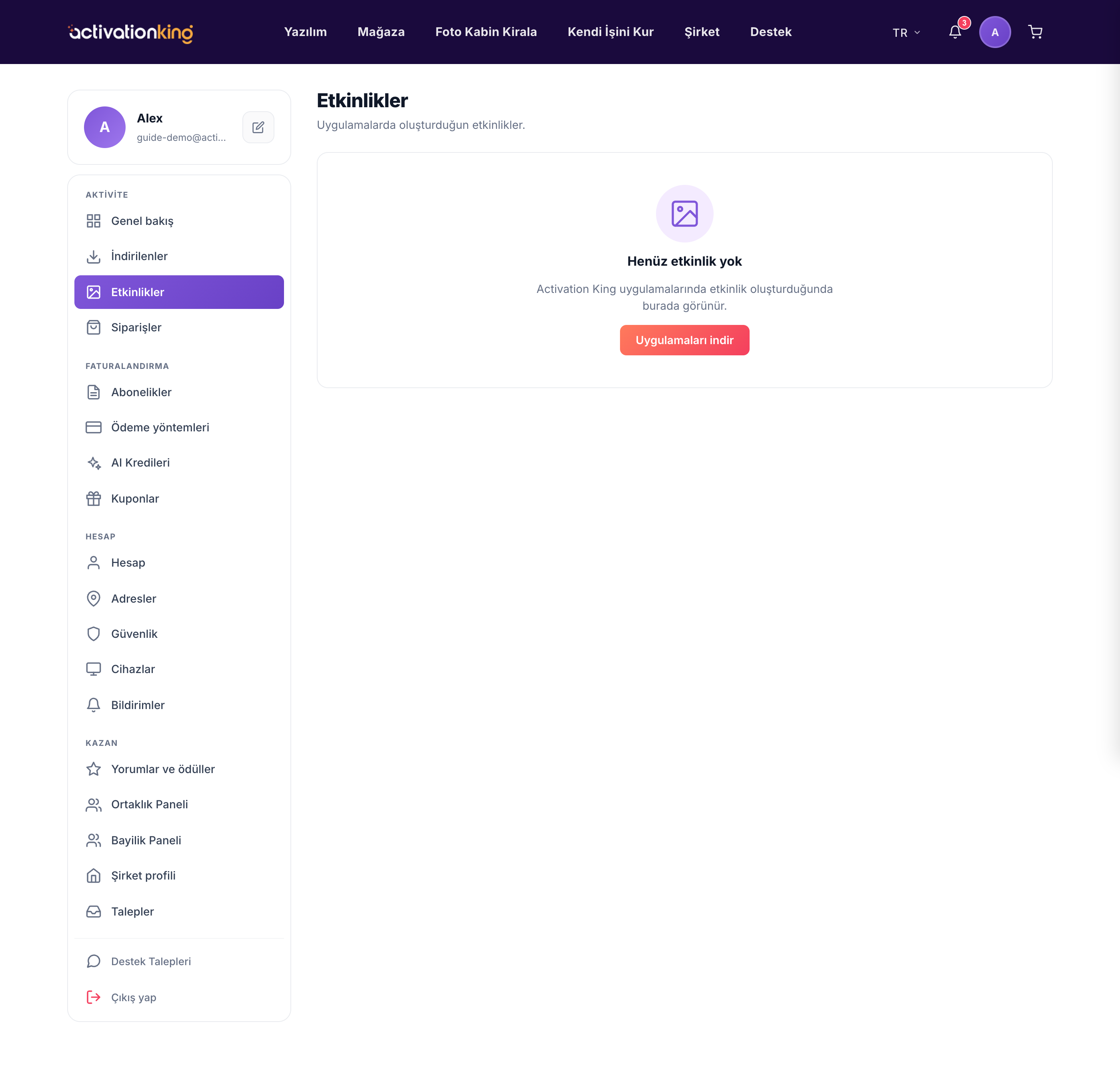
Medyanın yanı sıra her etkinlik, kullandığı AI kredileri gibi içgörüler de gösterir; böylece belirli bir aktivasyonun tam olarak neye mal olduğunu görebilirsin. Bu, yoğun dönemlerde kullanımı takip etmeyi ve etkinlik sonrası bir etkinliğin fotoğraflarını müşteriyle yeniden paylaşmayı kolaylaştırır.
- Pano → Etkinlikler bölümünü aç. Galerilerin, her etkinlik için bir tane olacak şekilde listelenir.
- Galerisini açmak ve çekilen fotoğraf ile videoları görüntüleyicide izlemek için bir etkinliğe tıkla.
- Galeriyle birlikte gösterilen, kullanılan AI kredileri dahil etkinliğin içgörülerini gözden geçir.
- Tam bir kopyasını saklamak için galerinin indirme seçeneğini kullan.
- Bir galeri büyük olabileceğinden, dosyayı arka planda hazırlarız ve hazır olduğunda sana bir indirme bağlantısı e-postayla göndeririz; böylece sayfada beklemek zorunda kalmazsın.
Galerileri hesabında tutmak, bir etkinliğin medyasının günün kendisinden çok sonra bile erişilebilir kalması, teslim edilmeye ya da kendi pazarlamanda yeniden kullanılmaya hazır olması demektir. Kredi içgörüsü her etkinliğin yanında durur; böylece her rezervasyonun ne kullandığını denkleştirmek yalnızca bir bakış alır.
Bilmekte fayda var: Galeriler, etkinlik sonrası bir etkinliğin fotoğraflarını müşteriyle yeniden paylaşmayı kolaylaştırır ve kredi içgörüsü her etkinliğin tam olarak neye mal olduğunu gösterir.
