
Signing in takes you to your dashboard, where you manage your subscriptions, billing, AI credits, downloads, and account settings. Activation King gives you four ways to sign in, so you can use whichever is quickest for you.
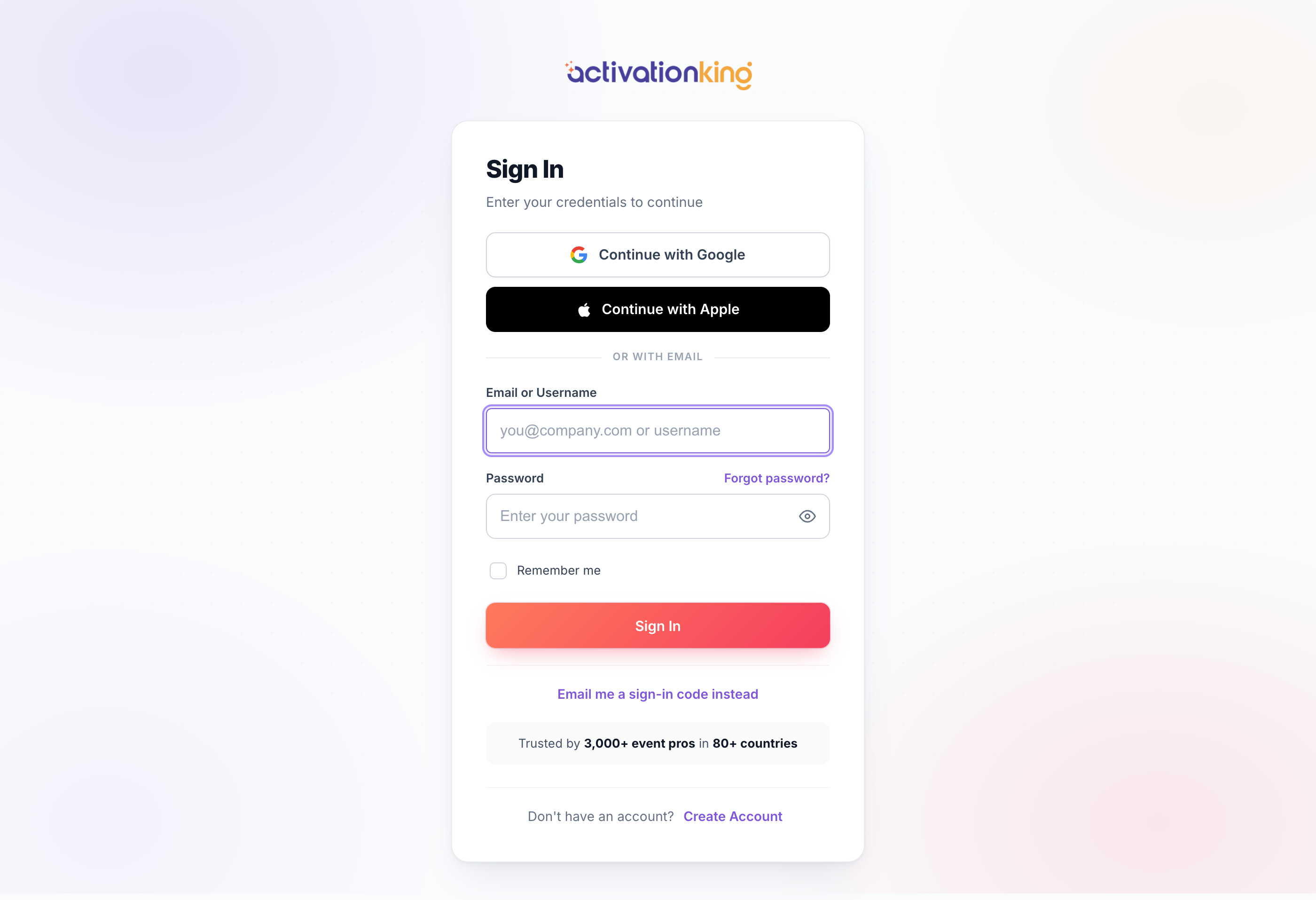
Four ways to sign in
- Email and password: your email address and the password you set.
- Continue with Google: one tap using your Google account.
- Continue with Apple: one tap using your Apple ID.
- One-time email code: a passwordless 6-digit code sent to your inbox.
Sign in
- Go to /Account/Login, or click Sign in in the header.
- Enter your email and password, then click Sign in; or click Continue with Google or Continue with Apple.
- Tick Remember me to stay signed in on this device.
- If two-factor authentication is switched on, enter the 6-digit code from your authenticator app after your password.
On the sign-in page you will also find a Forgot password link, and an Email me a sign-in code instead option for passwordless entry.
Good to know: use the same method you signed up with. If you created your account with a social button, there is no password, just click Continue with Google or Continue with Apple.
