

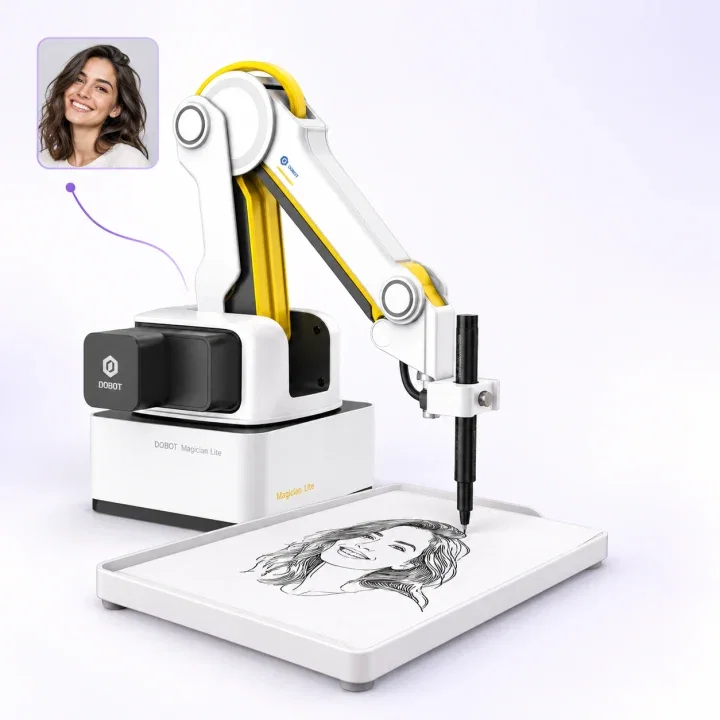
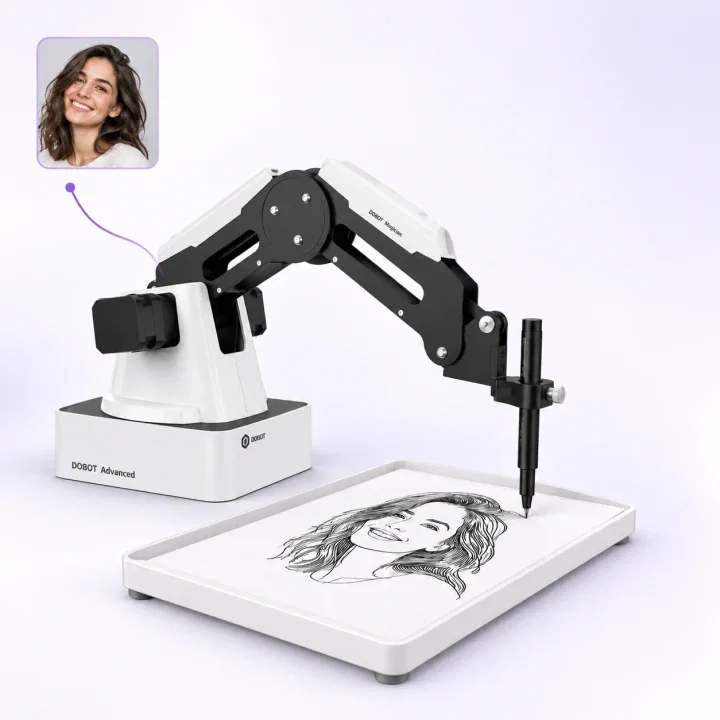
AI Drawing Robot
AI portraits drawn on paper by your robot.
AI Drawing Robot
55 articles
How Do I Get AI Drawing Robot Ready for an Event?
AI Drawing Robot turns a guest's photo into a pen drawing. The guest takes a photo, optionally picks an AI effect, the app turns the photo into line art, and a…
How Do I Connect the Robot?
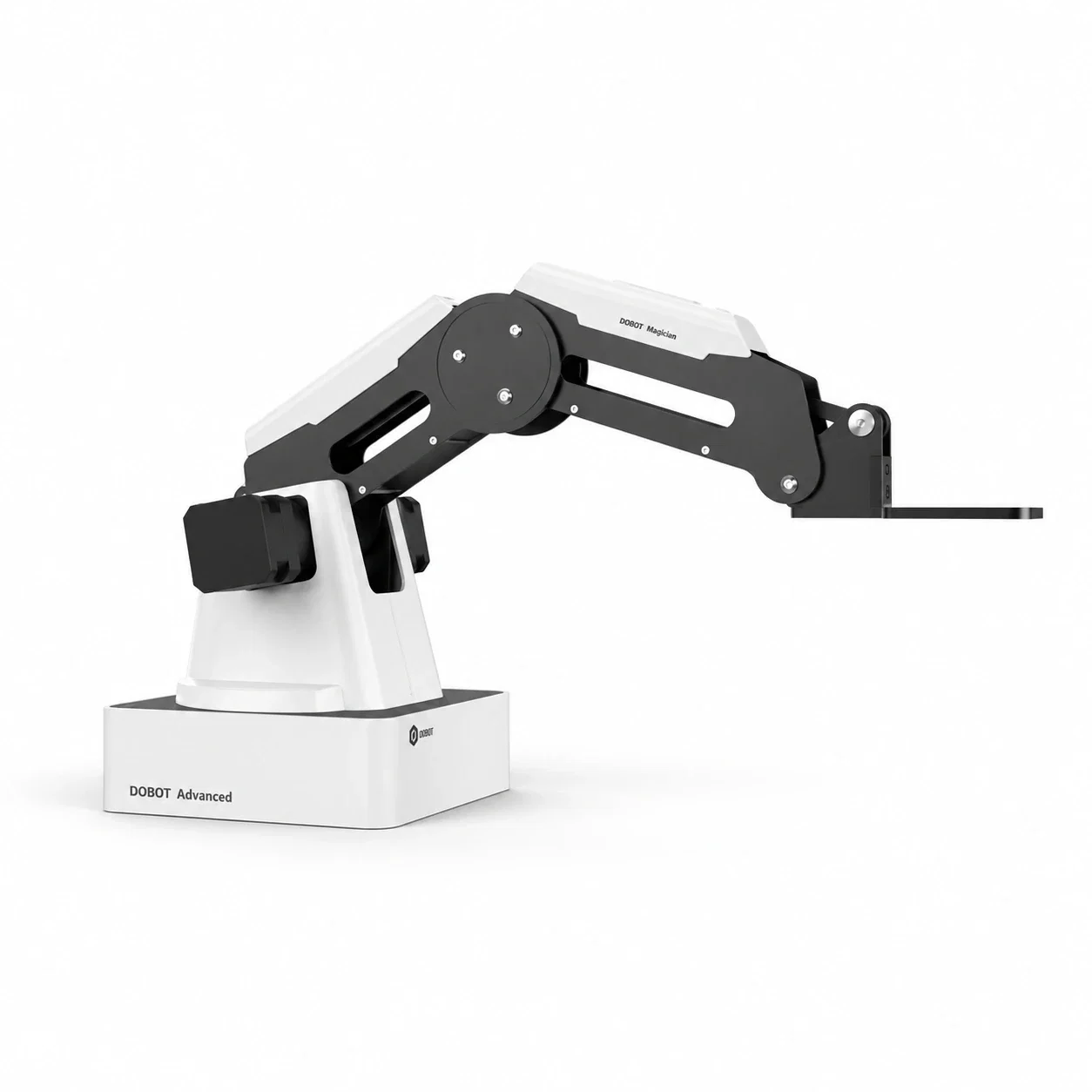
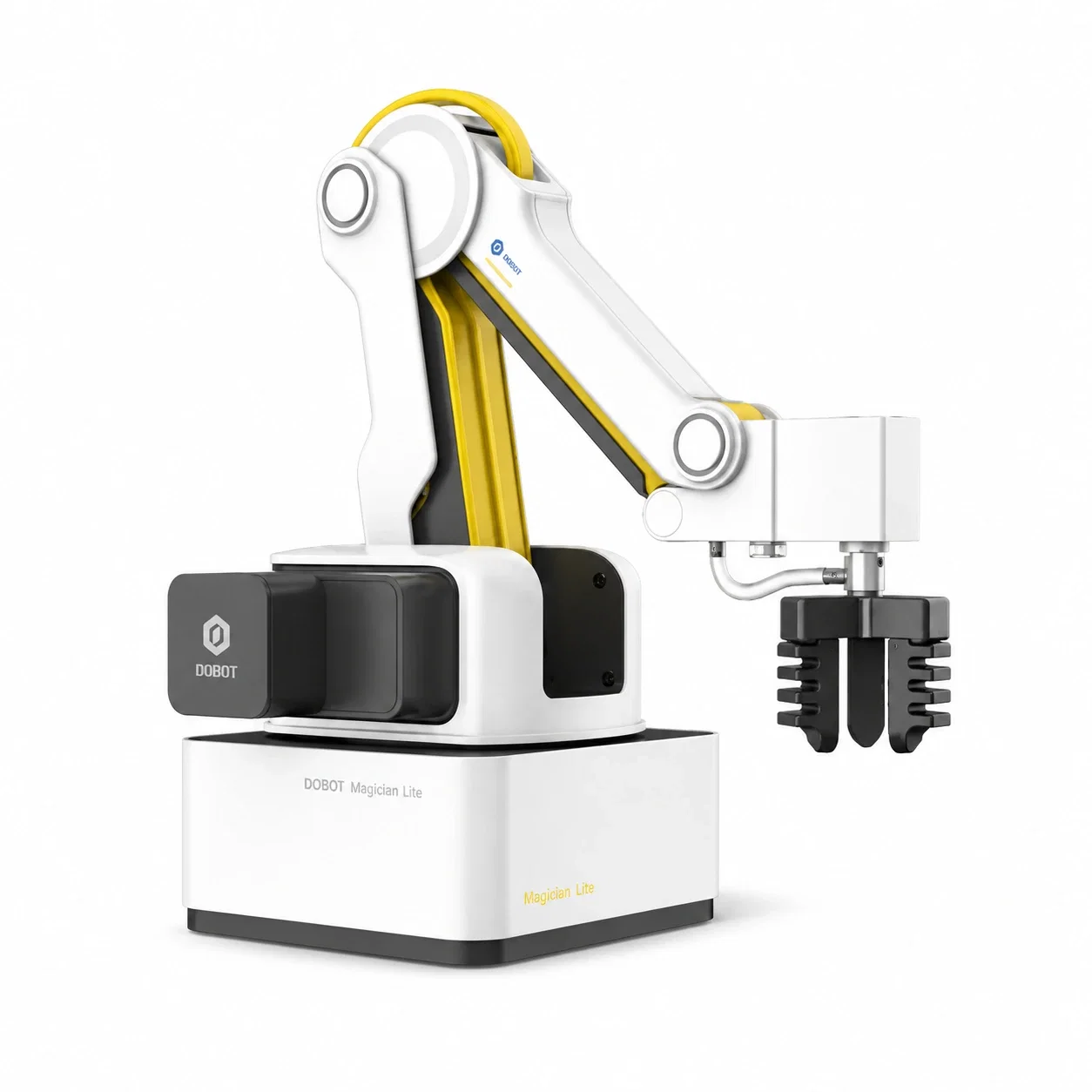
The app finds the robot by itself: you plug it in by USB and it appears as a card on the Drawing Robot page. This article lists the robots the app can drive…
How Do I Calibrate the Robot?
Before a robot can draw, it has to know the height at which the pen touches the paper. You teach it by hand, then check that the paper lies in the right place.…
Which Paper Sizes Can I Use and How Do I Place the Paper?
AI Drawing Robot offers six paper sizes, but a robot arm cannot reach all of them equally well. This article lists the sizes, shows how the sheet lies in front…
How Do I Set Up the Drawing Options?
The Drawing Robot page has one card of options that belong to the event: whether guests pick an AI effect, whether the robot starts by itself, whether the…
What Do Guests See, from Photo to Drawing?
This article follows one guest from the welcome screen to the moment the robot starts to draw. It shows which screens always appear, which ones depend on your…
How Do I Use the Robots Panel During an Event?
The Robots panel is a small panel on the guest screen that shows every connected robot and its status. During an event you use it for the one job that repeats…
How Do I Fix Common Robot and Drawing Problems?
This article lists the problems operators meet most often with the robot, the paper, the pen and the drawing, with the cause of each and what to do.
How to Login to the Application?
You can sign in to the Activation King photo booth app in two ways: Sign in with Activation King (account sign-in via the system browser) or Sign in with Email…
How to Use Dashboard?
Control Panel is the main screen that opens after logging in; From here you see your subscription/credit/event summary, go to all sections of the application…
How to Create an Event?
Settings → Event Management
How to Use Your Events on Another Computer? (Cloud Sync)
Your events are saved to your Activation King account in the cloud, so you never have to rebuild an event on a new machine. To move, transfer or import an…
Where Are My Photos and Videos?
Every photo and video you take is first saved in the app's own data area; while the device is connected to the internet, it is also uploaded to your account…
How Do Credits Work?
The cost depends on the operation and the model you choose. The table below shows the values displayed by v3.10.1. The exact figure is always shown on screen…
How to Update the App? (Update Available and Changelog)
When a new version is released, the app notices it by itself and shows it to you: a small card appears in the sidebar and a banner at the top of the Dashboard.…
Installation Errors on Windows: 0x80073D0D, 0x80070005 and Others
The Windows version of AI Drawing Robot comes as a package with the .msix extension (e.g. ActivationKing.DrawingRobot_1.1.4.0_x64.msix); there is no separate…
How to Delete an Activation King Account?
If you want to delete your Activation King account, the deletion is done on the web, on the Activation King account page. On Mac you reach this page from…
Event Settings: How to Use the 'Main' Tab
The General tab is where you edit the currently selected event's basic identity details: its name and description. Changes are saved automatically, without a…
Event Settings: How to Use the 'Camera' Tab?
AI Drawing Robot also supports the following Canon models.
Event Settings: How to Use the Kiosk Tab?
The 'Kiosk' tab of Event Settings contains six settings that determine the operating behavior of the booth: (1) Dashboard PIN: sets a 4-digit PIN to exit the…
What Is Screen Design and How to Use the General Tab?
Screen Design (appears as Screen Design in the app) is the Design section, where you customize the appearance of the booth screens: colors, theme, logo…
How to Design the Welcome Screen?
The Welcome screen is the first (welcome) screen that guests see when the booth opens. This tab places each element above the screen: live camera preview…
How to Design the Capture Screen?
Screen Design → Capture
How to Design the Sharing Screen?
The Sharing screen determines the APPEARANCE of the result and sharing screen shown to the guest after shooting: which element (result photo, action buttons…
How to Design the Pause Screen?
The pause tab is where you design the waiting screen that will be displayed to guests when you pause the booth for a break (e.g. coffee break); This screen…
How to Set Up Animations?
How to Set Up Animations?
How to Customize Texts?
Screens → Texts
How to Set Up Voices?
How to Set Up Voices?
What are AI Assets and How to Use them?
Settings (Sidebar)
How to Add and Use Stock AI Effect?
The application allows you to select ready-made AI effects from the server (Editor effects, Default effects) and effects from your own library from a catalog…
How to Create Special AI Effect?
Steps to create your own custom AI photo effect from scratch in the AI Assets → AI Effects tab: AI model and resolution selection, prompt writing…
How Do I Write a Good AI Prompt?
A prompt you write in a language other than English is automatically translated into English before it goes to the model. The translation can shift the meaning…
AI Isn't Working: If You're at an Event, Do This First
Booth → Sharing screen
What Are Session Settings and How to Use the General (Main) Tab?
What Are Session Settings and How to Use the General (Main) Tab?
How to Set Up the Survey Tab?
How to Set Up the Survey Tab?
How to Set Up the Disclaimer (Legal Notice) Tab?
How to Set Up the Disclaimer (Legal Notice) Tab?
How to Set Up the Payments Tab?
The Payments tab in session settings allows you to charge guests in your booth via Stripe for print and digital downloads. In this tab, you first turn on…
How to Accept Payments Without a Stripe Account? (Activation King Payment Infrastructure)
If you want to charge guests for prints or downloads, you no longer need to connect your own Stripe account. While Activation King payment infrastructure is…
How Do I Download Survey and Customer Data (CSV)?
The answers guests give in the Session → Survey form are stored together with the session record and go to your account (the cloud) while the device is…
What are Sharing Settings and How to Configure them?
Sharing Settings is where you determine how booth guests will receive their photos and videos. The page is divided into three tabs: Activation Share (cloud/QR…
How to Install and Use 'ActivationShare'?
The Activation Share tab manages sharing the photos/videos taken with guests via the cloud (QR code, online gallery button, local sharing page of the device)…
How to Set Up Sharing via E-Mail?
How to Set Up Sharing via E-Mail?
How to Set Up Sharing via SMS?
How to Set Up Sharing via SMS?
How to Make Print Settings?
How to Make Print Settings?
Printing Problems: Symptom, Cause, Solution
Printing Problems: Symptom, Cause, Solution
How to Connect a Canon / Nikon DSLR Camera?
This guide describes how to connect a Canon or Nikon DSLR camera to the booth computer or tablet with a USB cable and use it in the app: first the physical…
How to Install and Use OBS Virtual Camera in Booth?
How to Install and Use OBS Virtual Camera in Booth?
Camera Problems: Symptom, Cause, Solution
AI Drawing Robot also supports the following Canon models.
How to Set Up Name Badge Scanning?
At trade shows and conferences you scan the attendee's name badge with a barcode reader; information such as their name, company and email is saved to the…
What is White-Label and How is it Used?
White Labeling is the section where you customize the app, sharing/download site, and custom domain with your own branding. It consists of three tabs (Domain…
White-Label: How to Set Up the App Brand?
White-Label: How to Set Up the App Brand?
White-Label: How to Connect a Custom Domain?
White-Label: How to Connect a Custom Domain?
White-Label: How to Brand the Microsite?
White-Label: How to Brand the Microsite?
Sharing, Sync & Login Issues: Symptom, Cause, Solution
Sharing, Sync & Login Issues: Symptom, Cause, Solution
What Are Device Settings and How Do I Use Them?
Most settings in AI Drawing Robot belong to an event: when you select another event, they change with it. Device Settings is different. It holds settings that…
Not sure where to start? We can help.
Tell us about your project. Our team will help with the next step.