













- Check the internet and the system status.
- Don't wait for the stuck job: close the session with DONE and move on to the next guest.
- Try once more with a new capture.
- Run the effect with another model.
- Check your credits.
Step 1 · Don't wait for the stuck job, close the session
Booth → Sharing screen
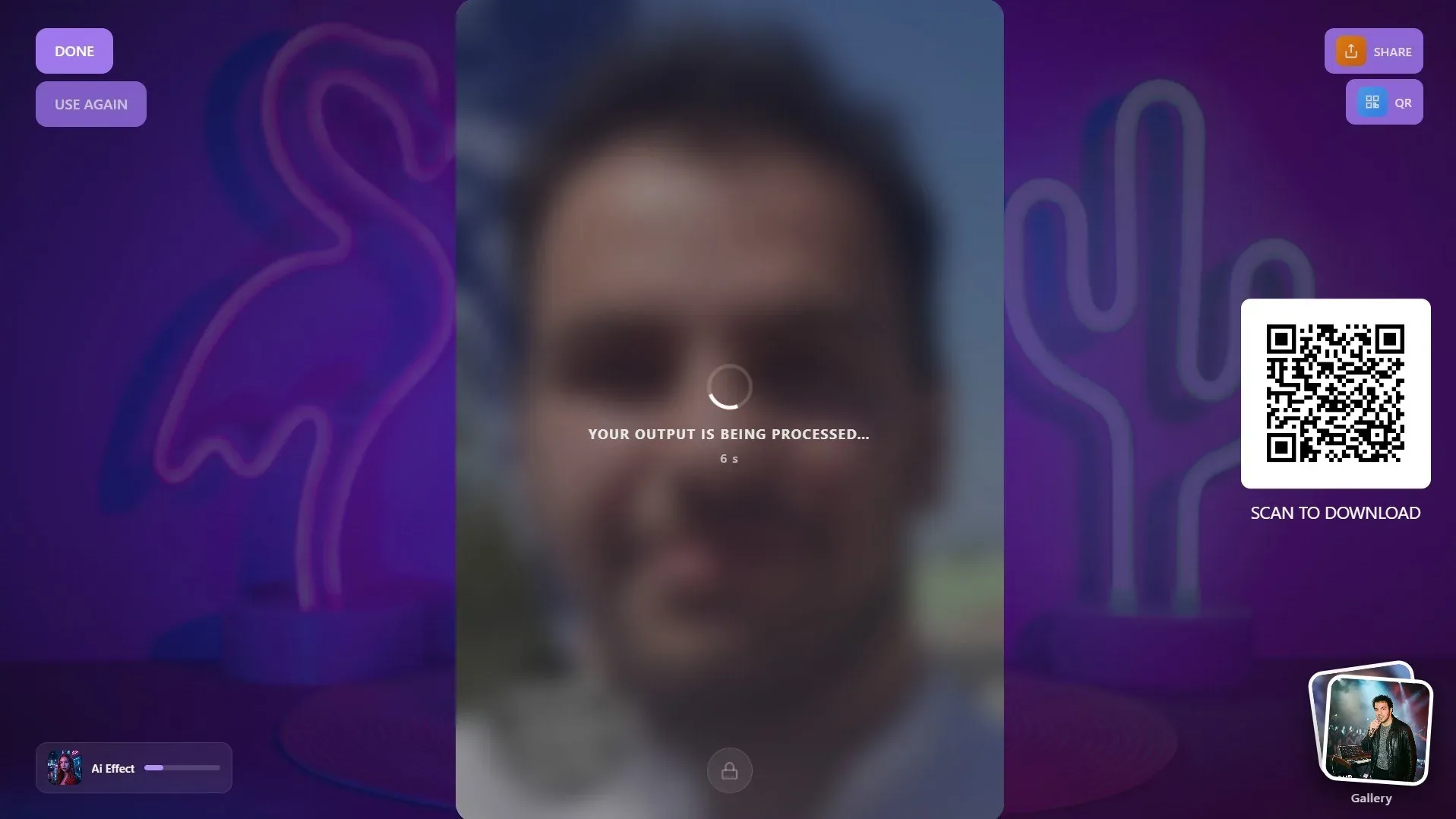
The app has no separate button that cancels an AI job in the queue. While the result is awaited, the sharing screen shows YOUR OUTPUT IS BEING PROCESSED… and the elapsed seconds; during this time Session Timeout does not apply, and the screen does not return to the welcome screen on its own. To avoid keeping the guest waiting, close the session with DONE (the button with the check mark); the booth is then ready for the next guest. This does not cancel the job on the server.
If you want to try another effect with the same guest's photo, press the USE AGAIN button and choose another effect. This button appears if it is enabled in the sharing screen design, retakes have not been turned off in the session settings, the device is not in station mode, and the photo was taken on this device.
If an error window appears (e.g. AI Effect Error: The process timed out. Please try again., with There is a problem with the AI service provider. below it), close the window and continue with a new capture. If the button texts have been changed in Screen Design → Texts, they may look different.
Step 2 · Try once more
Delays caused by the provider usually pass within a few minutes. Try again with a new capture. If you can leave the booth and go back to the settings, you can also try the effect on its own with Test Effect in AI Assets → AI Effects; the test also spends credits.
Step 3 · Run the effect with another model
AI Assets → AI Effects → effect card → Edit & Customize → AI Model
If the problem is specific to a single model or provider, running the same effect with another model often helps. Open the Edit & Customize window with the pencil on your own effect's card, choose another model from the AI Model menu (e.g. Nano Banana 2 Lite or Nano Banana 2) and press Save Changes. You cannot change the model of a ready-made effect with the Default or Library badge; copy it with the Edit & Clone button on the card (Clone & Customize window), change the model in the copy and add the copy to the event. If the event has several effects, you can also temporarily have the guest choose another effect. The models have different credit costs.
Step 4 · Check your credits
If the balance is not enough, the guest sees the message Not enough credits. Please contact the event owner. Look at the AI Credits card on the Dashboard. If the Event Credit Limit in Event Settings → Kiosk has been reached, templates that spend credits are not offered to the guest at all. If the plan does not include AI (Starter), in 3.6.0 and later the message This AI feature isn't included in your plan. Upgrade your plan to use it. appears; you cannot solve this by buying credits. In 3.9.0 and later, templates with AI layers are also locked on such a plan: they appear dimmed in the guest's list and cannot be selected; if all templates in a mode are locked, the booth shows 'Not available right now'. Details: How to Edit an Existing Template? → AI layers on a plan without AI.
Credits for a failed generation are refunded automatically: when the AI service reports the job as failed, or when the job takes too long and times out, the credits spent are returned to your account. You can see the refund as a separate entry in the credit history on the Dashboard → AI Credits page of the website. If the app closes or the internet drops while waiting for the result, the refund may not happen on its own; if you see a deduction with no matching refund in your credit history, write to us with the date and the effect name. Details: How Do Credits Work?
When should you contact support?
- If the system status page shows Operational, your internet is working, another model doesn't give a result either, and the same error persists over several attempts.
- If there is a deduction in the credit history that you don't understand.
- If you are using an old version, first install the latest version from the Downloads page on the website; if the problem persists, write to us.
Write to us via the live chat on the website (bottom right corner) while signed in. Include in your message the app version, the device (Windows, Mac), the name and model of the effect, the time of the problem and a screenshot of the error text on the screen.
Keeping the guest waiting on the YOUR OUTPUT IS BEING PROCESSED… screen: the screen does not close on its own; you have to close it with DONE.
Trying to change the model of a ready-made effect: you first need to copy it with Edit & Clone.
Buying credits on the Starter plan and expecting AI to be unlocked: AI requires the Pro AI or Ultimate AI plan.
