













Most settings in AI Drawing Robot belong to an event: when you select another event, they change with it. Device Settings is different. It holds settings that belong to this computer only. They are not saved to the event, they do not go to your account, and they stay the same when you switch events. This article explains where the page is and what its two settings do.
- Open Device Settings in the System section at the bottom of the sidebar. No event needs to be selected.
- Settings screen animations: leave it on Automatic. Choose Off if the settings screens feel slow.
- Guest screen card size: change it if the cards on the AI effect selection screen look too small or too large on your screen.
- Changes are saved at once and apply only to this computer.
Where to find it
System → Device Settings
The sidebar ends with the System section. It holds the two pages that belong to the account and the device rather than to an event: White Labeling and Device Settings. They are always at the bottom, and they are shown even when no event is selected.
The page subtitle says it in one sentence: Settings that belong to this device only. They are not saved to the event and stay the same when you switch events.
If you run the same event on two computers, set Device Settings on each computer separately.
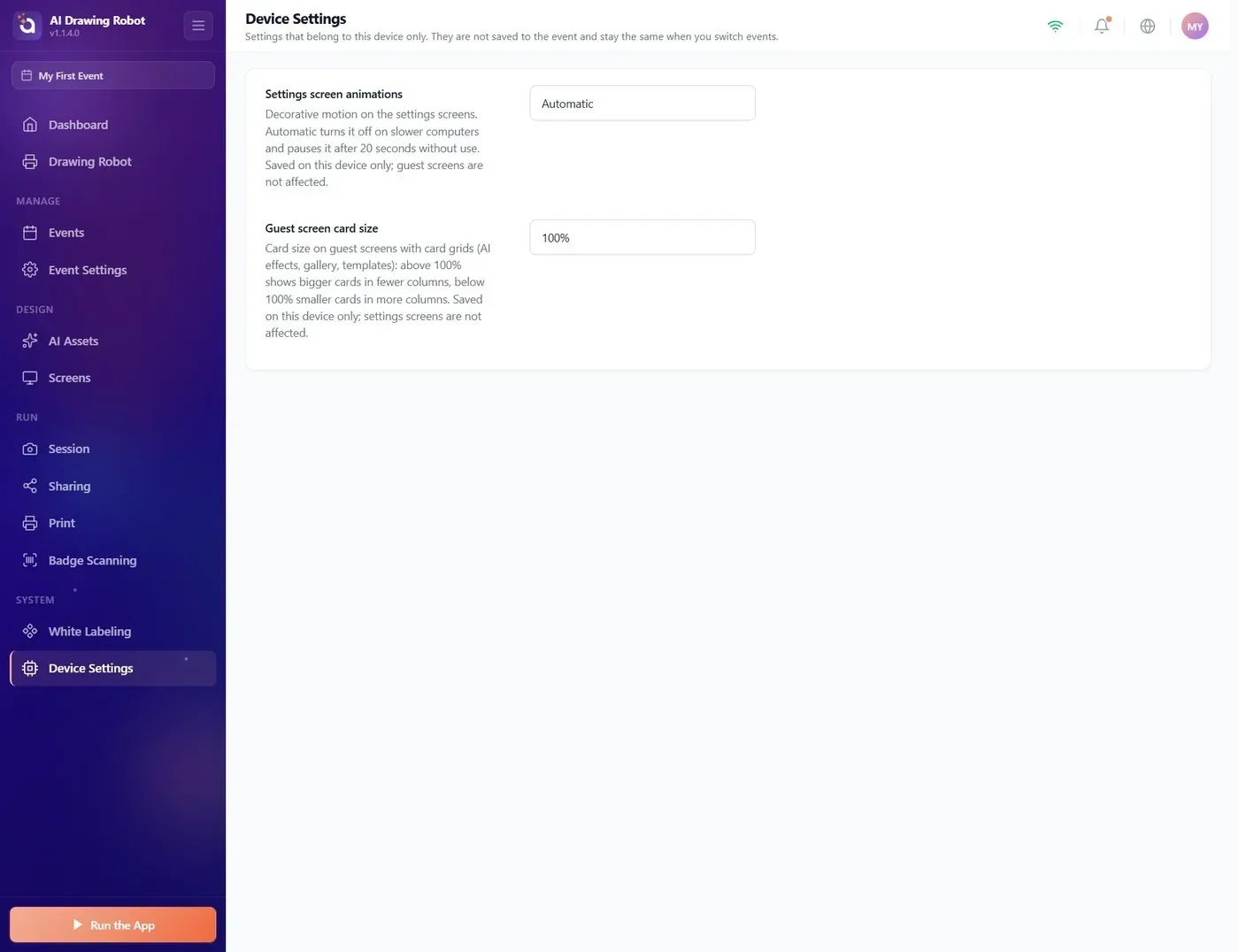
Settings screen animations
System → Device Settings → Settings screen animations
The settings screens have decorative motion: the moving sidebar background, glowing banners and pulsing effects. They look good, but on a weaker computer they keep the graphics card busy all the time and the settings screens can feel slow. This drop-down controls that motion. It does not affect what guests see.
| Option | What it does |
|---|---|
| Automatic (default) | The app turns the motion off by itself on slower computers. On every computer it also pauses the motion after 20 seconds without use and brings it back at the first touch or click. |
| Always on | The motion always runs, also when nobody uses the screen. |
| Off | No decorative motion at all. |
When to change it:
- The settings screens are slow or the computer fan runs loud while you work on them: choose Off.
- You present the app on a strong computer and want the motion to keep running: choose Always on.
The change applies at once; you do not need to restart the app.
Guest screen card size
System → Device Settings → Guest screen card size
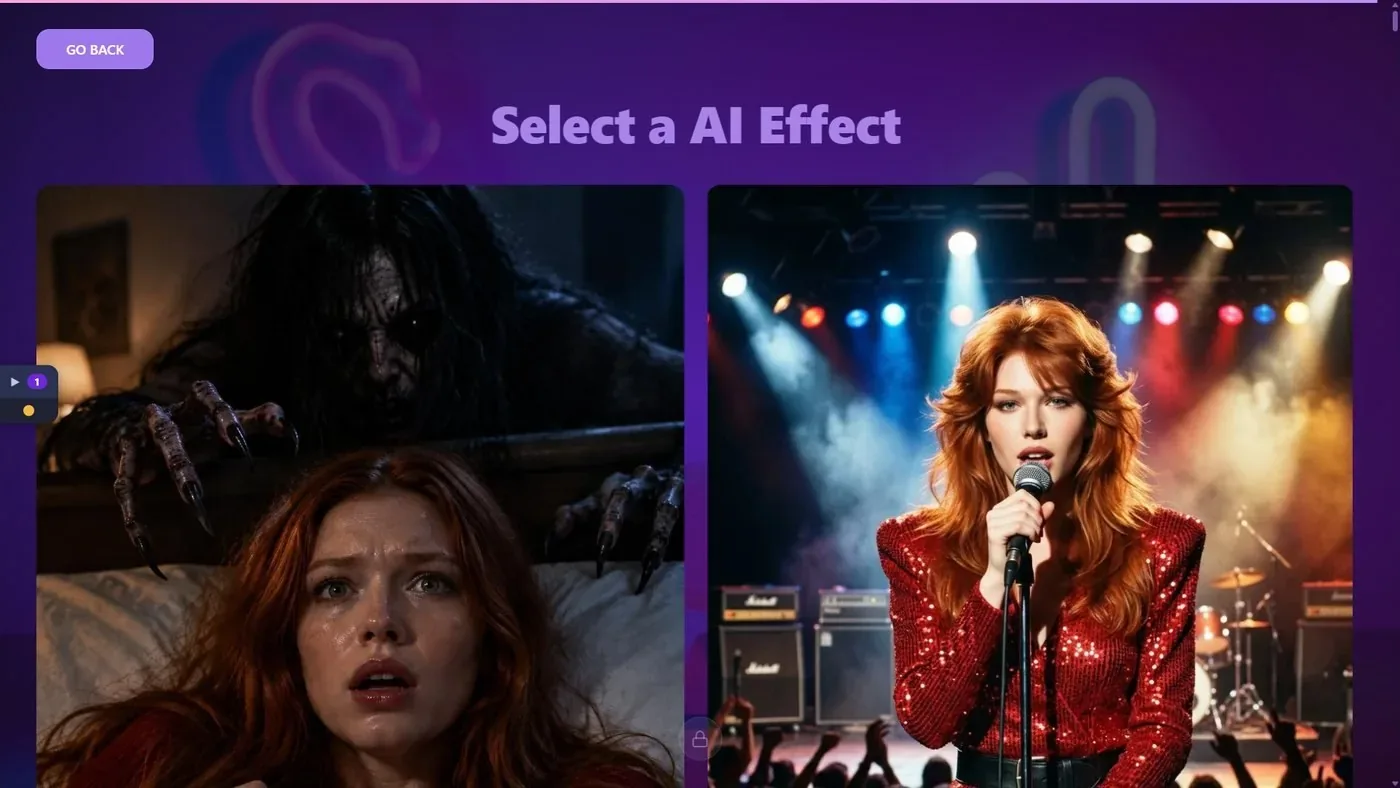
Some guest screens show a grid of cards. In AI Drawing Robot this is mainly the AI effect selection screen, where guests choose an effect before the photo. On a large touch screen the cards can look small; on a small screen they can look crowded. This drop-down sets the size of those cards:
- 100% is the default.
- Above 100% (125%, 150%, 200%, 300%): bigger cards in fewer columns. Guests scroll more, but the cards are easier to tap.
- Below 100% (50%, 75%): smaller cards in more columns. More effects fit on one screen.
The setting changes only the guest screens with card grids. Settings screens, the capture screen and the sharing screen are not affected.
To check the result, start the app with Run the App and go to the effect selection screen as a guest would. If the event has no AI effects, or the AI effect step is off, that screen is not shown; see How Do I Set Up the Drawing Options? article.
Good to know
- Device settings are kept per computer and per signed-in account. Another computer, or another account on this computer, starts with the defaults.
- They do not travel with the event: copying or importing an event does not copy them.
- They are not part of White Labeling. White Labeling belongs to your account and is the same on every device.
Looking for these settings under Screens or Event Settings: they moved to Device Settings and are no longer saved with the event.
Setting the card size on one computer and expecting it on the second booth computer: set it on each computer.
Choosing a very large card size on a small screen: only one or two cards fit in a row and guests have to scroll a lot. Check it on the real screen before the event.
