













On the Photos tab you choose where the wall's photos come from: Watched folder watches the folder where another photo booth or camera program saves its photos; Our own capture lets guests take their photos in this app; Both uses the two together. The Approval section decides whether photos go straight onto the wall or only after the operator approves them.
This guide describes Photo Mosaic Wall 2.1.0 on Windows. Screens and labels may differ in other versions.
- If you'll use a folder, know which folder the other program saves its photos to; new JPG and PNG files that land in the folder go to the wall.
- Open the Mosaic Settings → Photos tab.
Step by step
Step 1 · Choose the source
Mosaic Settings → Photos → Photo source
In the Photo source section, click one of the three cards. In a new event Watched folder is selected, but folder intake is off: the yellow warning in the Watched folder section says that no photos reach the wall from the folder.
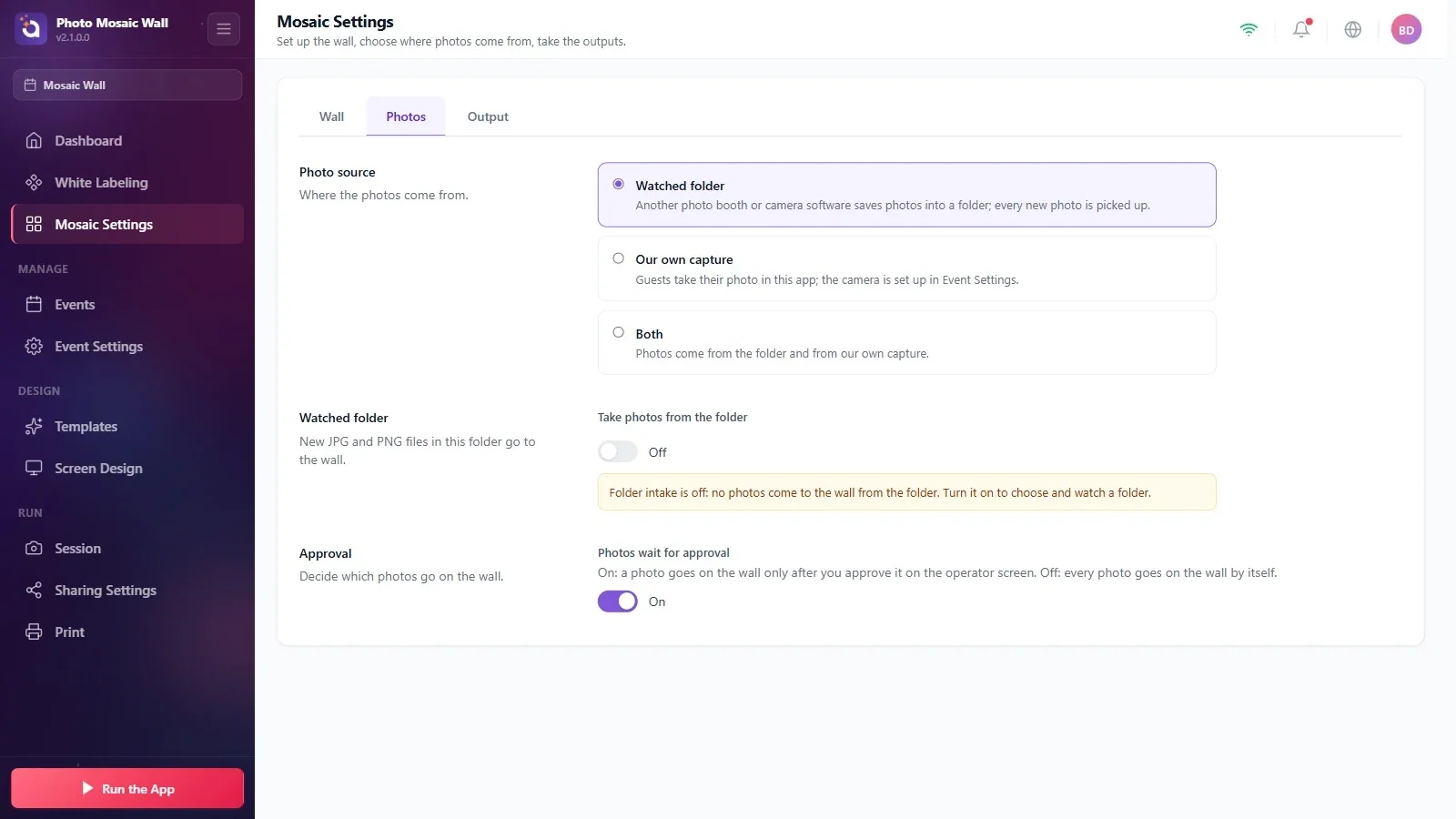
Step 2 · Turn on folder intake and choose the folder
Mosaic Settings → Photos → Watched folder
Turn on the Take photos from the folder switch. A folder path box and a Browse button appear: choose the folder with Browse or type the path into the box. Every new JPG and PNG file that lands in the folder goes to the wall.
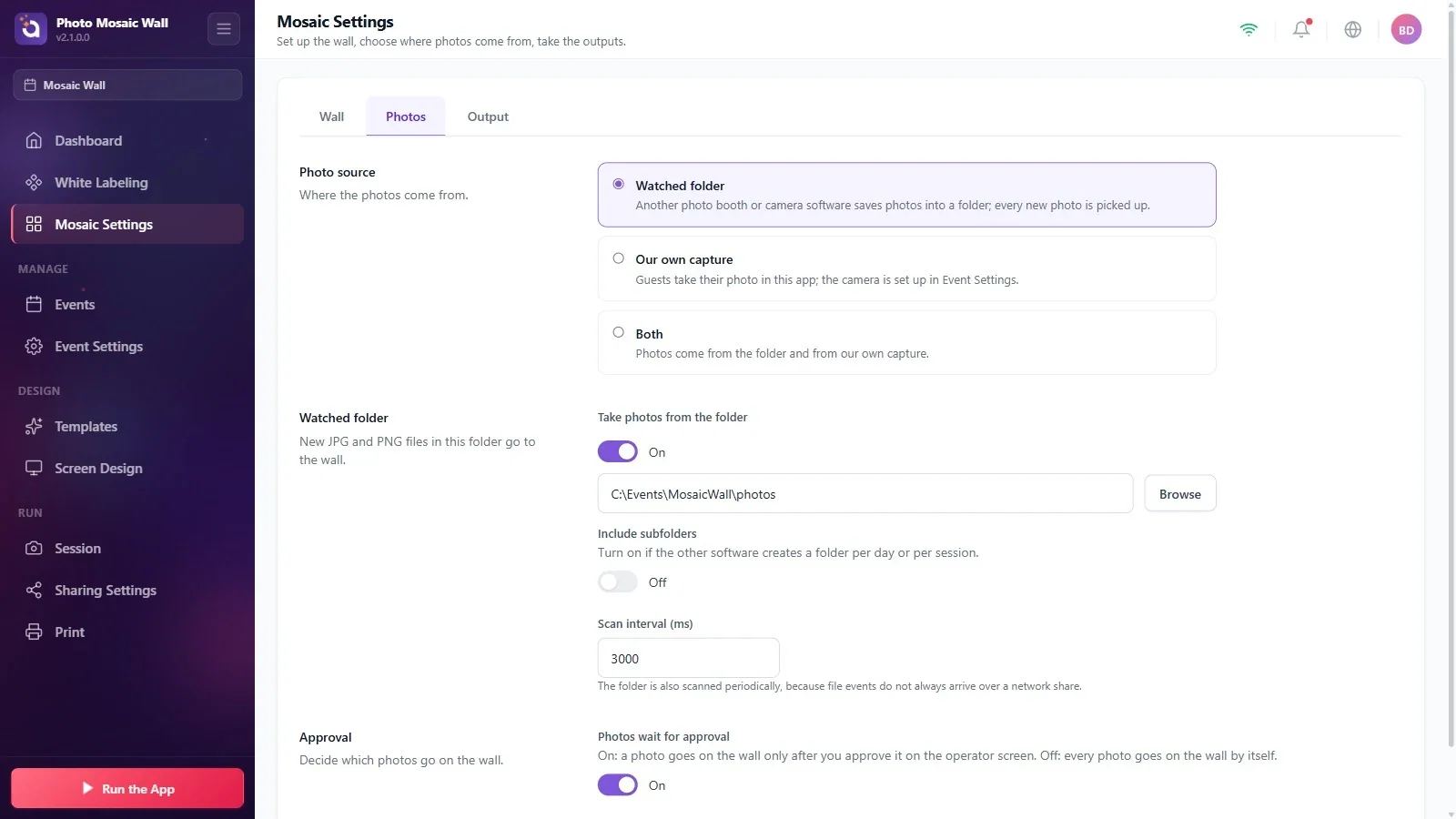
Step 3 · Subfolders and scan interval
Mosaic Settings → Photos → Watched folder
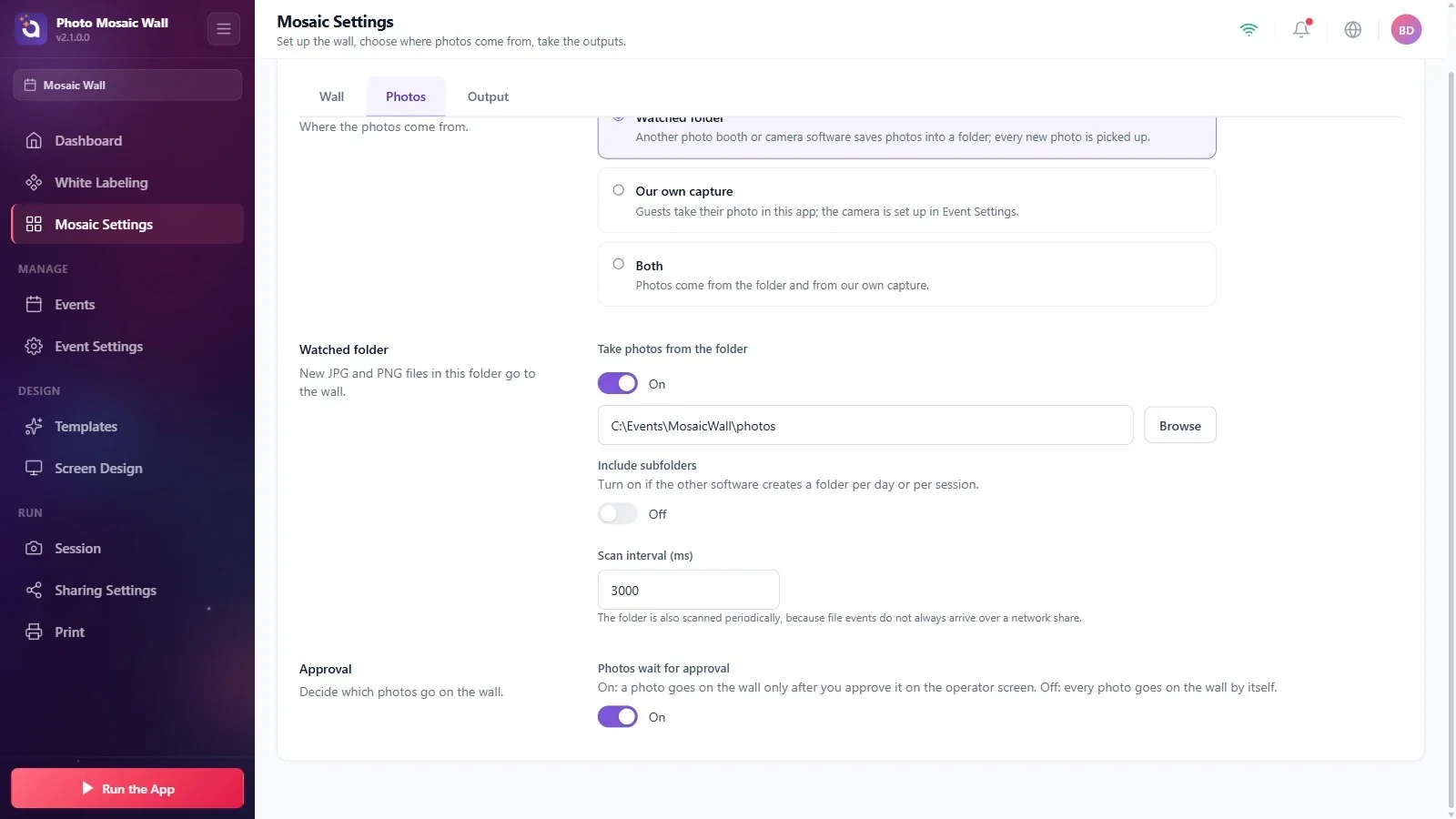
If the other program creates a separate folder for each day or session, turn on the Include subfolders switch. Scan interval (ms) is how often the folder is scanned on a schedule (3000 ms in the example): file notifications don't always arrive from network shares, so the folder is also scanned at this interval.
Step 4 · Approval: should photos wait for approval?
Mosaic Settings → Photos → Approval
While Photos wait for approval is on (it is on in a new event), a photo goes onto the wall once it is approved on the operator screen. While it is off, every photo goes onto the wall by itself; in that case an orange note on the operator screen says that approval is off.
Step 5 · Will guests take the photos themselves?
Mosaic Settings → Photos → Photo source
If guests will take their photos in this app, choose Our own capture; the camera is set up on the Event Settings page. While Our own capture is selected, the folder section is hidden. If you also want to take photos from the folder, choose Both.
Note: choosing Our own capture turns folder intake off. If you later switch the source back to Watched folder or Both, you have to turn the Take photos from the folder switch on again; the folder path is kept.
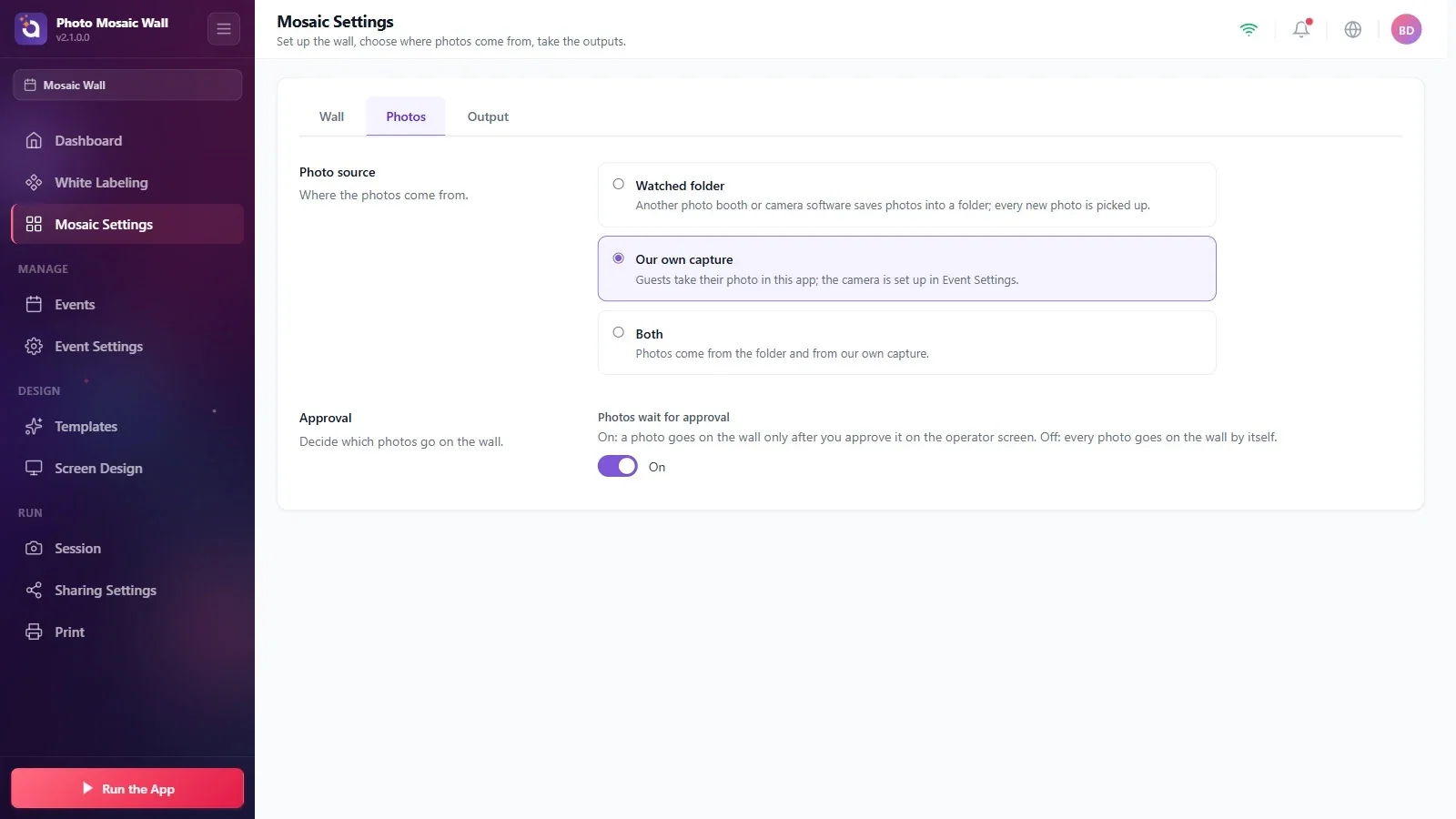
Check the folder path before you start the wall: if the folder can't be found, the The setup is not complete window appears when you use Run the App and names the folder that couldn't be found.
Keep an eye on the operator screen while approval is on: photos that haven't been approved wait in the New column.
Forgetting to turn on folder intake: in a new event Take photos from the folder is off, and no photos reach the wall.
Switching from own capture back to the folder without turning the switch on: Our own capture turned folder intake off, and the yellow warning reminds you of this.
