













When the mosaic runs, two windows open: the wall window shows the photos on the big screen (projector, LED screen, TV); the operator screen handles approvals and queues, and if guest capture is on, the guest screen runs there too. In the Screens section you choose which one opens on which screen. This choice belongs to this computer, not to the event.
This guide describes Photo Mosaic Wall 2.1.0 on Windows. Screens and labels may differ in other versions.
- Connect the big screen to the computer and extend the displays in Windows (don't duplicate them), so that Windows sees two separate screens.
- On the Mosaic Settings → Wall tab, scroll down to the Screens section.
Step by step
Step 1 · Choose the Wall screen
Mosaic Settings → Wall → Screens
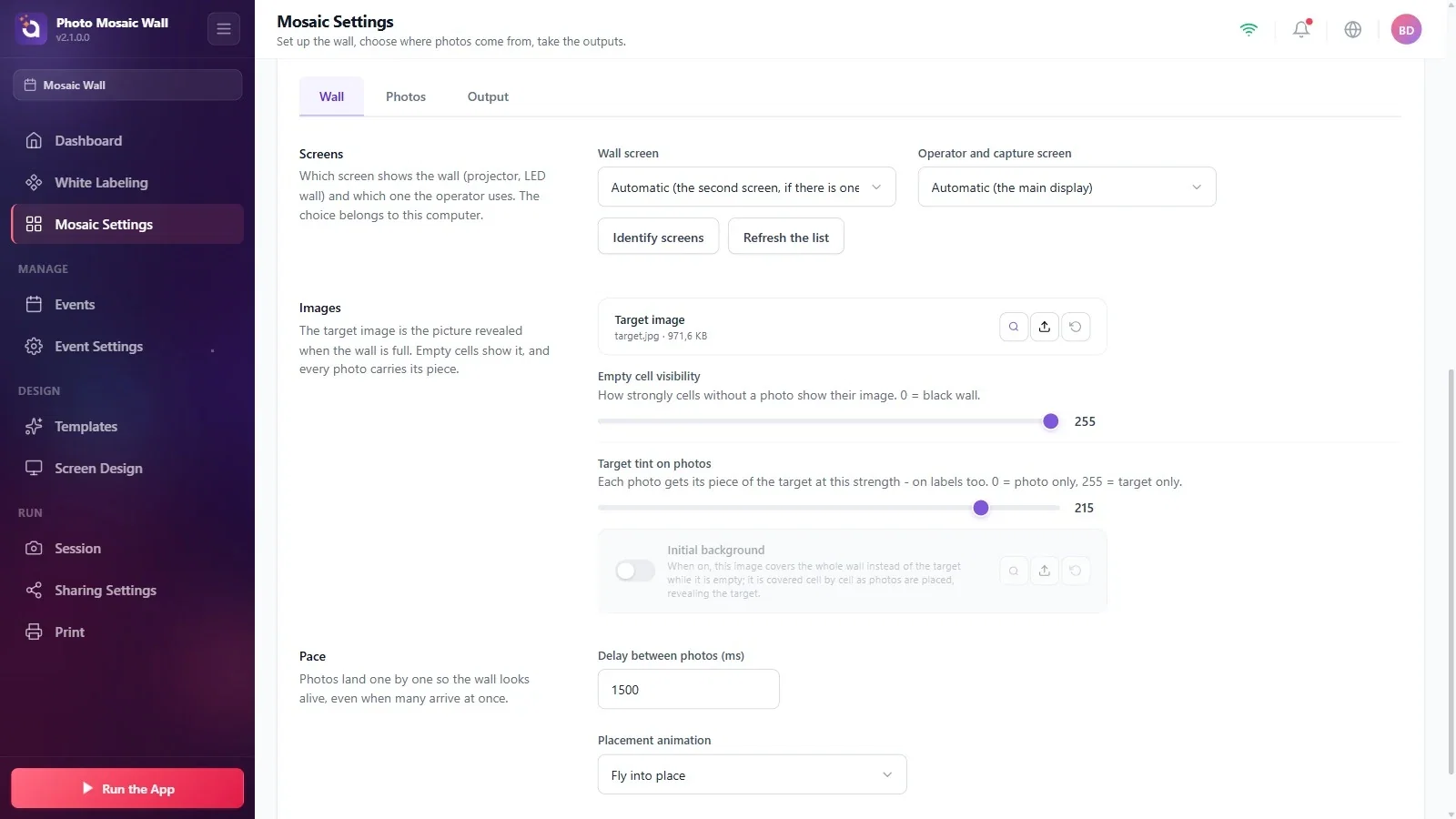
The default option in the Wall screen list is Automatic (the second screen, if there is one): if a second screen is connected, the wall opens there. If you want a specific screen, choose it from the list by its number and resolution (in the example, the second screen is 2560 × 1440).
Step 2 · Choose the Operator and capture screen
Mosaic Settings → Wall → Screens
The default is Automatic (the main display): the operator screen (and the guest screen, if guest capture is on) opens on the Windows main display. In the list, the main display appears with its number and resolution, with a main-display note next to it.
Step 3 · Refresh the list if the screens have changed
Mosaic Settings → Wall → Screens
If you plugged in or unplugged a screen while the settings were open, refresh the list with Refresh the list. If you're not sure which number is which screen, use the Identify screens button.
The choice is saved on this computer: if you open the same event on another computer, you may need to choose the screens again there.
If one of the screens you chose isn't connected when you run the wall, the app uses the automatic choice.
A setup where guests take their photos in this app needs two screens: with only one screen, guest capture stays off and the wall is fed only from the folder.
Leaving the displays duplicated in Windows: Windows sees the two screens as one, and the wall and the operator screen open in the same place.
