













This article collects the most common situations on the mosaic wall, together with the warnings you see on screen: the setup warning when the wall starts, a folder that can't be reached, no photos reaching the wall, a guest stuck on the template screen, a camera error and labels that don't print.
This guide describes Photo Mosaic Wall 2.1.0 on Windows. Screens and labels may differ in other versions.
- When you see a problem, first look at the counters and the folder line at the top of the operator screen; most problems show up there.
Step by step
Step 1 · The setup is not complete appears when the wall starts
Run the App → Run the Mosaic Wall
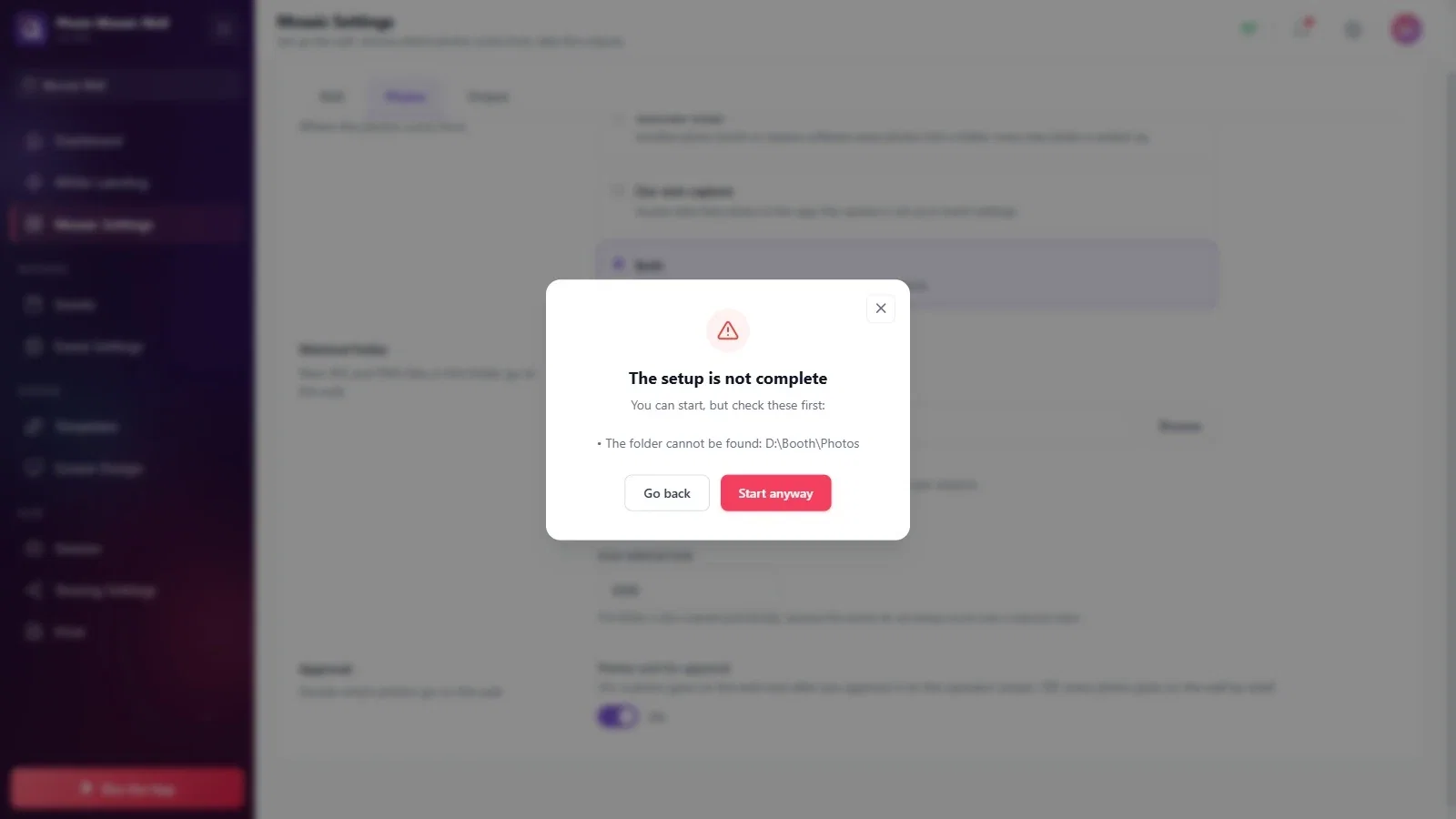
The window lists the missing or wrong settings item by item (in the example, the folder can't be found). Go back to the settings with Go back and fix every item on the list; choose Start anyway only if you deliberately want to continue.
Step 2 · The operator screen shows Folder problem
Run the Mosaic Wall
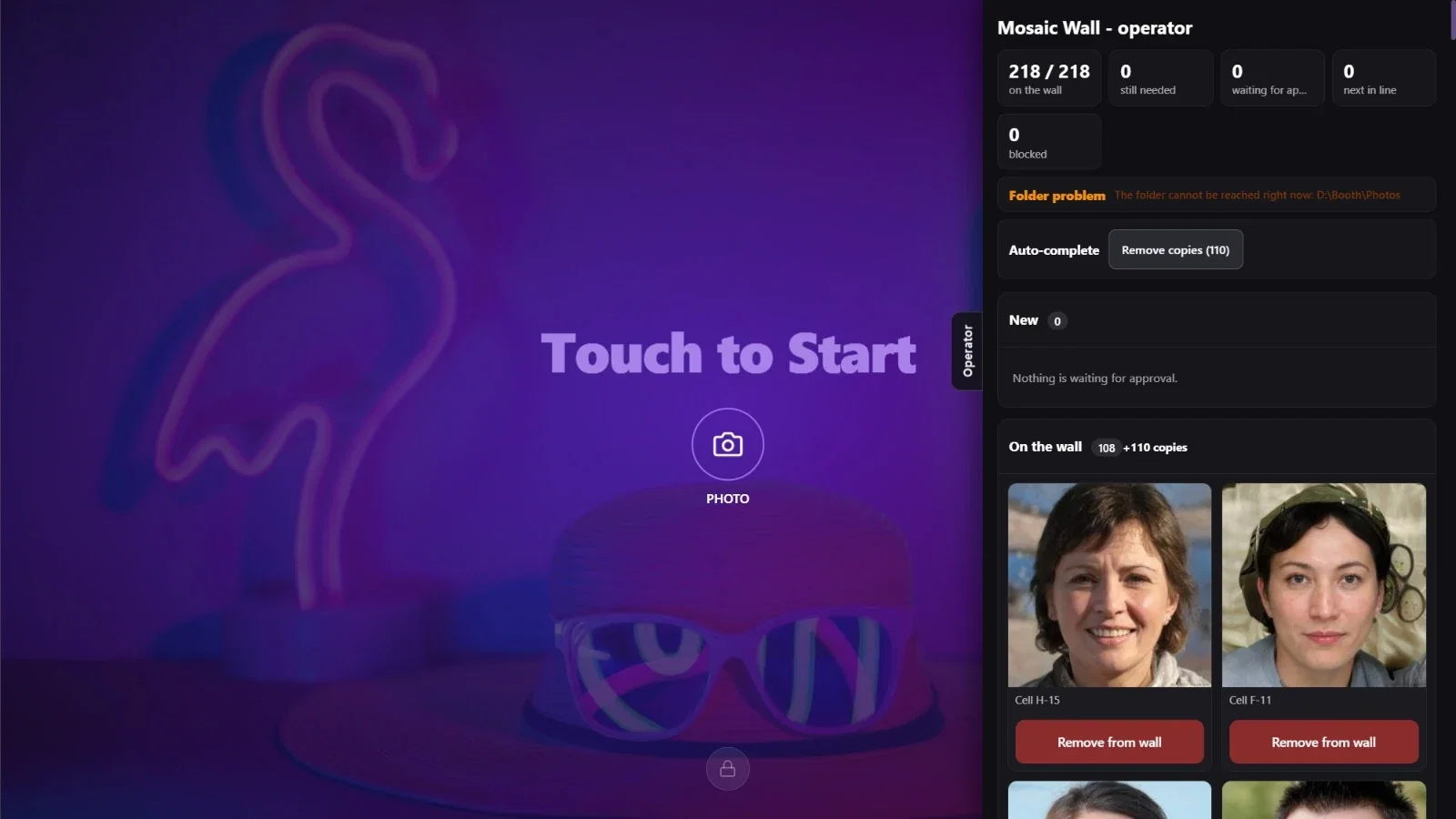
If the folder line shows Folder problem with The folder cannot be reached right now: D:\Booth\Photos next to it, the watched folder can't be reached right now. Check the folder path on the Mosaic Settings → Photos tab; if it is a network folder, check the connection. Once the problem is fixed, the line should show Folder OK again.
Step 3 · No photos reach the wall at all
Mosaic Settings → Photos
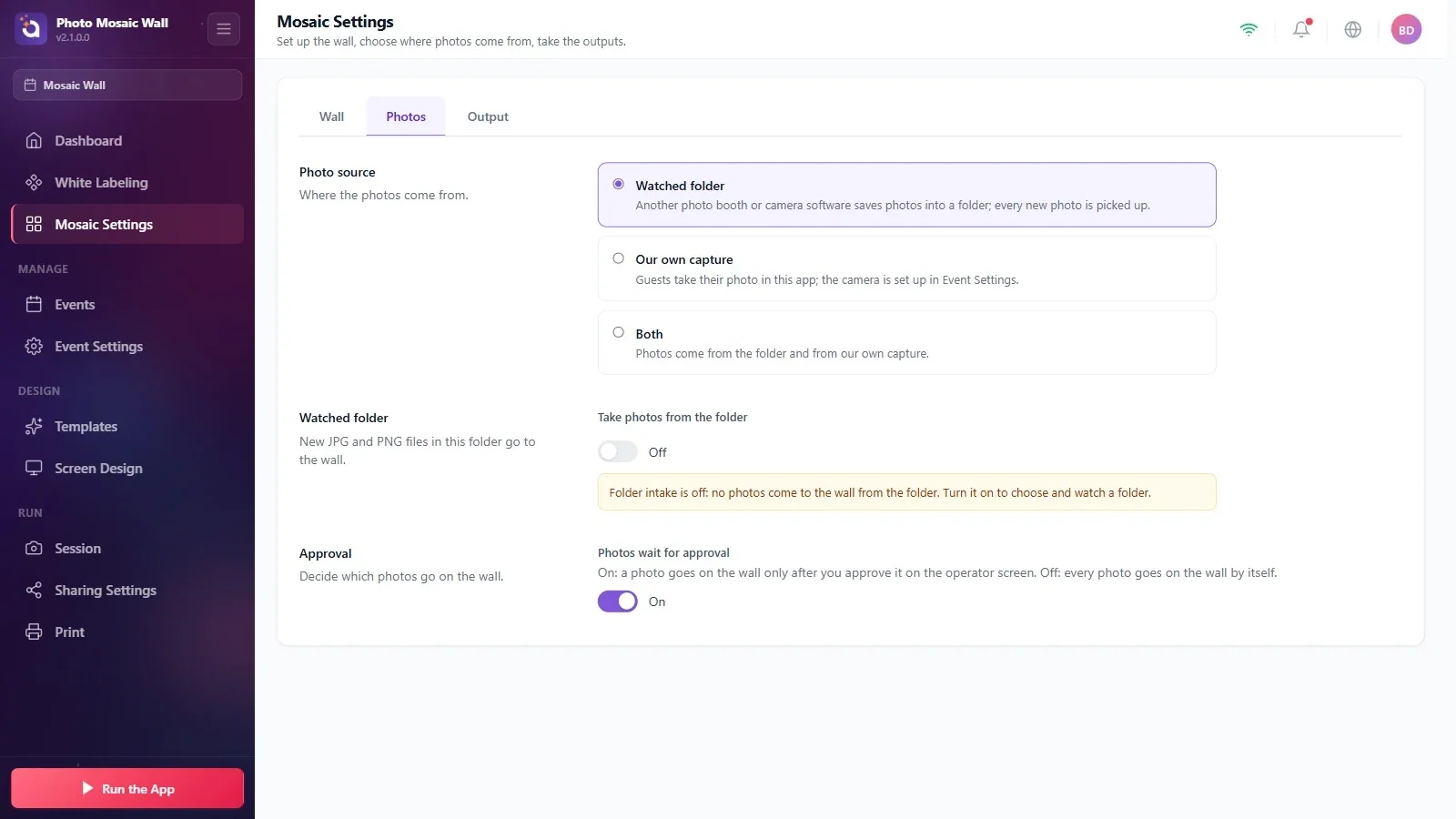
Check these in order: (1) Is Take photos from the folder on? It is off in a new event, and a yellow warning appears. (2) Does the other program really save the photos to this folder? If it creates day or session folders, you need Include subfolders.
(3) If Photos wait for approval is on, the photos wait in the New column of the operator screen; they don't go onto the wall until they are approved. (4) If the source is Our own capture, the folder isn't watched at all; to use the folder too, choose Both and turn folder intake on again.
Step 4 · The guest is stuck on the Select a Template screen
Run the Mosaic Wall
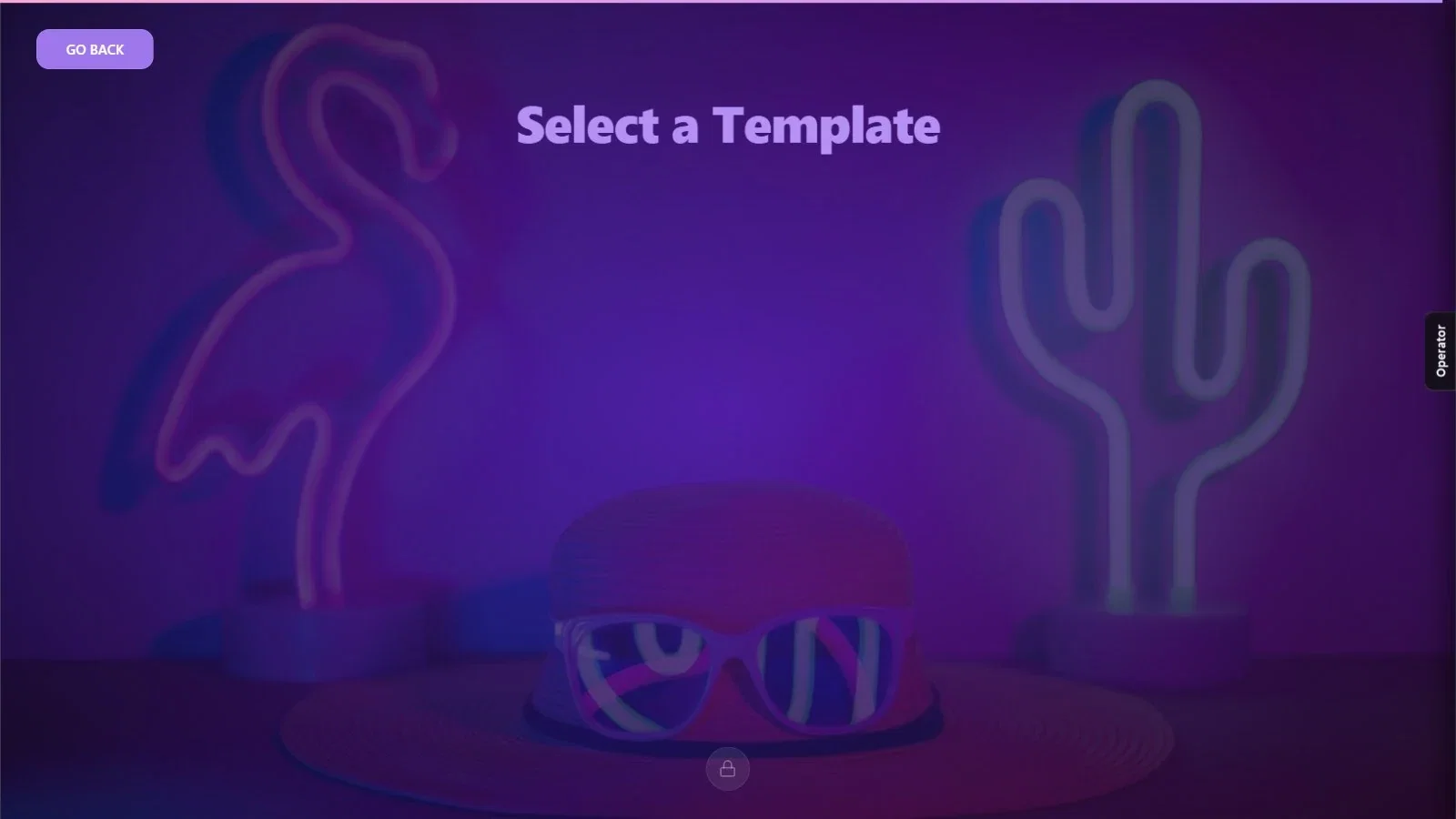
The event has no template: the screen shows an empty list and the guest can't go on. Stop the wall with the PIN, add a template to the event with Templates → Add More and start again (see “How Do Guests Take Their Photos in the App?”).
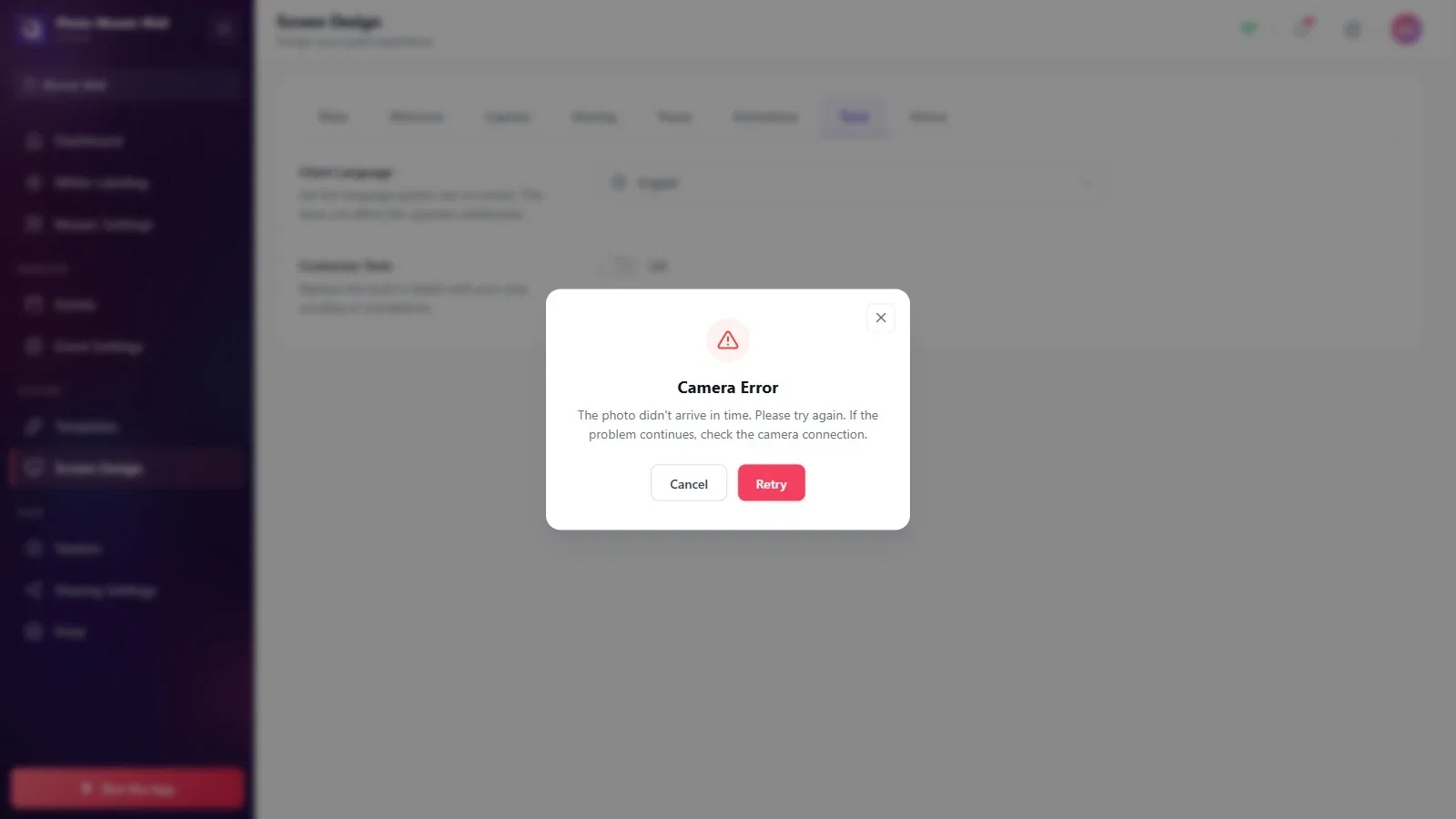
Step 5 · A Camera Error warning appears
Event Settings → Camera
The The photo didn't arrive in time. Please try again. If the problem continues, check the camera connection. warning means that the photo didn't arrive from the camera in time. Try again with Retry; if it keeps happening, check the camera's connection and the preview on the Event Settings → Camera tab. When you test without a camera and “Desktop Editing” is selected, this warning also appears if you don't pick a photo in time in the file dialog that opens at the moment of capture.
Step 6 · Labels aren't printing on a physical wall
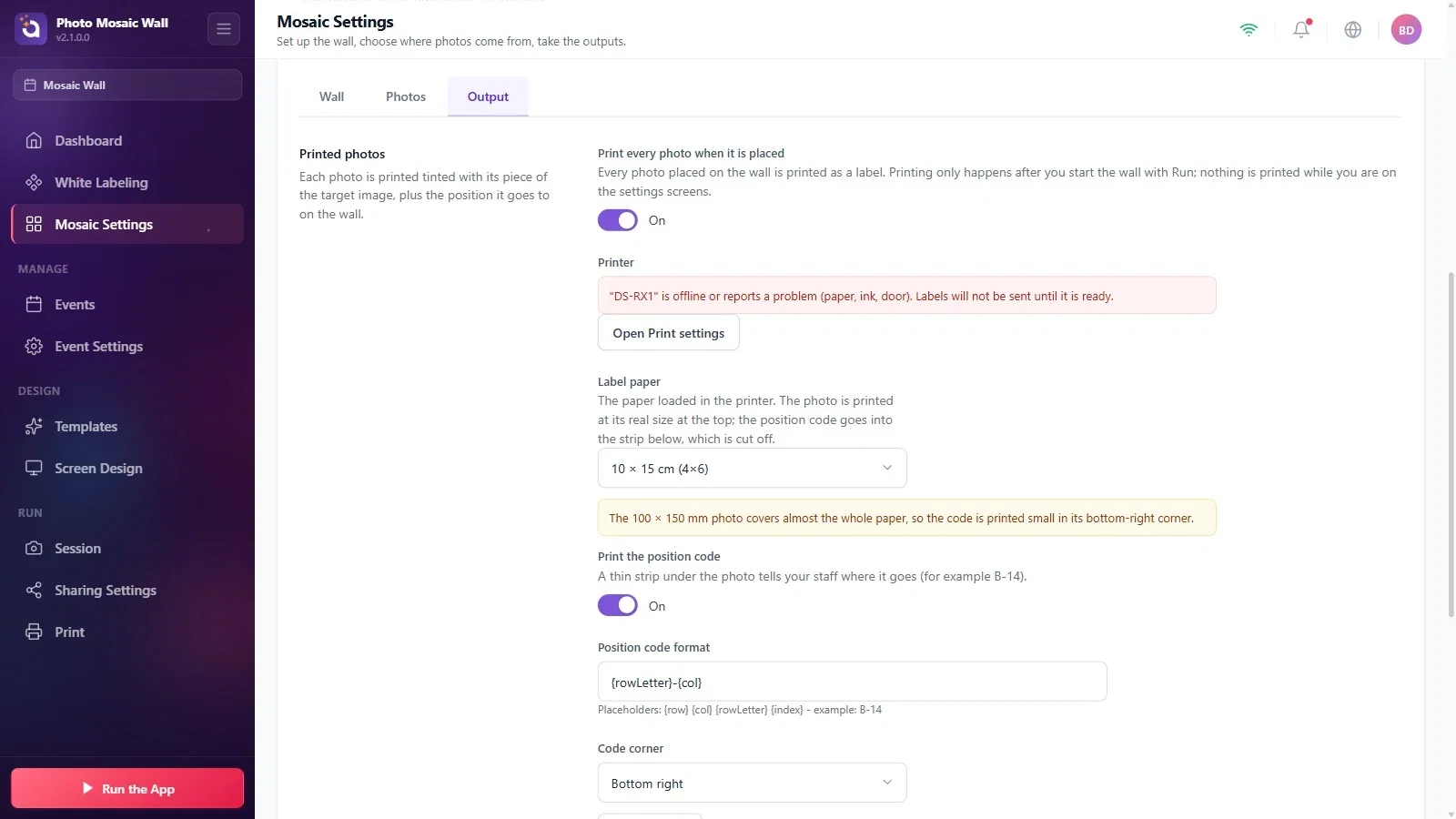
Mosaic Settings → Output → Printed photos
Is Print every photo when it is placed on? If there is a red warning in the Printer row, the printer is offline or reports a paper, ink or cover error; no labels are sent until the printer is ready. Printing only happens while the wall is running. For the labels of photos placed before the wall started, use the bulk print button in the Label printing section.
Step 7 · The wall and the operator screen open on the same screen
Mosaic Settings → Wall → Screens
Windows may be duplicating the displays, or the second screen isn't connected. Extend the displays in Windows, then refresh the list with Refresh the list in the Screens section and check the Wall screen setting.
Step 8 · I can't exit the wall
Run the Mosaic Wall → lock icon
Press the lock icon at the bottom of the operator screen and enter the 4-digit PIN set in the Dashboard PIN section of the Event Settings → Kiosk tab.
Before the event, run the wall with a few test photos: that way the folder, approval, the screens and (on a physical wall) label printing are all tried out at once.
Closing the warnings and moving on: the The setup is not complete window and the folder line on the operator screen tell you exactly where the problem is.
