













The White Labeling page lets you use the app, and the sharing site where guests download their photos, under your own brand. There are three tabs: Domain connects your own domain for the sharing links; App changes the app's name and logos; Microsite sets the colors, texts and logo of the sharing site.
This guide describes Photo Mosaic Wall 2.1.0 on Windows. Screens and labels may differ in other versions.
- Your account must be on the White Label plan; on lower plans the page appears locked and an Upgrade plan button is shown.
- If you'll connect a domain, you need access to your domain provider's DNS settings.
Step by step
Step 1 · Domain: connect your own domain
White Labeling → Domain
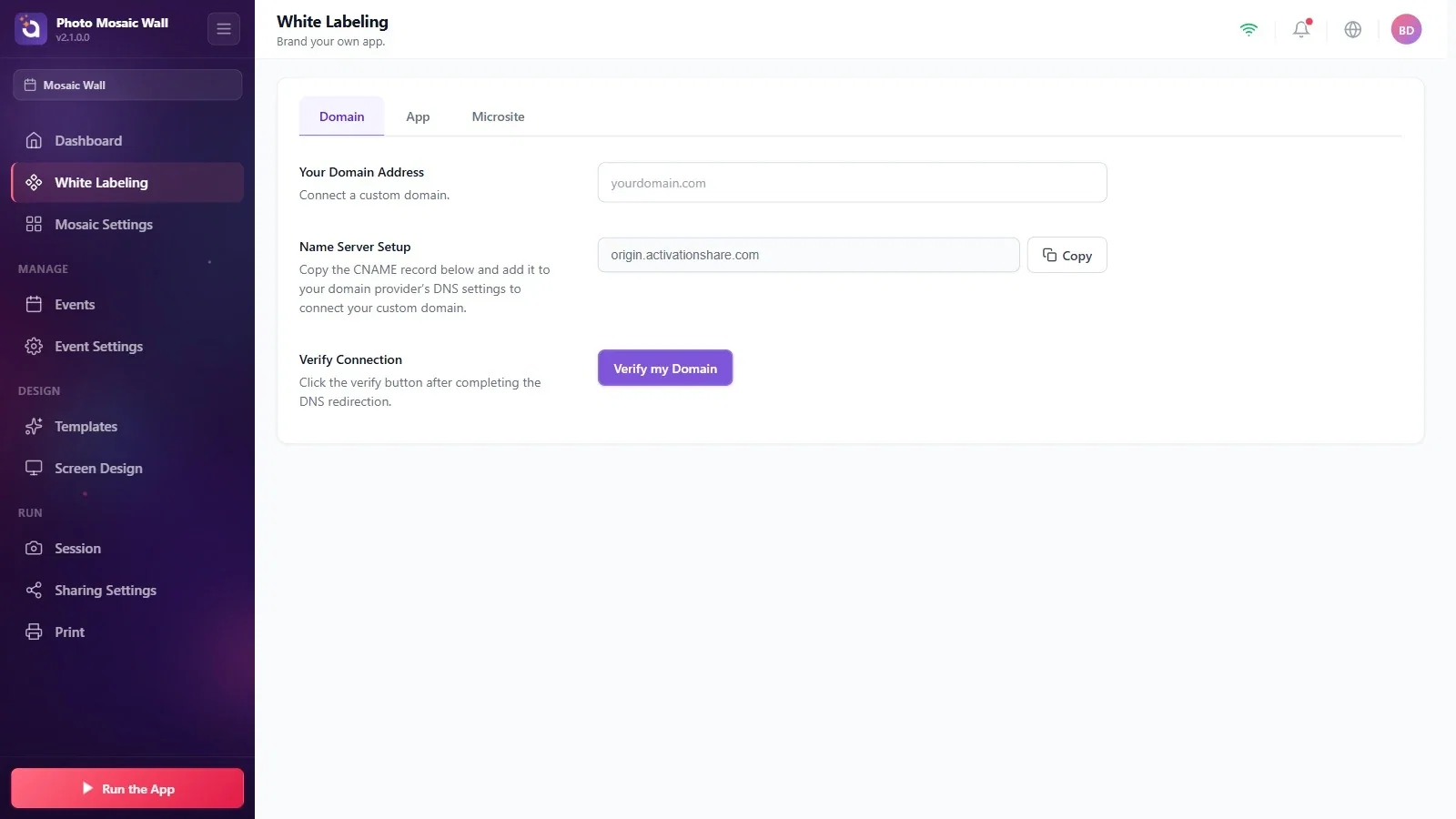
Type the domain you'll use in the Your Domain Address box. Copy the CNAME record in the Name Server Setup row with Copy and add it to your domain provider's DNS settings. When the redirection is complete, press the Verify my Domain button.
Step 2 · App: the app's name and logos
White Labeling → App
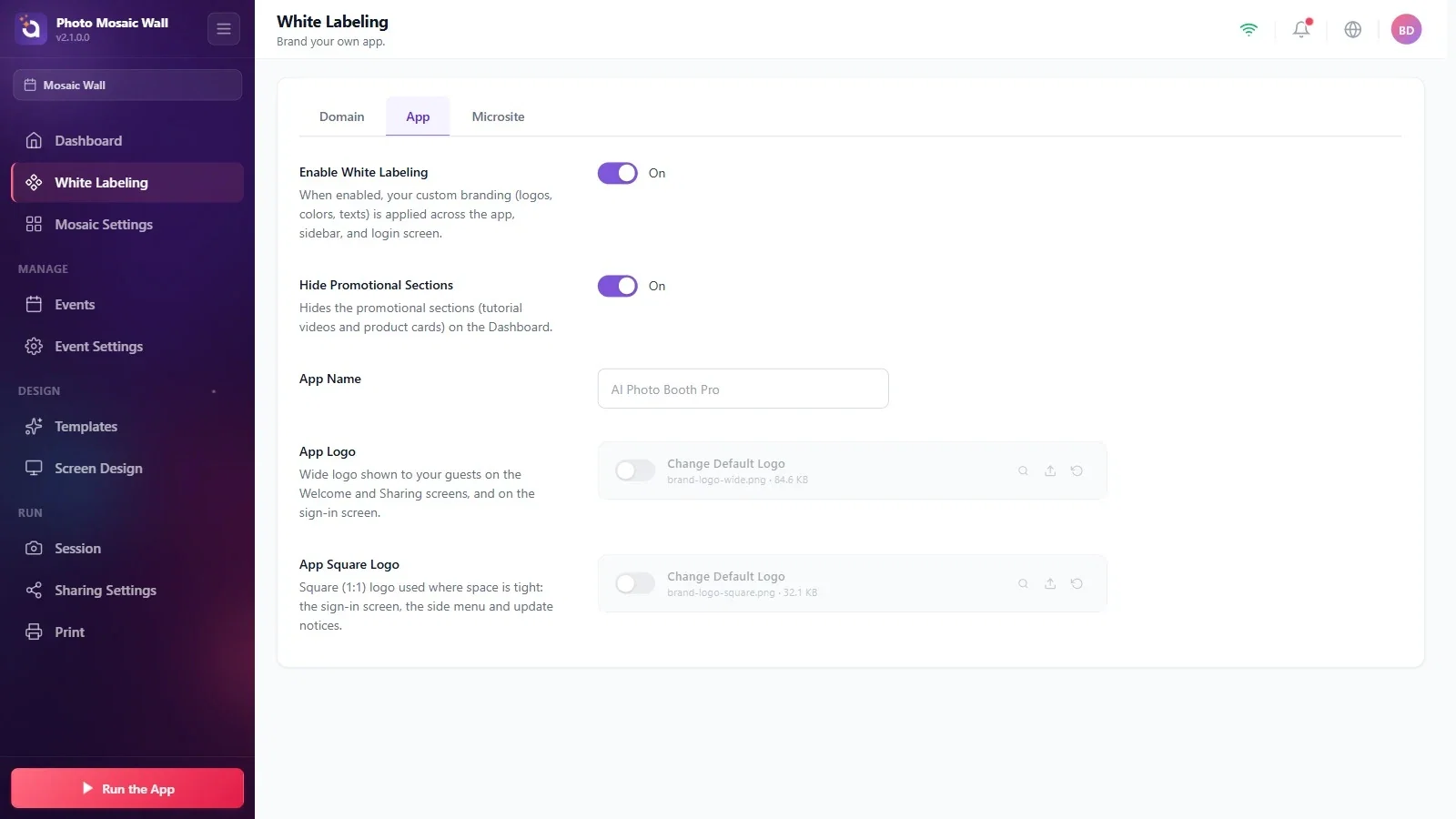
While Enable White Labeling is on, your brand (logos, colors, texts) is used in the app, in the side menu and on the sign-in screen. Hide Promotional Sections hides the training videos and product cards on the Dashboard page.
App Name is the name of the app. App Logo is the wide logo (welcome, sharing and sign-in screens); App Square Logo is the square (1:1) logo used where space is tight (sign-in screen, side menu, update notifications). The logo rows have a switch and preview, upload and reset icons.
Step 3 · Microsite: the colors of the sharing site
White Labeling → Microsite
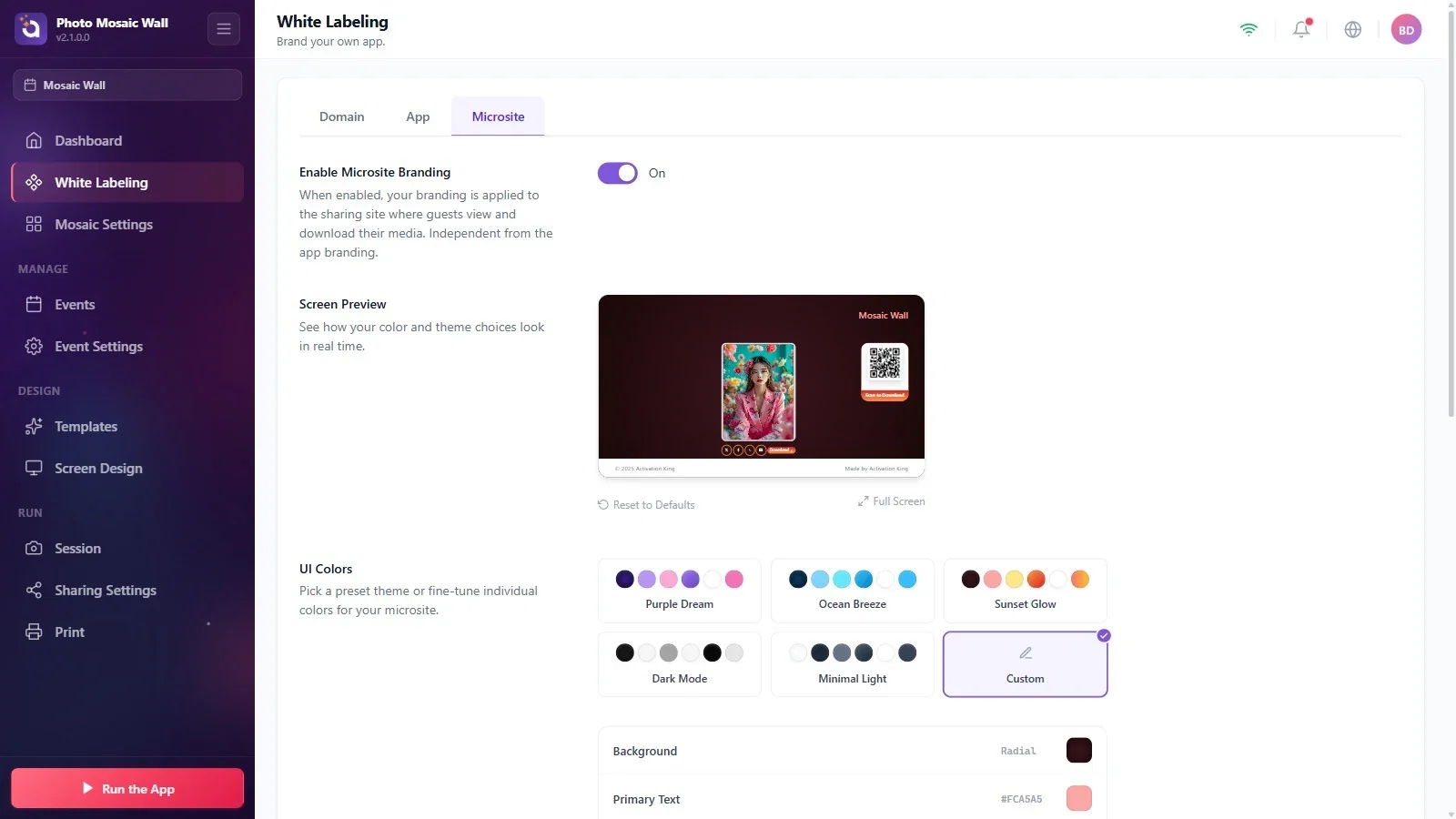
While Enable Microsite Branding is on, your brand is applied to the sharing site where guests view and download their media; it is independent of the app's branding. Screen Preview shows the site live. Under UI Colors, choose one of the ready-made themes (Purple Dream, Ocean Breeze, Sunset Glow, Dark Mode, Minimal Light) or set the colors one by one with Custom.
Step 4 · Site texts, logo and preview
White Labeling → Microsite
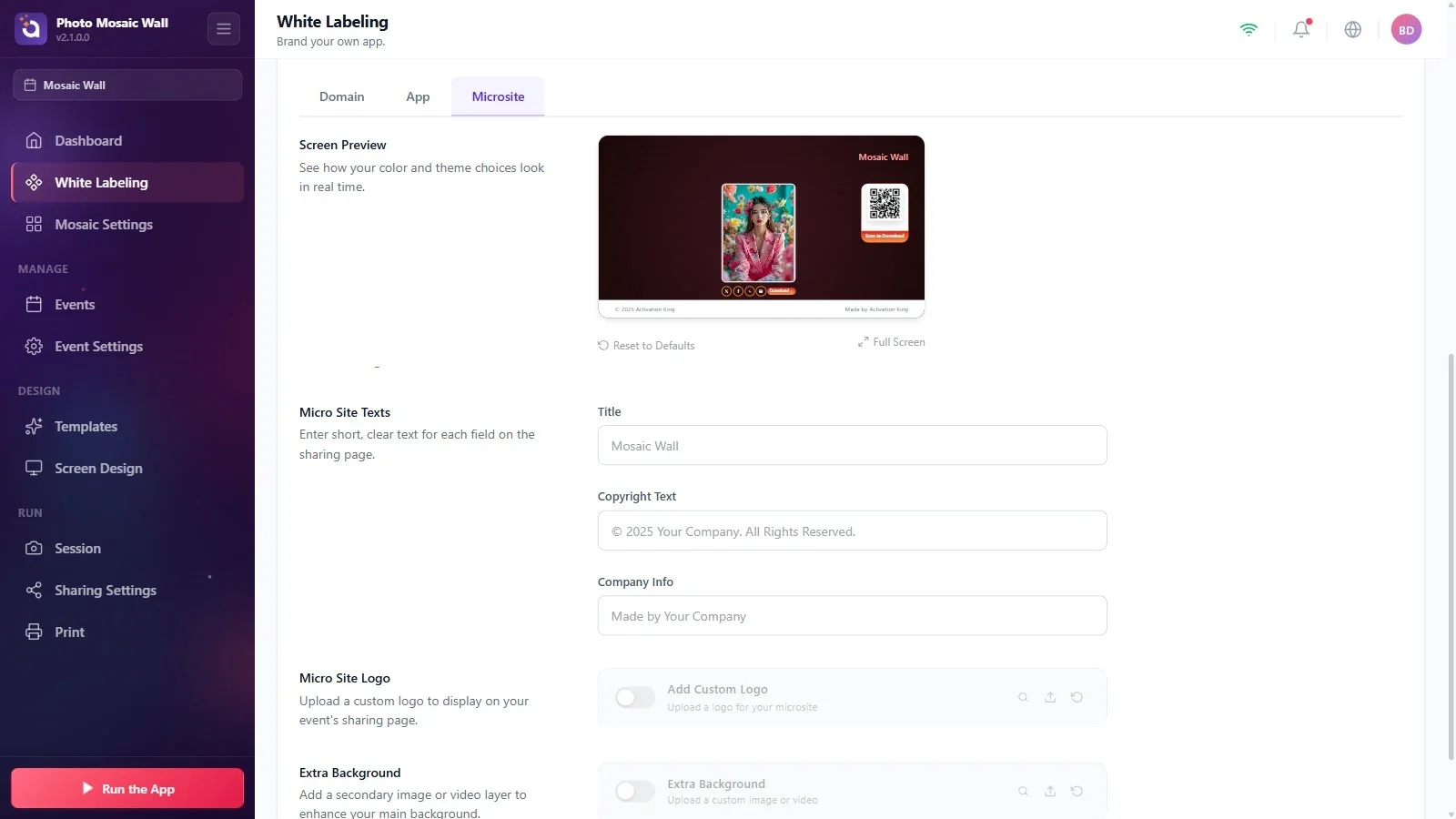
Under Micro Site Texts, fill in the Title, Copyright Text and Company Info fields; while Title is empty, the preview shows the event's name. With Micro Site Logo you add a logo to the sharing page, and with Extra Background a second image or video layer to the background. Preview Micro Site shows how the site looks with the current settings.
The app branding (App) and the sharing site branding (Microsite) are turned on and off separately.
When you connect a domain, don't type the CNAME value by hand; copy it with Copy.
Pressing Verify my Domain before adding the DNS record: verification needs the redirection to be complete.
