
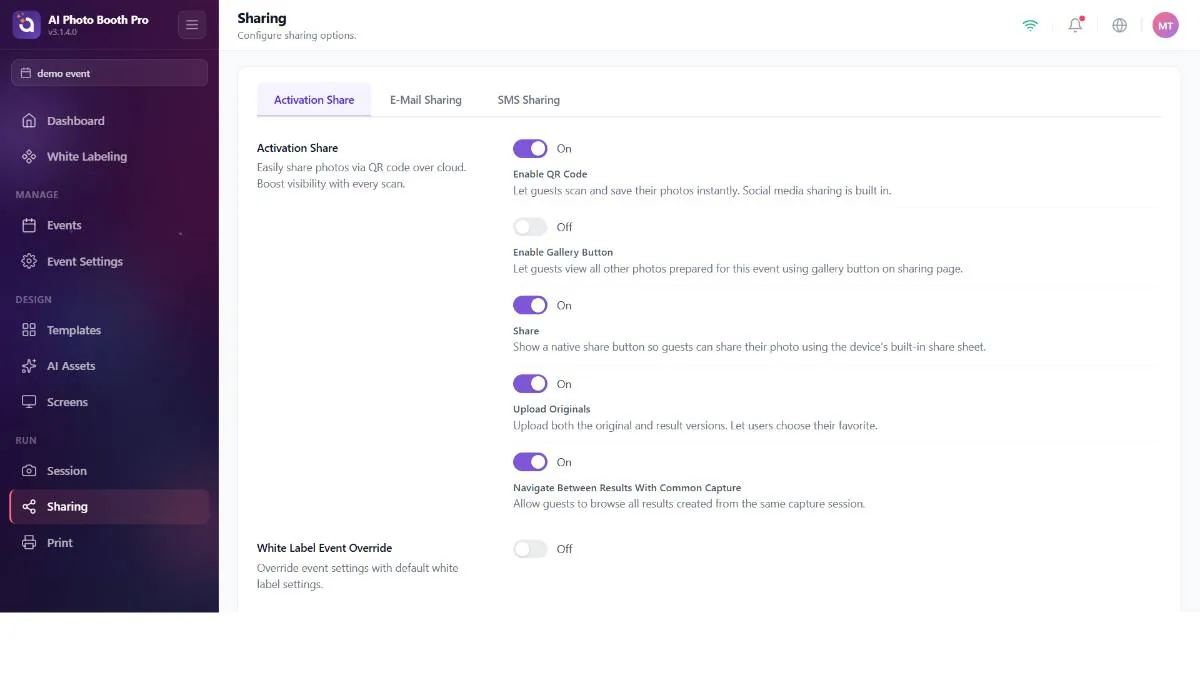
How guests get their photos — via the on-screen QR / gallery, by email or by SMS. Three tabs, each toggled on and off independently.
Email sharing
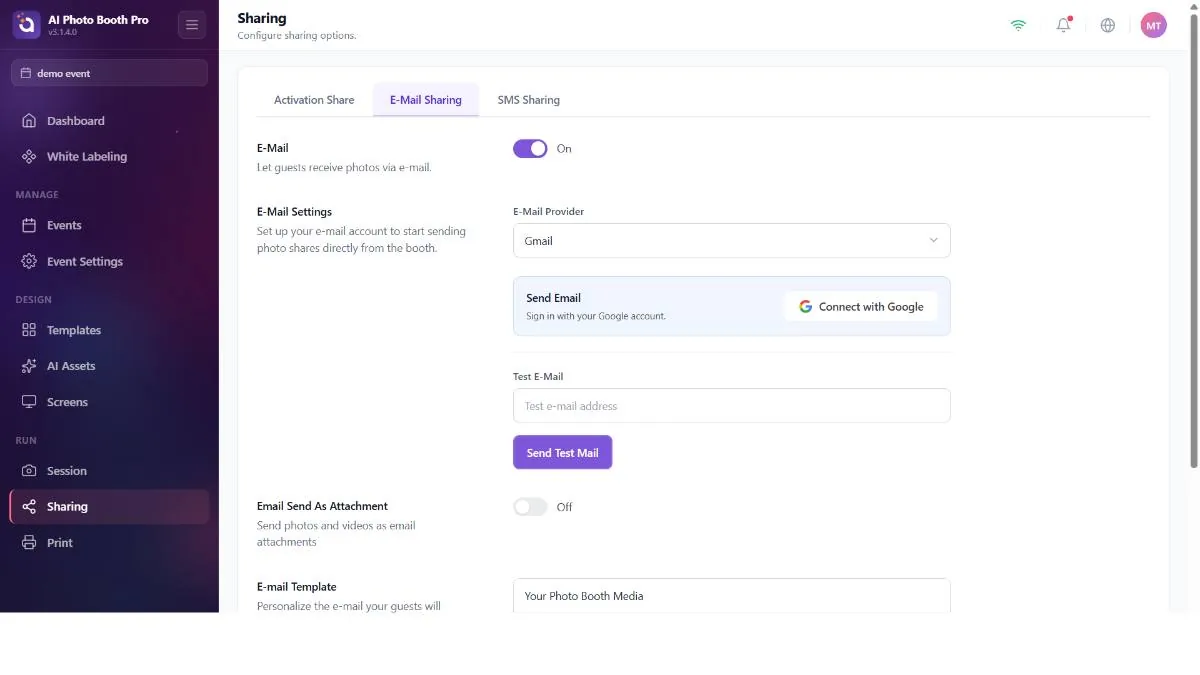
Send results to guests by email. There's a master Enable Email toggle (off by default for new events).
How to connect
- Turn on Enable Email.
- Choose a Provider: for Gmail or Outlook, tap Connect and, in the window that opens, sign in to that email account and approve the send permission (it connects via OAuth). If you choose Custom SMTP, enter the sender name and email plus the SMTP host / port / username / password manually.
- Edit the subject and body in Email Template; don't forget to include the link variable in the body that will take the guest to their results.
- If you want, turn on Send As Attachment — it sends the image as an attachment as well, not just by link.
- Use Send Test Mail to send yourself a test, and verify that the link in the received email actually works.
Always send a test mail. The editor offers variables like {share_link} and {image}, but the built-in default body may use a different link variable — before going live, verify the guest actually receives a working link.
SMS sharing
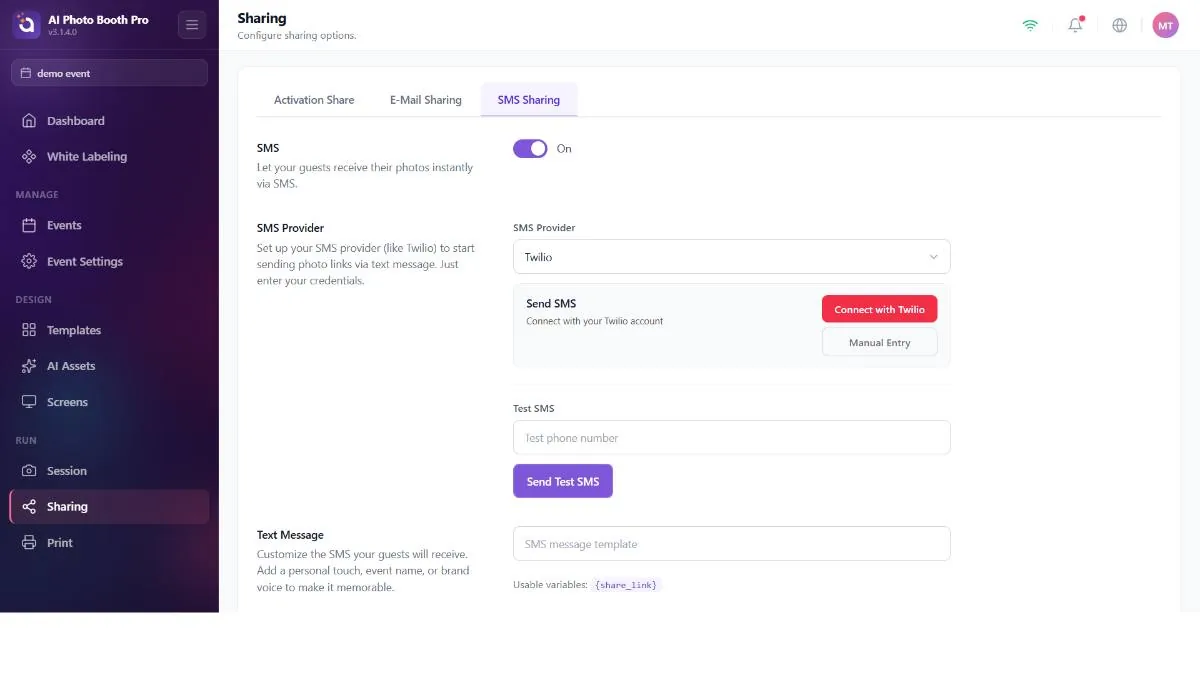
Send results to guests by SMS. There's a master Enable SMS toggle (off for new events); the provider is effectively Twilio. Connect via Twilio web login or enter the credentials manually (SID / token / sender-phone). A Send Test SMS and a Text Message template (with {share_link}) round it out.
The provider dropdown effectively means Twilio; the test SMS uses your connected Twilio credentials. Send a test before the event to verify delivery.
