
The first screen you see on every launch is the login page. There's no separate splash screen — the app starts straight at sign-in, and once you're in, it remembers you for next time.
The login screen
On launch you see the brand logo, the app name and two sign-in methods — plus a language picker at the bottom. The app first quietly tries to sign you in automatically (using a saved session); so if you logged in most recently, you may land straight on the Dashboard without touching anything.
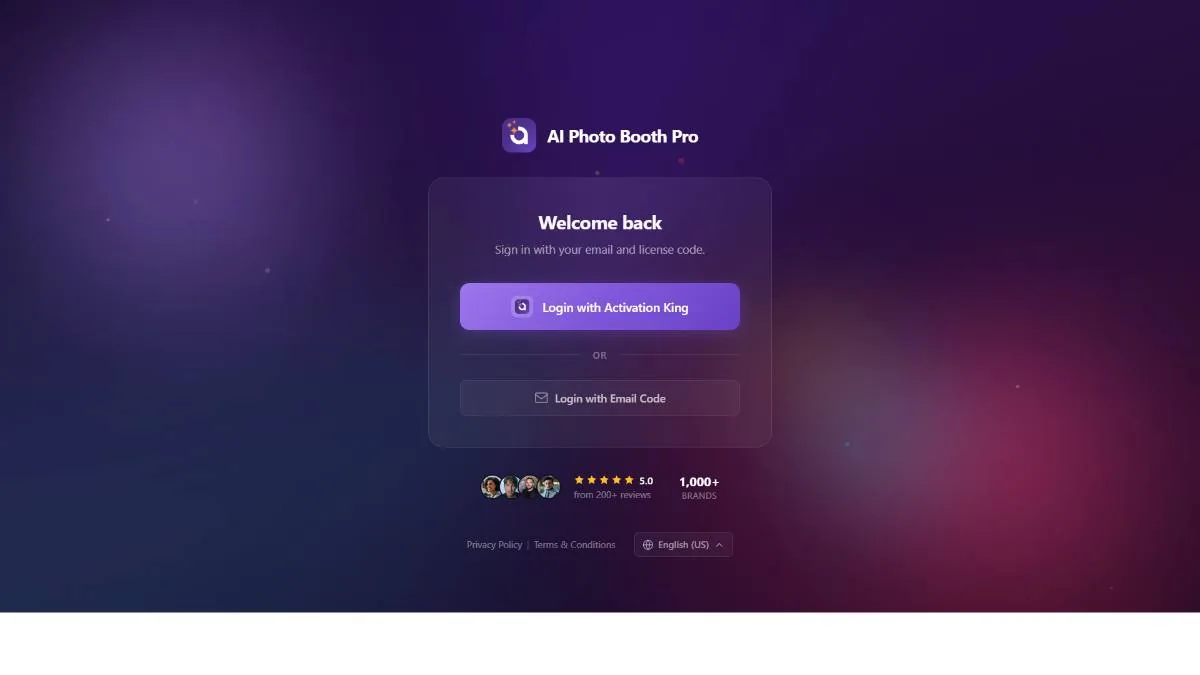
The buttons only become active when two conditions are met: the internet must be connected, and the app must have finished its startup checks. Until then, instead of a button you'll see a status line — Waiting for internet… if you're offline, or Checking account… while your saved session is being verified.
Login with Activation King
This is the primary and recommended method. Instead of a window inside the app, it opens your regular web browser; so if you're already signed in to Activation King in that browser, logging in is almost instant.
- Tap Login with Activation King.
- Your default browser opens the Activation King login page. The app shows an Authenticating… indicator with a Cancel button.
- Sign in (or confirm) in the browser. When it's done, control is handed back to the app automatically and the Dashboard loads.
The app waits for the browser to return a signal. If you close the tab before finishing, the signal never arrives and the indicator waits forever — the Cancel button is your way out. Tap it to return to the login screen and try again.
Using the real browser instead of an embedded one is a deliberate security choice: the login happens securely outside the app, and when it's complete, control returns to the app automatically. Because your existing browser session is used, you often don't even have to type a password.
Login with a one-time code (OTP)
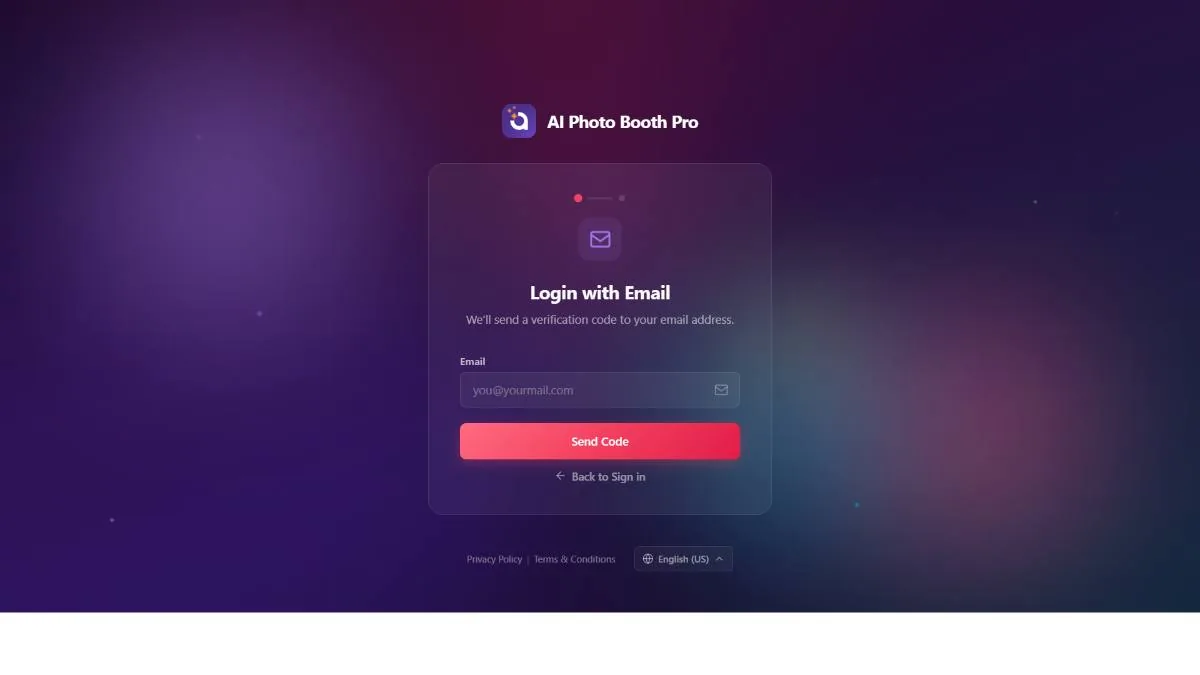
An alternative to browser login: you receive a 6-digit code by email. Handy on a machine where you don't want a browser session.
- Tap Login with OTP.
- Enter your email address and tap Send OTP Code.
- Check your email, type the 6-digit code and tap Verify & Sign In. From here you can also Resend Code or Change Email.
If you request codes too quickly, Resend Code shows a countdown before it will send again. After too many wrong attempts the code field locks — wait out the countdown or request a new code.
Choosing your language
The language picker at the bottom sets the interface language for the whole app, including the browser login page. 11 languages are available: English, Türkçe, Deutsch, Français, Español, Română, Italiano, Português, Polski, Русский and Čeština.
Your choice is remembered and applies to the whole app from this point on. You can also change it later from the language globe at the top right of the admin panel (see Part 2).
The subscription gate
Windows: StripeSometimes login succeeds but the app shows a payment window (Stripe) — for example while you're in a trial, or when your subscription hasn't renewed. On Windows this is a secure payment window placed on top of the current screen. What matters is which situation you're in:
- After you log in, if required, the payment window (Stripe) opens automatically on top of the current screen.
- If you're still within your trial period: you can close the window with the (×) at the top right and keep using the app normally — payment isn't required at this stage.
- If both your trial has ended and your subscription hasn't renewed: you can't get past this window; you have to complete the purchase to continue. Once it's done, the window closes and the app moves to the Dashboard.
During the trial, the payment window is a reminder; your session is already valid, so you can close it and go in. Only when your trial has ended and you have no active subscription does the server really say "payment required": you aren't considered logged in and you don't move to the admin panel. On Windows all purchases go through a server-signed Stripe URL in a modal window (a web payment can't be embedded directly into the app's page). There are two kinds: a subscription payment and an AI credits payment.
On Windows, subscriptions are managed on the web (Stripe). The in-app "manage subscription / request refund" actions that tablets show are deliberately disabled here — manage your plan from the Activation King website.
The "update required" screen
If the server finds your app version too old to run safely, you're routed to a forced update screen instead of the login page.
There's no "skip" or "back" — you must update to continue. Install the new version to get past it. This screen only appears when the server explicitly blocks the current version.
