
One page, three tabs — AI Effects, AI Face Swap and AI Video — where you set up the AI-powered looks your guests can choose from. These tabs have no separate menu item; they all live under AI Assets.
If your plan doesn't include AI, the page shows a "Pro required" banner with an Upgrade to Pro button, and the tabs are hidden. Setting up and testing AI looks also spends AI credits — the cost is shown on each model and test button.
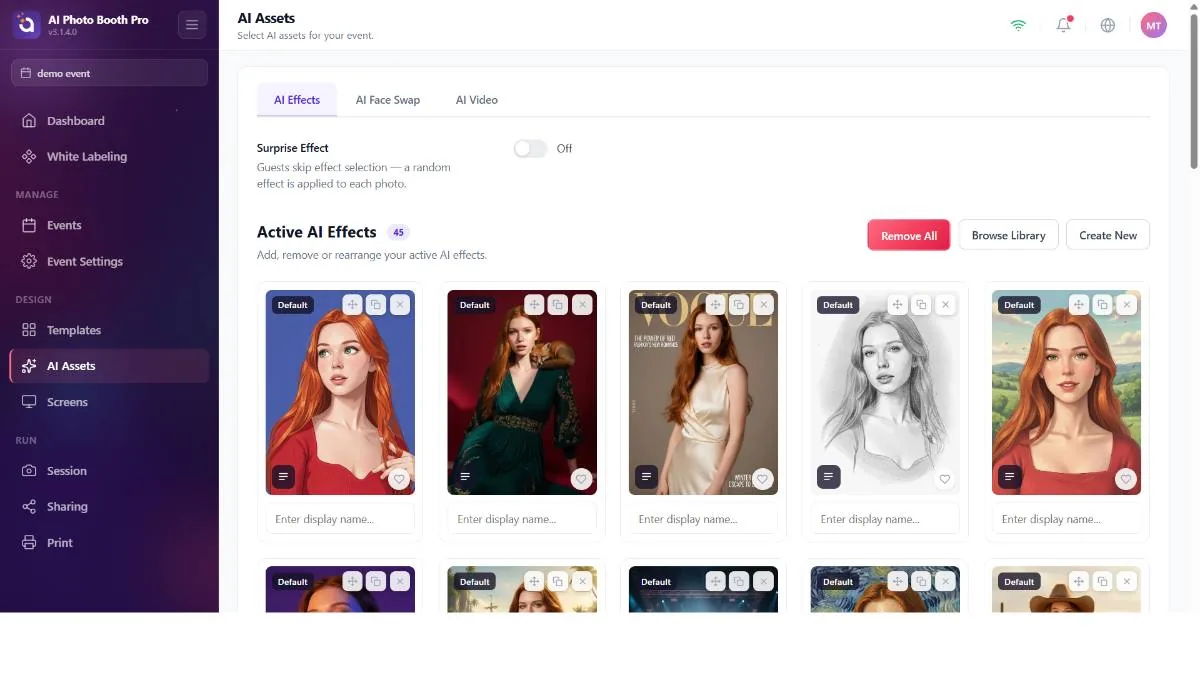
AI Effects
A library of AI photo effects. At the top: a Surprise Effect button (gives each guest a random effect), a count badge, Remove All, Browse Library and Create New. Each card has a cover, an editable name, a favorite star, View Prompt and drag / edit-or-clone / remove actions.
Creating or editing an effect
- Choose an input photo and run Test Effect to preview the result (this spends credits). Use the result as the cover or download it.
- Set the Effect Name and pick an AI Model (each shows its credit cost and approximate time).
- For some models, pick a Resolution (1K / 2K / 4K), turn on Edit Original Photo, choose a Style (Stylized / Realistic), enable Gender Detection or do a Google / Image Search — the available options depend on the model.
- Write the Prompt (at least 5 characters). You can add personalization variables like
{Name},{Number},{Color},{Interest},{Scene},{Weather}. - Add Reference Images (up to the model's limit) and a Cover, then save.
If you put a variable like {Name} in the prompt, the app asks the guest for that information during capture (e.g. their name) and inserts it into the prompt when the effect is generated. So if there's something in the prompt you want to come from the guest — their name, favorite color, interest, etc. — add the matching variable. Example: if you write "Turn {Name} into a superhero," the booth asks the guest for their name and produces a personalized result for each guest. {CustomPrompt} represents free text the guest writes themselves.
Each Test Effect runs the real AI model and spends as many credits as shown on the selected model. Test deliberately, not over and over.
Effects you own are edited in place. Library or default effects (badged) can only be cloned — editing one forks your own copy and leaves the original untouched. The card's name is a label you can rename; it doesn't have to be the effect's underlying name.
Covers, test inputs and reference images upload in the background. If you save right after selecting one, its upload may not be finished and the image can disappear. Give the thumbnails a moment to show their "uploaded" status before closing the modal.
AI Video (motion)
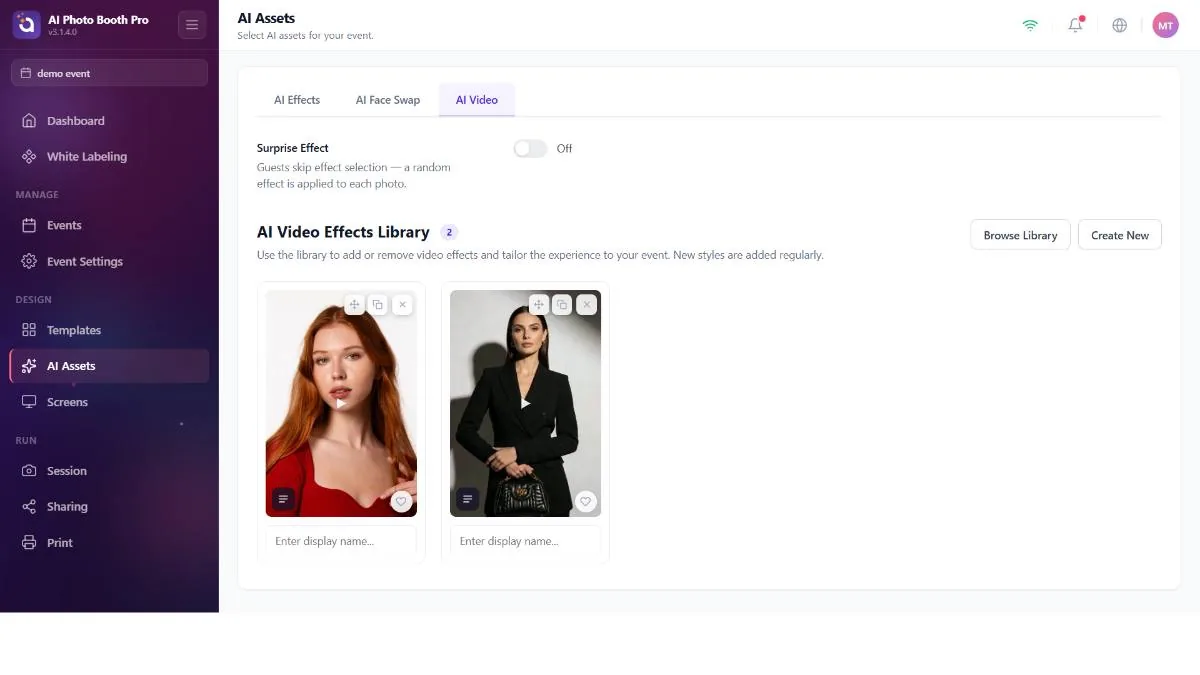
The same structure as AI Effects, but for AI-generated motion videos. A Surprise button, a count badge, Browse Library and Create New. Cards show a cover — often a video with a play icon — an editable name, favorite, View Prompt and drag / edit-or-clone / remove. Hovering or tapping a card plays the video.
Video previews are streamed rather than embedded, so large clips play smoothly. As with effects, owned videos are edited in place while library/default ones are cloned.
AI Face Swap
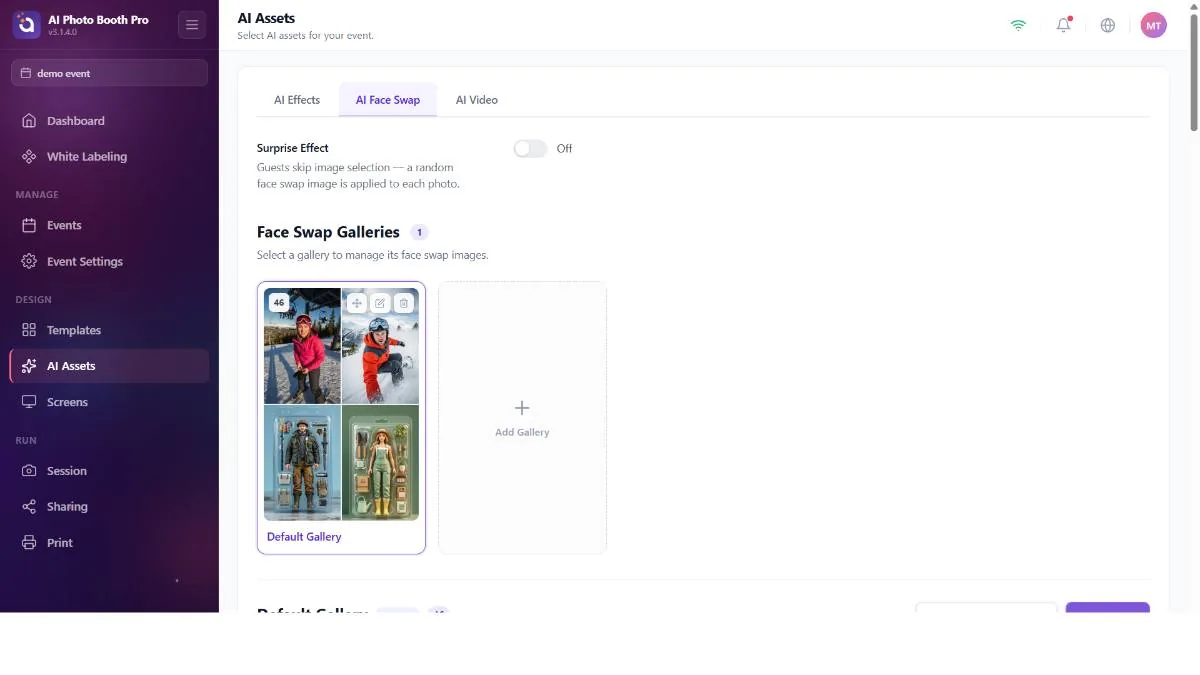
Organize face-swap targets (the faces that guests' faces are placed onto) into galleries (folders).
- Surprise Effect button — a global setting that gives each guest a random target.
- Galleries — a grid of folders; each shows a target count and a cover (or a small mosaic), with drag / edit / delete. A Default gallery is badged and offers Restore Default Gallery. An Add New Gallery tile creates more.
- Targets — when a gallery is open: an Add Images card and a drag-and-drop area. Each target shows its image with clickable face boxes — green means "this face will be swapped," gray means it'll be skipped. Toggle per face; rename and reorder targets.
Trying to turn off the last green face box is rejected — a target needs a face to swap. The Surprise button is a single global setting, not per gallery.
It restores the default gallery to the factory set — everything you changed in it is lost. It runs behind a confirmation and a full-screen processing overlay that stays up until the targets actually arrive.
Galleries and their targets sync separately; a gallery's target list can take ~15 seconds to populate on a cold load. If a gallery looks empty right after opening, wait a moment. Face detection runs per target as you add images.
