
How a capture session behaves and how results are rendered. This is also — despite the name of the "Output" tab in Event Settings — where the real codec and quality controls live.
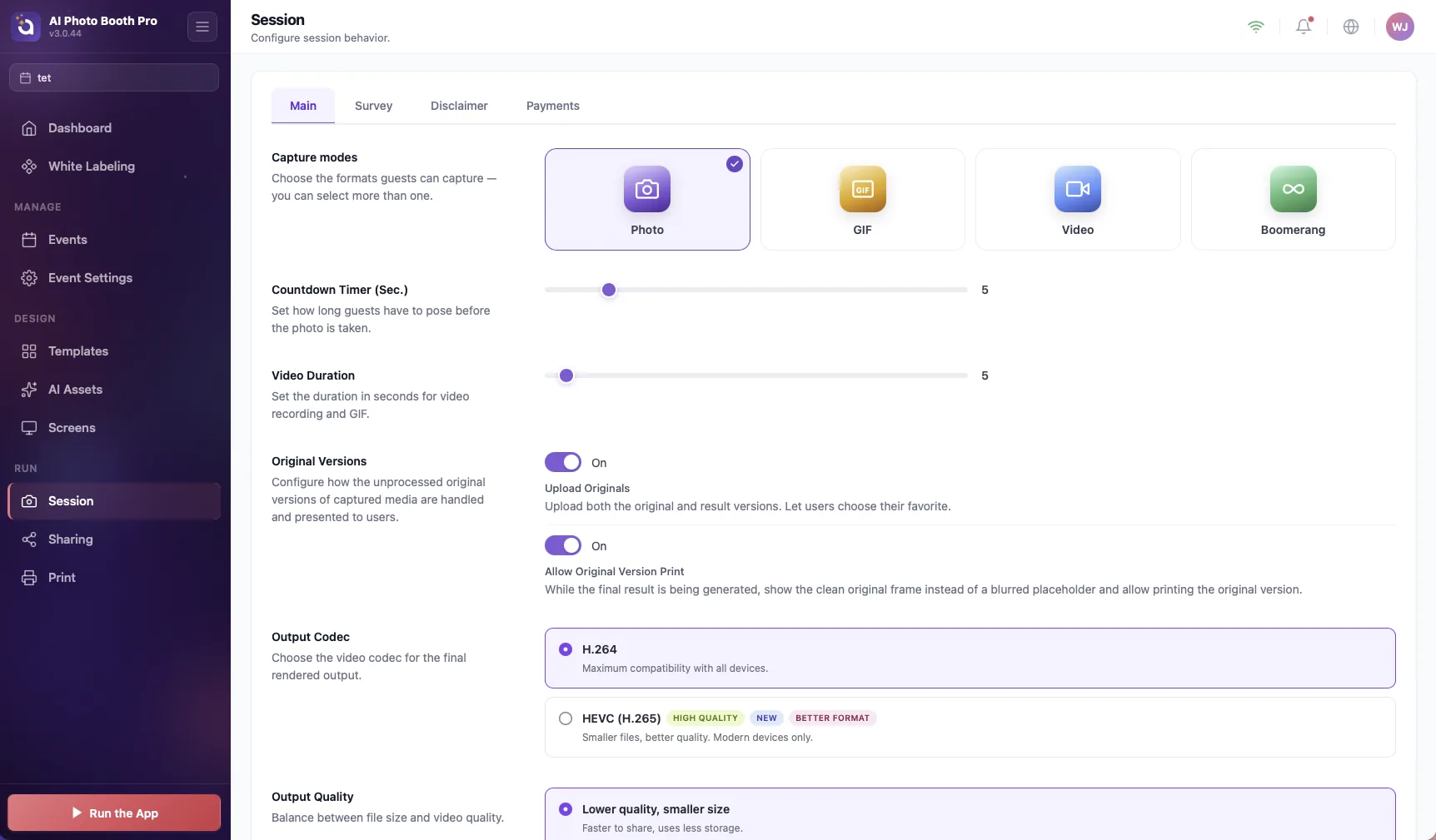
Main tab
- Save Directory Windows only — where finished files are written, with a Browse button. If you leave it empty, it's derived from the event name. Hidden on tablets (sandboxed storage).
- Capture Modes — the same Photo / GIF / Video / Boomerang cards as on the Event Mode tab (a single shared control, so they're always in sync).
- Countdown Timer — how many seconds before capture (1–30 s).
- Video Duration — clip length for video modes (1–120 s).
- Upload Originals — also keep the template-less originals; with a nested Allow Original Version Print.
- Output Codec — H.264 (maximum compatibility) or HEVC (higher quality, smaller — newer).
- Output Quality Profile — Low (smaller files) or High (better image).
</>
Behind the scenes — what codec/quality do
These feed the render step. Roughly: H.264 Low/High correspond to good/better compression; HEVC produces smaller files at similar quality and is tagged for Apple device compatibility. New events default to H.264 / Low.
!
HEVC can silently fall back
On hardware without an HEVC encoder, the app automatically renders H.264. If HEVC output doesn't appear on a particular machine, that's why — if you want predictable output on mixed hardware, choose H.264 explicitly.
Survey, Disclaimer and QR Payments
Three more tabs configure what happens around the capture:
- Survey
- A guest data-collection form. Turn on Capture Leads and add questions (types: Name, Email, Phone, Text, Multiple, Options); give each a Label. Order matters — answers bind in order to the Lead Answer layers in the template.
- Disclaimer
- Consent text that guests accept before taking part.
- QR Payments
- Configuration for paid sessions (the guest pays by QR before capture).
