
Word Portrait is an innovative feature that lets you turn words into works of art. Whether it is a portrait, a landscape, or an abstract design, Word Portrait lets you bring anything to life with words.
Mode Settings
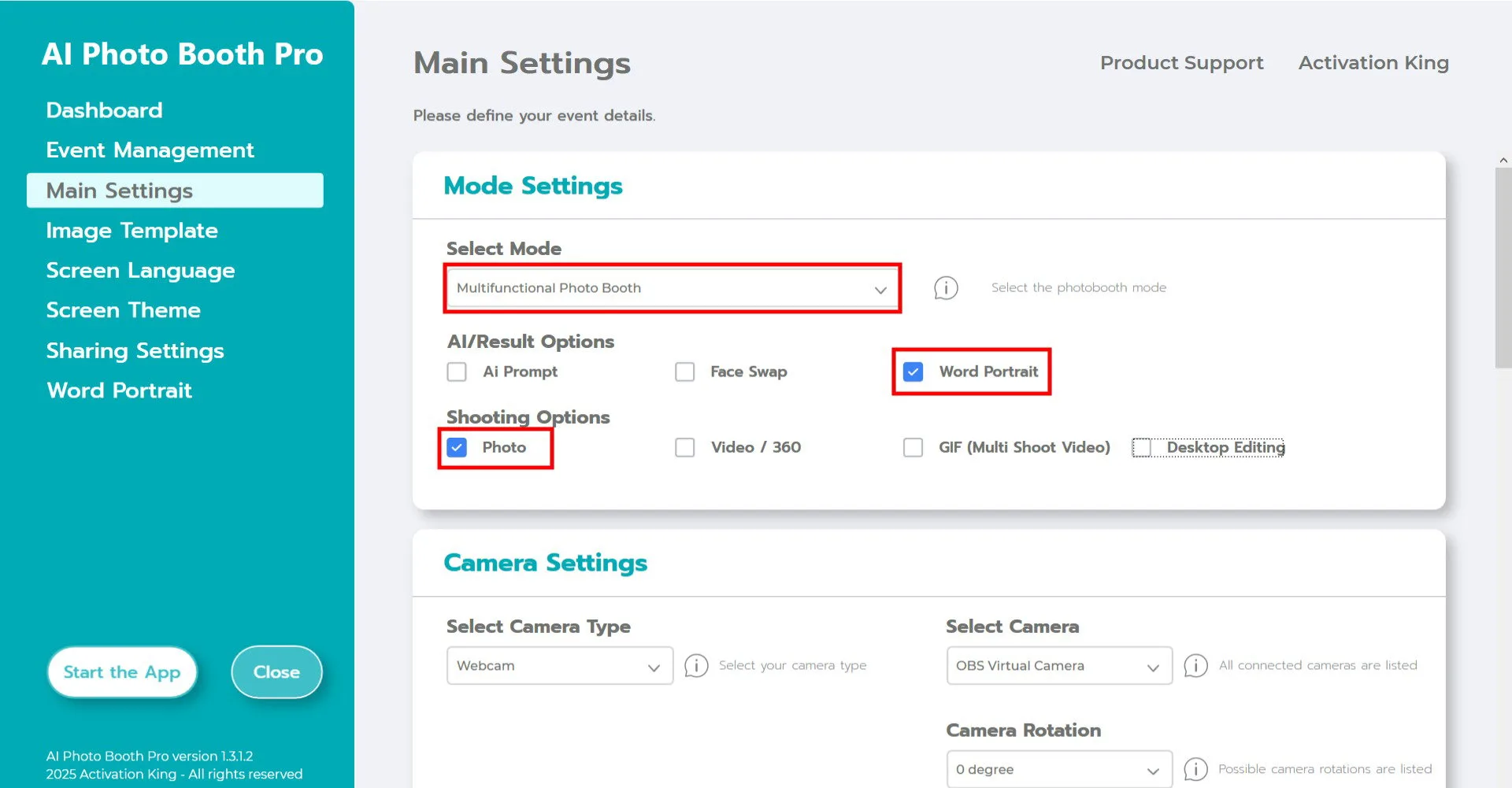
After creating your event, go to the main settings page. Select "Word Portrait" from the "Select Mode" section. After making your selection, you will see the Photo and Desktop Editing options at the bottom. "Photo" is for taking and converting snapshots; "Desktop Editing" is for converting an existing image on your computer.
Camera Settings
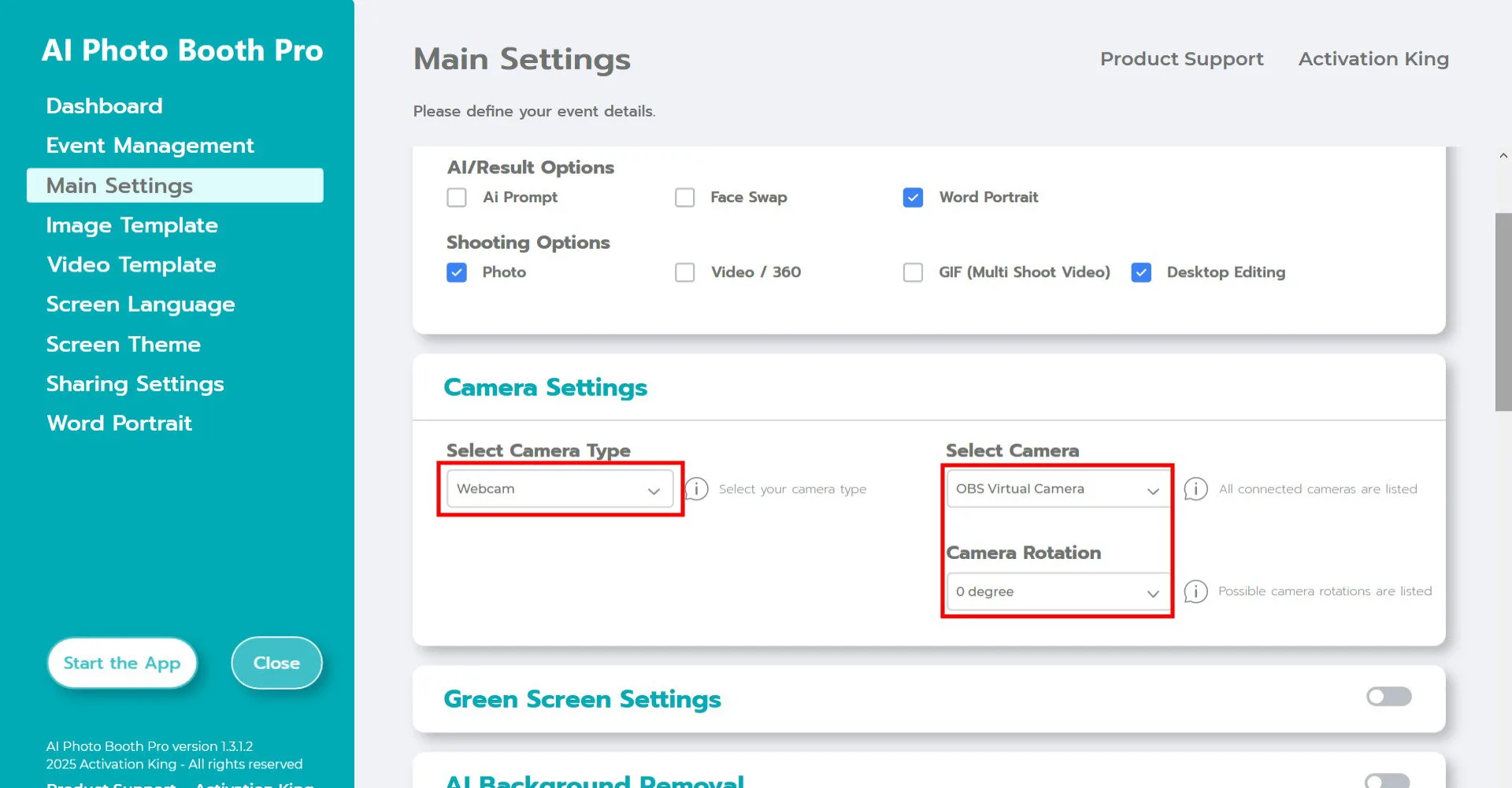
In the "Camera Settings" section, select the camera type you want to use from the "Select Camera Type" dropdown. When you connect your camera to your computer, it will appear in the "Select Camera" field. (If it does not appear, check that your camera is on and connected to your computer and try again.) After selecting your camera, you can adjust the orientation for horizontal or vertical use from the "Camera Rotation" section.
If you are going to use the "Desktop Editing" feature, you can select the "Only Gallery" option and continue.
Image Template
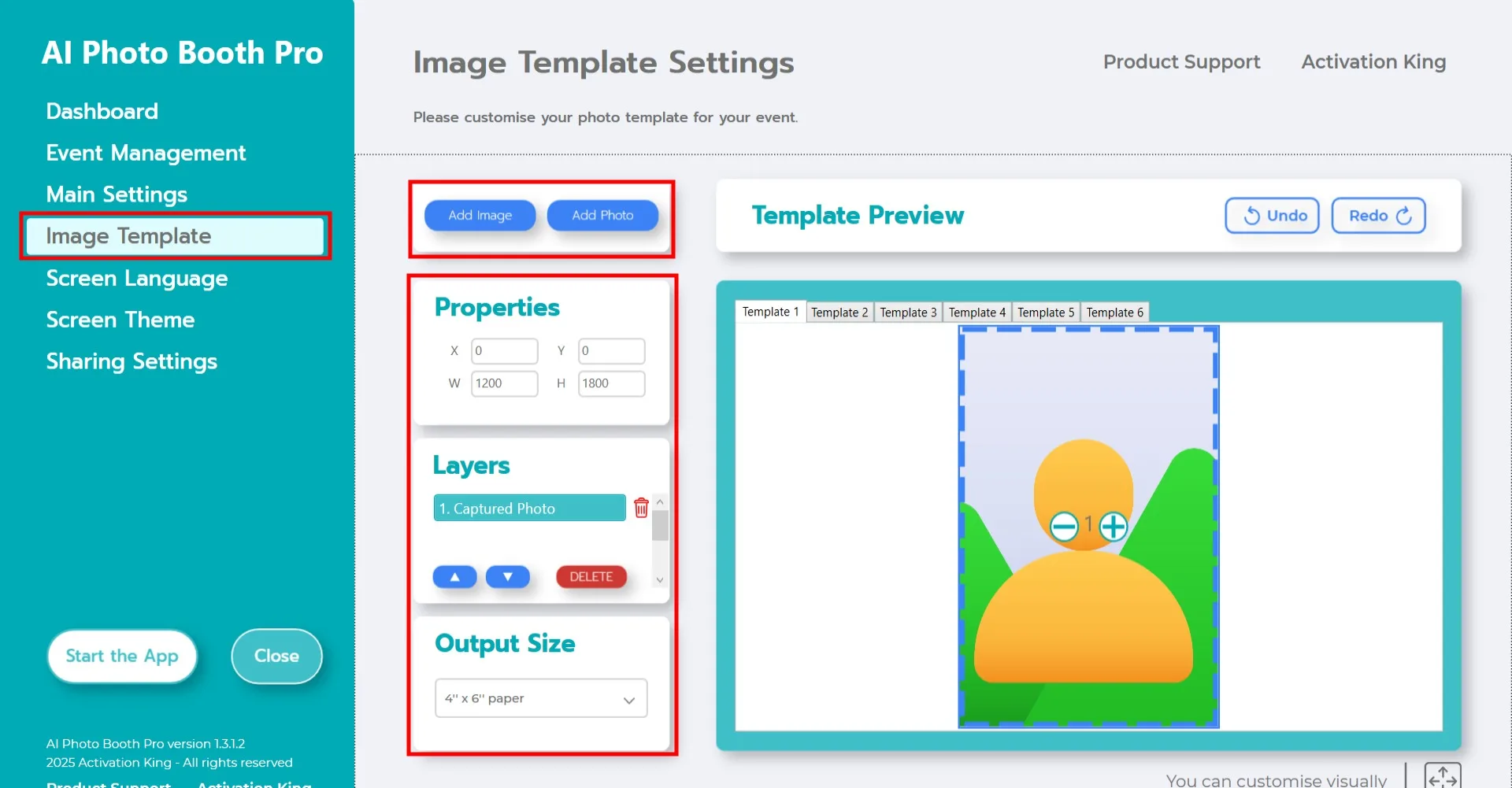
The "Template Settings" section is the interface used to adjust the size and position of photos and to add digital frames and stickers. In the "Output Size" section, you can set the dimensions of your photo. If you are going to print, we recommend entering your paper dimensions as 6x4 or 6x8. For digital-only work, you can also choose 1280x1280, 1080x1920, or 1280x720.
To add digital frames and stickers to your photos, click the "Add Image" button above.
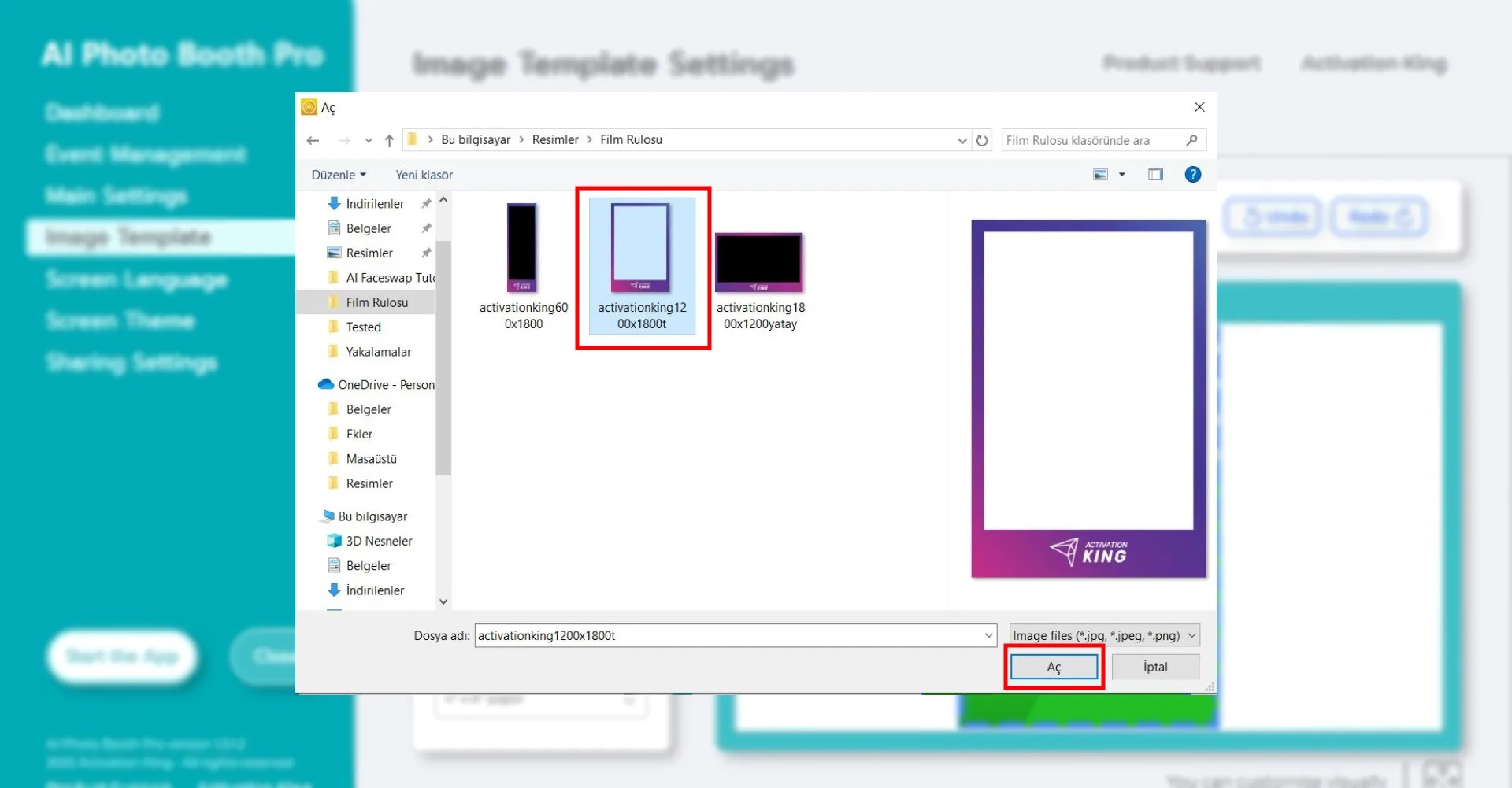
In this section, select the horizontal or vertical frame you want to use and click "Open."
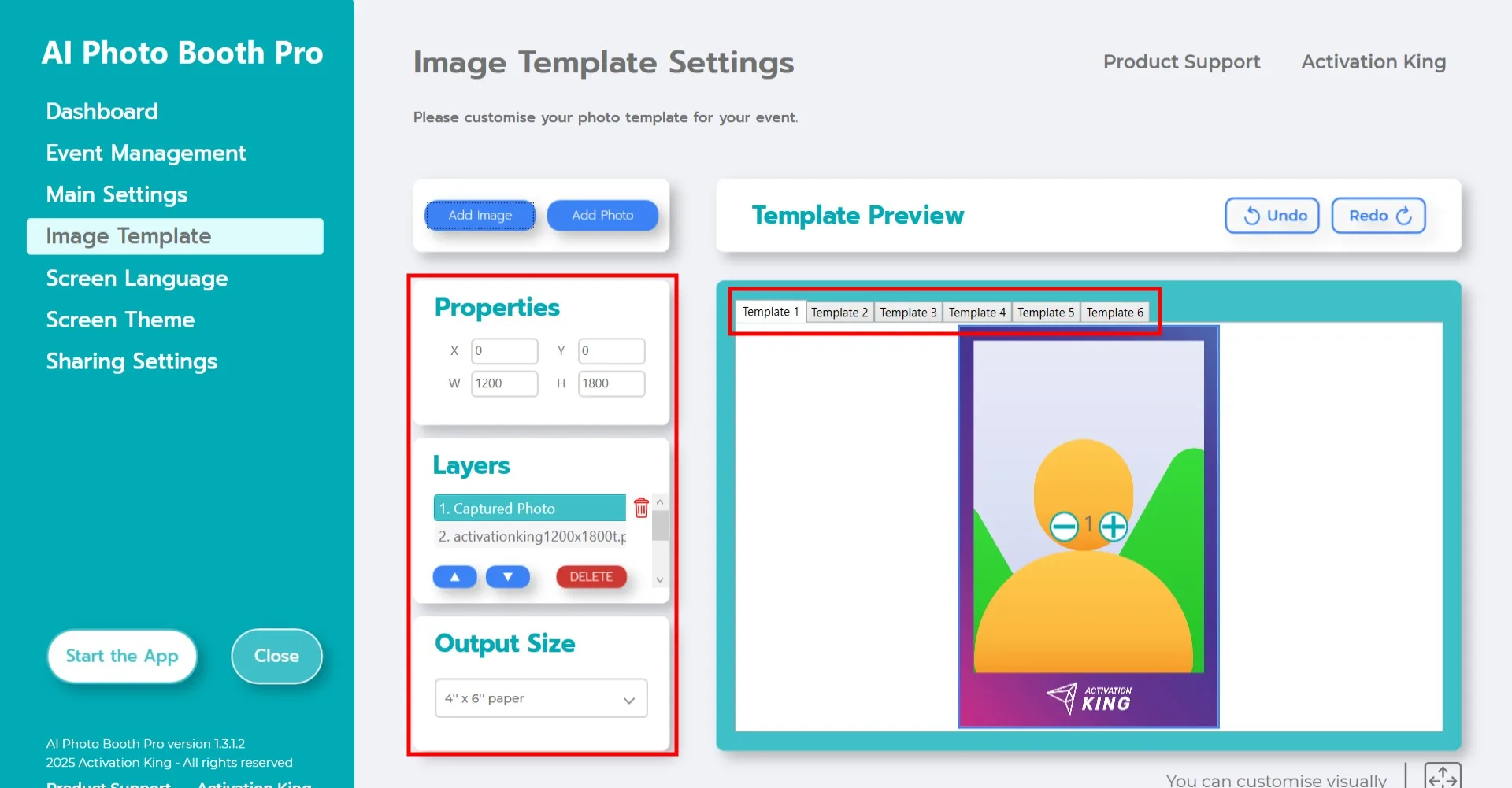
If the dimensions of the frame you added match your "Output Size" settings, it will automatically fit.
Word Portrait Settings
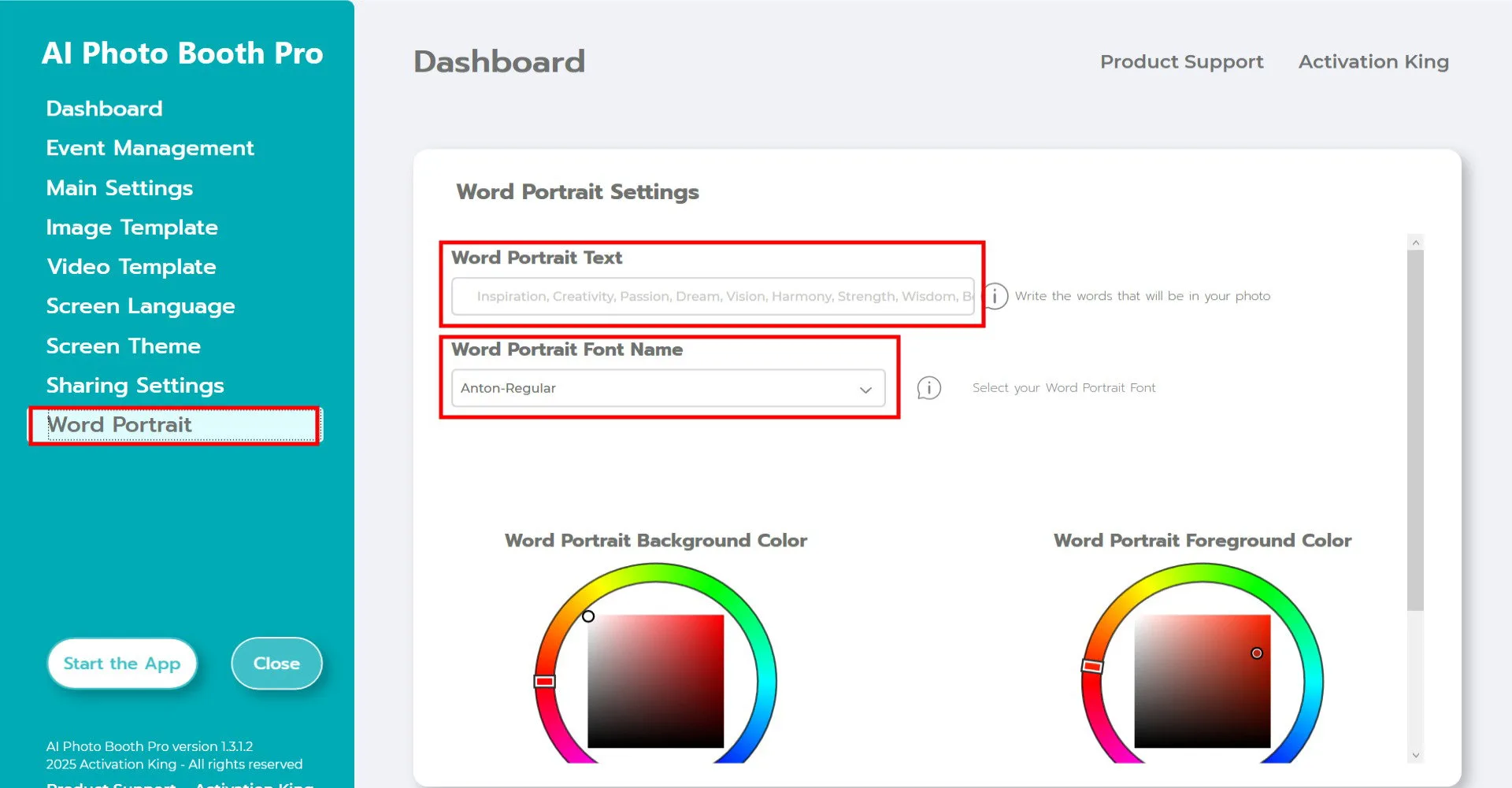
Type the words you want in the "Word Porte Text" section. The font used in the portrait is set in the "Font Name" section.
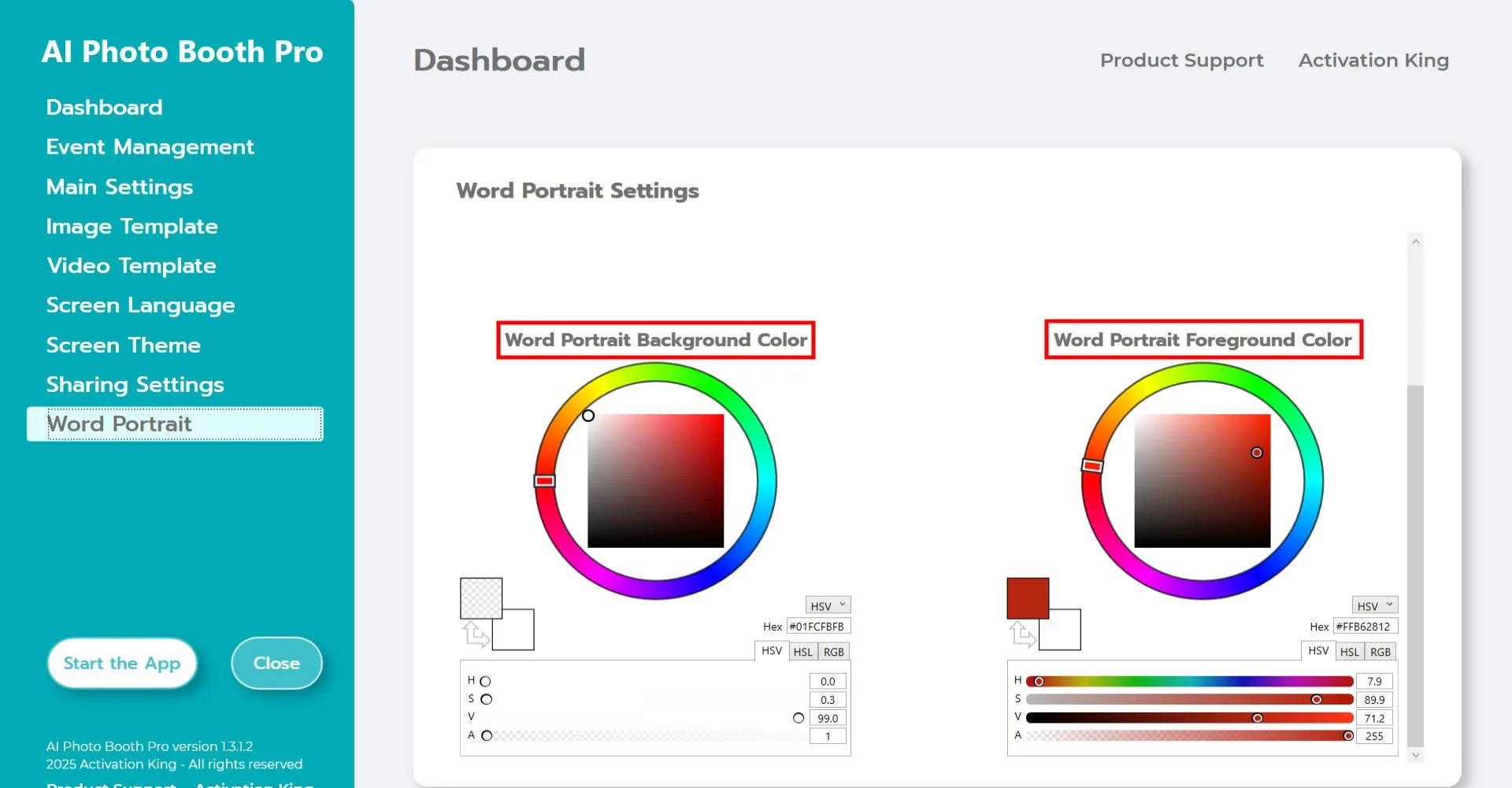
"Word Portrait Background Color" determines the color of the sections where there is no text. If you do not want any color, you can make the bar transparent as shown in the screenshot.
"Word Portrait Foreground Color" allows you to set the color of the text.
Start the App
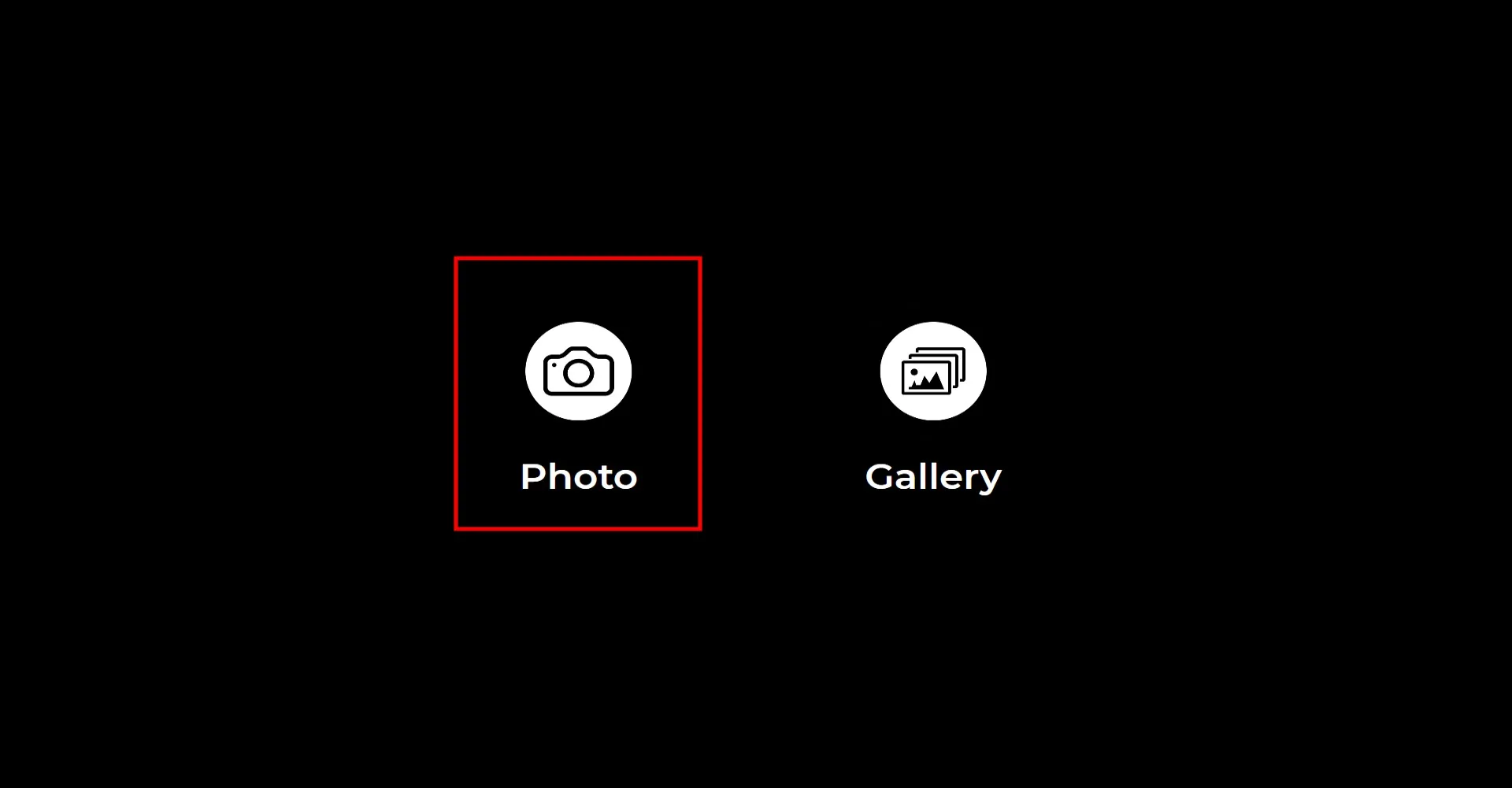
When you enter the "Start the Apps" section, this screen will appear. Click the "Photo" icon once. After the countdown screen, your photo will be taken.
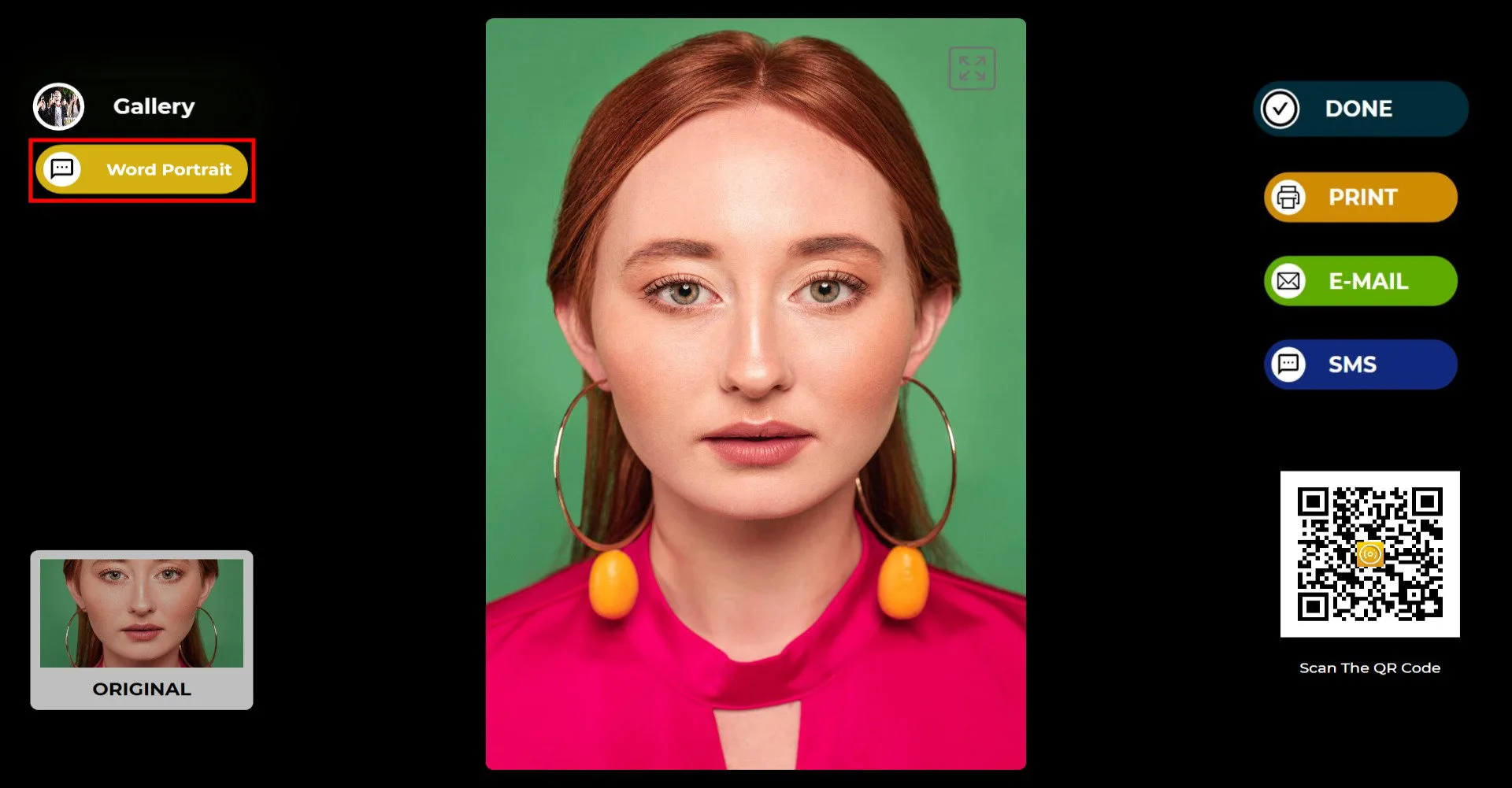
After taking the photo, click the Word Portrait button.
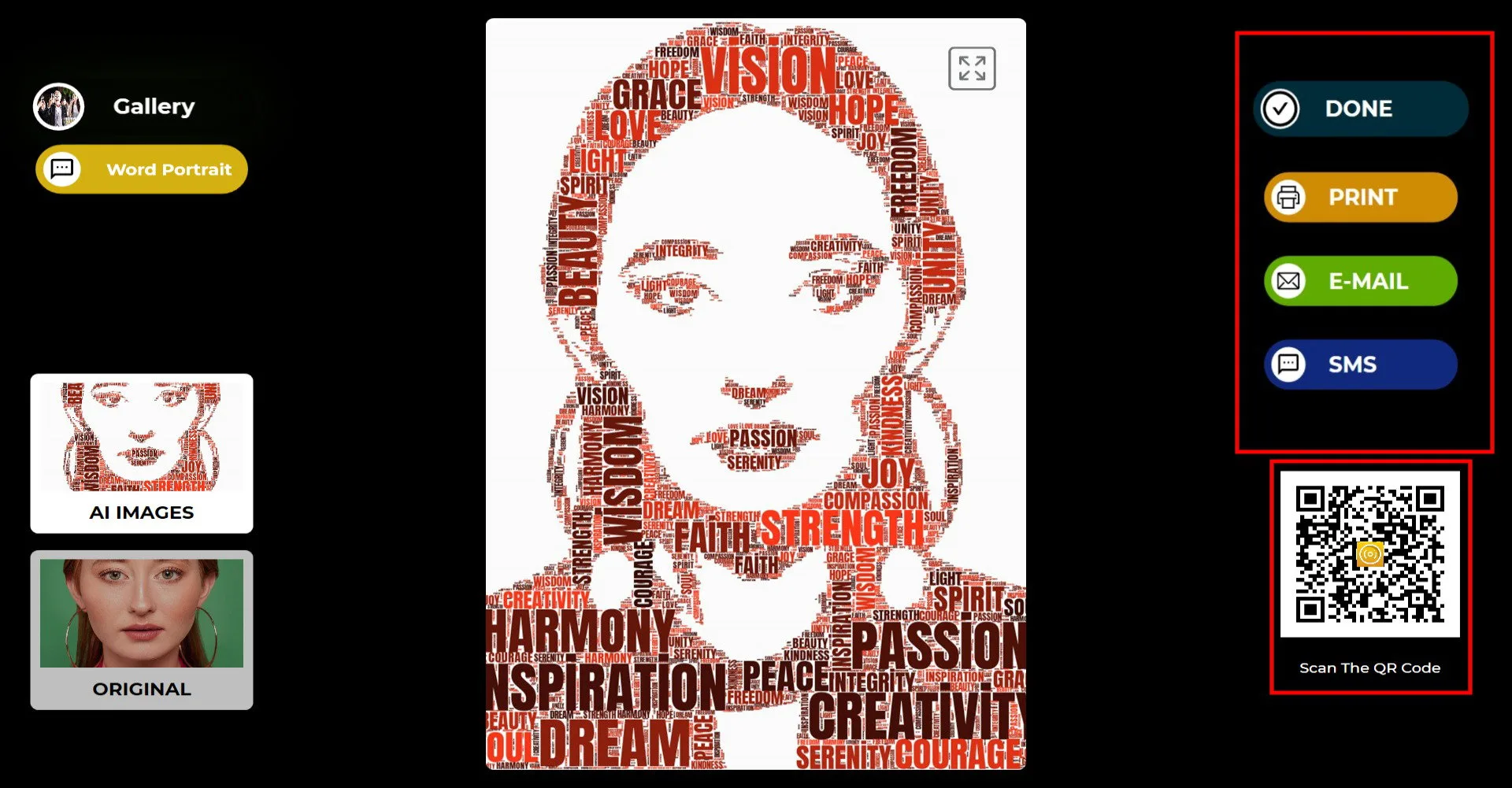
After you take the photo, your image will appear with the added frame. On the right side, you can print, email, send via SMS, or scan a QR code. Tap the "DONE" icon to return to the capture screen.
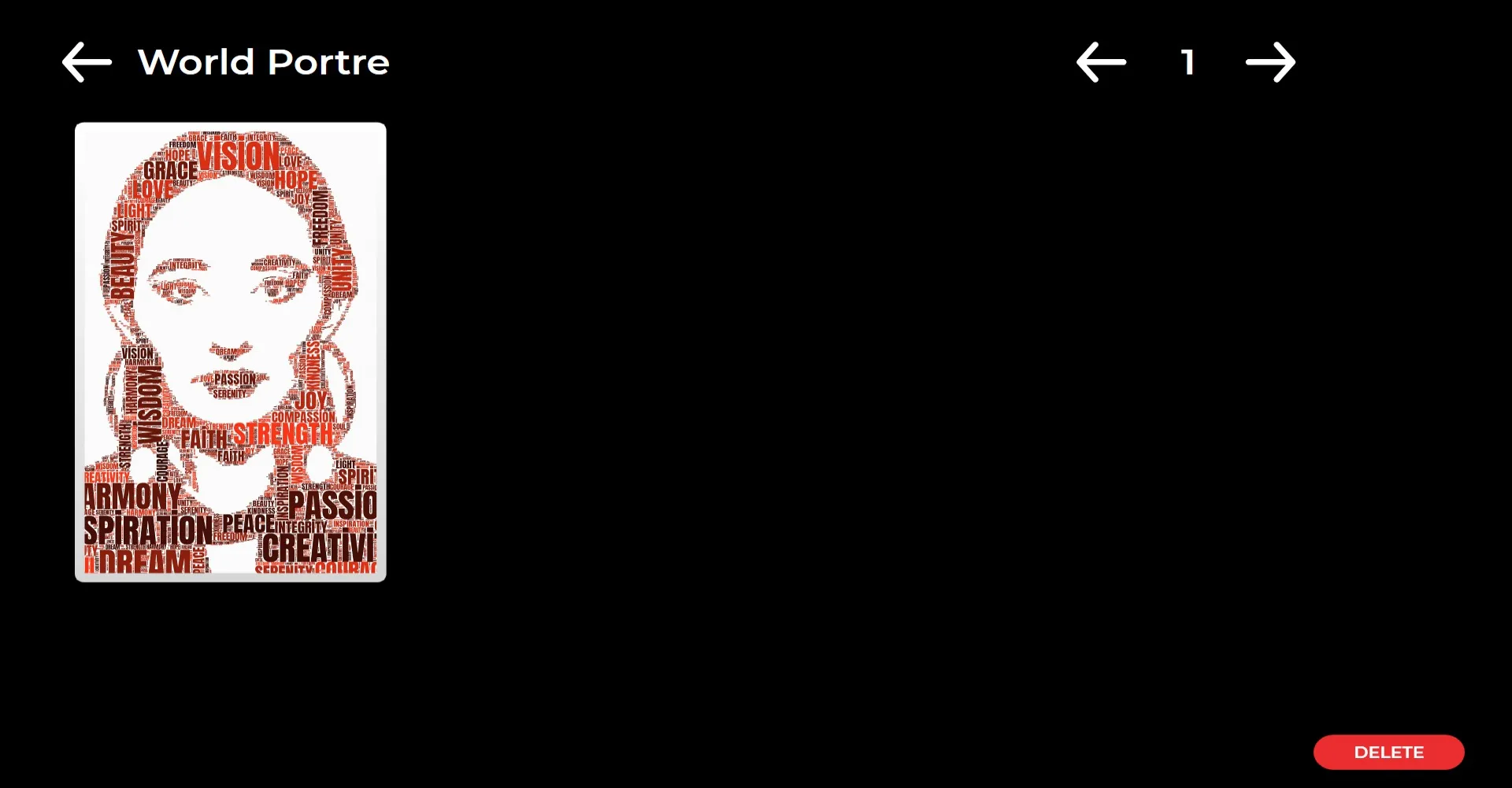
When you press the "Gallery" icon, you can access the images you have previously taken.
