
What Is Print Settings?
The Print Settings page allows you to configure how photos are printed during events, including printer selection, alignment, and print behavior.
You can manage:
- Printer selection
- Print alignment and scaling
- Manual or automatic printing
- Print limits
- Multi-device single-printer usage
Printer Settings
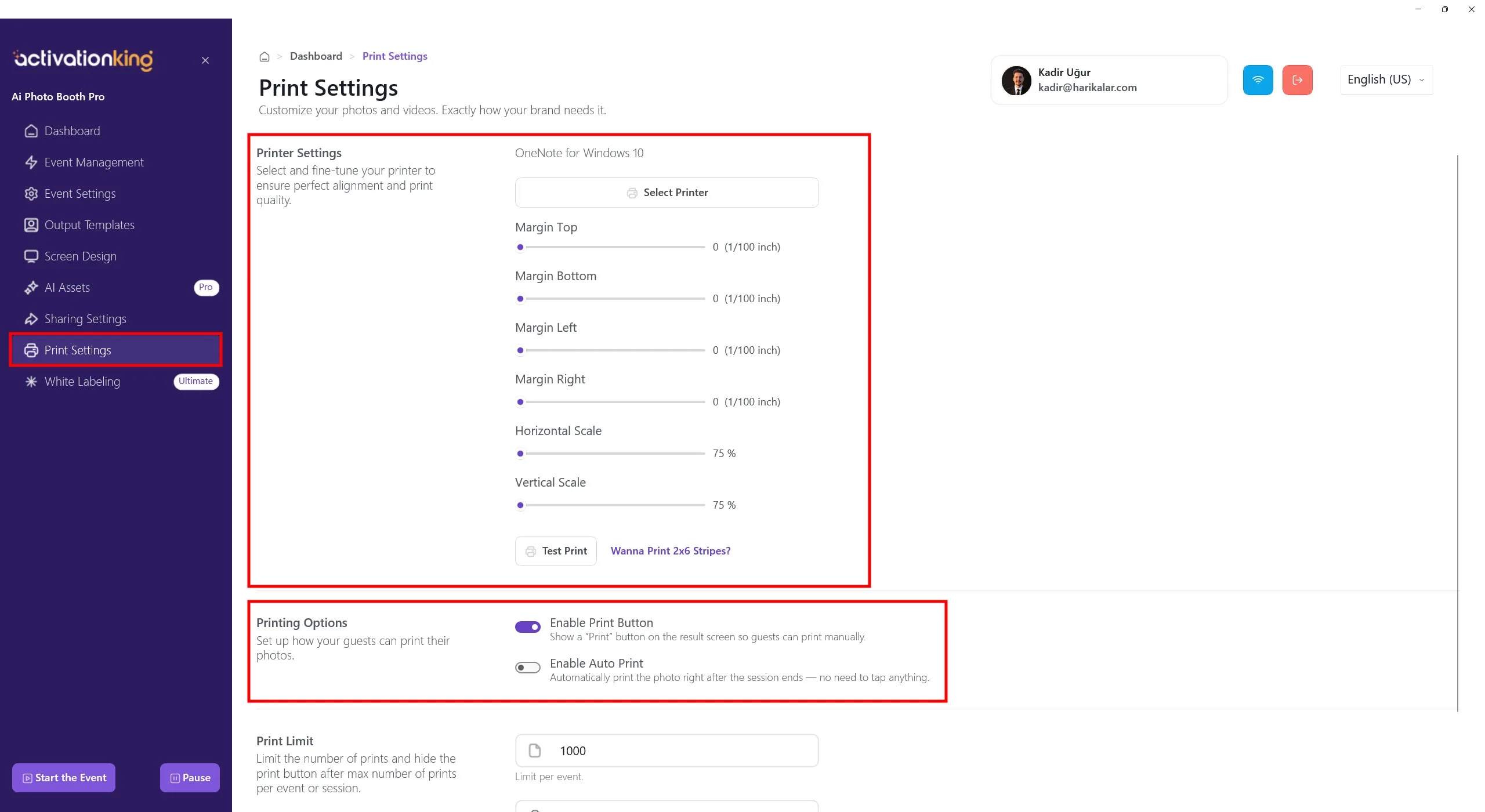
Select Printer
When you click Select Printer, the system does not only list printers connected to the current device. It also shows printers that are connected to other devices logged in with the same account/license.
This means the printer does not need to be physically connected to the current device.
Shared Printer Feature
With this feature:
- You can use multiple devices (for example, a kiosk and a tablet) at the same venue
- A single printer can serve multiple devices
- The printer only needs to be physically connected to one device
Example scenario:
- Printer is connected to the kiosk computer
- Tablet has no printer connected
- When printing from the tablet, the output is sent to the kiosk's printer
Requirements
To use this feature:
- All devices must be logged in with the same account/license
- Devices do not need to be on the same network
- Devices do not need to be in the same event
This allows for tablet and kiosk setups, multiple computers sharing one printer, and flexible on-site configurations.
Margin & Scale Settings
These options control how the print is positioned on paper:
- Top / Bottom / Left / Right Margins
- Horizontal & Vertical Scale
Minor adjustments may be required depending on the printer model.
Test Print
Use Test Print to verify alignment and scaling before starting the event.
Printing Options
Enable Print Button
- Allows guests to manually print from the result screen
Enable Auto Print
- Automatically prints after each session
- No guest interaction required
Print Limit
- Set a maximum number of prints per event
- Once the limit is reached, printing is automatically disabled
