
What is White Labeling?
The White Labeling feature allows you to use AI Photo Booth Pro under your own brand. Sharing pages and QR links will work through your custom domain instead of the Activation King domain.
Domain Settings
This page allows you to connect a custom domain to your photo booth sharing services.
White Label Domain Settings
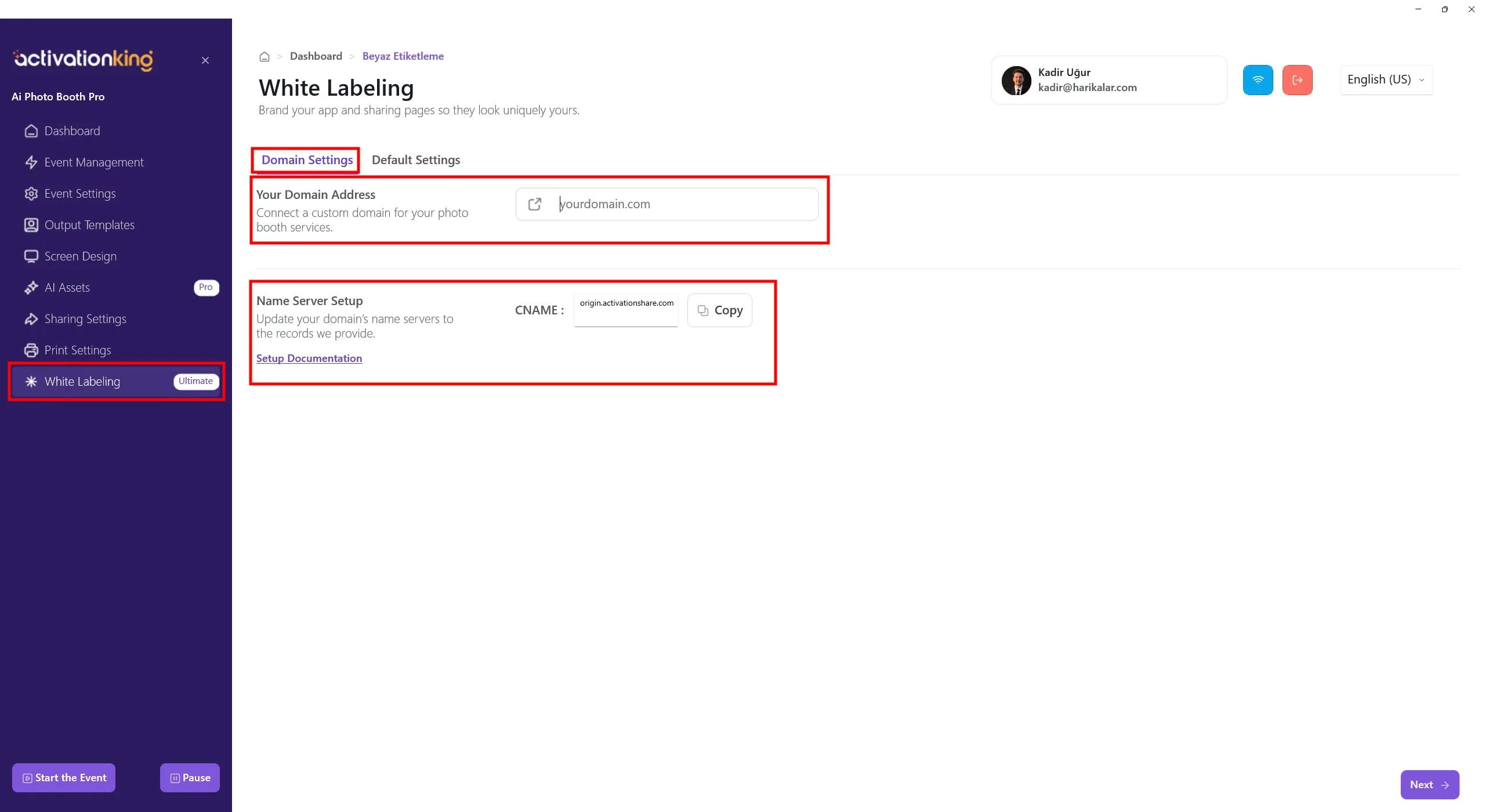
Enter the domain or subdomain you want to use. This domain will be used on guest sharing pages for photos and videos.
Examples:
- demo.activationking.com
- photo.activationking.com
- share.activationking.com
Name Server / DNS Setup (CNAME)
After entering your domain, add the following DNS record at your domain provider (Namecheap, GoDaddy, Cloudflare, etc.). You can easily copy this value using the Copy button on the page.
Default Settings
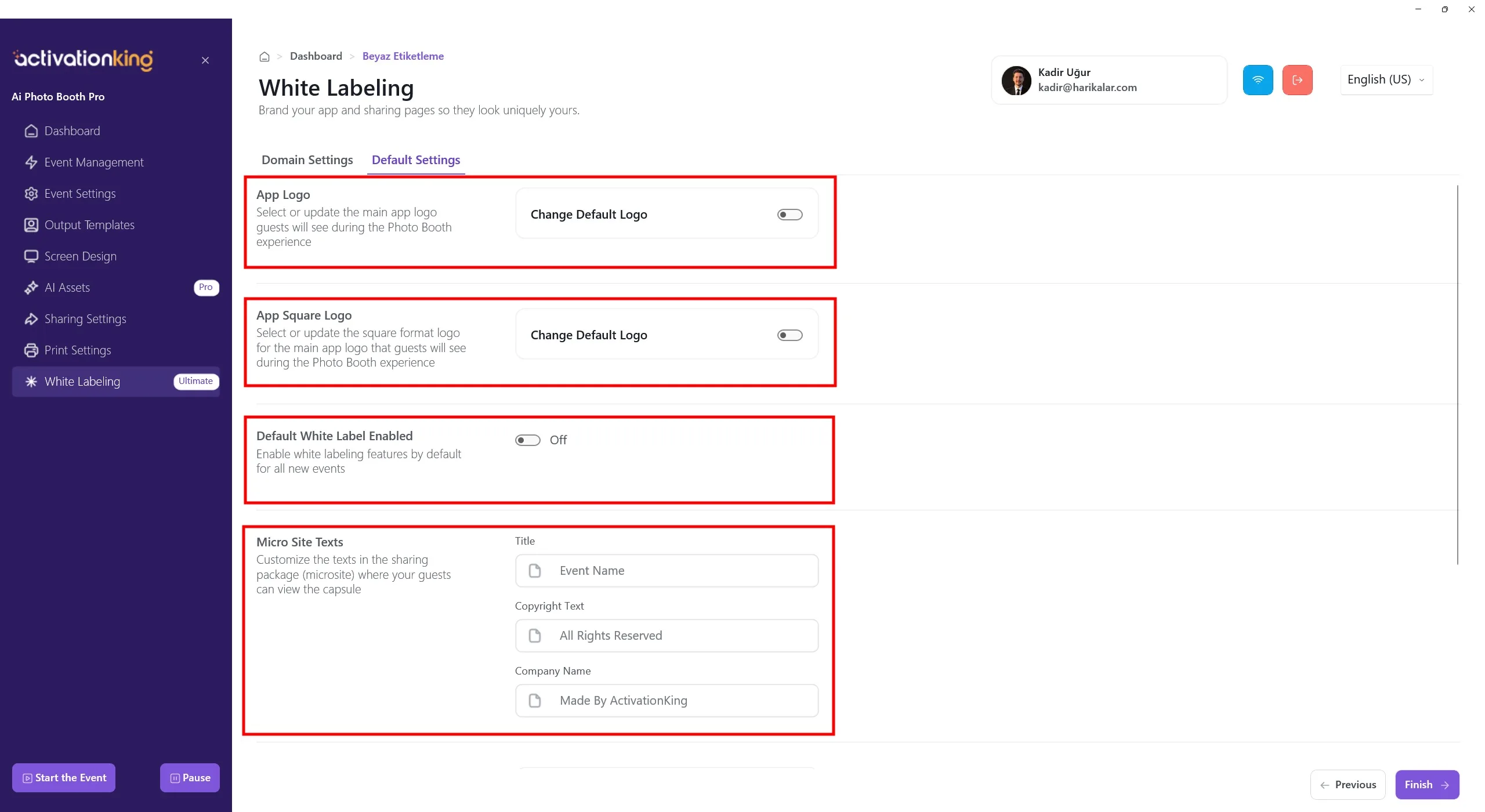
The Default Settings section allows you to apply your White Label branding settings automatically to all new events, eliminating the need to configure branding individually for each event.
App Logo
This option lets you replace the main application logo that guests see during the Photo Booth experience.
- Enable the Change Default Logo toggle
- Upload your custom logo
- This logo will be applied to all newly created events by default
App Square Logo
This section allows you to upload a square-format logo.
- Used in certain UI areas and smaller logo placements
- Ideal for icons or compact brand displays
- Enable the toggle to upload your square logo
Recommendation: use a 1:1 aspect ratio, clean and simple design.
Enable White Label by Default
When this option is enabled:
- White Label features are automatically activated for all new events
- Logos and brand texts are applied by default
If disabled, White Label must be enabled manually for each event.
Micro Site Texts
This section allows you to customize the text displayed on the sharing microsite accessed via QR code.
Title
- The title shown on the sharing page
- Defaults to the event name
- Can be customized with a brand or campaign name
Copyright Text
- Displayed at the bottom of the sharing page
- Example:
© 2026 All Rights Reserved
Company Name
- The company name displayed on the sharing page
- Default text: Made by ActivationKing
- Recommended to replace with your own brand name for White Label usage
When Should You Use Default Settings?
Default Settings are ideal if:
- You operate as an agency or reseller
- You frequently create new events
- You want consistent branding across all events
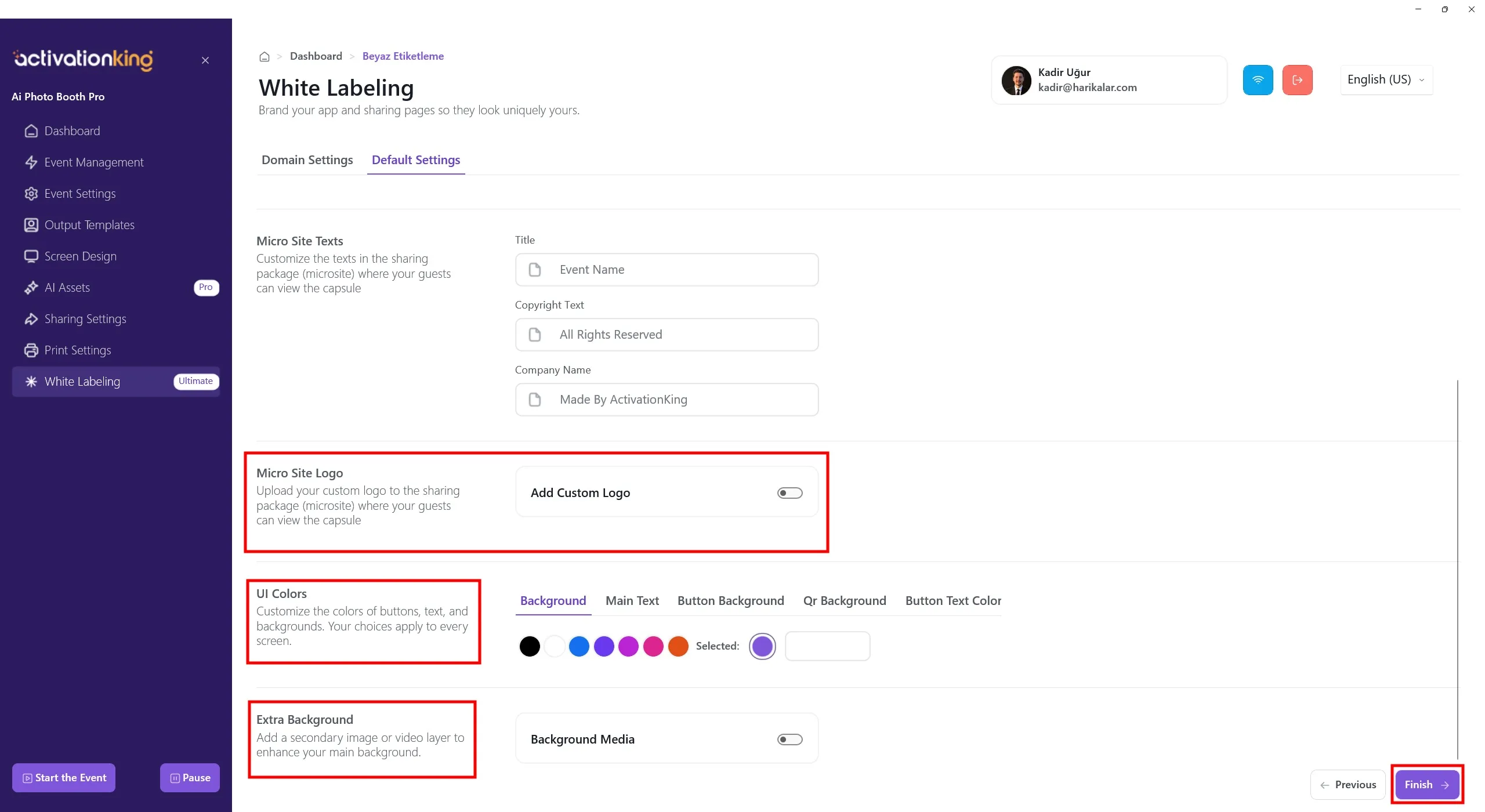
Micro Site Logo
This section allows you to upload a custom logo for the sharing microsite.
- Enable the Add Custom Logo toggle
- Upload your logo
- The logo will appear on the QR sharing page
Recommendation: transparent background (PNG), horizontal or square format, clear visibility at small sizes.
UI Colors
This section lets you customize the color theme of the sharing microsite. Selected colors apply across all screens.
You can customize:
- Background — page background color
- Main Text — primary text color
- Button Background — button background color
- QR Background — QR code background color
- Button Text Color — text color on buttons
Tip: use high-contrast colors that match your brand identity.
Extra Background
This option allows you to add a secondary image or video layer to enhance the main background.
- Enable the Background Media toggle
- Upload an image or video
- Creates a more dynamic sharing page
Note: large or high-resolution media files may affect page loading speed.
