













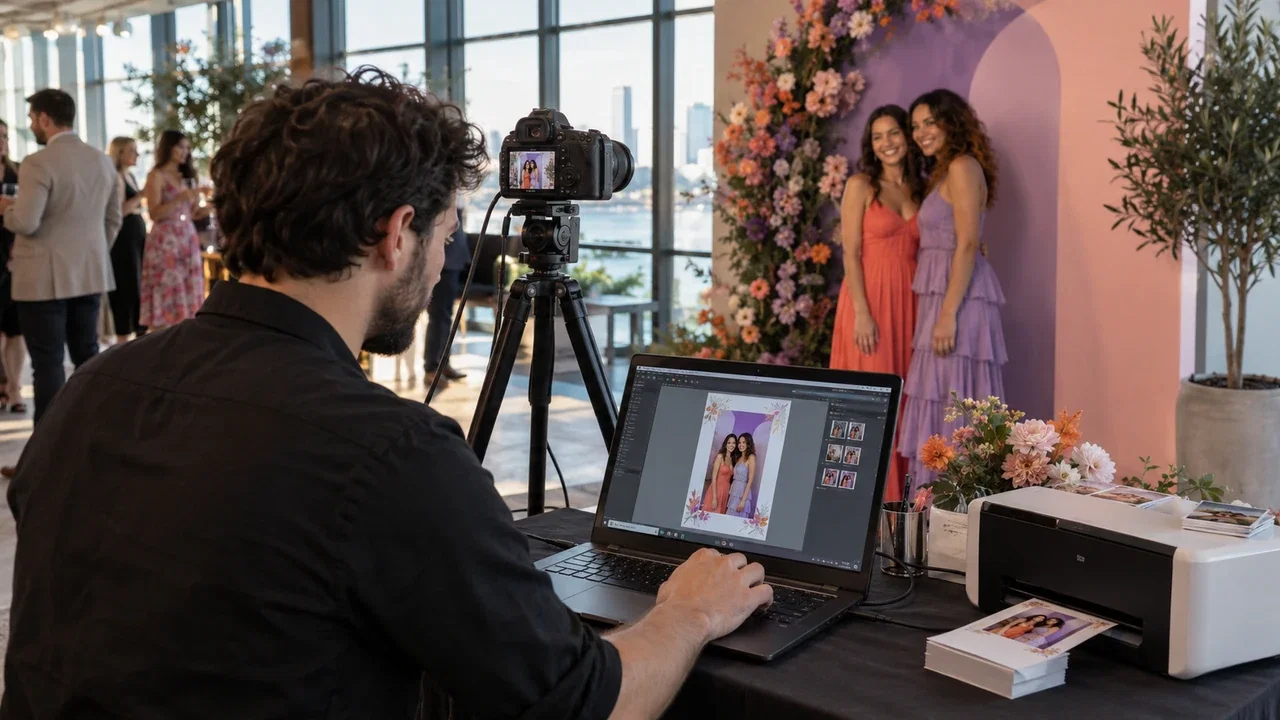
If you're searching for photo booth software for Windows, you're already ahead of most operators who just grab whatever's free and hope for the best. Windows still runs the majority of professional photo booth setups, and the software you put on that machine will either make your events run smooth or turn a wedding into a nightmare. This guide breaks down exactly what to look for so you buy once and buy right.
Why Windows Is Still the Dominant Platform for Photo Booth Operators
Most professional-grade DSLR cameras, DSLR tethering tools, and DNP or Mitsubishi dye-sub printers are built for Windows first. The driver support is simply better, the hardware compatibility list is longer, and a Windows machine inside a kiosk is replaceable without rebuilding your whole workflow.
iPad apps are fine for lightweight activations. But when you're running a busy corporate event with a print queue, GIF output, and a live photo mosaic wall, you want a real computer behind that touchscreen. Windows gives you that foundation.
Windows-Native vs. Browser-Based vs. iPad Apps: Real Differences That Affect Your Events
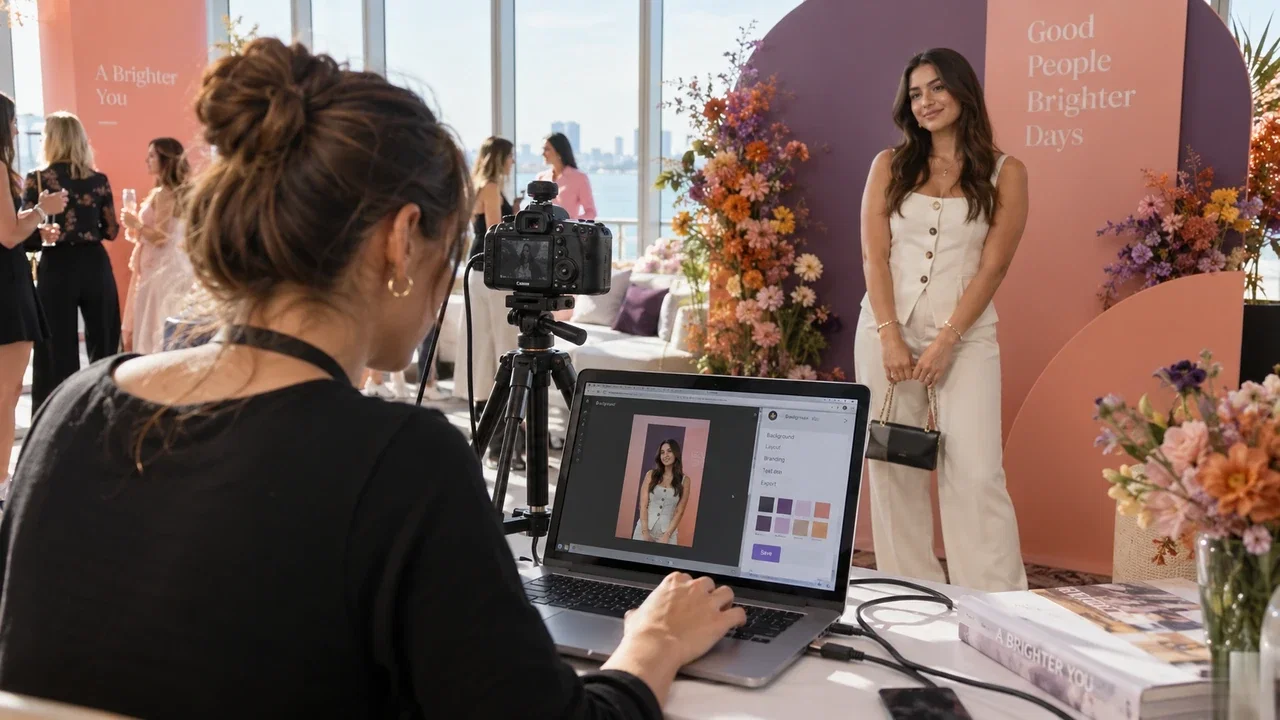
Browser-based photo booth tools sound convenient until your venue WiFi drops mid-event and your booth freezes. Native Windows software runs locally, which means no internet dependency for the core experience, faster processing, and direct access to system hardware like cameras and printers.
iPad apps are locked into Apple's ecosystem. You can't run them on the Windows machine already inside your Event Photo Booth Pro kiosk, and you can't swap the tablet for a cost-effective Windows mini-PC when something breaks on location. Native Windows software gives you hardware flexibility that browser and iOS options simply can't match.
The practical difference shows up in speed. A native app renders AI effects, GIFs, and boomerangs using your GPU directly. A browser-based workaround routes everything through a web layer, adding latency your guests will notice.
Must-Have Features in Any Windows Photo Booth App (Checklist)
Before you spend a dollar on any photobooth software for Windows, run through this list:
- DSLR and mirrorless camera support with live preview and tethered capture
- Multiple booth modes: standard photos, GIFs, boomerangs, slow-motion video, and AI effects in one license
- AI features like background removal, face swap, and AI-generated art built into the software natively
- Direct printer support for DNP, Mitsubishi, HiTi, and similar dye-sub printers without middleware
- Branded overlays and templates you can customize per event without a designer
- Digital sharing via QR code, SMS, or email from the software itself
- Offline mode that runs a full event without relying on internet connectivity
- Photo mosaic capabilities so you can upsell activations like the Photo Mosaic Wall from the same platform
Try every feature free for 14 days
AI Photo Booth Pro runs every booth mode and AI effect on the equipment you already own. No credit card required.
Start Free Trial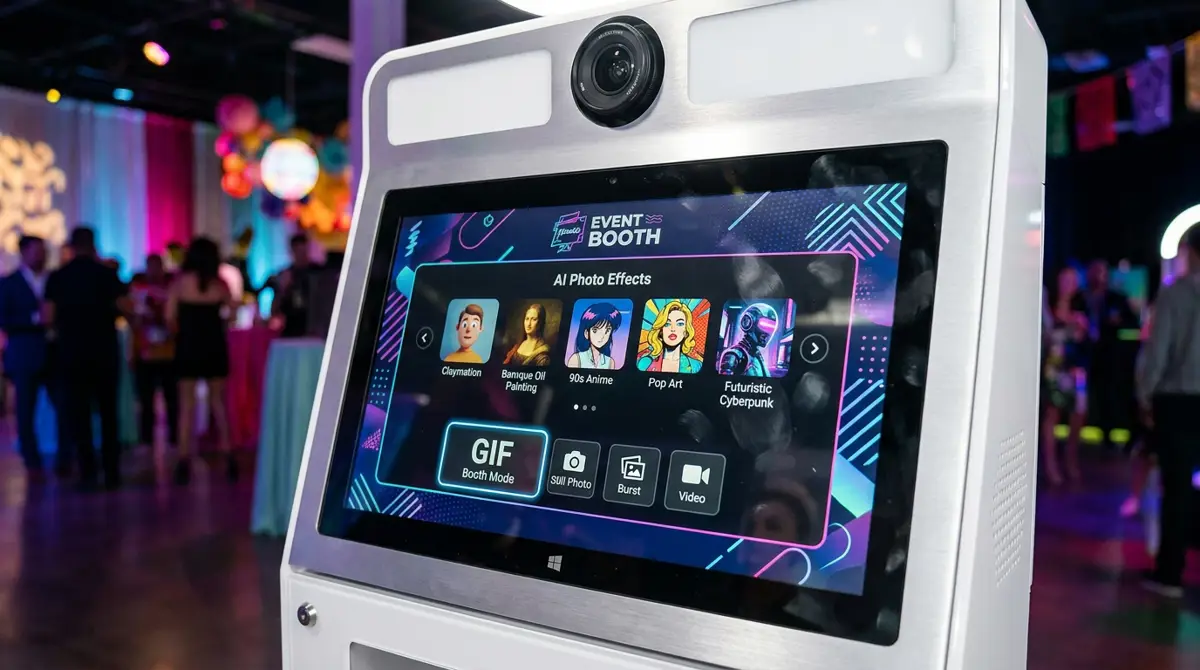
How AI Photo Booth Pro Runs Every Booth Mode on Your Own Windows Equipment
AI Photo Booth Pro is built as a true Windows-native application. It installs directly on your machine, talks to your camera through a tethered connection, and outputs to your printer without jumping through browser hoops. Every booth mode, from standard portraits to AI Drawing Screen activations available through the AI Drawing Screen add-on, runs locally on your hardware.
The AI effects process on-device, which keeps output times fast even in venues with poor connectivity. You get face swap, background replacement, and AI art generation without needing a cloud server in the loop. That's the difference between a tool built for professional operators and one built for casual use.
Plans start at $79 per month with a 14-day free trial and no credit card required. You can check the full breakdown on the AI Photo Booth Pro plans and pricing page before you commit to anything.
How to Download, Install, and Run Your First Event in Under 30 Minutes
The install process is straightforward: download the Windows installer, run it on your booth machine, connect your camera via USB, and follow the event setup wizard. Most operators have a test event running within 20 minutes of installation.
The tutorial below walks you through the exact steps for creating and launching your first event inside AI Photo Booth Pro. Watch it once before your first real booking and you'll show up to that event confident.
If you run into anything during setup, the help center has step-by-step guides for camera pairing, printer configuration, and template building. And if you want to browse compatible hardware before you buy software, the booths and hardware catalog shows everything that pairs directly with the platform.
Ready to see the numbers?
Plans start at $79/mo and every plan includes the full mode lineup.
See Plans and PricingRelated guide: Android Photo Booth App: How to Run a Photo Booth on an Android Tablet
